ONEPLUS
How to use Game Assistant on a OnePlus (OxygenOS 16)

In short
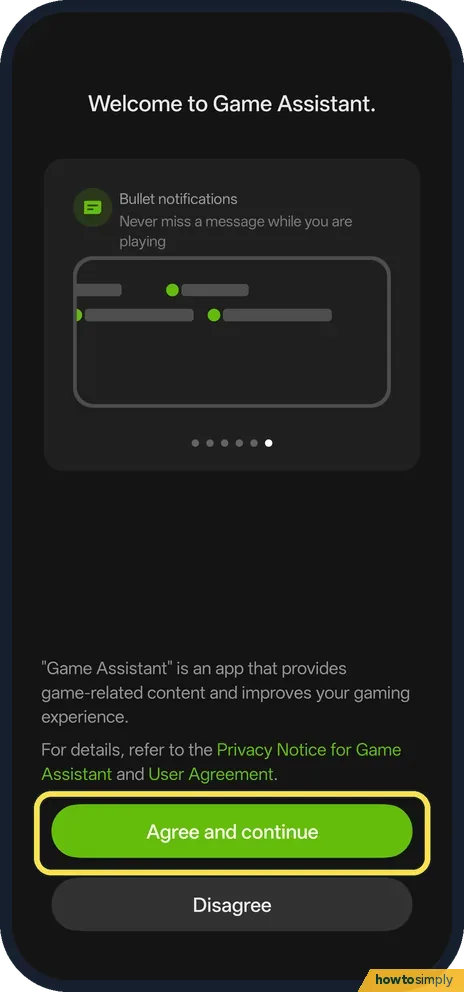
Open the Game Assistant app and agree to its notice. Your games are listed; tap Launch to play. The menu at the top left has More settings.
6 of 6 steps show a real screenshot from our Nord 5. Each step was checked against the maker's own instructions, linked at the end.
Steps
- 1
Find it
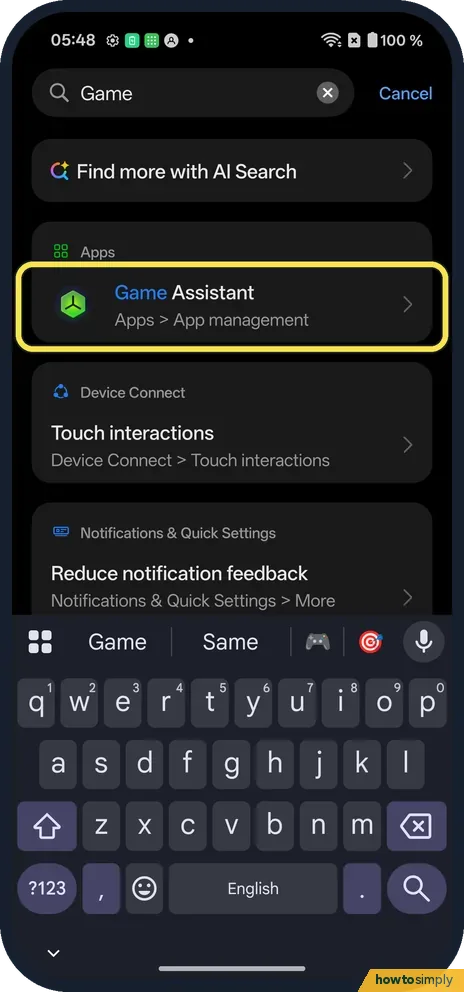
Search Settings or the app drawer for Game Assistant.
- 2
Agree to the notice
It shows the first time.
- 3
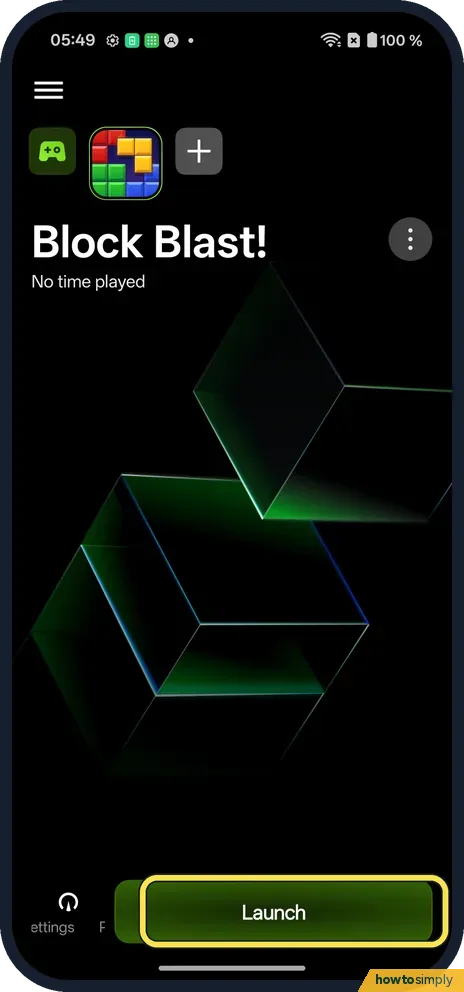
Launch a game
Ours showed Block Blast! with a Launch button.
- 4
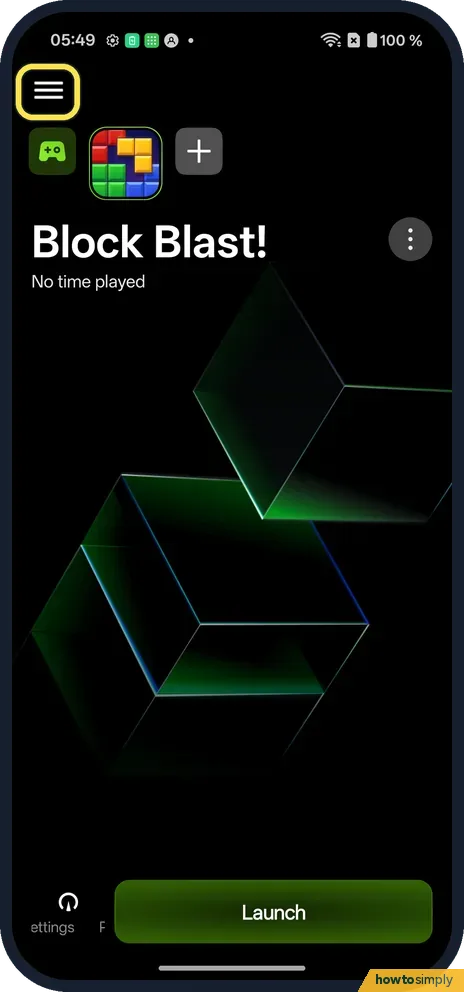
Open the menu
Tap the three lines at the top left.
- 5
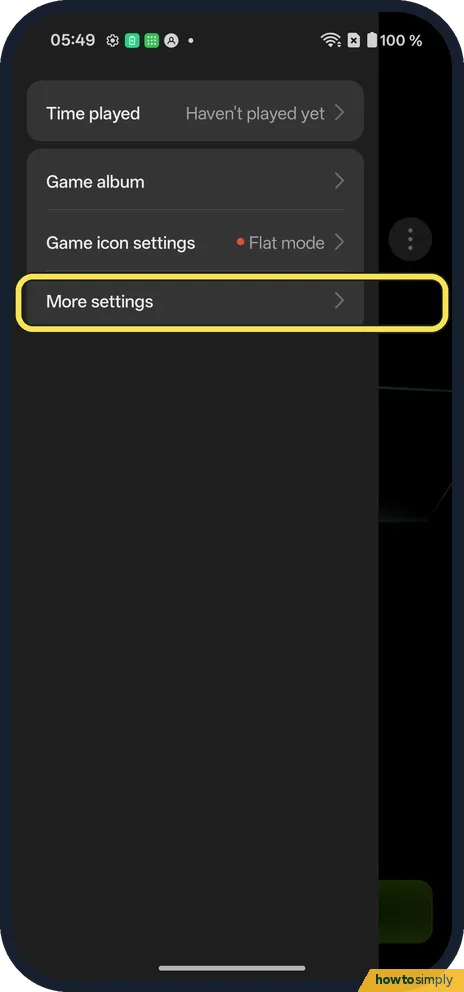
Tap More settings
It is in the menu.
- 6
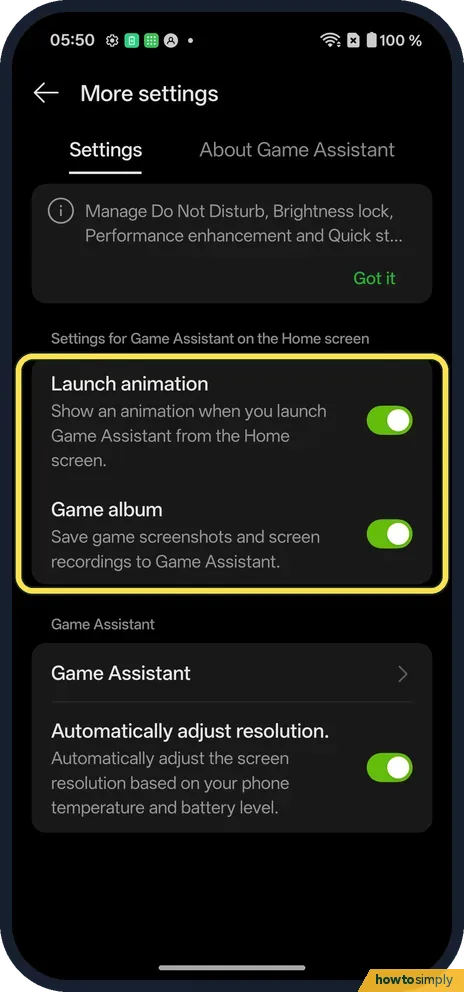
Change settings
Launch animation, Game album and Automatically adjust resolution were on.
If you do not see this option
- Can't find the app? Search Settings or the app drawer for game. Ours found Game Assistant.
- On OxygenOS 14? The OnePlus manual opens Game Assistant inside a game: swipe from the upper-left corner to the right. Source: OxygenOS 14.0 User Manual
If this does not work
- Game not listed? Ours had a + next to the game icon at the top.
- Notifications while you play? The OnePlus manual says Game Assistant can block banner notifications during games.
- In-game panel does not appear? OnePlus's OxygenOS 14 manual opens it by swiping from the upper-left corner to the right while the game is running. If it still does not appear, start the game from Game Assistant's Launch button and try the swipe again.
- Gestures fire by accident in landscape? The manual describes Mistouch prevention under Touch optimization in the in-game panel. It turns off chosen system gestures, such as a three-finger screenshot, while you play.
- Phone gets hot or drains fast? The manual says Pro Gamer mode raises performance and frame rates but uses more power. Balanced mode or Low power mode trade some speed for battery life.
- Stuck in Championship mode? The manual says this mode hides the notification bar and gestures. To leave it, hold the phone sideways and swipe inward from the upper-left corner.
Good to know
Use Focus mode on a OnePlus.
Game Assistant changes nothing until you use it. The three settings that were on in ours, Launch animation, Game album and Automatically adjust resolution, can be switched off in More settings, and switching them back on undoes it. The manual says the in-game panel can also show network latency, frame rate and battery level, and can turn on Silent mode, block notifications, take screenshots and block calls while you play.
The manual also describes Quick startup, which keeps a game cached in the background so it opens faster next time. It notes the cached game stays offline until you start it and it connects to the internet. If you want fewer interruptions in other apps too, see use Zen Space on a OnePlus.
About this guide
- Device
- Android
- Shown on
- OnePlus Nord 5 (CPH2709), OxygenOS 16.0.5.1201, Android 16
- App
- Game Assistant
- Path
- Game Assistant
- Real screenshots
- 6 of 6 steps
- Checked
- October 2026
- Sources
- 1 official, linked below
Sources
Links checked October 2026. Menus and features can change with updates.Spotted a mistake? Menus change with updates, and we want every step to match your screen. Email us about this page or use the contact form. We read every report, and fixes are listed on What changed.
Liked this guide?
Follow us for new guides and short how-to videos.
Did this guide work for you?
Sorry about that. What happened?