GOOGLE PIXEL
How to remove animations on a Google Pixel (Android 17)

In short
Open Settings, Accessibility, Colour and motion and turn on Remove animations: Reduce movement on the screen. It was off on ours. Tapping the row switched it on straight away, with no extra page. Tap it again to bring animations back.
4 of 4 steps show a real screenshot from our Pixel 10a. Each step was checked against the maker's own instructions, linked at the end.
Steps
- 1
Open Colour and motion
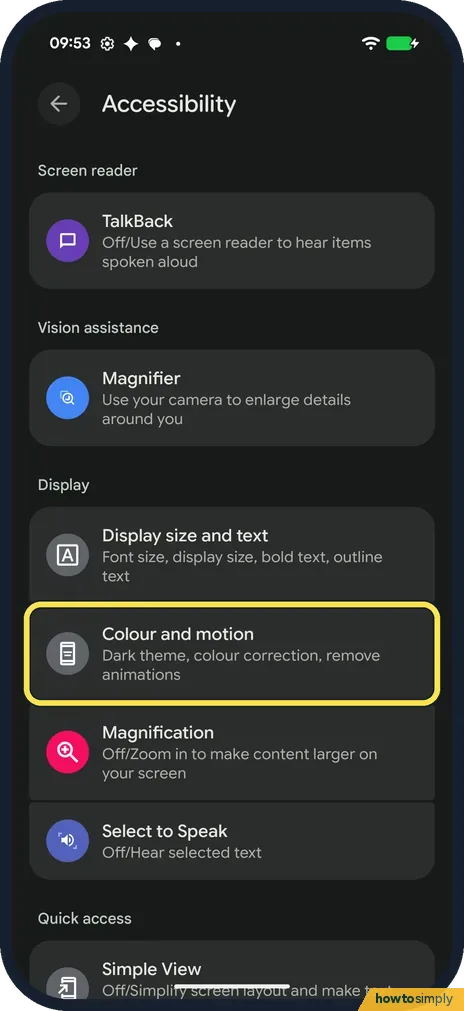
Open Settings and tap Accessibility. Under Display, tap Colour and motion: Dark theme, colour correction, remove animations.
- 2
Find Remove animations
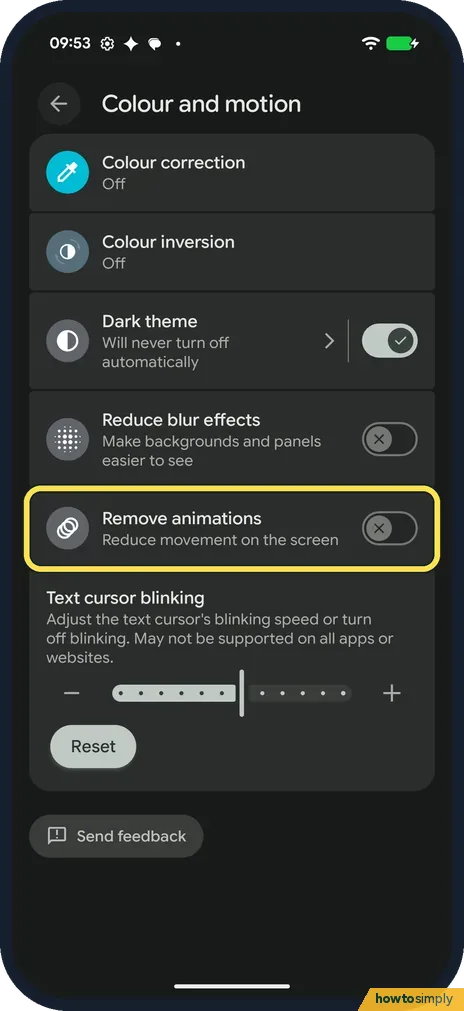
Remove animations is below Reduce blur effects: Reduce movement on the screen. It was off on ours.
- 3
Turn it on
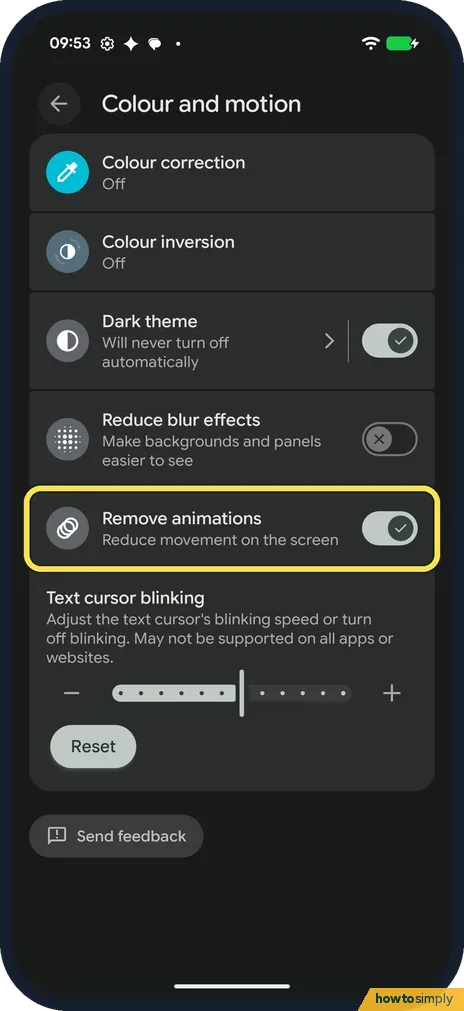
Tap the Remove animations switch, or the row itself. On ours tapping the title turned it on directly, with no extra page. The switch then shows a tick.
- 4
Turn it off again
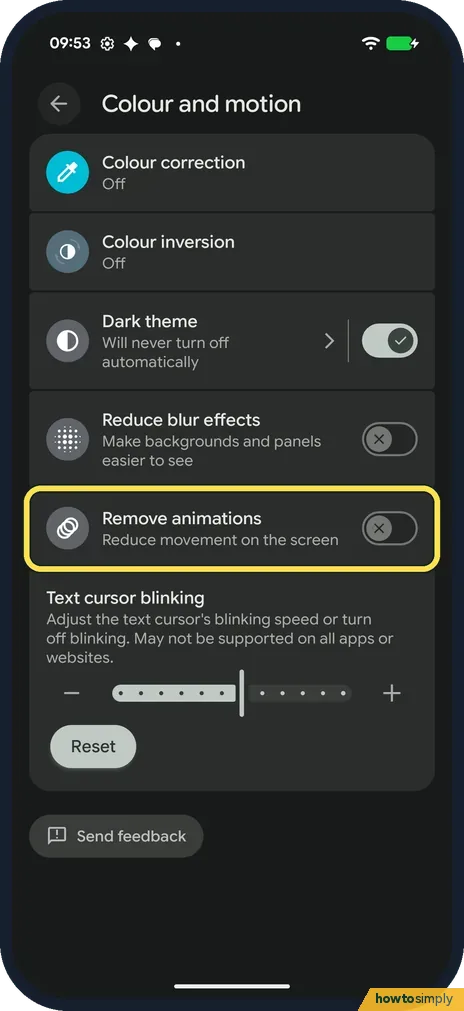
Tap it again to bring the animations back. We put ours back to off.
If you do not see this option
- Called Color and motion? Google's help spells it Color and motion. The page on our Pixel 10a said Colour and motion, as in the pictures above. Source: Change text and display settings
- On a Xiaomi phone? Xiaomi's HyperOS 3 guide puts Remove animations on the Vision tab of Accessibility, under Display. Source: Generic User Guide for HyperOS 3.0
- Colour and motion not under Accessibility? Google's help puts Remove animations at Settings, Accessibility, Color and motion. If you can't see it, use the search bar at the top of Settings and type animations. Source: Change text and display settings
If this does not work
- Screen still feels busy? Reduce blur effects, just above, makes backgrounds and panels easier to see. It was off on ours; turn it on as well.
- Blinking cursor distracting? Text cursor blinking, below Remove animations, sets the blinking speed or turns blinking off. The page says it may not work in all apps or websites. Reset is under the slider.
- Colours hard to tell apart? Colour correction is at the top of the same page: how to use colour correction and greyscale.
- An app still animates? Remove animations mainly affects the system: opening and closing apps, menus and the home screen. Apps draw their own screens, so some keep their own effects. Videos, games and moving pictures are not stopped.
- Setting seems to turn itself off? Open Colour and motion again and check the switch. If it was off, turn it on again and restart the phone to see whether it stays on. If it keeps switching off, check for a system update.
Good to know
Dark theme, on the same page, was on on ours: how to use expanded dark theme.
For bigger text, see how to change text and display size.
With Remove animations on, apps open and close with a simple cut instead of a zoom, and swipes between home screens look more abrupt. Google describes it as a way to help you focus, and it can help if moving screens make you feel dizzy or unwell. Nothing else on the phone changes, and you can turn it off again at any time with the same switch.
If you also find the screen too bright at night, Extra dim lets you go below the normal minimum brightness. Google says that on the Pixel 10 and later it is part of the brightness slider in Quick Settings; see how to change brightness and adaptive brightness.
About this guide
- Device
- Android
- Shown on
- Google Pixel 10a, Android 17 (build CP3A.261005.005)
- App
- Settings
- Path
- Settings › Accessibility › Colour and motion
- Real screenshots
- 4 of 4 steps
- Checked
- October 2026
- Sources
- 3 official, linked below
Sources
Links checked October 2026. Menus and features can change with updates.Spotted a mistake? Menus change with updates, and we want every step to match your screen. Email us about this page or use the contact form. We read every report, and fixes are listed on What changed.
Liked this guide?
Follow us for new guides and short how-to videos.
Did this guide work for you?
Sorry about that. What happened?