ONEPLUS
How to use Live Alerts on a OnePlus (OxygenOS 16)

In short
Live Alerts show a running timer, call or other live activity as a small capsule at the top of the screen. Tap the capsule to open it as a card with its controls. To choose which apps can use it, go to Settings, Notifications & Quick Settings, Live Alerts.
6 of 6 steps show a real screenshot from our Nord 5. Each step was checked against the maker's own instructions, linked at the end.
Steps
- 1
Find the capsule
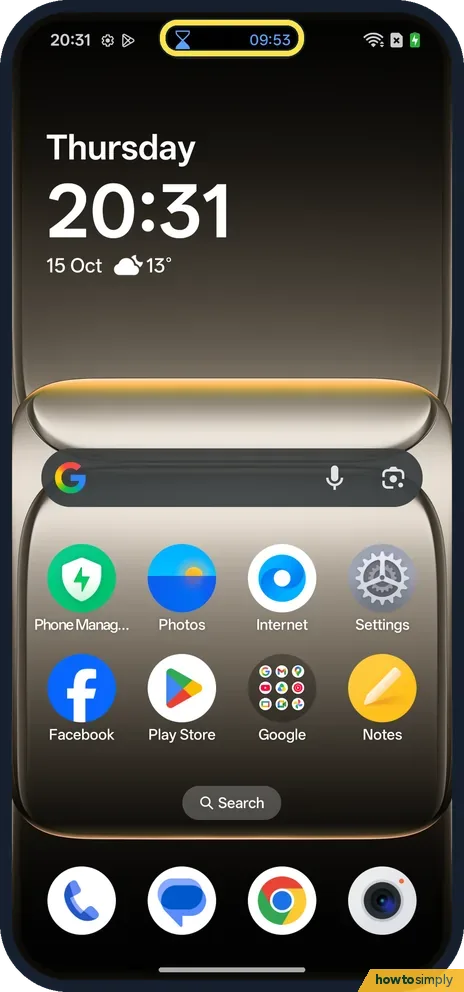
Start a timer and go back to the home screen. The capsule at the top shows an hourglass and the time left.
- 2
Tap it for the card
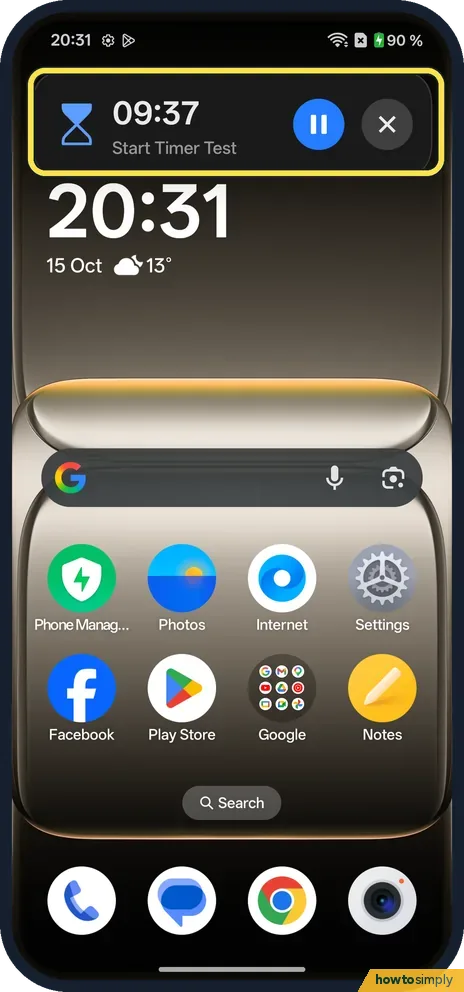
Tap the capsule. A card opens with the time left, the timer name, and pause and close buttons.
- 3
See it on the Lock screen
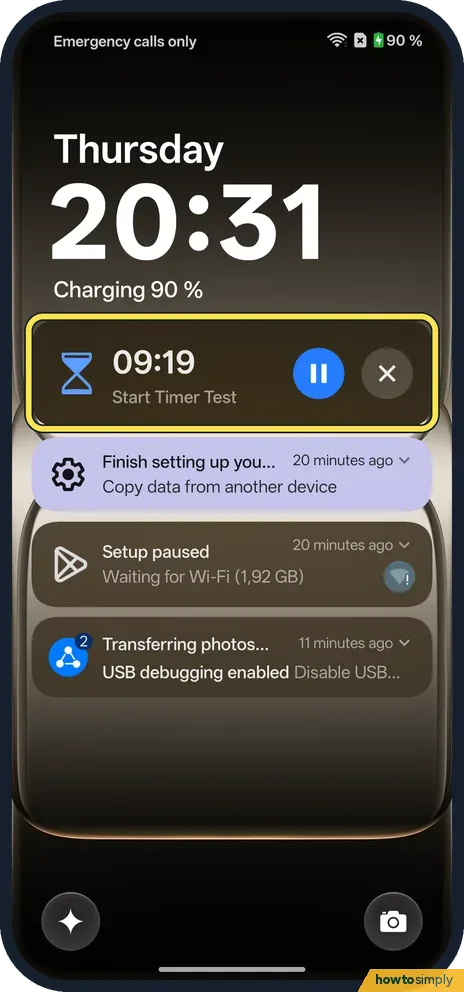
The same card shows on the Lock screen, above your notifications.
- 4
Open the Live Alerts settings
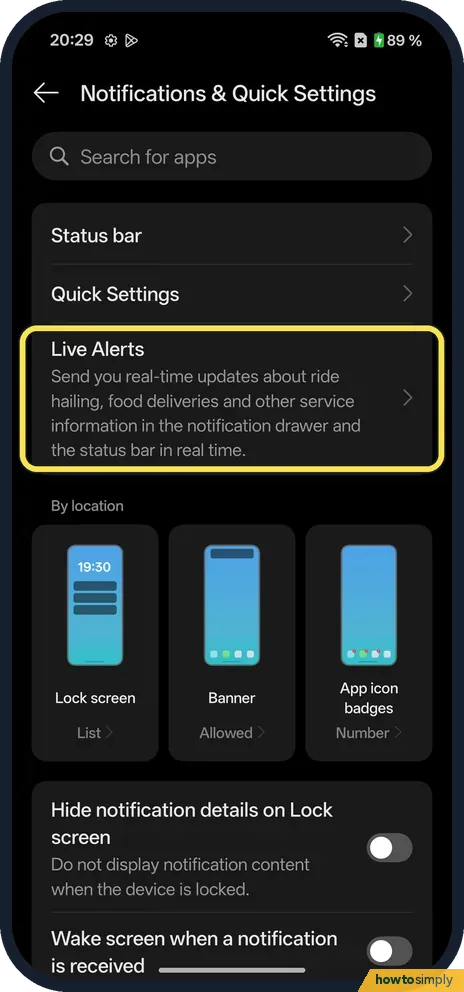
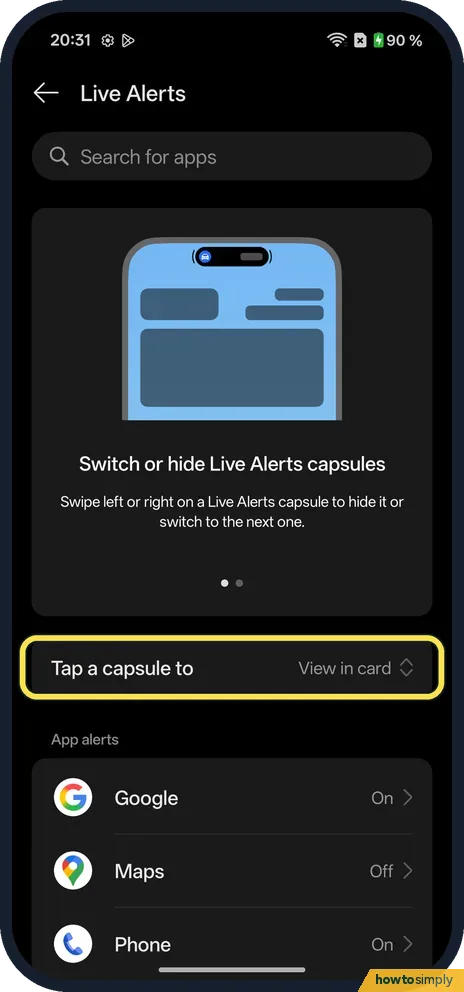
Go to Settings, Notifications & Quick Settings, and tap Live Alerts. The page says it sends you real-time updates about ride hailing, food deliveries and other services.
- 5
Choose what a tap does
Tap a capsule to was set to View in card on ours. The page also says you can swipe left or right on a capsule to hide it or switch to the next one.
- 6
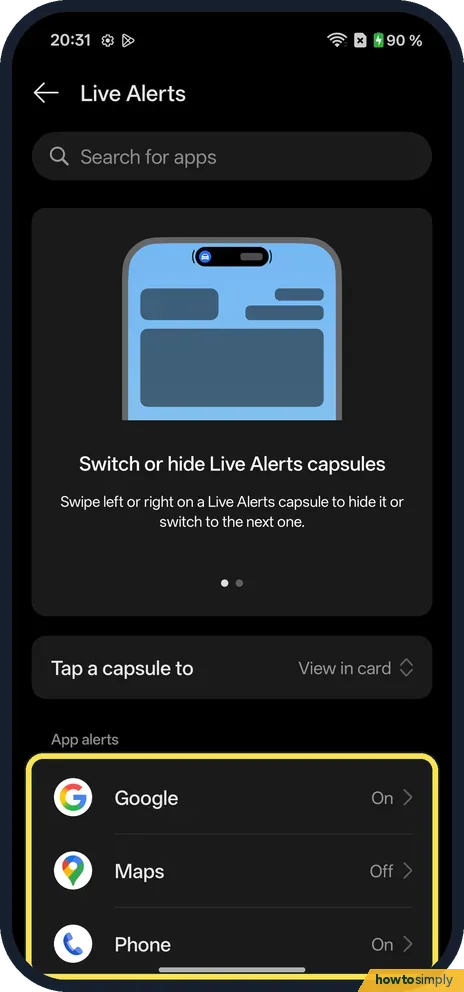
Turn it off for one app
Under App alerts, each app has its own setting. On ours Google and Phone were On and Maps was Off. Tap an app to change it.
If you do not see this option
- Called Fluid Cloud before? OnePlus's OxygenOS 14 manual describes Fluid Cloud, which shows live activities such as a timer in bubbles or cards. On our OxygenOS 16 phone the settings page is called Live Alerts. Source: OxygenOS 14.0 User Manual
- An app is not in the list? Ours listed only Google, Maps and Phone under App alerts.
- Stop one service from older OxygenOS? The OxygenOS 14 manual describes touching and holding a card, then choosing Turn off this reminder for the current one, or Turn off reminders for this service to stop that service for good. Source: OxygenOS 14.0 User Manual
If this does not work
- No capsule for an app? Check that app is On under App alerts.
- Capsule in the way? Swipe left or right on it to hide it, as the settings page says.
- Want to see notifications too? See the notification shade and Quick Settings.
- Timer capsule will not go away? OnePlus's OxygenOS 14 manual says system activities such as timers, audio recording and screen recording cannot be switched off as alerts. Stop the timer or recording, or wait for it to end, and the capsule goes with it.
Good to know
Change how the pull-down works: Split or Classic notification shade.
Live Alerts do not add new notifications. They show live activities you already started, in a smaller form, so you can keep using other apps. Turning an app off under App alerts stops its capsule and card; the app itself is not affected. To undo, tap the app again and set it to On.
Because the card also shows on the lock screen, anyone who picks up the phone can see a running timer or other live activity. If that matters to you, see hide notifications on the lock screen on a OnePlus.
About this guide
- Device
- Android
- Shown on
- OnePlus Nord 5 (CPH2709), OxygenOS 16.0.5.1201, Android 16
- App
- Settings
- Path
- Settings › Notifications & Quick Settings › Live Alerts
- Real screenshots
- 6 of 6 steps
- Checked
- October 2026
- Sources
- 1 official, linked below
Sources
Links checked October 2026. Menus and features can change with updates.Spotted a mistake? Menus change with updates, and we want every step to match your screen. Email us about this page or use the contact form. We read every report, and fixes are listed on What changed.
Liked this guide?
Follow us for new guides and short how-to videos.
Did this guide work for you?
Sorry about that. What happened?