
howtosimply.com/guides/how-to-recover-deleted-emails-in-the-gmail-app-on-android/ · Checked October 2026 · Samsung Galaxy A57 5G (SM-A576B), One UI 8.5, Android 16
In this guide
Tap Undo right after deleting. Later, open Trash from the Gmail menu (or search in:trash), open the mail, tap the three dots and choose Move to Inbox. Gmail keeps deleted mail in Trash for 30 days.
4 of 4 steps with real screenshots · 3 official sources below
- Device
- Android
- Shown on
- Samsung Galaxy A57 5G (SM-A576B), One UI 8.5, Android 16
- App
- Gmail
- Real screenshots
- 4 of 4 steps
- Checked
- October 2026
- Sources
- 3 official, linked below
Step by step
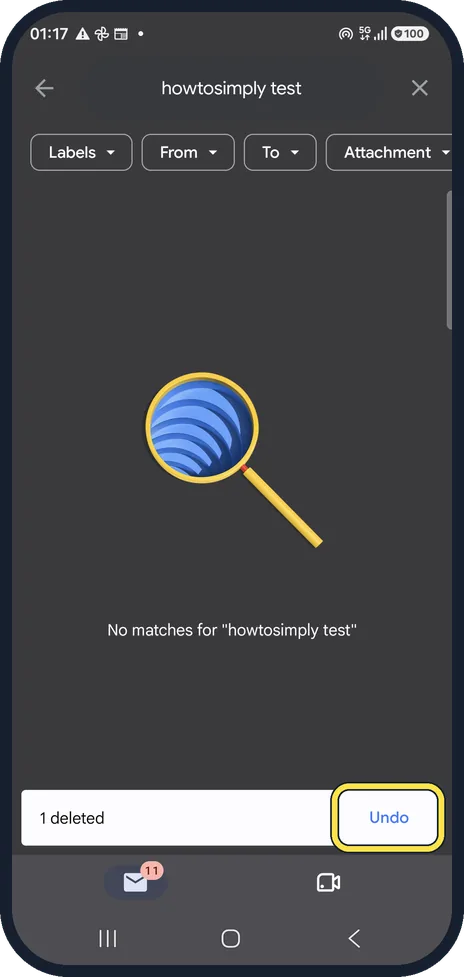
Tap Undo straight away
After you delete, a bar at the bottom says 1 deleted with Undo. It disappears after a few seconds.
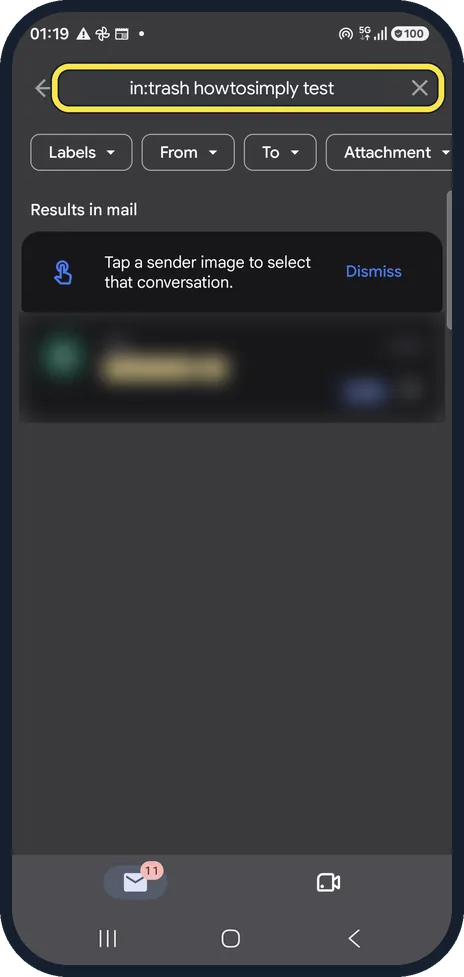
Find it in Trash
Open the menu and tap Trash, or search in:trash with a word from the mail. We searched in:trash howtosimply test; the result is blurred.
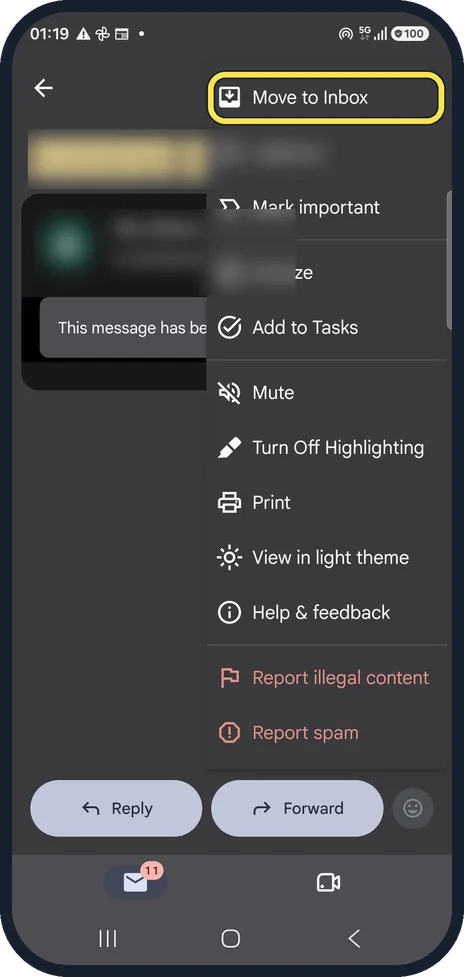
Choose Move to Inbox
Open the mail, tap the three dots at the top right and choose Move to Inbox.
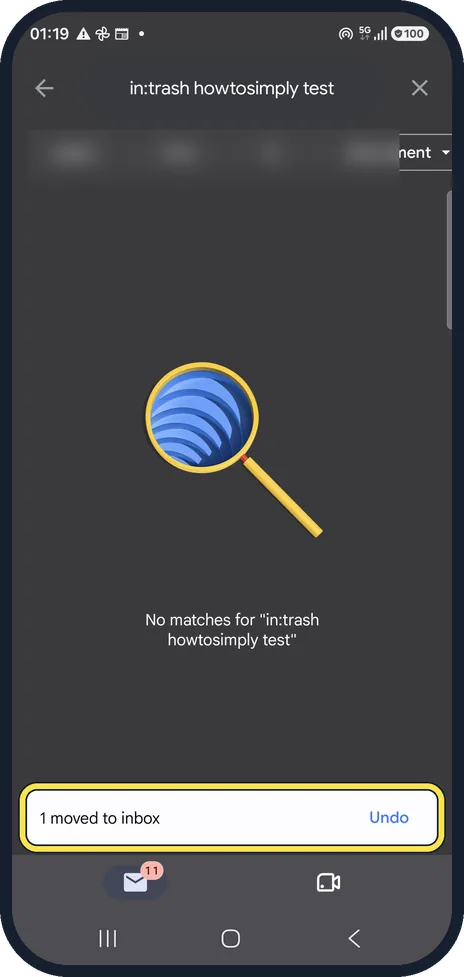
Check it is back
A bar confirms 1 moved to inbox, and the Trash search finds nothing any more. Our mail was back in the inbox.
If you do not see this option
- You do not know where the mail went Search in:anywhere with a word from the mail. Gmail Help says it searches all mail, including Spam and Trash. Source: Search operators you can use with Gmail
- It was a draft Gmail Help says a deleted draft cannot be recovered from Trash. Source: Delete or recover Gmail messages
If this does not work
- Mail keeps disappearing by itself Gmail Help says filters can archive, delete or forward incoming mail automatically. Check Settings, See all settings, Filters on a computer and edit or delete the filter. Source: Create rules to filter your emails
About this guide
We deleted our own test mail and brought it back, step by step. Our Gmail account is a real one, so addresses, senders and subjects are blurred; the only mail we touched was a test message we sent to ourselves.
The screenshots are from the Gmail app on a Samsung Galaxy A57 5G with Android 16 and One UI 8.5, in dark mode. The app looks the same on other Android phones; only the phone's own settings screens differ by brand.
Good to know
Archived mail was never deleted: open the menu, All mail, to find it.
After 30 days in Trash, or after Empty Trash now, a personal account cannot get the mail back. Work and school accounts may be restorable by the administrator for a short time.
In short: Undo, or Trash (in:trash), open the mail, three dots, Move to Inbox. 30 days.
- Gmail Help: Delete or recover Gmail messages
- Gmail Help: Search operators you can use with Gmail
- Gmail Help: Create rules to filter your emails
Links checked in October 2026. Back up anything you want to keep before you reset or delete. Menus can change after software updates.
📷 See real photos from the Galaxy A57 in our Camera Lab, next to 10 other phones.
Did this guide work for you?
Sorry about that. What happened?