
howtosimply.com/guides/how-to-uninstall-apps-on-an-oppo-phone/ · Checked October 2026 · CPH2689, EEA), ColorOS 16.0.5, Android 16 (build CPH2689_16.0.5.1001(EX01) · OPPO Reno13 5G
In this guide
Open Settings, Apps, App management, tap the app, tap Uninstall, then OK. Or touch and hold the app icon on the Home screen and tap Uninstall. Preinstalled Facebook on our Reno13 could be uninstalled the same way.
3 of 3 steps with real screenshots · 2 official sources below
- Device
- Android
- Shown on
- OPPO Reno13 5G (CPH2689, EEA), ColorOS 16.0.5, Android 16 (build CPH2689_16.0.5.1001(EX01))
- App
- Settings
- Path
- Settings › Apps › App management
- Real screenshots
- 3 of 3 steps
- Checked
- October 2026
- Sources
- 2 official, linked below
Step by step
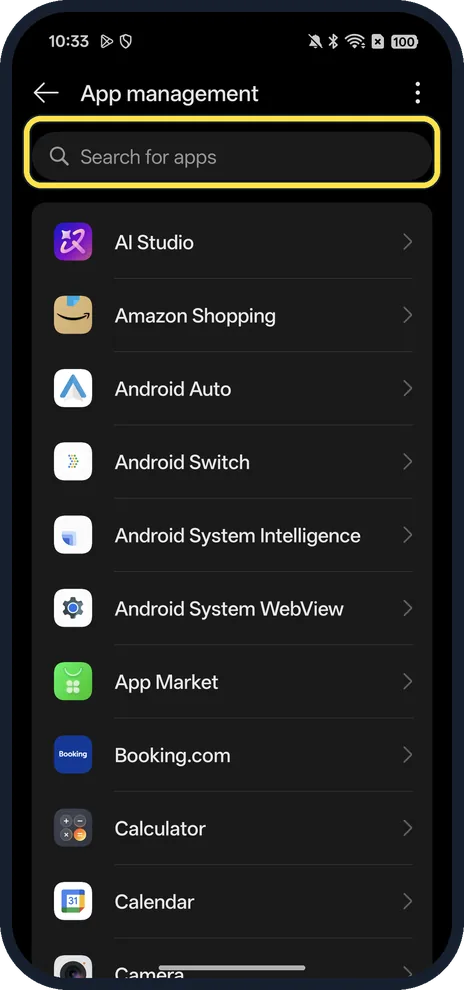
Open App management and find the app
Settings, Apps, App management. Type the app's name in Search for apps at the top, or scroll the list.
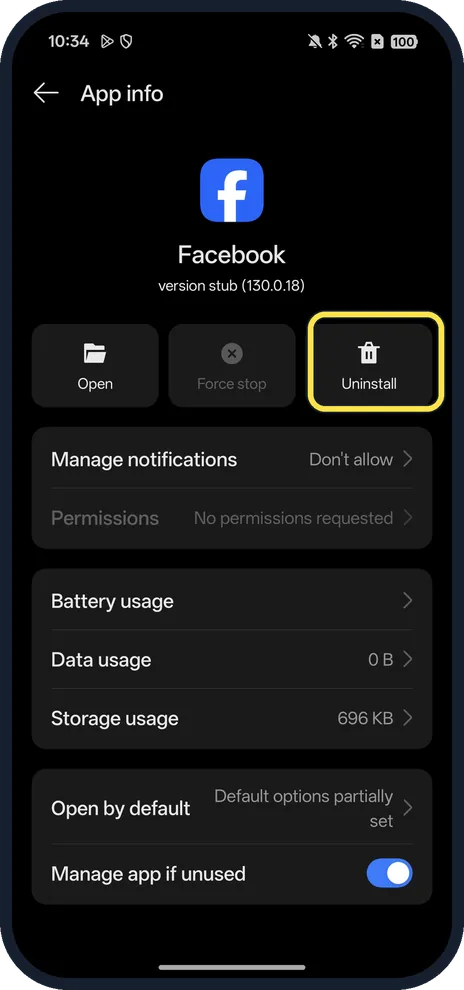
Tap Uninstall
Facebook on ours had Open, Force stop and Uninstall at the top of App info.
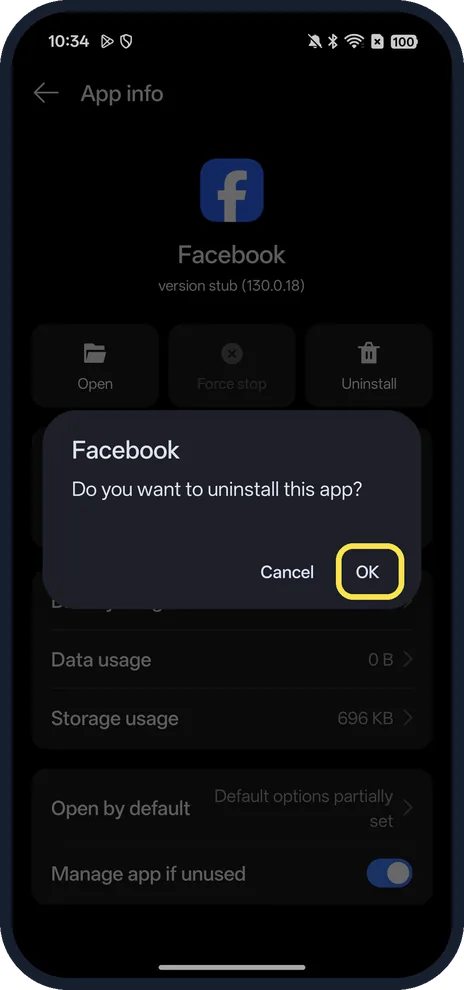
Tap OK
It asks: Do you want to uninstall this app? We tapped Cancel.
If you do not see this option
- From the Home screen instead? Touch and hold the icon: App info, Share, Edit, Remove, App Lock, Uninstall. Uninstall removes the app; Remove only takes the icon off the Home screen. To hide an app, see lock and hide apps.
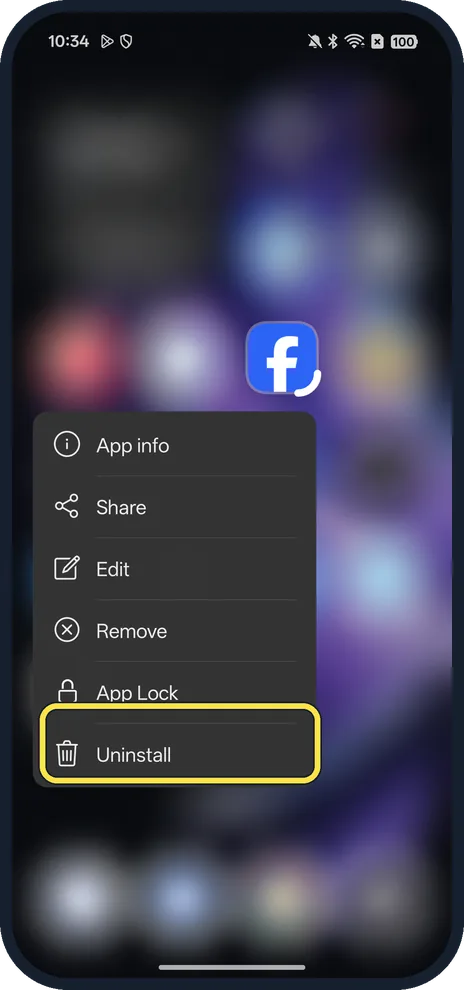
- No Disable button? Facebook on ours had no Disable, only Uninstall. Google says some apps that came with the phone can be disabled instead of deleted. Source: Delete, disable and manage unused apps on Android
- Older ColorOS? OPPO's ColorOS 11 guide: press and hold the app until a white box shows up, tap Uninstall, then Uninstall again to confirm. Source: ColorOS 11 User Guide
If this does not work
- Worried about the app's data? OPPO says uninstalling removes the app with all related data cleaned up, so back up anything you need first. Source: ColorOS 11 User Guide
- Can't find the app? Type its name in Search for apps at the top of App management.
- App info says "version stub"? Ours read Facebook version stub (130.0.18), using 696 KB: a small preinstalled placeholder rather than the full app. Uninstall removes it the same way.
About this guide
The screenshots are from our OPPO Reno13 5G, the European model CPH2689, with ColorOS 16.0.5 and Android 16 (build CPH2689_16.0.5.1001(EX01)), in Dark mode. We tapped Cancel at the confirm; nothing was uninstalled.
Good to know
To free more space, see check storage and clean up.
For the ad switches in OPPO's own apps, see turn off ads.
In short: Hold the icon, Uninstall, OK; or Settings, Apps, App management, the app, Uninstall.
Links checked in October 2026. Menus and features can change after software updates. These steps match the version named at the top.
Did this guide work for you?
Sorry about that. What happened?