ONEPLUS
How to turn on Find Hub on a OnePlus (OxygenOS 16)

In short
Go to Settings, Security and privacy, Device finders, Find Hub and switch on Allow device to be located. Find Hub (Google's Find My Device) then shows the phone on a map from another device. Remote Lock needs a screen lock.
4 of 4 steps show a real screenshot from our Nord 5. Each step was checked against the maker's own instructions, linked at the end.
Steps
- 1
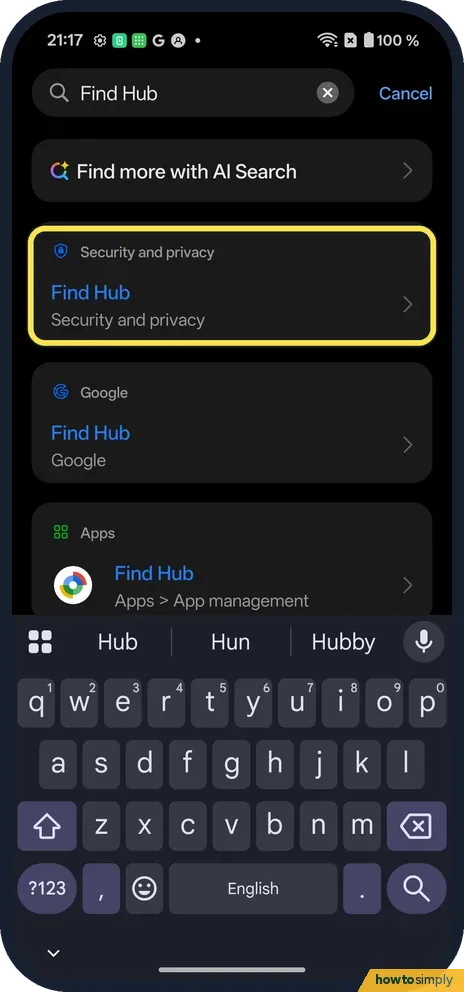
Search Find Hub
It shows under Security and privacy, Google and Apps.
- 2
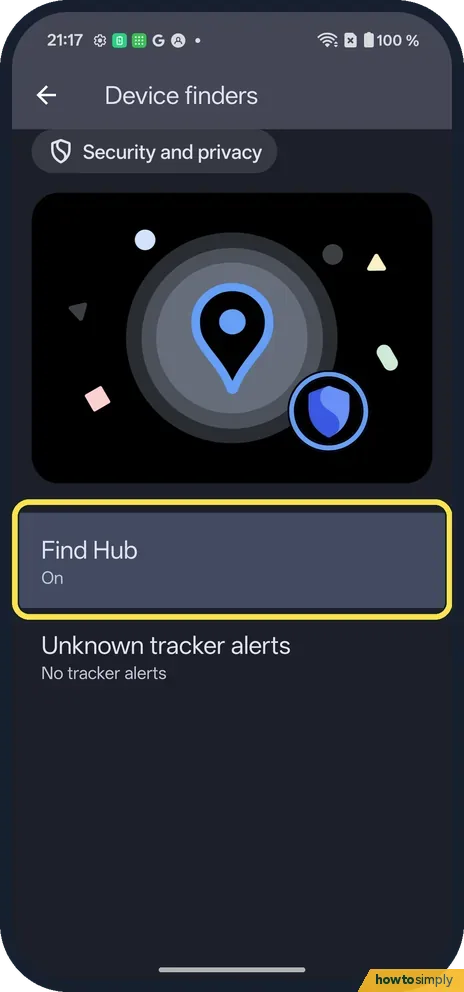
Open Device finders
Find Hub said On. Unknown tracker alerts is here too.
- 3
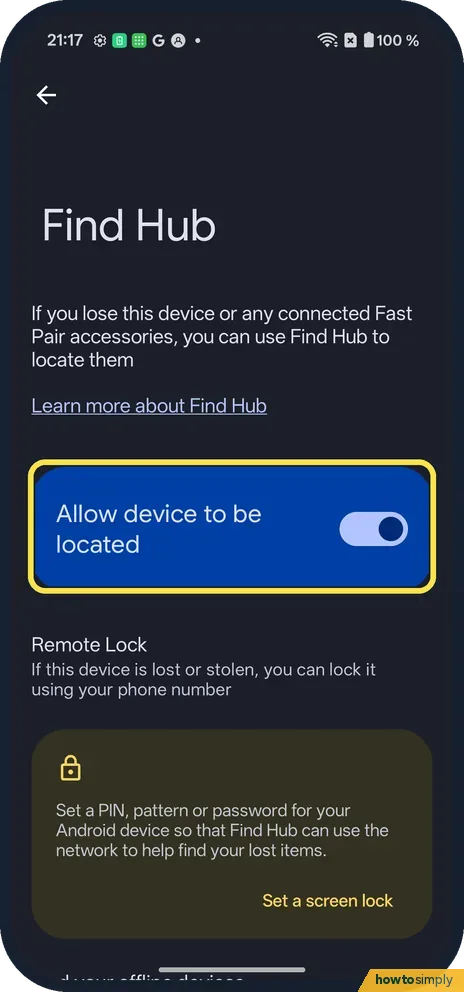
Allow device to be located
The switch at the top. It was on.
- 4
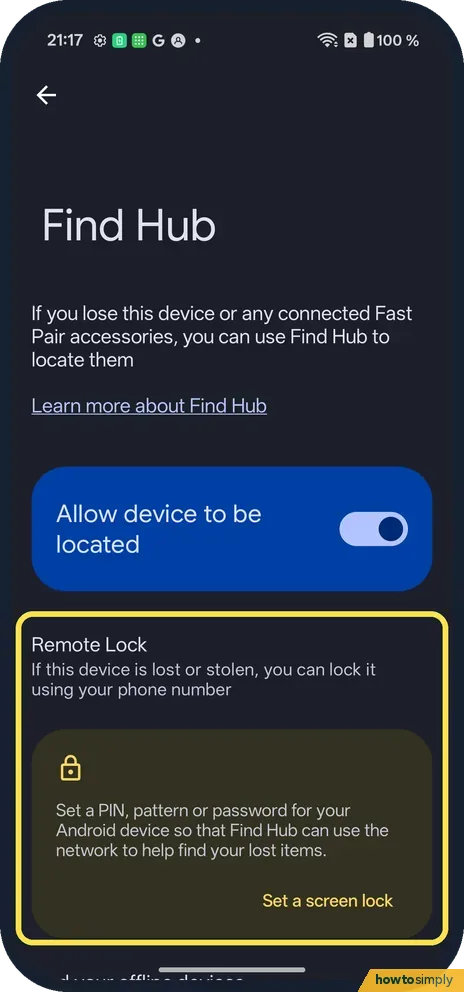
Remote Lock
It needs a PIN, pattern or password. Ours had none, so it offered Set a screen lock.
If you do not see this option
- Called Find My Device? OnePlus's OxygenOS 14 manual uses the old name, Find My Device, in the same place. Source: OxygenOS 14.0 User Manual
- Not signed in? It needs a Google Account on the phone. Source: Be ready to find a lost Android device
If this does not work
- Phone not on the map? It needs to be on, online and signed in.
- Can't lock it remotely? Set a screen lock first.
- Location is off on the phone? Google says Find Hub also needs Use location switched on under Settings, Location. Without it, you may only see the last known location, if one is available.
- Phone missing from the device list? Google notes that if you hide a device on Google Play, it will not show in Find Hub either. Check the Show in menus box for the phone in your Google Play devices library.
- Phone has no internet connection? Find Hub can use a crowdsourced, end-to-end encrypted network of Android devices to help locate it. Google says this needs a screen lock and the right choice under Find your offline devices in Find Hub.
Good to know
Set up Emergency SOS on a OnePlus.
Find the model and IMEI on a OnePlus.
With Find Hub on, you can ring, locate, secure and erase the phone from the Find Hub app on another Android device or from a browser. Google says Play sound rings at full volume for five minutes even if the phone is on silent or vibrate, and the lost phone gets a notification when you look for it. Location accuracy depends on the signal: GPS can be accurate to around 20 metres, but a position from mobile masts alone can be off by a few thousand metres. Turning on location also lets other apps and services use it, so review app permissions if that matters to you: change location settings on a OnePlus.
About this guide
- Device
- Android
- Shown on
- OnePlus Nord 5 (CPH2709), OxygenOS 16.0.5.1201, Android 16
- App
- Settings
- Path
- Settings › Security and privacy › Device finders › Find Hub
- Real screenshots
- 4 of 4 steps
- Checked
- October 2026
- Sources
- 2 official, linked below
Sources
Links checked October 2026. Menus and features can change with updates.Spotted a mistake? Menus change with updates, and we want every step to match your screen. Email us about this page or use the contact form. We read every report, and fixes are listed on What changed.
Liked this guide?
Follow us for new guides and short how-to videos.
Did this guide work for you?
Sorry about that. What happened?