
howtosimply.com/guides/how-to-lock-and-hide-apps-on-an-oppo-phone/ · Checked October 2026 · CPH2689, EEA), ColorOS 16.0.5, Android 16 (build CPH2689_16.0.5.1001(EX01) · OPPO Reno13 5G
In this guide
Open Settings, Security and privacy, scroll to Special features: App Lock locks apps behind your privacy password; Hide Apps removes apps from the Home screen, notifications and recent tasks, and you open them with an access code on the dial pad.
3 of 3 steps with real screenshots · 2 official sources below
- Device
- Android
- Shown on
- OPPO Reno13 5G (CPH2689, EEA), ColorOS 16.0.5, Android 16 (build CPH2689_16.0.5.1001(EX01))
- App
- Settings
- Path
- Settings › Security and privacy
- Real screenshots
- 3 of 3 steps
- Checked
- October 2026
- Sources
- 2 official, linked below
Step by step
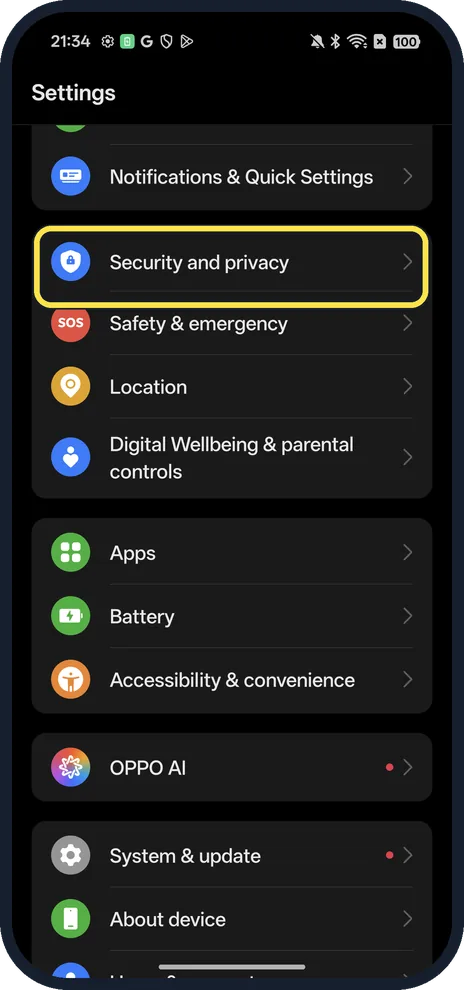
Open Security and privacy
Open Settings; it is under Notifications & Quick Settings.
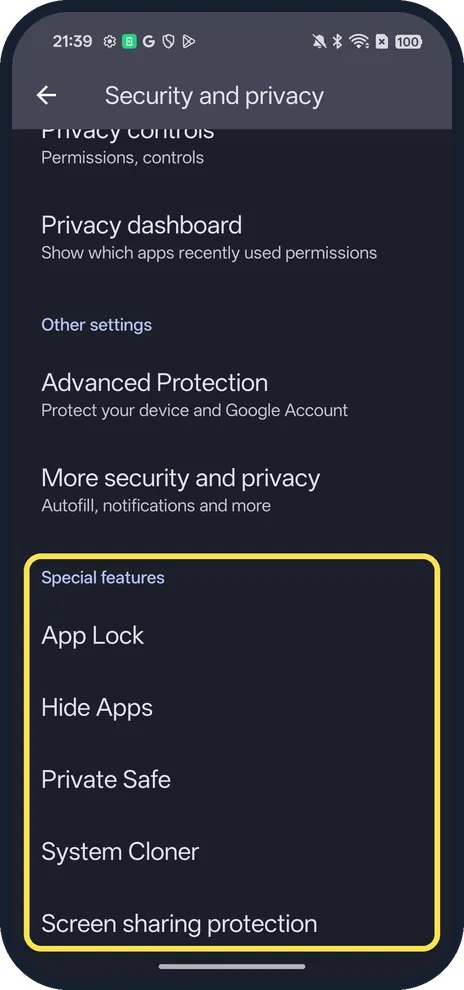
Scroll to Special features
App Lock, Hide Apps, Private Safe, System Cloner and Screen sharing protection.
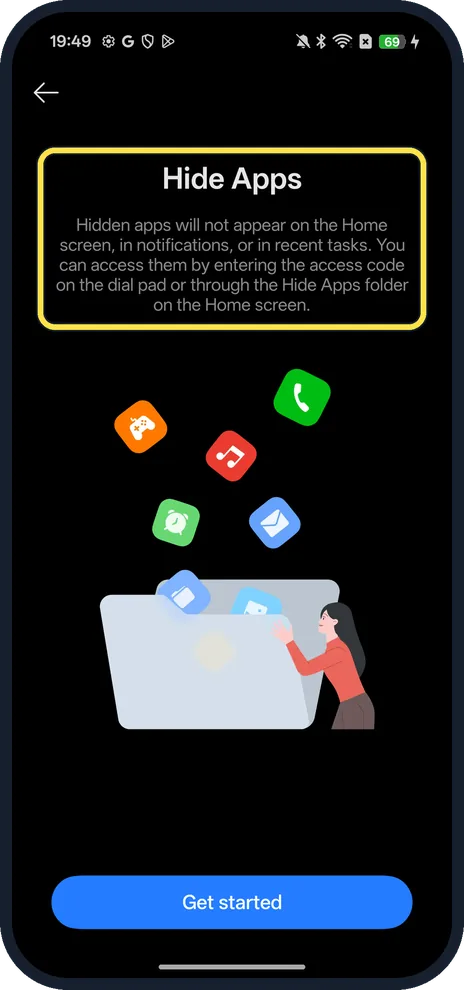
Tap Hide Apps
Hidden apps won't appear on the Home screen, in notifications or in recent tasks. Open them with the access code on the dial pad or the Hide Apps folder.
If you do not see this option
- No Hide Apps under Special features? OPPO gives Settings, Privacy or Security and Privacy, Privacy, Hide apps on ColorOS 13 and later, Settings, Privacy, Hide apps on ColorOS 11 and 12, and App Lock, Hide from Home screen on ColorOS 7. Source: How to Hide Apps on OPPO Phone's Homescreen
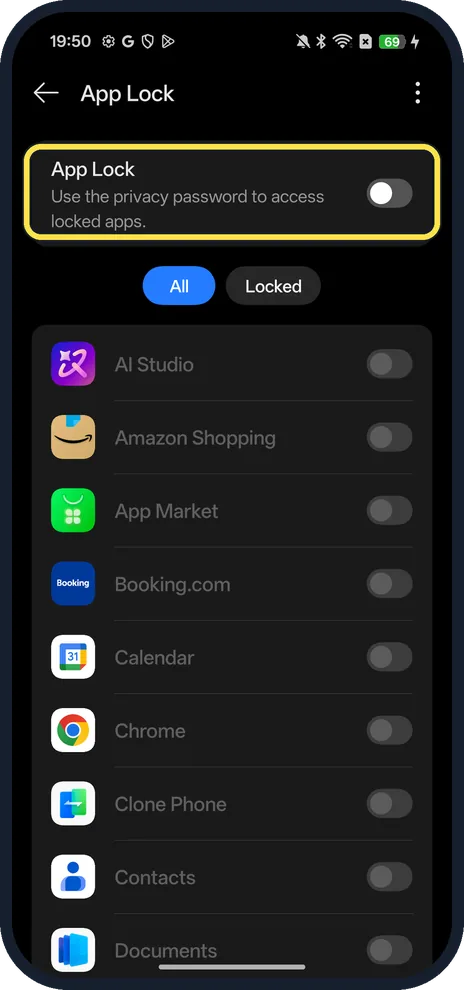
- Lock instead of hide? App Lock uses the privacy password to open locked apps. Its switch was off on ours.
- Asked for a privacy password first? OPPO says you must set a privacy password before you can hide apps, in Settings, Fingerprint, Face & Passcode, Privacy Passcode or Privacy Password. Source: How to Hide Apps on OPPO Phone's Homescreen
If this does not work
- Can't find a hidden app? OPPO says to open the Phone app and type your access code on the keypad, for example #123456#; the Hidden Apps folder appears. The code starts and ends with # and has 1 to 16 characters. Source: How to Hide Apps on OPPO Phone's Homescreen
- Forgot the access code or privacy password? OPPO says you can change the access code in the Hide Apps settings, and set a security question in Privacy Password to recover the password. OPPO doesn't store it, so without the answer you need a service centre. Source: How to Hide Apps on OPPO Phone's Homescreen · Source: How to Set Up Security Questions for App Lock
- No notifications from a hidden app? Hiding blocks its notifications and hides it from recent tasks. OPPO says you can turn off Block notifications and Hide in recent tasks for that app. Source: How to Hide Apps on OPPO Phone's Homescreen
About this guide
The screenshots are from our OPPO Reno13 5G, the European model CPH2689, with ColorOS 16.0.5 and Android 16 (build CPH2689_16.0.5.1001(EX01)), in Dark mode. Both need a privacy password, so we stopped at their first screens.
Good to know
Keep private files too: Private Safe, in the same Special features list, asks you to set a privacy password first.
Open apps in floating windows: use Smart Sidebar on an OPPO phone.
In short: Settings, Security and privacy, Special features: App Lock or Hide Apps.
- OPPO Support: How to Hide Apps on OPPO Phone's Homescreen
- OPPO Support: How to Set Up Security Questions for App Lock
Links checked in October 2026. Menus and features can change after software updates. These steps match the version named at the top.
Did this guide work for you?
Sorry about that. What happened?