
howtosimply.com/guides/how-to-turn-on-find-hub-on-an-oppo-phone/ · Checked October 2026 · CPH2689, EEA), ColorOS 16.0.5, Android 16 (build CPH2689_16.0.5.1001(EX01) · OPPO Reno13 5G
In this guide
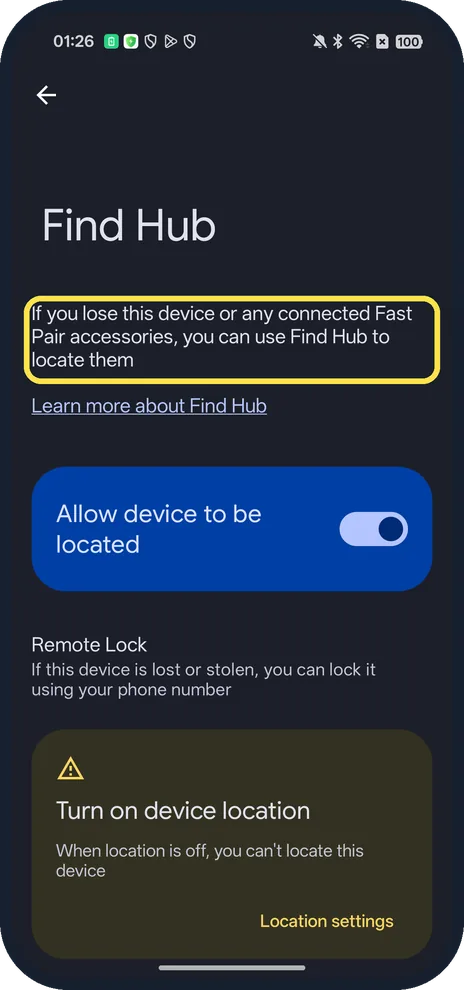
Open Settings, Security and privacy, Device finders, Find Hub. Turn on Allow device to be located, and turn on device location: when location is off, Find Hub cannot locate the phone.
4 of 4 steps with real screenshots · 1 official source below
- Device
- Android
- Shown on
- OPPO Reno13 5G (CPH2689, EEA), ColorOS 16.0.5, Android 16 (build CPH2689_16.0.5.1001(EX01))
- App
- Settings
- Path
- Settings › Security and privacy › Device finders › Find Hub
- Real screenshots
- 4 of 4 steps
- Checked
- October 2026
- Sources
- 1 official, linked below
Step by step
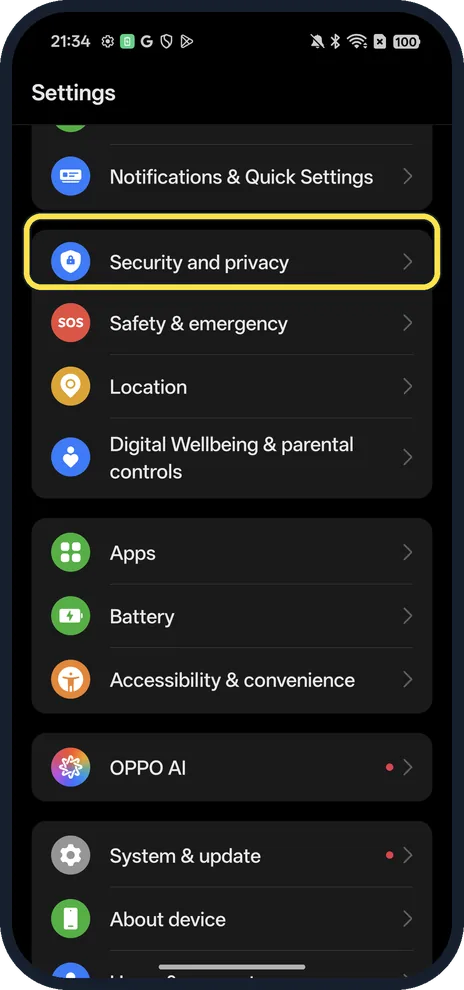
Open Security and privacy
Open Settings.
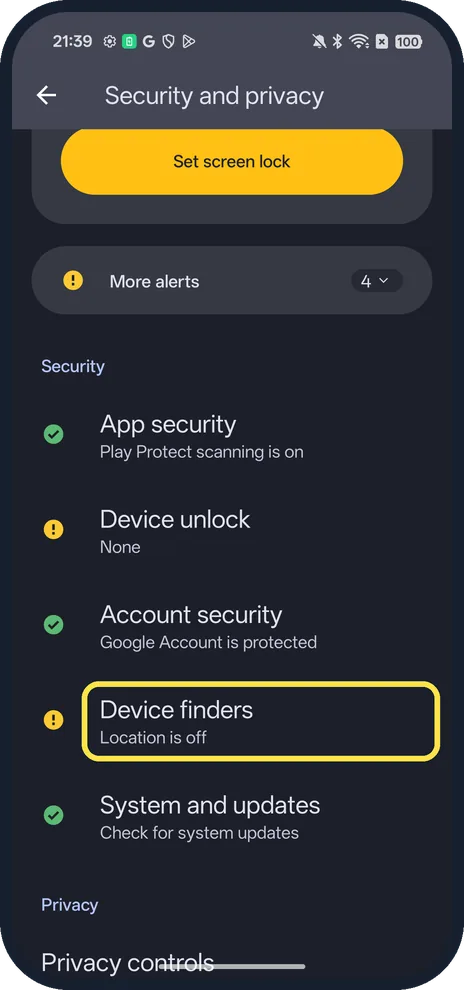
Tap Device finders
Ours said Location is off.
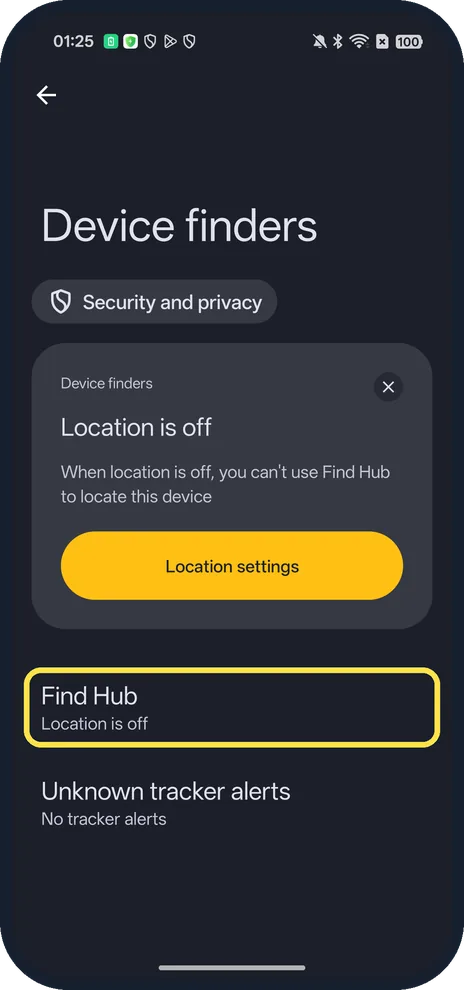
Tap Find Hub
The page warns that with location off you can't use Find Hub to locate this device.
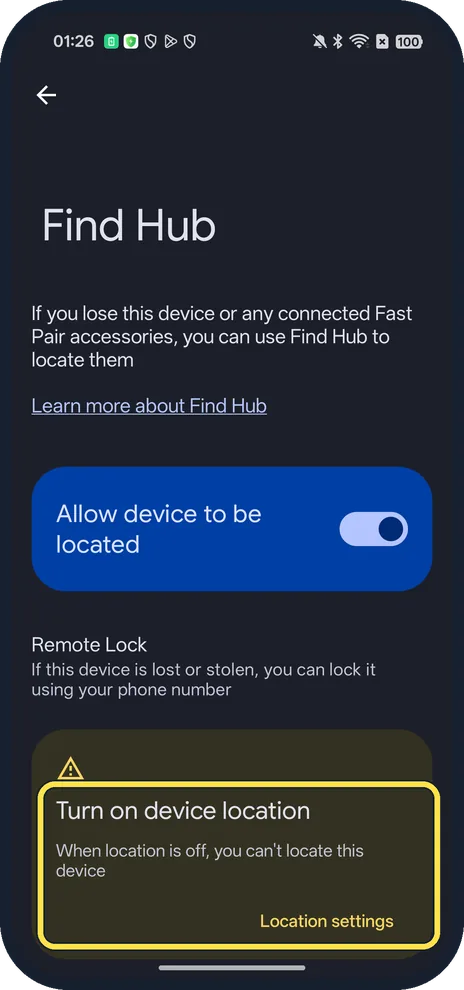
Turn on device location
Tap Location settings on the card. Find Hub also offers Remote Lock with your phone number.
If you do not see this option
- Need the Google account? Google says Find Hub turns on automatically once a Google Account is added, and the lost phone must be signed in to it. Source: Find, secure or erase a lost Android device
- Lost earbuds too? Find Hub can locate connected Fast Pair accessories as well.
If this does not work
- Find Hub shows the phone offline? Google says the lost phone must be on, connected to mobile data or Wi-Fi, signed in to a Google Account and have Find Hub turned on. You may still see its last known location. Source: Find, secure or erase a lost Android device
- Phone gone for good? Note your IMEI and report it; see the link below.
About this guide
The screenshots are from our OPPO Reno13 5G, the European model CPH2689, with ColorOS 16.0.5 and Android 16 (build CPH2689_16.0.5.1001(EX01)), in Dark mode. Location was off on ours and we did not sign in or change anything.
Good to know
For your IMEI, find the IMEI.
For emergencies, set up Emergency SOS.
In short: Settings, Security and privacy, Device finders, Find Hub.
Links checked in October 2026. Menus and features can change after software updates. These steps match the version named at the top.
Did this guide work for you?
Sorry about that. What happened?