ONEPLUS
How to disable an app you can't uninstall on a OnePlus (OxygenOS 16)

In short
Open the app's App info (Settings, Apps, App management). Apps that came with the phone show Disable where Uninstall would be. Tap it and confirm with Disable app. Tap Enable on the same page to bring it back.
3 of 3 steps show a real screenshot from our Nord 5. Each step was checked against the maker's own instructions, linked at the end.
Steps
- 1
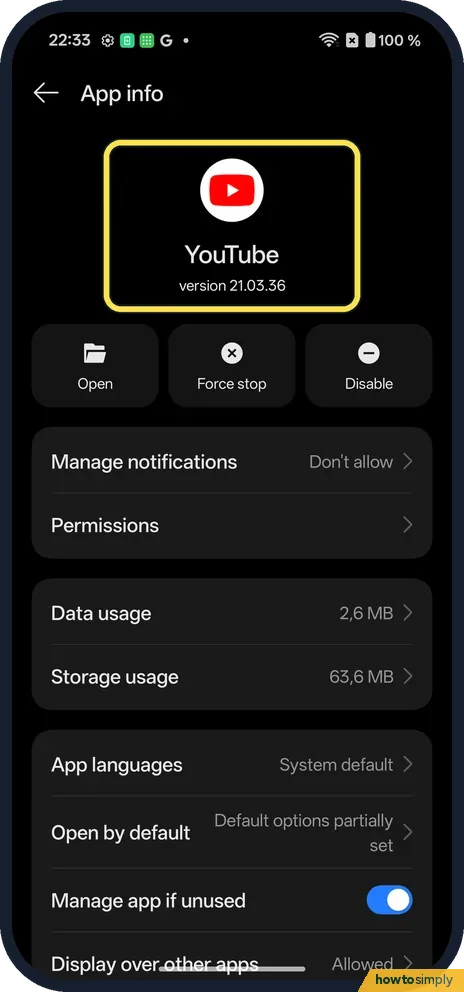
Open the app's App info
Open Settings, Apps, App management and tap the app. Ours: YouTube.
- 2
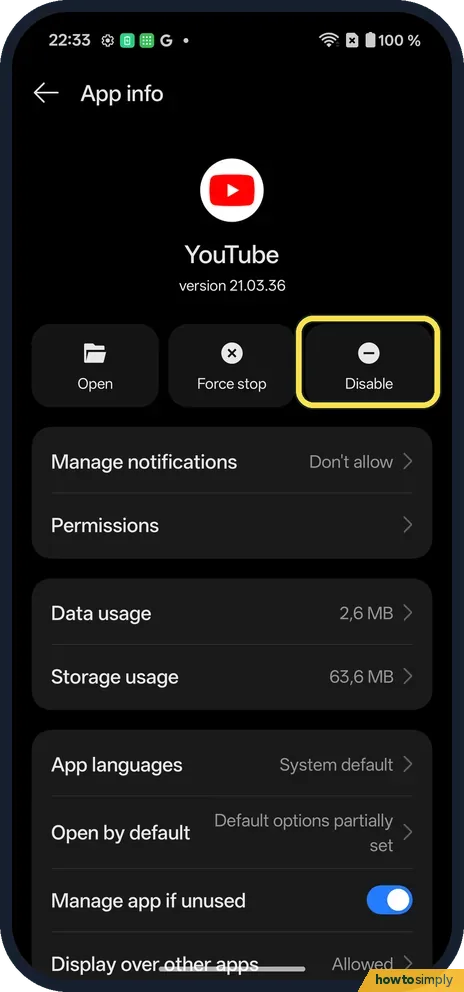
Tap Disable
It takes the place of Uninstall.
- 3
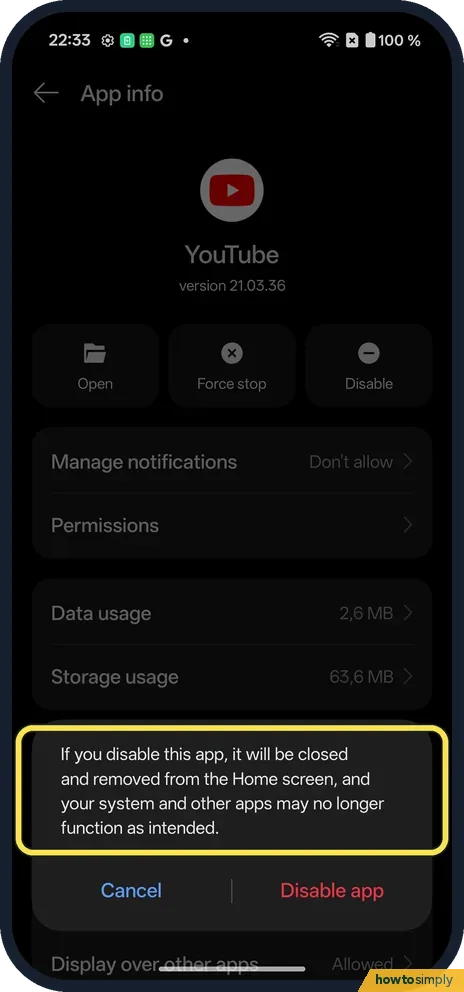
Read the warning
If you disable this app, it will be closed and removed from the Home screen, and your system and other apps may no longer function as intended. Tap Disable app, or Cancel.
If you do not see this option
- Uninstall shows instead? You installed the app yourself, as with LinkedIn on ours. Uninstall it.
- Disable greyed out? Some core apps cannot be disabled. Source: Delete or disable apps on Android
If this does not work
- Something stopped working? Open the app's App info and tap Enable, where Disable was.
- App still on the home screen? The warning on ours says a disabled app is closed and removed from the Home screen. If it is still there, it was not disabled: check its App info.
- Can't find the disabled app to turn it back on? Google's help gives a second route: open Google Play, tap your profile icon, Manage apps & device, then Manage. If the app is not listed, tap This device and choose Not installed, then tap Enable.
- Another app now shows an error? Some apps rely on others, for example to play video or open links. Turn the disabled app back on, then open the app that showed the error again.
- Only want it to stop using the phone in the background? Android can already pause apps you have not used for a long time. Google's help says it removes their permissions and limits background activity and notifications; Google's general path to review them is Apps, Unused apps, but a Settings search for unused apps on our Nord 5 found only Clean, in Phone Manager.
Good to know
Turn off notifications for one app on a OnePlus.
A disabled app is closed and removed from the Home screen, as the warning on ours said. It no longer runs, so it cannot send notifications or use data in the background. To bring it back, open its App info and tap Enable; it returns to your app list and you can add it to the home screen again. Back up first if the app holds anything you care about, such as offline downloads.
If you only want an app to stop bothering you, there are lighter options. You can turn off its notifications or stop it using mobile data or Wi-Fi while keeping it available.
About this guide
- Device
- Android
- Shown on
- OnePlus Nord 5 (CPH2709), OxygenOS 16.0.5.1201, Android 16
- App
- Settings
- Path
- Settings › Apps › App management › the app
- Real screenshots
- 3 of 3 steps
- Checked
- October 2026
- Sources
- 4 official, linked below
Sources
Links checked October 2026. Menus and features can change with updates.Spotted a mistake? Menus change with updates, and we want every step to match your screen. Email us about this page or use the contact form. We read every report, and fixes are listed on What changed.
Liked this guide?
Follow us for new guides and short how-to videos.
Did this guide work for you?
Sorry about that. What happened?