
howtosimply.com/guides/how-to-change-default-apps-on-an-oppo-phone/ · Checked October 2026 · CPH2689, EEA), ColorOS 16.0.5, Android 16 (build CPH2689_16.0.5.1001(EX01) · OPPO Reno13 5G
In this guide
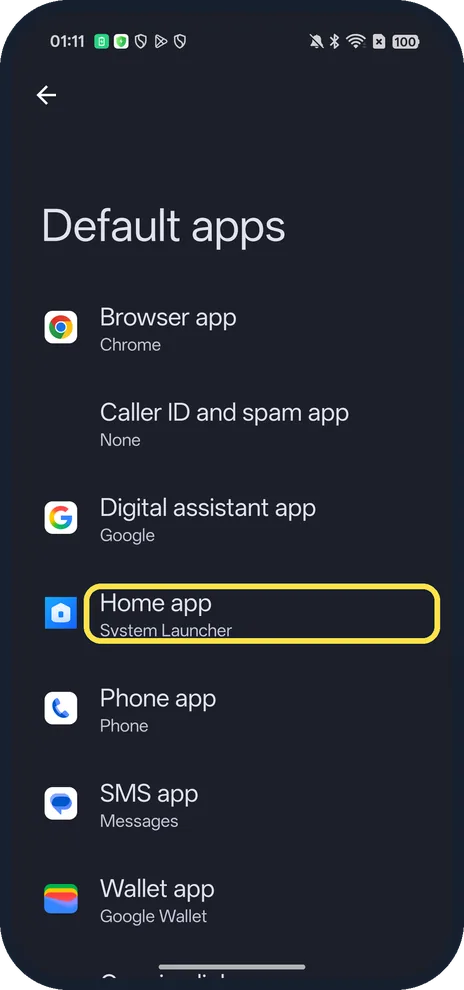
Open Settings, Apps, Default apps, tap the type (Browser app, Phone app, SMS app, Home app and so on) and pick the app. Ours used Chrome as the browser and System Launcher as the Home app.
4 of 4 steps with real screenshots · 1 official source below
- Device
- Android
- Shown on
- OPPO Reno13 5G (CPH2689, EEA), ColorOS 16.0.5, Android 16 (build CPH2689_16.0.5.1001(EX01))
- App
- Settings
- Path
- Settings › Apps › Default apps
- Real screenshots
- 4 of 4 steps
- Checked
- October 2026
- Sources
- 1 official, linked below
Step by step
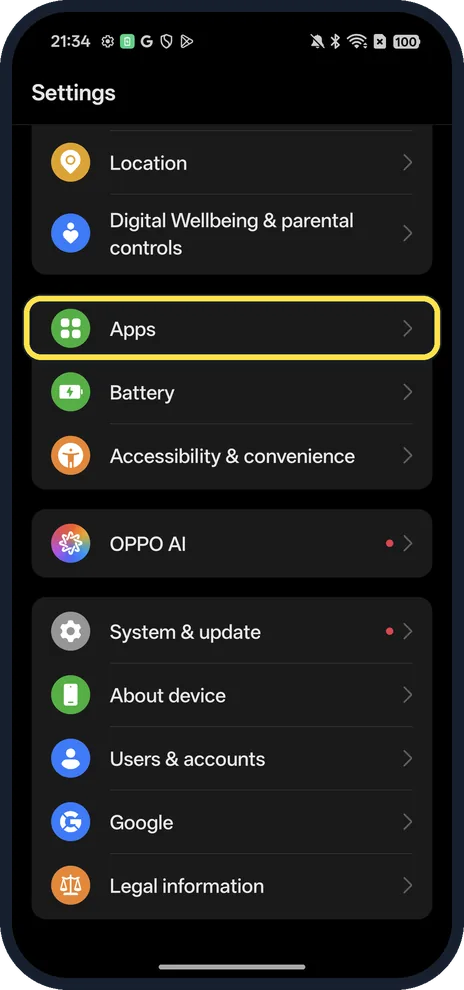
Open Apps
Open Settings and tap Apps.
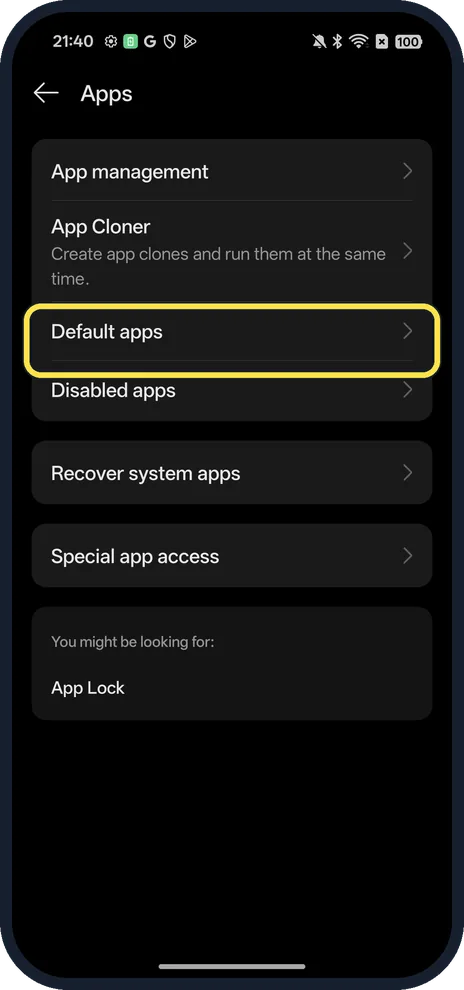
Tap Default apps
Below App Cloner.
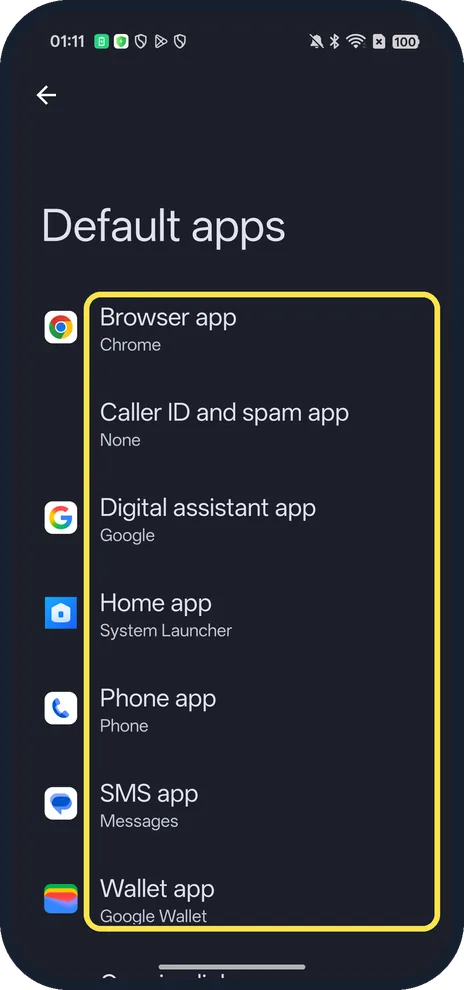
Tap the type of app
Ours listed Browser, Caller ID and spam, Digital assistant, Home, Phone, SMS and Wallet apps.
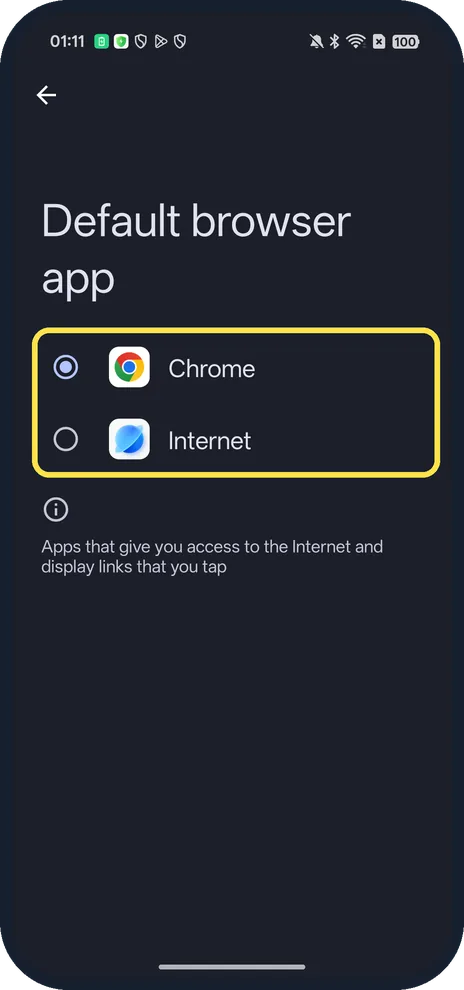
Pick the app
Only installed apps of that type are offered; ours offered Chrome and Internet for the browser.
If you do not see this option
- App you want is missing? Install it first; it only appears once installed.
- Changing the Home app? The Home app row sets which launcher shows your Home screen; ours was System Launcher.
If this does not work
- Links still open in the old app? Open that app's App info and check Open by default.
- Calls go to another app? Check the Phone app row; ours was Phone.
About this guide
The screenshots are from our OPPO Reno13 5G, the European model CPH2689, with ColorOS 16.0.5 and Android 16 (build CPH2689_16.0.5.1001(EX01)), in Dark mode. We opened the browser choice and changed nothing.
Good to know
To control what each app can see, change app permissions.
If an app misbehaves, force stop it.
In short: Settings, Apps, Default apps.
Links checked in October 2026. Menus and features can change after software updates. These steps match the version named at the top.
Did this guide work for you?
Sorry about that. What happened?