
howtosimply.com/guides/how-to-turn-off-ads-and-recommendations-on-an-oppo-phone/ · Checked October 2026 · CPH2689, EEA), ColorOS 16.0.5, Android 16 (build CPH2689_16.0.5.1001(EX01) · OPPO Reno13 5G
In this guide
There is no single switch. On our Reno13 the real ones were: Phone Manager, the three dots, Settings, Ads; and My Files, the three dots, Settings, Privacy, Personalised services. Searching Settings for ads opens the Ads page, where you can delete the advertising ID.
6 of 6 steps with real screenshots · 1 official source below
- Device
- Android
- Shown on
- OPPO Reno13 5G (CPH2689, EEA), ColorOS 16.0.5, Android 16 (build CPH2689_16.0.5.1001(EX01))
- App
- My Files
- Path
- My Files › Settings › Privacy
- Real screenshots
- 6 of 6 steps
- Checked
- October 2026
- Sources
- 1 official, linked below
Step by step
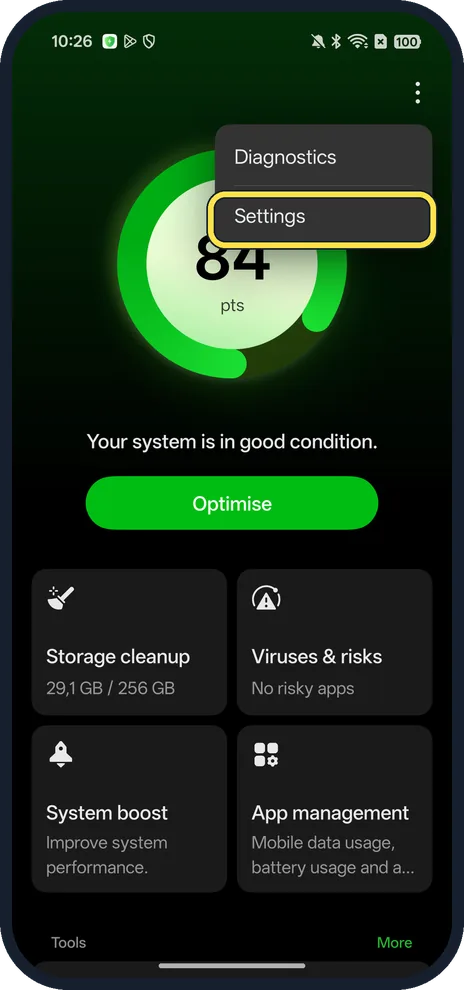
Open Phone Manager settings
Open the Phone Manager app and tap the three dots at the top right, then Settings.
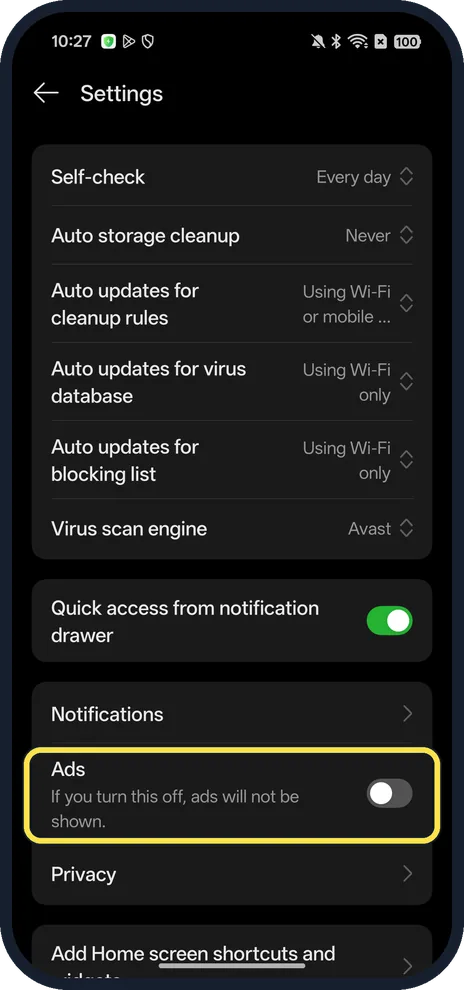
Turn off Ads
The row says: If you turn this off, ads will not be shown. It was on in ours.
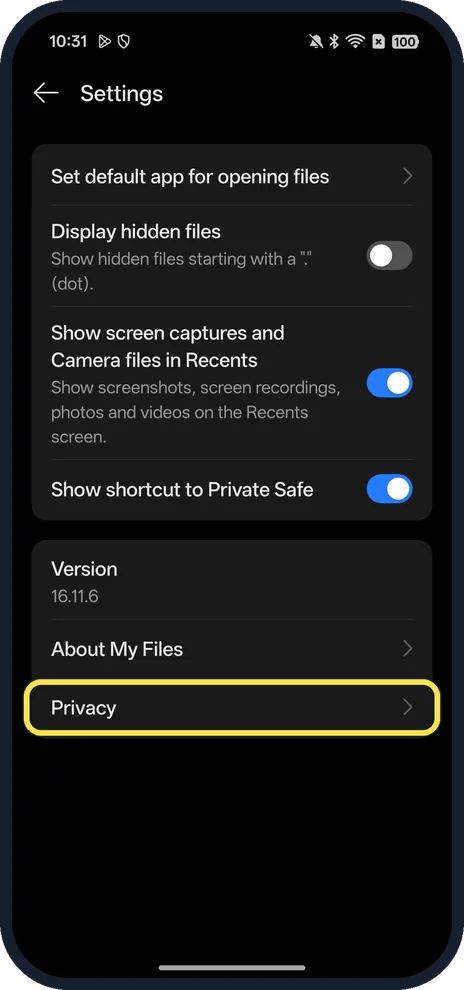
Open My Files settings, then Privacy
In the My Files app, tap the three dots, Settings, then Privacy at the bottom.
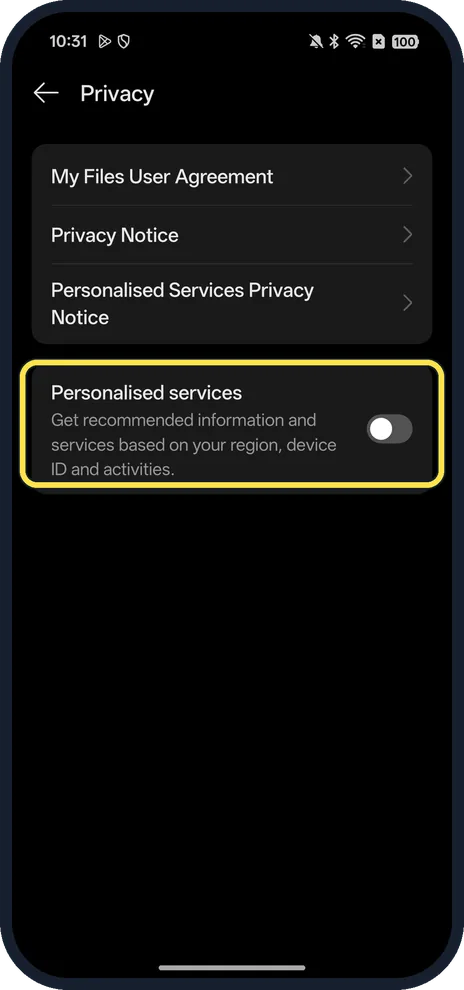
Turn off Personalised services
Get recommended information and services based on your region, device ID and activities. It was on in ours.
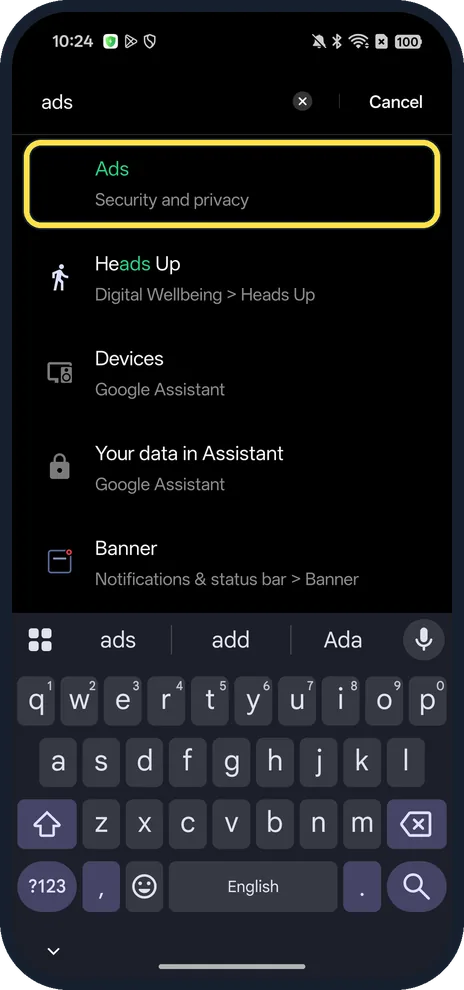
Search Settings for "ads" and tap Ads
Open Settings, tap the search bar and type ads. Ads sits under Security and privacy.
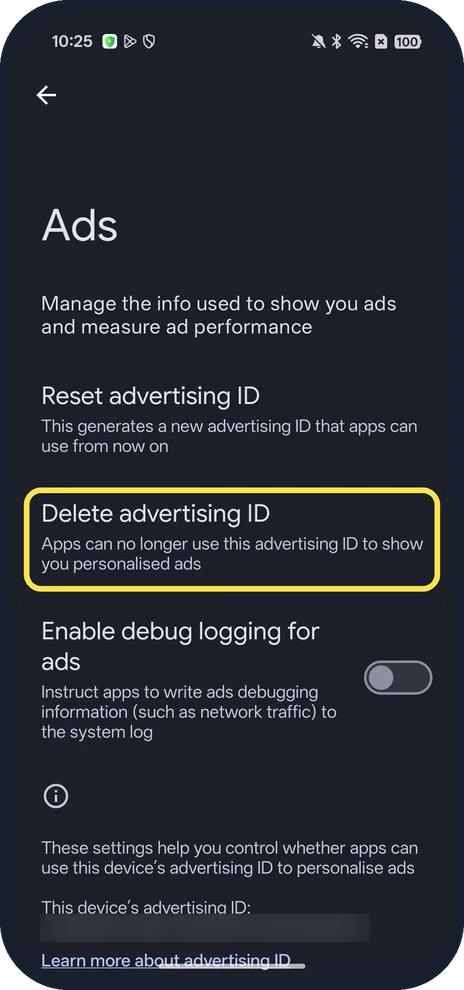
Delete the advertising ID (optional)
On the Ads page: Delete advertising ID: apps can no longer use this advertising ID to show you personalised ads. We did not tap it.
If you do not see this option
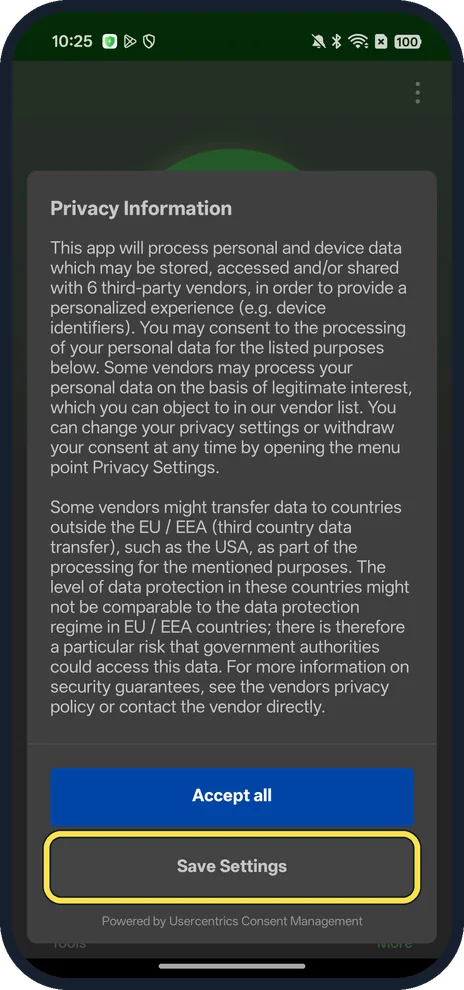
- Phone Manager asks for consent first? On first launch ours showed Privacy Information with Accept all and Save Settings. We tapped Save Settings, not Accept all.
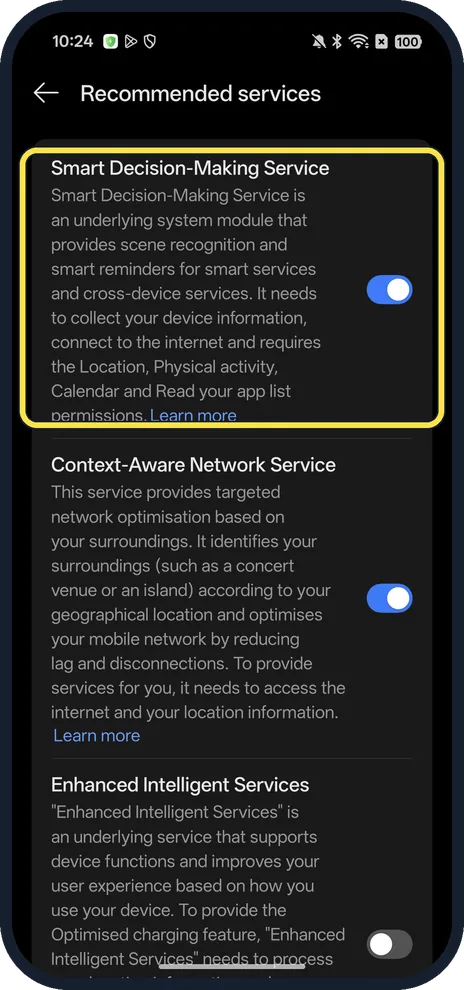
- Searched Settings for "recommend"? It found Recommended services under System & update: Smart Decision-Making Service, Context-Aware Network Service and Enhanced Intelligent Services, none of them named ads. The first two were on in ours.
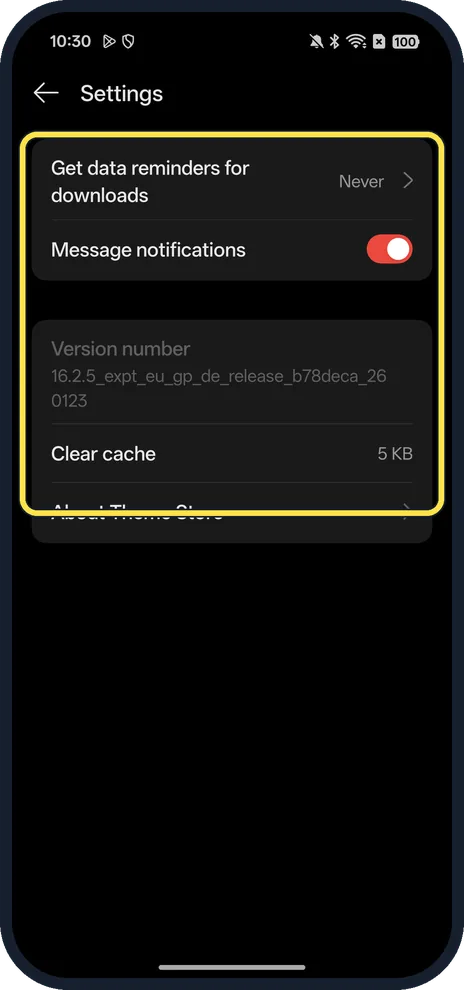
- No ads switch in Theme Store? Ours had none: Theme Store, Me, Settings showed only data reminders, Message notifications, Clear cache and About Theme Store.
- Ads on the lock screen? That is Lock Screen Magazine; see turn off Lock Screen Magazine.
If this does not work
- Still seeing ads? Google says deleting the advertising ID means apps can still show you ads, but they may be less relevant, and apps can have their own ad settings. Source: Manage your ad privacy settings on Android
- Ads inside another OPPO app? Look in that app's own Settings and Privacy pages; Phone Manager and My Files had theirs there.
About this guide
We searched Settings and opened each system app on our phone to find every switch that controls ads or recommendations.
The screenshots are from our OPPO Reno13 5G, the European model CPH2689, with ColorOS 16.0.5 and Android 16 (build CPH2689_16.0.5.1001(EX01)), in Dark mode. We switched Ads and Personalised services off for the screenshots, then back on.
Good to know
To stop the changing lock screen pictures, see Lock Screen Magazine.
To remove apps you don't want, see uninstall apps.
In short: Phone Manager, Settings, Ads off; My Files, Settings, Privacy, Personalised services off; Settings search ads, Delete advertising ID.
Links checked in October 2026. Menus and features can change after software updates. These steps match the version named at the top.
Did this guide work for you?
Sorry about that. What happened?