
howtosimply.com/guides/how-to-clear-app-cache-on-an-oppo-phone/ · Checked October 2026 · CPH2689, EEA), ColorOS 16.0.5, Android 16 (build CPH2689_16.0.5.1001(EX01) · OPPO Reno13 5G
In this guide
Open Settings, Apps, App management, tap the app, then Storage usage and Clear cache. On ours Chrome's cache went from 7,9 MB to 0 B and its total from 32,1 MB to 24,1 MB; its 6,8 MB of data stayed.
6 of 6 steps with real screenshots · 4 official sources below
- Device
- Android
- Shown on
- OPPO Reno13 5G (CPH2689, EEA), ColorOS 16.0.5, Android 16 (build CPH2689_16.0.5.1001(EX01))
- App
- Settings
- Path
- Settings › Apps › App management
- Real screenshots
- 6 of 6 steps
- Checked
- October 2026
- Sources
- 4 official, linked below
Step by step
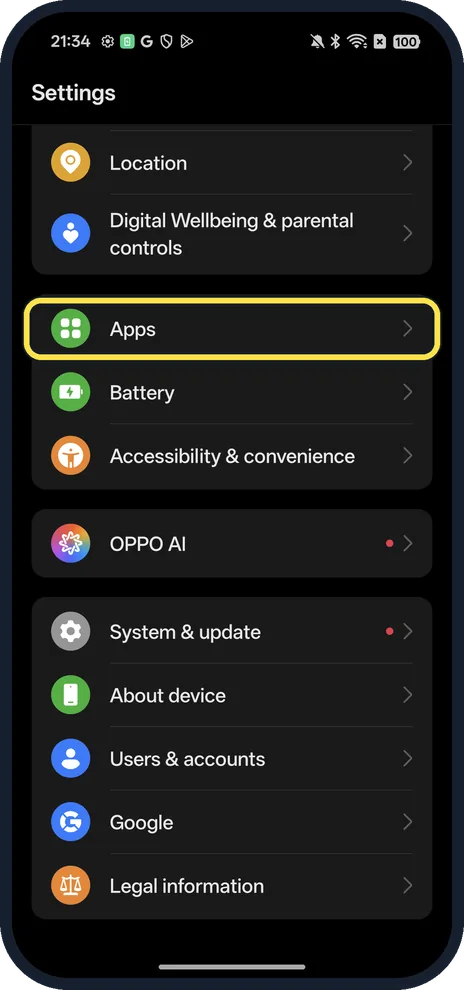
Open Apps
Open Settings and tap Apps.
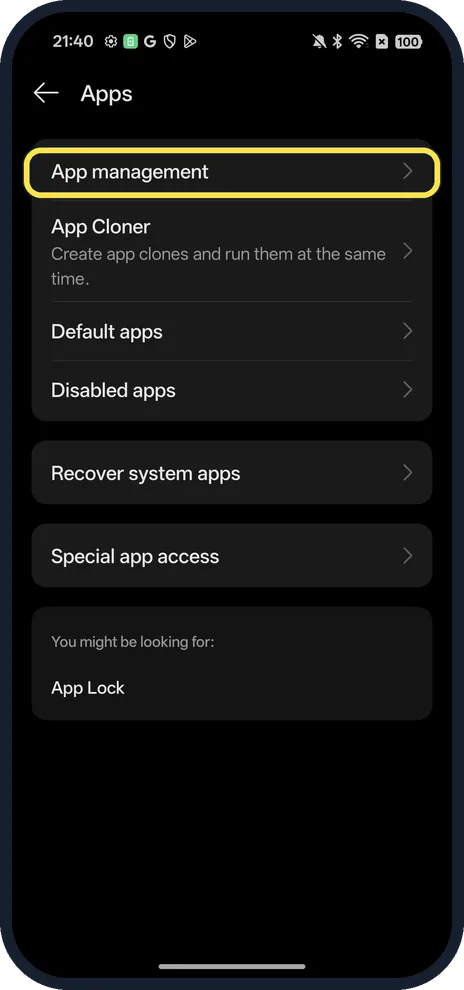
Tap App management
The first row.
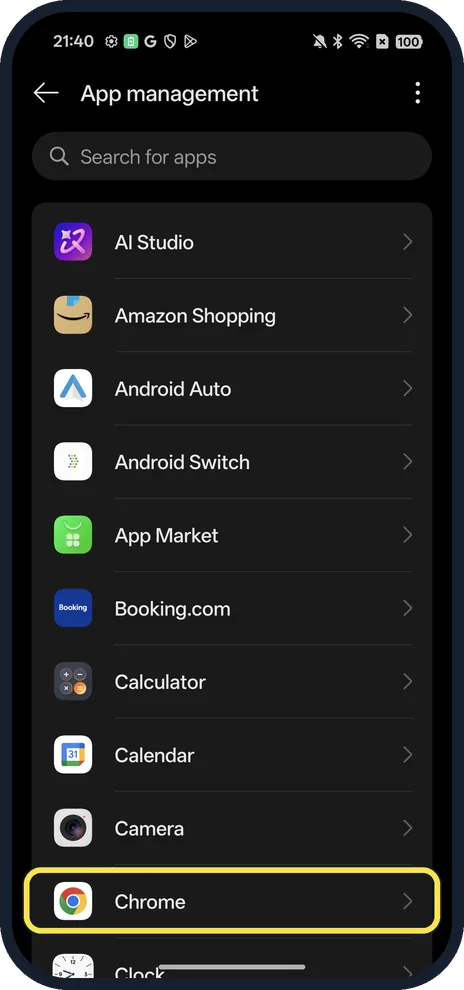
Tap the app
We tapped Chrome.
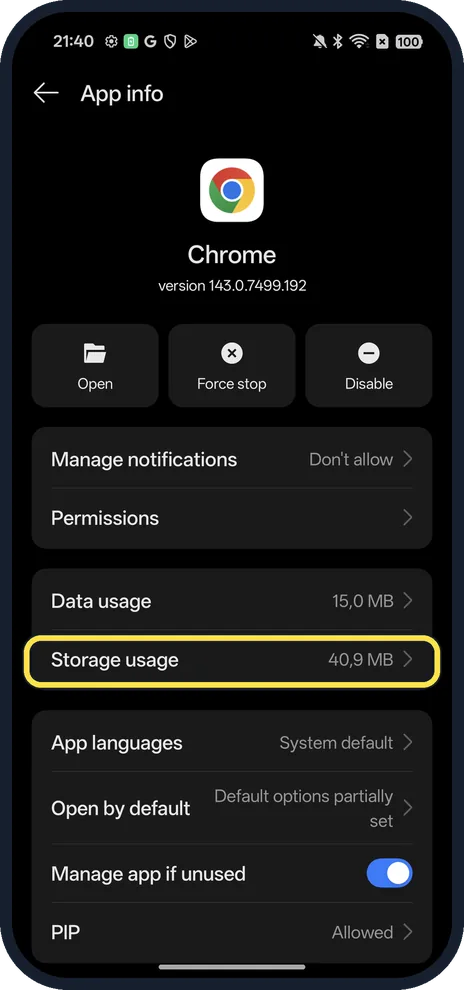
Tap Storage usage
It shows the app's total size next to it. This shot was taken later than the next two, when Chrome had grown back to 40,9 MB.
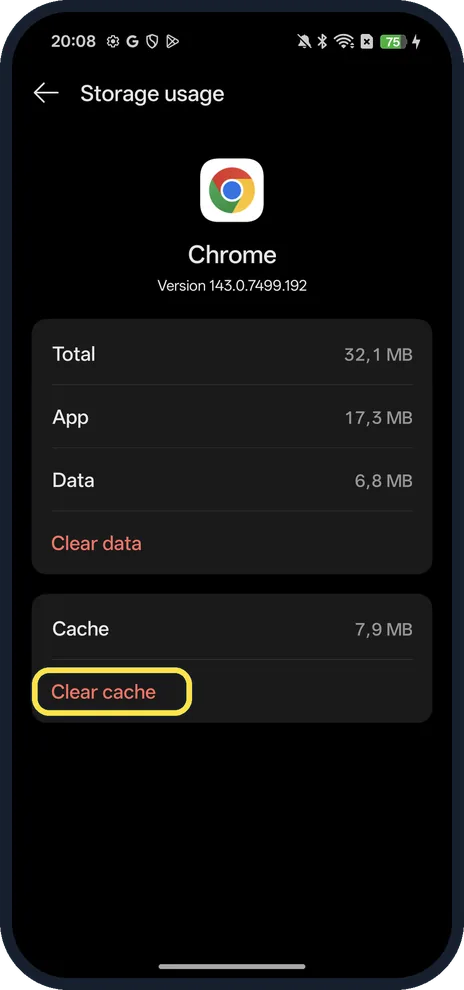
Tap Clear cache
Not Clear data, which deletes the app's data. Ours showed Cache 7,9 MB before.
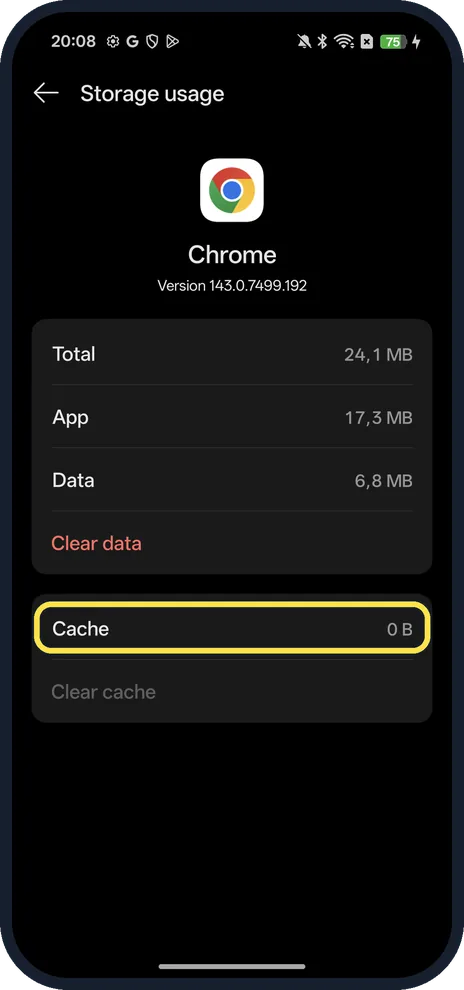
Check the result
Cache now reads 0 B. Google notes some apps may be slow the next time you open them.
If you do not see this option
- No App management row? OPPO gives Settings, App Management, App List on ColorOS 7 to 11. On ColorOS 16 you can also press and hold the app icon, tap More features, App info, Storage usage, Clear cache. Source: How to Clear Cache and Cookies on My OPPO Phone
- App not in the list? System apps are hidden. OPPO says to tap the three dots at the top right and choose Show system. Source: How to Clear Cache and Cookies on My OPPO Phone · Source: How to Force Close Apps on OPPO Phones
If this does not work
- App still crashes? OPPO suggests Force stop on App info, then Clear data (it deletes your app data and sign-in), reinstalling the app, restarting and updating the software. Source: How to Force Close Apps on OPPO Phones
- Cache fills up again? OPPO says cache files are recreated the next time you use the app, so clear them now and then. Source: How to Clear Cache and Cookies on My OPPO Phone
- Short of space overall? Clear many apps at once with Phone Manager, Clean Up Storage, Clean, OPPO says. OPPO's storage help gives Settings, About device, Storage on ColorOS 13 and later. Source: How to Clear Cache and Cookies on My OPPO Phone · Source: How to Check OPPO Phone Storage
About this guide
The screenshots are from our OPPO Reno13 5G, the European model CPH2689, with ColorOS 16.0.5 and Android 16 (build CPH2689_16.0.5.1001(EX01)), in Dark mode. We cleared Chrome's cache.
Good to know
Clear Chrome's browsing history instead of its cache: open Chrome, three dots, Delete browsing data.
Keep apps and the phone current: update an OPPO phone.
In short: Settings, Apps, App management, the app, Storage usage, Clear cache.
- OPPO Support: How to Clear Cache and Cookies on My OPPO Phone
- OPPO Support: How to Force Close Apps on OPPO Phones
- OPPO Support: How to Check OPPO Phone Storage
- Google Android Help: Free up space
Links checked in October 2026. Menus and features can change after software updates. These steps match the version named at the top.
Did this guide work for you?
Sorry about that. What happened?