
howtosimply.com/guides/how-to-turn-on-dolby-atmos-and-use-the-equaliser-on-a-xiaomi-phone/ · Checked October 2026 · Xiaomi Redmi Note 15 Pro 5G (25080RABDG), HyperOS 3.0.308.0, Android 16
In this guide
Go to Settings, Sound & vibration, Sound effects. Set Sound effects to Dolby Atmos (the other choice is Xiaomi Sound) and tap Graphic equalizer for presets like Rock or Jazz. The first time, ours asked for the Nearby devices permission.
7 of 7 steps with real screenshots · 1 official source below
- Device
- Android
- Shown on
- Xiaomi Redmi Note 15 Pro 5G (25080RABDG), HyperOS 3.0.308.0, Android 16
- App
- Settings
- Path
- Settings › Sound & vibration
- Real screenshots
- 7 of 7 steps
- Checked
- October 2026
- Sources
- 1 official, linked below
Step by step
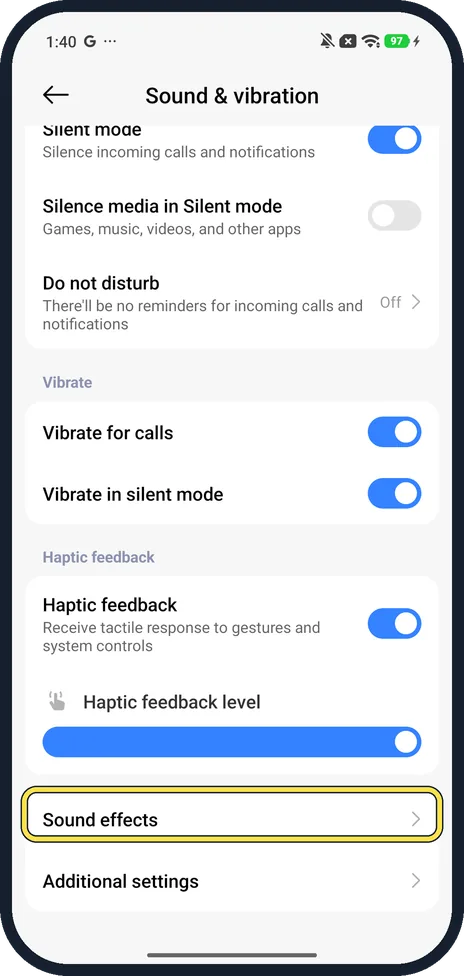
Open Sound effects
Open Settings, Sound & vibration and scroll down. Tap Sound effects, near Additional settings.
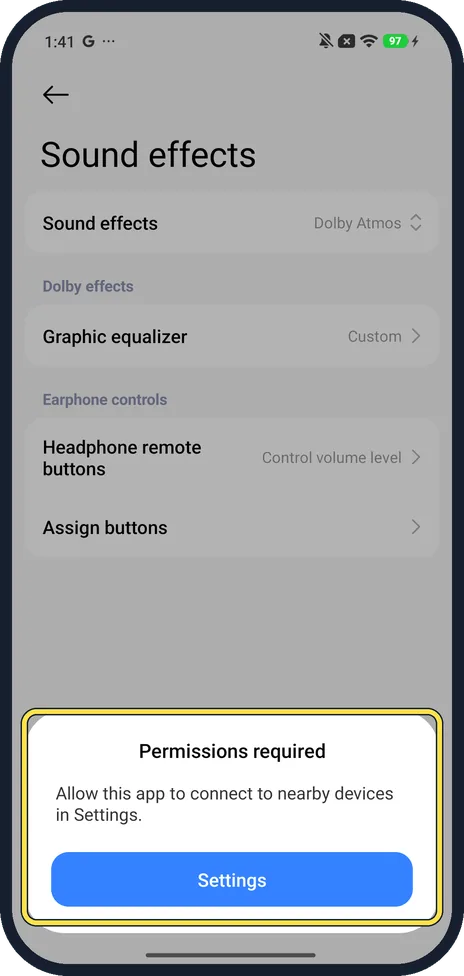
Allow the permission if asked
The first time, ours said Permissions required: Allow this app to connect to nearby devices in Settings. Tap Settings.
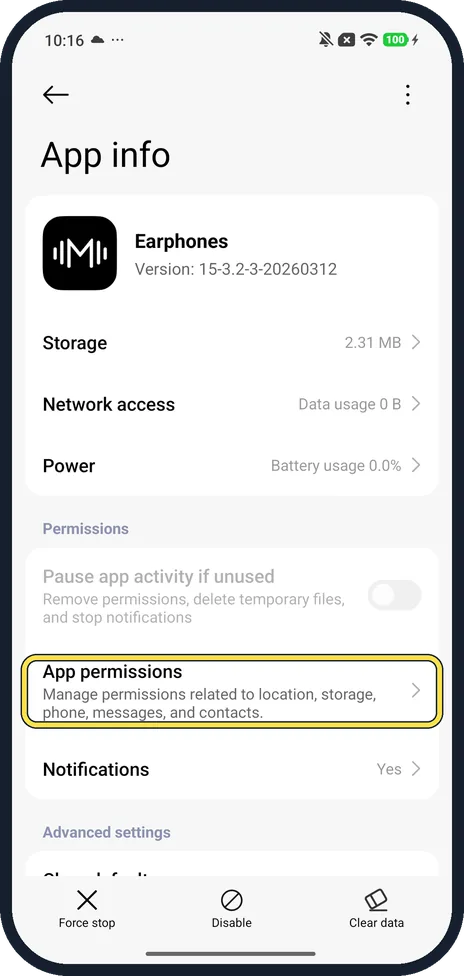
Tap App permissions
Settings opens the Earphones app's App info page. Tap App permissions.
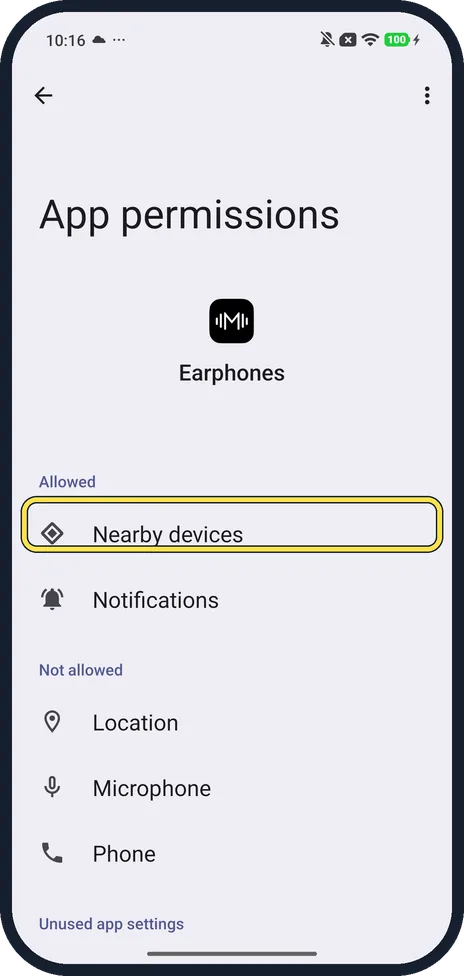
Allow Nearby devices
In App permissions, tap Nearby devices and choose Allow. Ours then listed Nearby devices under Allowed. Go back to Sound effects.
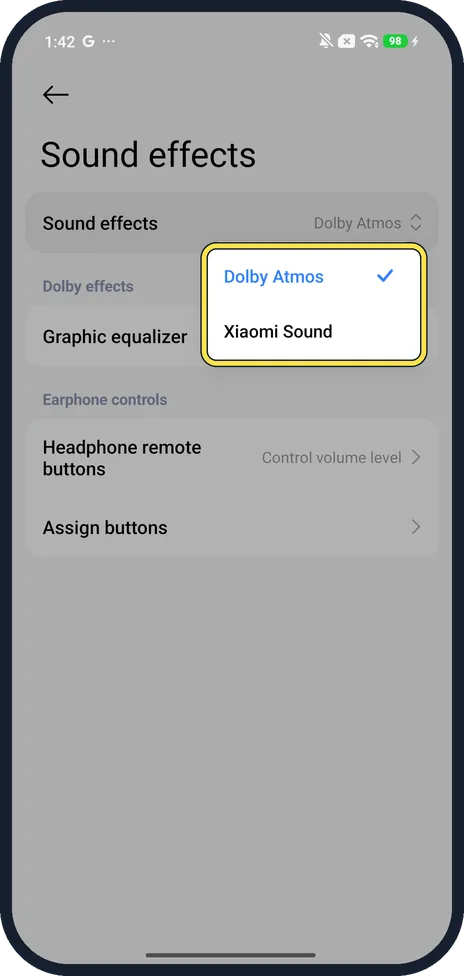
Choose Dolby Atmos
Tap Sound effects at the top. Ours offered Dolby Atmos (ticked) and Xiaomi Sound.
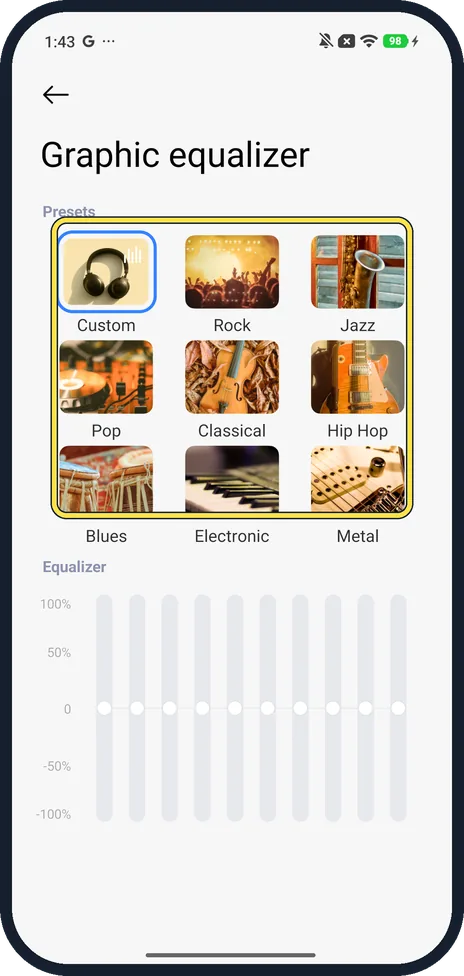
Pick an equaliser preset
Tap Graphic equalizer. The presets are Custom, Rock, Jazz, Pop, Classical, Hip Hop, Blues, Electronic and Metal; Custom lets you drag the bands below.
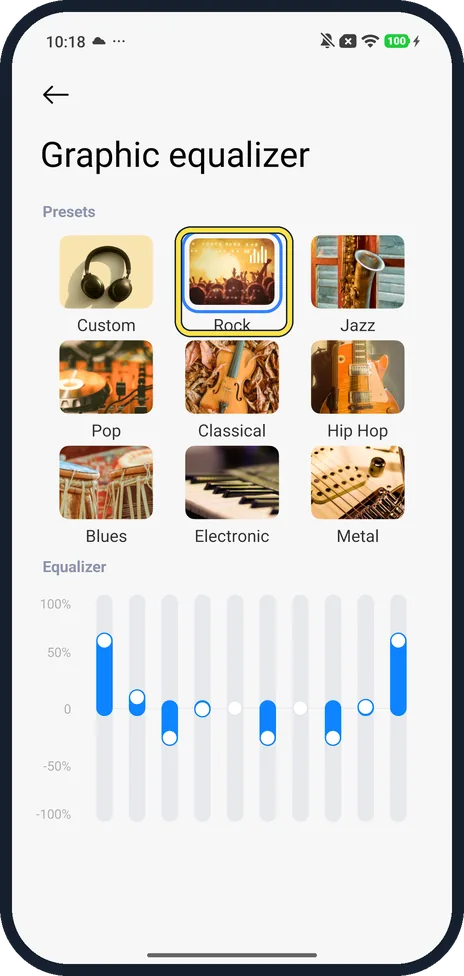
Check the preset is on
Tap a preset. Ours outlined Rock in blue and moved the equaliser bands; we set it back to Custom.
If you do not see this option
- Looking in the Music app? Xiaomi's HyperOS 3 guide gives a second route: in Music's settings, tap Headphones & audio effects, then Sound effects, to choose Dolby Atmos or Xiaomi Sound, and Graphic equalizer for the presets. Source: Generic User Guide for HyperOS 3.0
- Picked Xiaomi Sound instead? With Xiaomi Sound, the Dolby effects heading changes to Mi Sound; Graphic equalizer and Earphone controls stay.
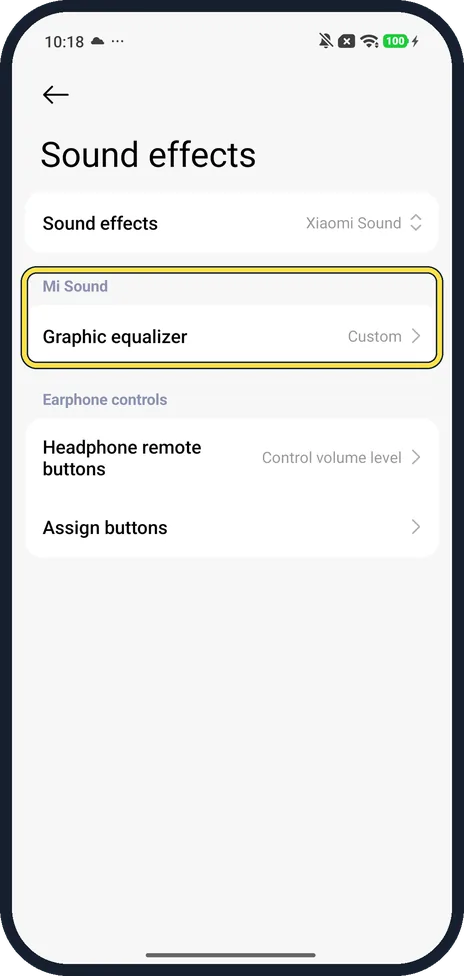
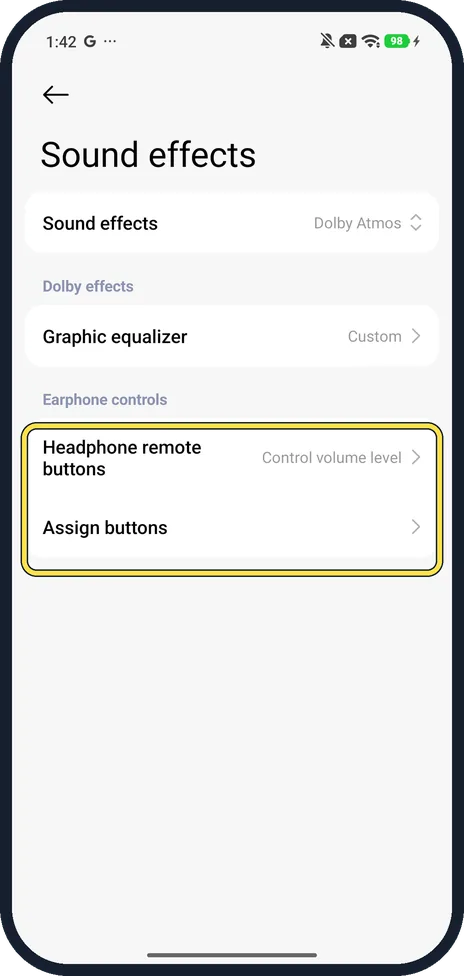
- Headphone buttons? Under Earphone controls, Headphone remote buttons and Assign buttons set what wired headphone buttons do. Ours said Control volume level.
If this does not work
- Want a quicker switch? Xiaomi says you can turn Dolby Atmos on from Control Centre: how to edit the Control Centre on a Xiaomi phone. Source: How to turn on Dolby Atmos on the Xiaomi 14T?
- Sound effects shows a permission message instead? Sound effects needs the Earphones app's Nearby devices permission. If you tapped Don't allow, go to its App info, App permissions, Nearby devices and choose Allow (steps 3 and 4).
About this guide
Sound effects on HyperOS 3 is run by a system app called Earphones, which is why it can ask for a permission the first time.
The screenshots are from our Redmi Note 15 Pro 5G with Xiaomi HyperOS 3 and Android 16, in Light mode, taken on 23 October 2026. Dolby Atmos was already selected and the equaliser on Custom. For the pictures we allowed the permission, picked Rock and Xiaomi Sound, then set both back.
Good to know
Add the Dolby Atmos tile: how to edit the Control Centre.
In short: Settings, Sound & vibration, Sound effects (allow Nearby devices once): Dolby Atmos or Xiaomi Sound; Graphic equalizer presets.
Links checked in October 2026. Menus and features can change after software updates. These steps match the version named at the top.
📷 See real photos from the Redmi Note 15 Pro 5G in our Camera Lab, next to 10 other phones.
Did this guide work for you?
Sorry about that. What happened?