
howtosimply.com/guides/how-to-use-xiaomi-share-and-interconnectivity-on-a-xiaomi-phone/ · Checked October 2026 · Xiaomi Redmi Note 15 Pro 5G (25080RABDG), HyperOS 3.0.308.0, Android 16
In this guide
Go to Settings, Interconnectivity and turn it on, then tap Xiaomi Share to let nearby devices find you. Its Supported devices page lists Xiaomi phones and tablets, iPhone, iPad and Mac, and other Android brands such as vivo, realme and OPPO.
7 of 7 steps with real screenshots · 1 official source below
- Device
- Android
- Shown on
- Xiaomi Redmi Note 15 Pro 5G (25080RABDG), HyperOS 3.0.308.0, Android 16
- App
- Settings
- Real screenshots
- 7 of 7 steps
- Checked
- October 2026
- Sources
- 1 official, linked below
Step by step
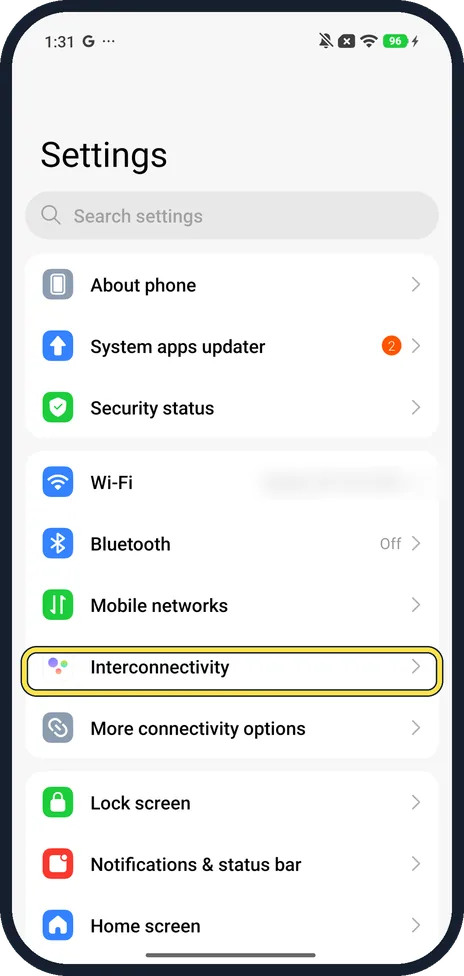
Open Interconnectivity
Open Settings and tap Interconnectivity.
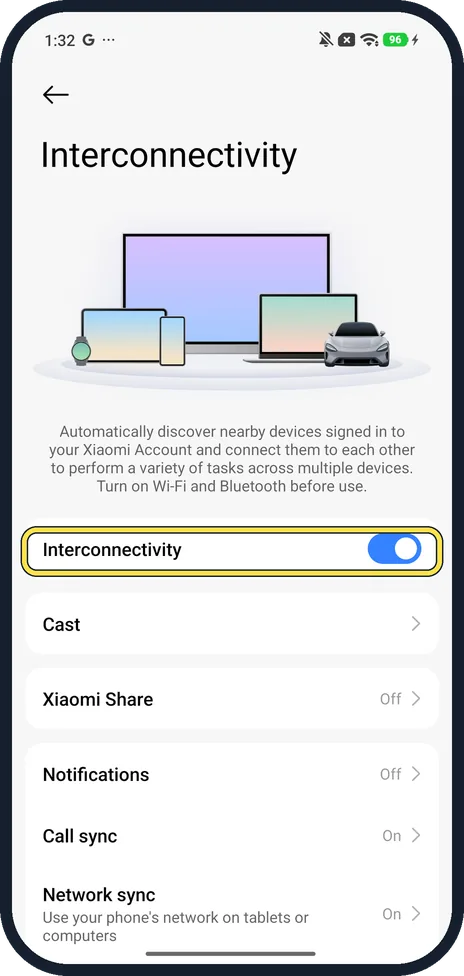
Turn on Interconnectivity
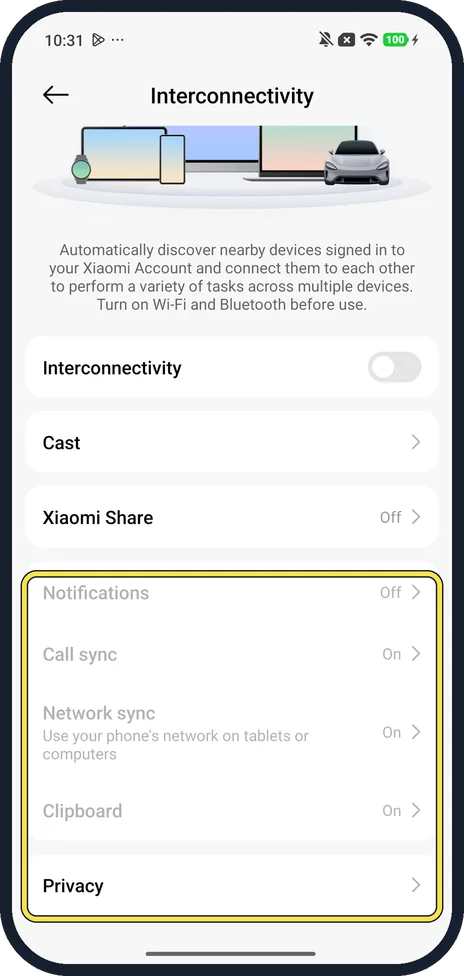
The page says it discovers nearby devices signed in to your Xiaomi Account and asks you to turn on Wi-Fi and Bluetooth first. Tap the Interconnectivity switch. Ours turned on straight away, with no Xiaomi account prompt.
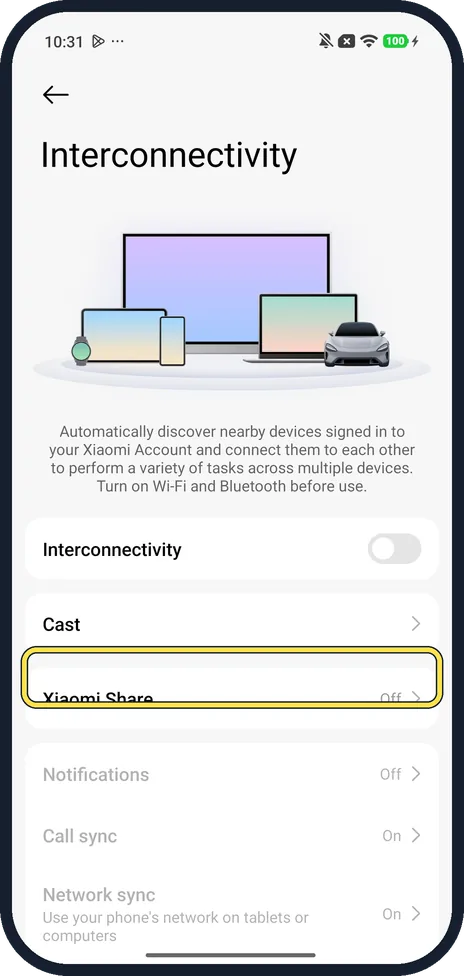
Open Xiaomi Share
On the same Interconnectivity page, tap Xiaomi Share. It said Off on ours; this picture was taken before we turned the main switch on.
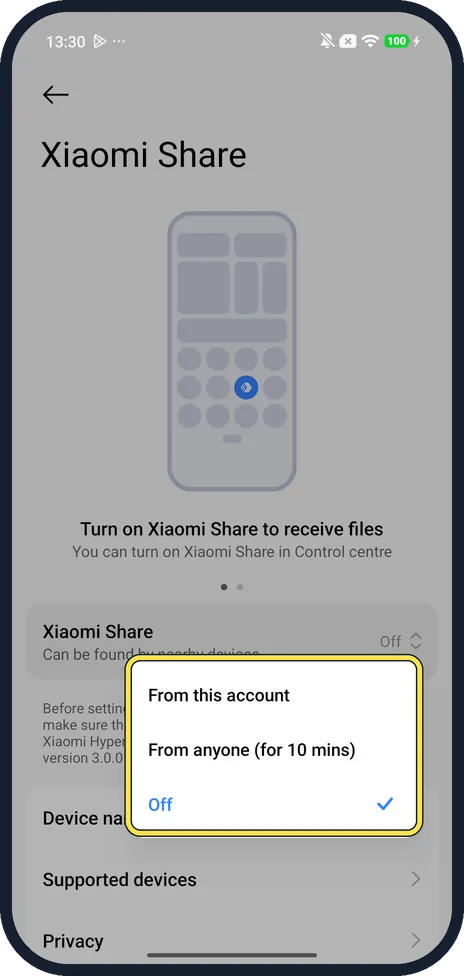
Choose who can send to you
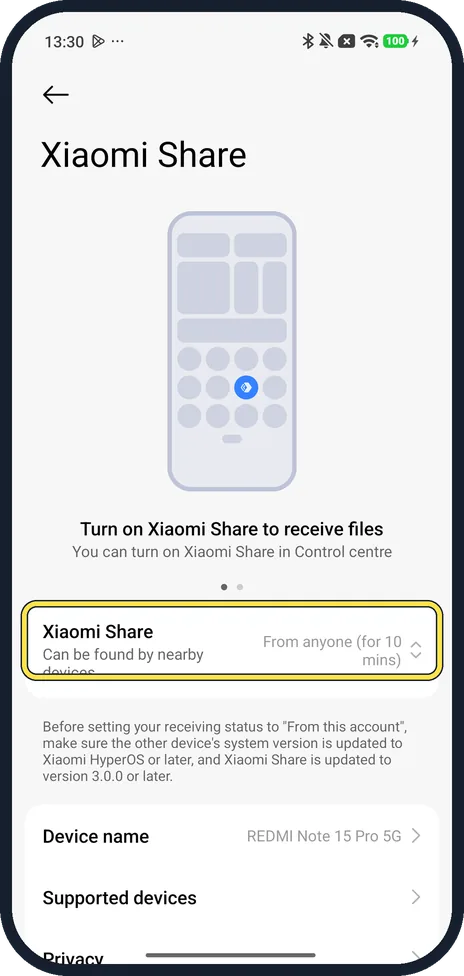
On the Xiaomi Share page, tap Xiaomi Share (Can be found by nearby devices). The pop-up offers From this account, From anyone (for 10 mins) and Off.
Agree and check it is on
We chose From anyone (for 10 mins). Ours first showed a privacy notice with the User Agreement and Privacy Policy; tap Agree. The row then read From anyone (for 10 mins). It also turned Bluetooth on, and it asked for no Xiaomi account.
Check the other device is supported
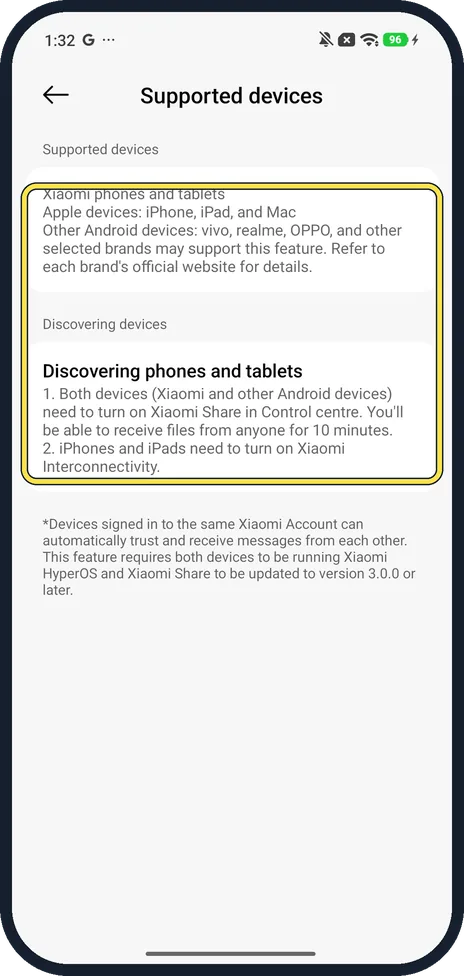
Tap Supported devices at the bottom. Ours listed Xiaomi phones and tablets; Apple devices: iPhone, iPad and Mac; and other Android devices such as vivo, realme and OPPO. It says iPhones and iPads need Xiaomi Interconnectivity turned on. We did not test an Apple device.
Cast to a TV or monitor
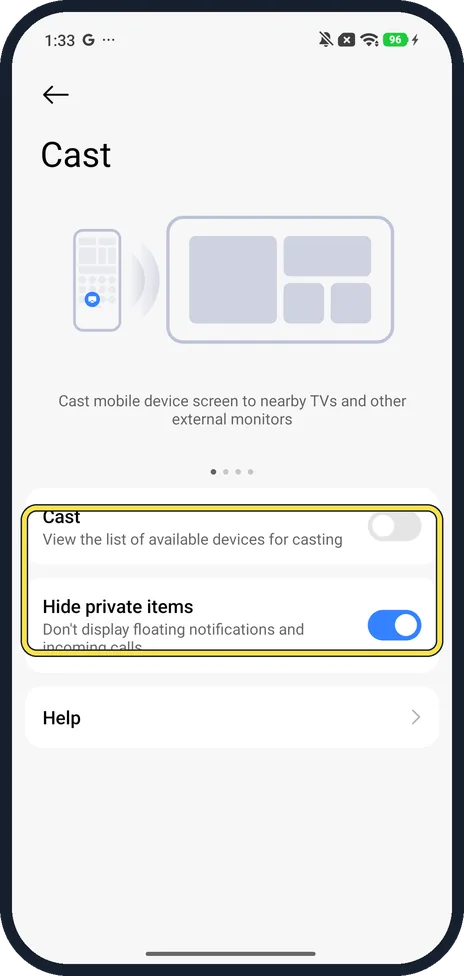
Back on Interconnectivity, tap Cast and turn on the Cast switch to see TVs and monitors nearby. Hide private items, on by default on ours, keeps floating notifications and incoming calls off the big screen.
If you do not see this option
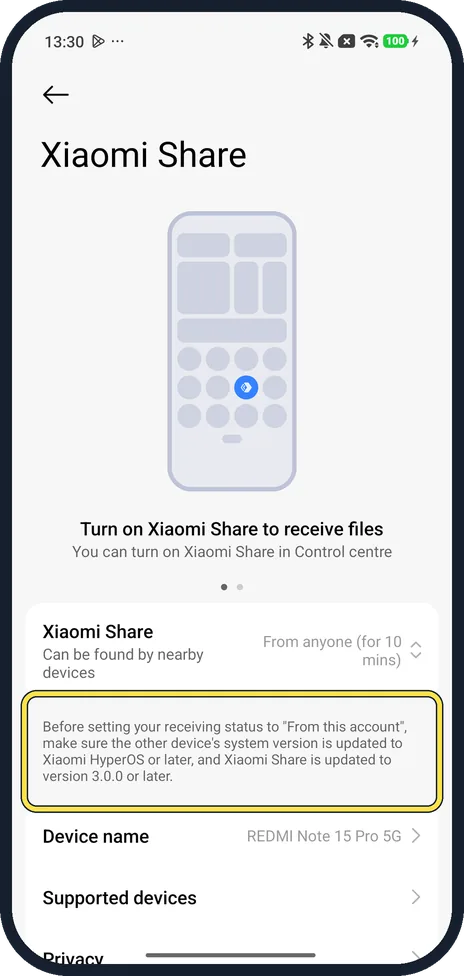
- Choosing From this account? The Xiaomi Share page on ours says that before you set it, the other device must be on Xiaomi HyperOS or later with Xiaomi Share 3.0.0 or later. A phone still on MIUI or an older Xiaomi Share won't show up.
- Receiving from a phone that isn't yours? Xiaomi's guide says both phones need Xiaomi Share on. Choose From anyone (for 10 mins); you can also turn Xiaomi Share on from Control Centre. Source: Generic User Guide for HyperOS 3.0
- What do the other rows do? Notifications, Call sync, Network sync and Clipboard share those with your other Xiaomi devices; Network sync uses your phone's network on tablets or computers. Ours had Call sync, Network sync and Clipboard On. Privacy is at the bottom.
If this does not work
- Other device not found? The Interconnectivity page asks you to turn on Wi-Fi and Bluetooth before use. Xiaomi's guide says both phones need Xiaomi Share on. Source: Generic User Guide for HyperOS 3.0
- Sending to a computer? A cable is the sure way: how to turn on USB file transfer on a Xiaomi phone.
About this guide
Interconnectivity is HyperOS's hub for sending files, casting the screen and syncing calls and notifications with your other Xiaomi devices. It has its own row on the main Settings page.
The screenshots are from our Redmi Note 15 Pro 5G with Xiaomi HyperOS 3 and Android 16, in Light mode. We turned Interconnectivity and Xiaomi Share on for the pictures and off again, and switched Bluetooth back off; we did not send a file to another device.
Good to know
Share your Wi-Fi instead: how to share a Wi-Fi password from a Xiaomi phone.
In short: Settings, Interconnectivity on. Xiaomi Share: From this account or From anyone (10 mins). Supported devices lists iPhone, iPad and Mac. Cast for TVs.
Links checked in October 2026. Menus and features can change after software updates. These steps match the version named at the top.
Did this guide work for you?
Sorry about that. What happened?