XIAOMI REDMI
How to turn on NFC and tap to pay on a Xiaomi phone (HyperOS 3)
Go to Settings, More connectivity options, NFC, and turn on NFC. Payment default picks the payment app, such as Google Pay. Xiaomi says the Redmi Note 15 Pro 5G does not support NFC payment and that NFC features differ by region, so check with your bank or wallet app first.

5 of 5 steps show a real screenshot from our Redmi Note 15 Pro 5G. Each step was checked against the maker's own instructions, linked at the end.
Steps
- 1
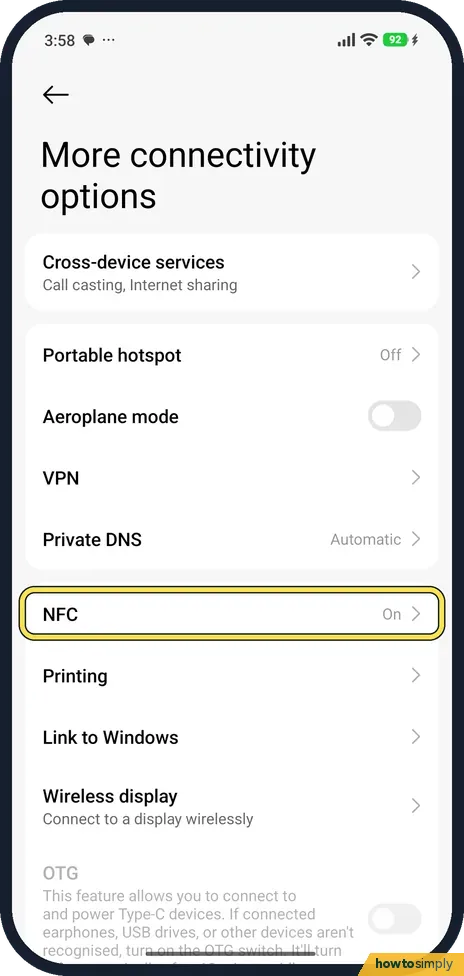
Open More connectivity options
In Settings, tap More connectivity options, then NFC. Our phone showed NFC On.
- 2
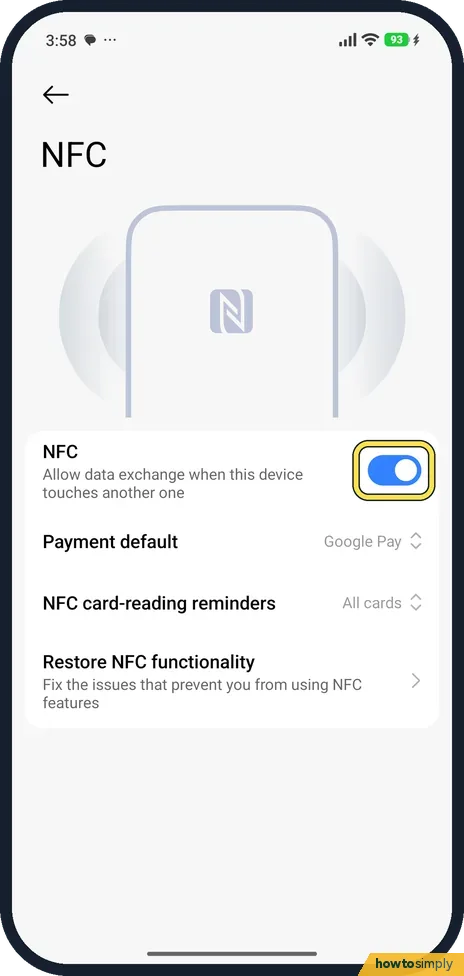
Turn on NFC
Turn on NFC. The text under it says Allow data exchange when this device touches another one.
- 3
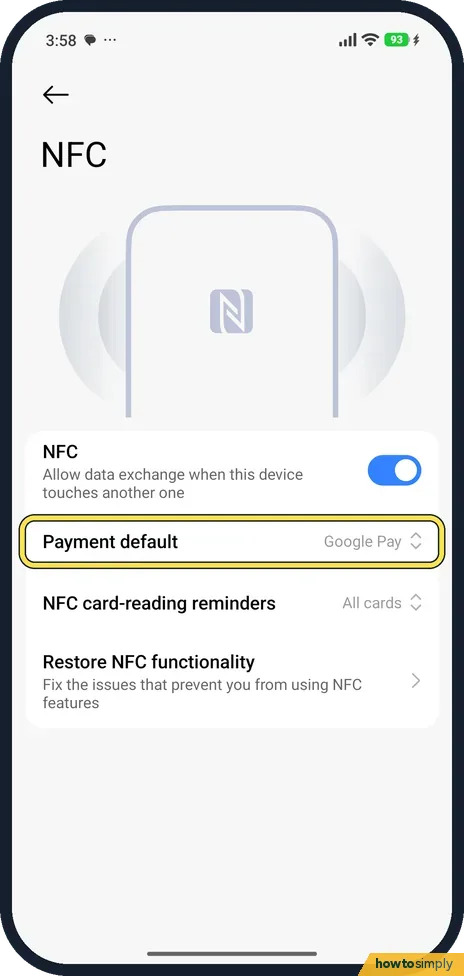
Tap Payment default
Tap Payment default to choose which app pays when you hold the phone to a card reader.
- 4
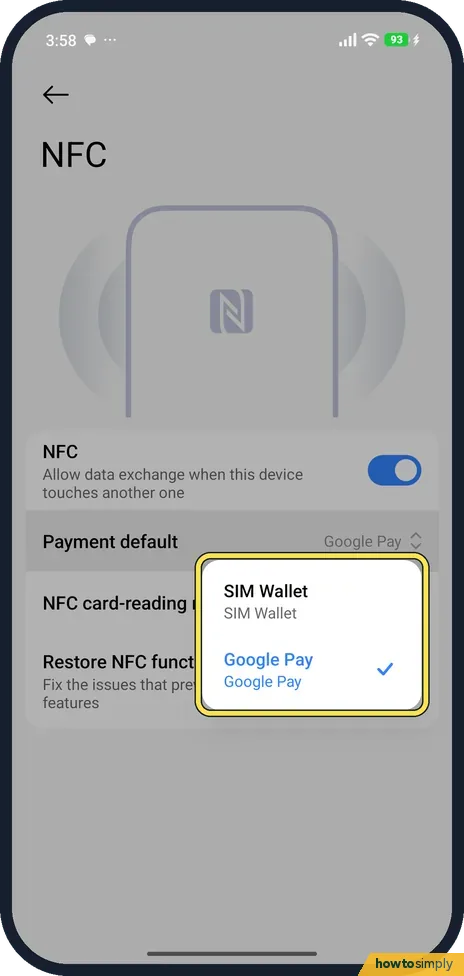
Choose the payment app
Our phone offered SIM Wallet and Google Pay. Google Pay was selected.
- 5
Install a wallet app and add a card
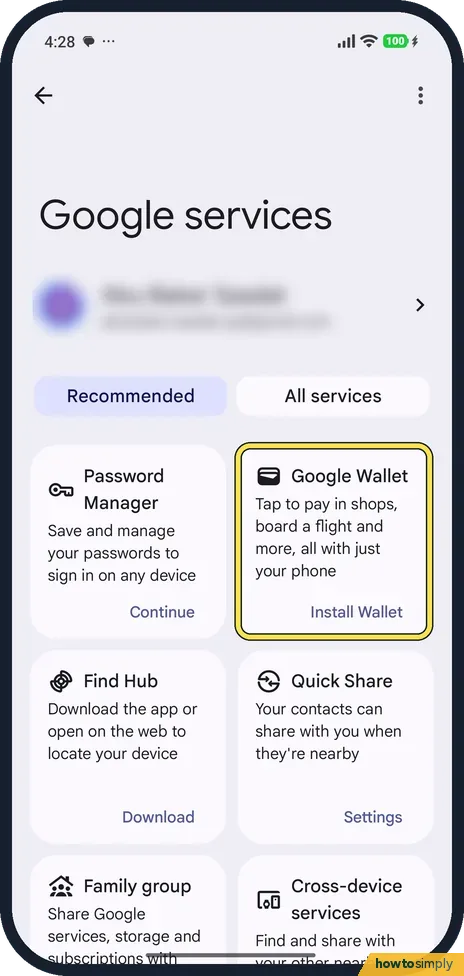
NFC alone does not pay. Google Wallet was not on our phone: Google services showed Install Wallet. If tap to pay is offered for your phone and region, install it from Play Store and add a card to it. We did not add a card or pay with it.
If you do not see this option
- No NFC row? Xiaomi says NFC may not be available on all models and can depend on your carrier. Source: Generic User Guide for HyperOS 3.0
- Payment default shows Google Pay but no Wallet app? That is how ours looked. The setting picks the service; the app with your card still has to be installed.
- Does tap to pay work on the Redmi Note 15 Pro 5G? Xiaomi's FAQ for this model says it supports NFC, including card reader/writer and card emulation functions, but does not support NFC payment, and that NFC features can differ by region or country. When we checked again on 1 November 2026 with HyperOS 3.0.309.0, Payment default still offered SIM Wallet and Google Pay, Google Wallet was still not installed, and the Wallet tile in Control Centre opened nothing. We added no card and paid nothing, so we cannot say whether a payment works. Ask your bank or the wallet app before relying on it at a till. Source: REDMI Note 15 Pro 5G FAQ
- Wallet asks for a screen lock? Google requires a screen lock on the phone before tap to pay works, and the phone must meet its security requirements. Set a screen lock first. Source: Tap to pay with your phone
If this does not work
- Card reader does not react? Check NFC is on and that your card is in the app chosen in Payment default. You can also turn NFC on from Control Centre.
- Something else stops NFC? The NFC page has Restore NFC functionality, which says it fixes the issues that prevent you from using NFC features. We did not run it.
- Wallet says Turn on NFC to pay? Google says this message means NFC is off or not supported. Check the NFC switch under More connectivity options again.
Good to know
Add an NFC tile to Control Centre: how to edit the Control Centre on a Xiaomi phone.
With NFC on, the phone can talk to readers, tags and other phones held a few centimetres away. Xiaomi's user guide also mentions transport cards and key cards as uses. Leaving NFC on is normal for tap to pay, and its battery use is small because it only works at very short range. Wallet pays with your default card, so check which one is set before you shop. To stop tap to pay, turn NFC off or remove the card from the app; the card itself is not affected.
About this guide
- Device
- Android
- Shown on
- Xiaomi Redmi Note 15 Pro 5G (25080RABDG), HyperOS 3.0.308.0, Android 16
- App
- Settings
- Path
- Settings › More connectivity options
- Real screenshots
- 5 of 5 steps
- Checked
- October 2026
- Sources
- 3 official, linked below
Sources
Links checked October 2026. Menus and features can change with updates.Spotted a mistake? Menus change with updates, and we want every step to match your screen. Email us about this page or use the contact form. We read every report, and fixes are listed on What changed.
Liked this guide?
Follow us for new guides and short how-to videos.
Did this guide work for you?
Sorry about that. What happened?