XIAOMI REDMI
How to edit the Control Centre on a Xiaomi phone (HyperOS 3)
Open Control Centre, tap Edit at the bottom, then tap the red minus on a tile to remove it or the blue plus on a tile below to add it. Tap the tick at the top right to save.

5 of 5 steps show a real screenshot from our Redmi Note 15 Pro 5G. Each step was checked against the maker's own instructions, linked at the end.
Steps
- 1
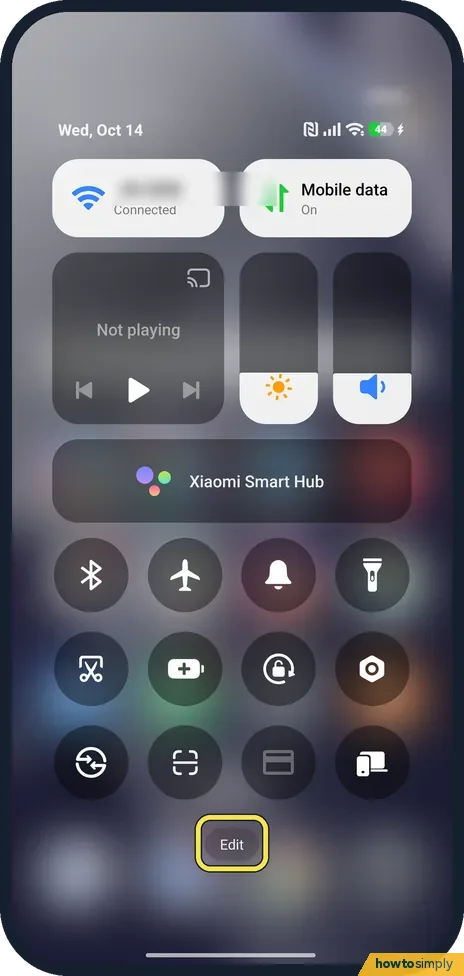
Open Control Centre and tap Edit
Swipe down from the top right of the screen to open Control Centre. Tap Edit at the bottom.
- 2
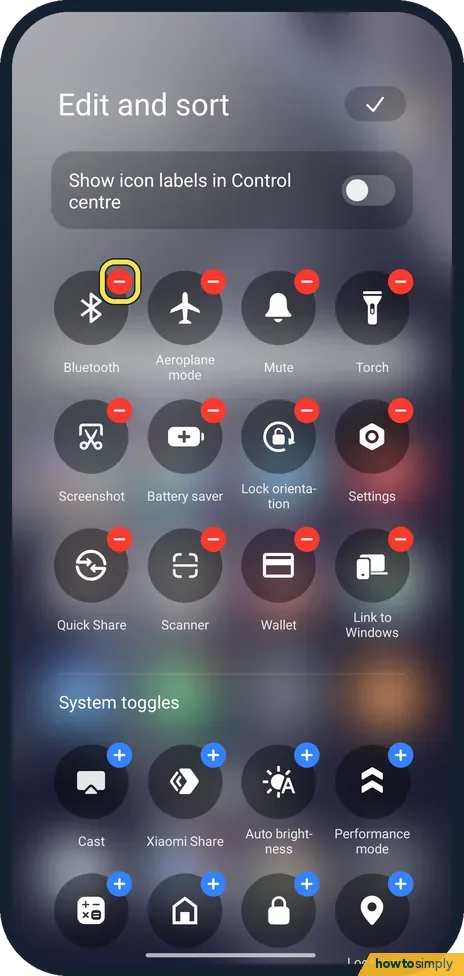
Remove a tile
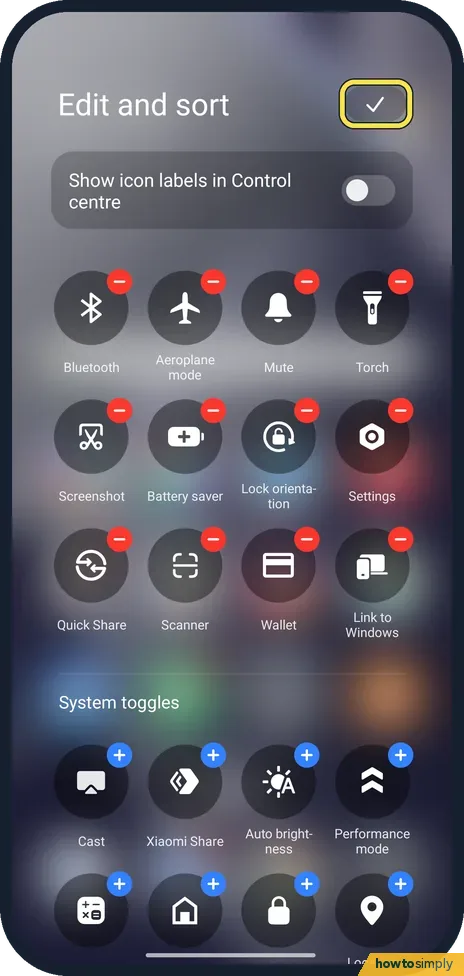
Your tiles are at the top of Edit and sort. Tap the red minus on a tile to take it out.
- 3
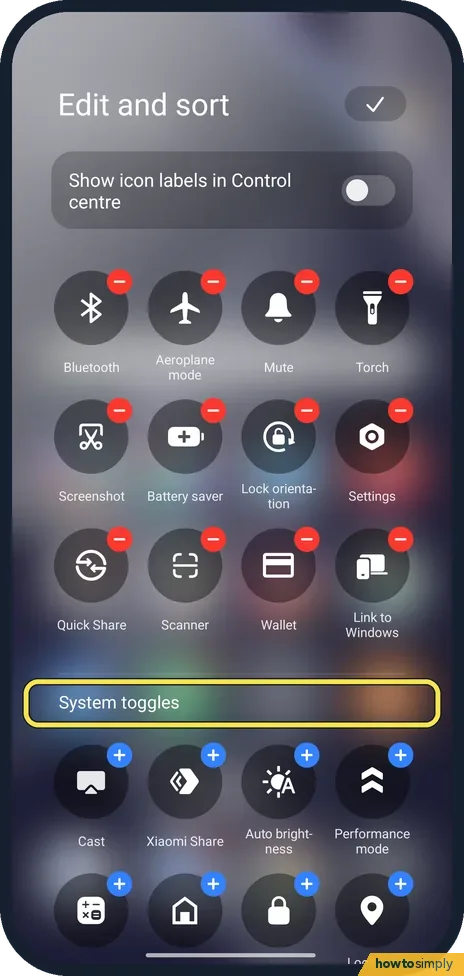
Add a tile from the lists below
Below your tiles, System toggles lists the tiles you can add, each with a blue plus. App toggles follow further down.
- 4
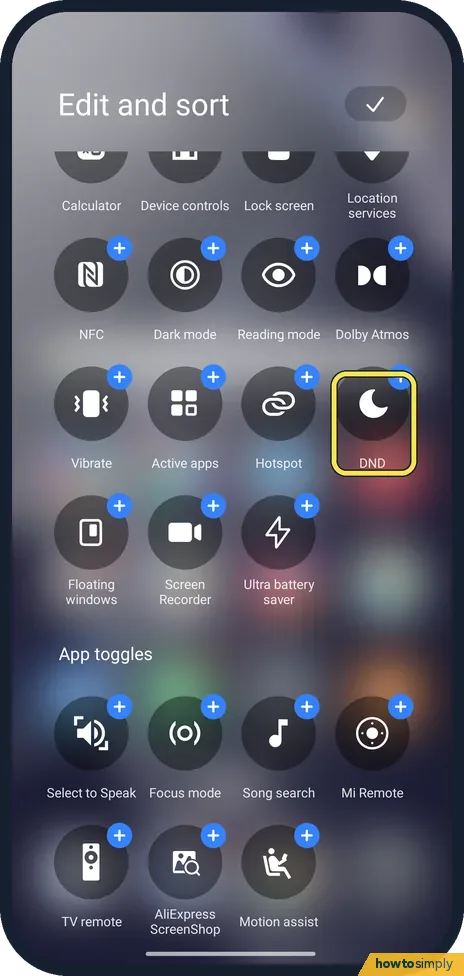
Find the tile you want
DND, Dark mode, Reading mode, Hotspot, Screen Recorder and Ultra battery saver were all in the list on our phone. Tap the plus on the one you want.
- 5
Tap the tick to save
Tap the tick at the top right. Turn on Show icon labels in Control centre, at the top, if you want names under the tiles.
If you do not see this option
- Swipe opens notifications instead? Xiaomi says to pull down from the top right of the screen for Control Centre. Source: How to configure features in the Control Center on the Xiaomi 14T Pro?
- Tile not in the lists? The lists depend on the phone. On ours they included NFC, Dolby Atmos and Ultra battery saver. A phone without NFC, for example, may not offer that tile.
If this does not work
- Changes gone after you close Edit? Tap the tick at the top right before leaving; Xiaomi's steps save with it.
- No names under the tiles? Turn on Show icon labels in Control centre at the top of Edit and sort.
- Control Centre opens from the lock screen? Xiaomi's user guide covers this under Settings, Notifications & status bar, Items shown on the Lock screen after swiping down. With the new version of Control centre you can choose whether Control centre can be pulled down while the phone is locked.
- Need the tile's settings, not just on and off? Xiaomi's guide says you tap a tile to turn the feature on or off and touch and hold it to open that feature's settings.
- Swiping down anywhere opens the same panel? That is the old Control centre style. Xiaomi says the new version opens from the right of the status bar and the old one from anywhere along it. See change the notification shade style.
Good to know
The DND tile switches Do not disturb on and off. Its settings are in Settings, Sound & vibration: how to use Do not disturb on a Xiaomi phone.
Adding a tile does not turn the feature on; it only gives you a quick switch. Removing a tile does not turn the feature off either. To undo, open Edit again and add or remove tiles as before.
About this guide
- Device
- Android
- Shown on
- Xiaomi Redmi Note 15 Pro 5G (25080RABDG), HyperOS 3.0.308.0, Android 16
- Starts in
- Quick Settings
- Real screenshots
- 5 of 5 steps
- What we did
- Observed: looked at each screen, changed nothing
- Checked
- October 2026
- Sources
- 2 official, linked below
Sources
Links checked October 2026. Menus and features can change with updates.Spotted a mistake? Menus change with updates, and we want every step to match your screen. Email us about this page or use the contact form. We read every report, and fixes are listed on What changed.
Liked this guide?
Follow us for new guides and short how-to videos.
Did this guide work for you?
Sorry about that. What happened?