
howtosimply.com/guides/how-to-turn-off-the-google-discover-page-on-a-samsung-galaxy/ · Checked October 2026 · Samsung Galaxy A57 5G (SM-A576B), One UI 8.5, Android 16
In this guide
Open Settings, Home screen, scroll down and switch off Add media page to Home screen. Swiping right from the first Home screen then no longer opens Google Discover. Switch it on again to bring it back.
3 of 3 steps with real screenshots · 1 official source below
- Device
- Android
- Shown on
- Samsung Galaxy A57 5G (SM-A576B), One UI 8.5, Android 16
- App
- Settings
- Path
- Settings › Home screen
- Real screenshots
- 3 of 3 steps
- What we did
- Observed: looked at each screen, changed nothing
- Our phone
- Shown on Galaxy A57, One UI 8.5
- Checked
- October 2026
- Sources
- 1 official, linked below
Step by step
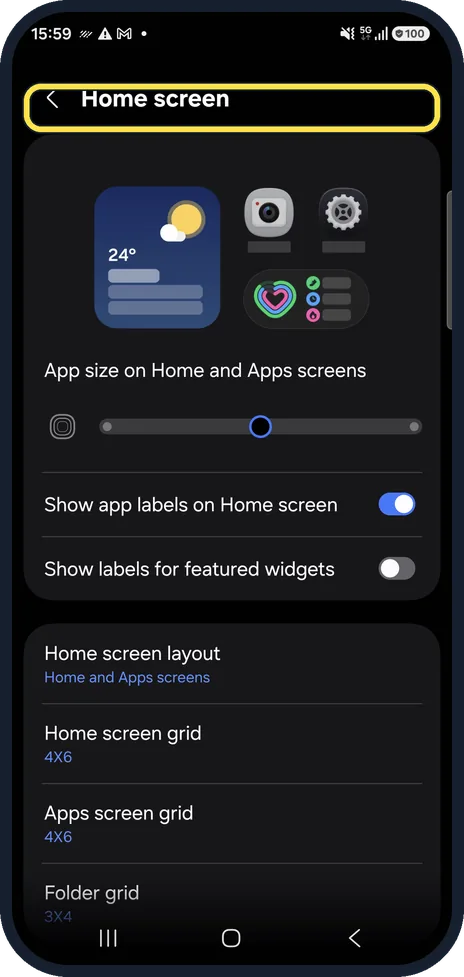
Open Home screen settings
Open Settings and tap Home screen, or touch and hold an empty part of the Home screen and tap Settings.
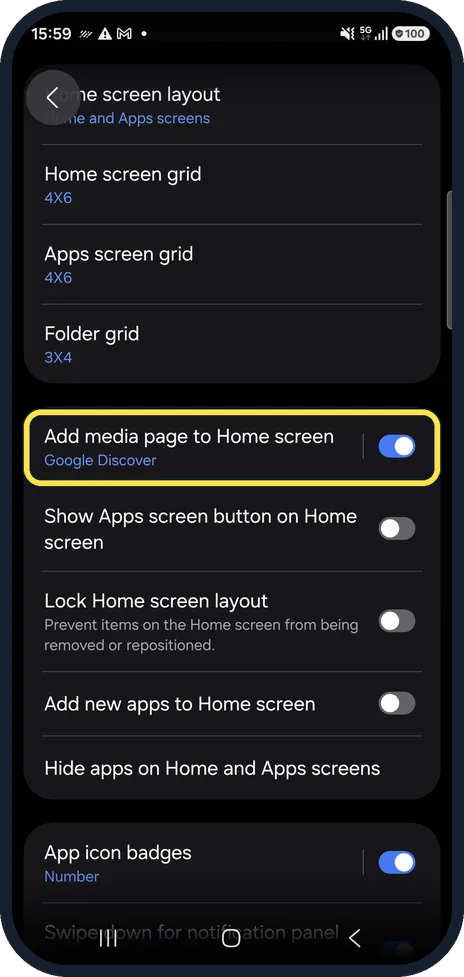
Find Add media page to Home screen
Scroll down. The row shows which feed is used; ours said Google Discover.
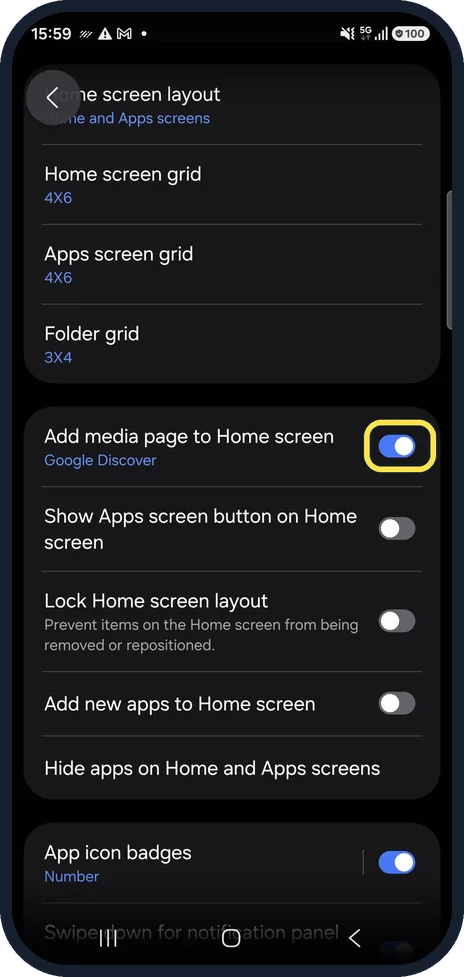
Switch it off
Tap the switch so it turns grey. The page to the left of your first Home screen disappears.
If you do not see this option
- Swiping right opens Samsung News instead Samsung says Galaxy phones come with both. Touch and hold an empty part of the Home screen and swipe right: the page splits between Google Discover and Samsung News, and you choose one. Source: Google Discover on Galaxy phones and tablets
- There is no Discover page at all Samsung says Google Discover depends on your country, carrier and model, and Google restricts it for accounts of users under 13. Source: Google Discover on Galaxy phones and tablets
If this does not work
- You want both feeds gone Samsung says the switch at the top of the Discover or Samsung News page turns off both. Touch and hold an empty part of the Home screen and swipe right to reach it. Source: Google Discover on Galaxy phones and tablets
- You want the page back later Samsung says you cannot delete Google Discover or Samsung News, only turn them off, so switching it on again brings the page back. Source: Google Discover on Galaxy phones and tablets
About this guide
Samsung calls the page to the left of your Home screen the media page. On our phone it was on and set to Google Discover.
Good to know
Discover also sits in the Google app; turning off the media page does not remove the Google app.
Other Home screen options on the same page: how to hide apps on a Samsung Galaxy phone.
In short: Settings, Home screen, switch off Add media page to Home screen.
Links checked in October 2026. Menus and features can change after software updates. These steps match the version named at the top.
📷 See real photos from the Galaxy A57 in our Camera Lab, next to 10 other phones.
Did this guide work for you?
Sorry about that. What happened?