GOOGLE PIXEL
How to turn off tap and click sounds on a Google Pixel (Android 17)

In short
Open Settings, Sound and vibration, and scroll to the bottom. Under System sounds and vibrations, turn off Tap and click sounds. Dial pad tones, Screen locking sound and Charging sounds and vibration have their own switches there. Ours has no row called Touch sounds.
5 of 5 steps show a real screenshot from our Pixel 10a. Each step was checked against the maker's own instructions, linked at the end.
Steps
- 1
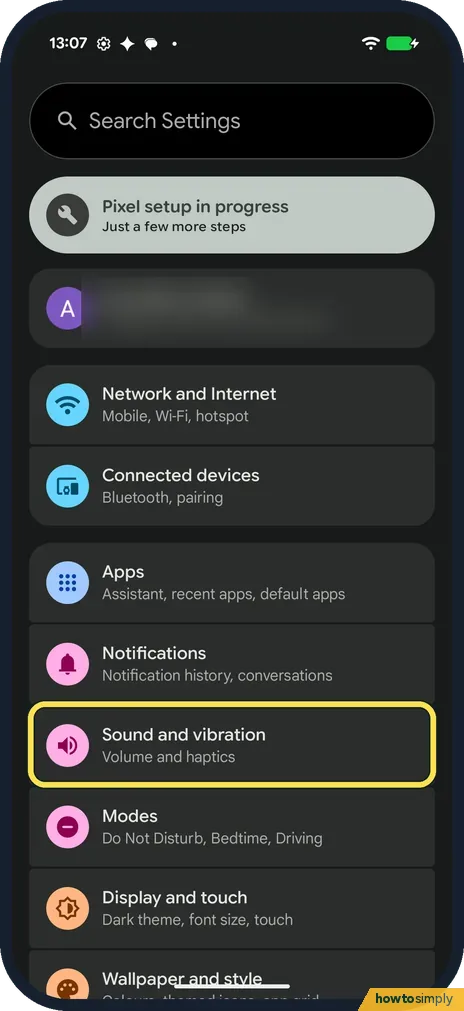
Open Sound and vibration
Open Settings and tap Sound and vibration: Volume and haptics.
- 2
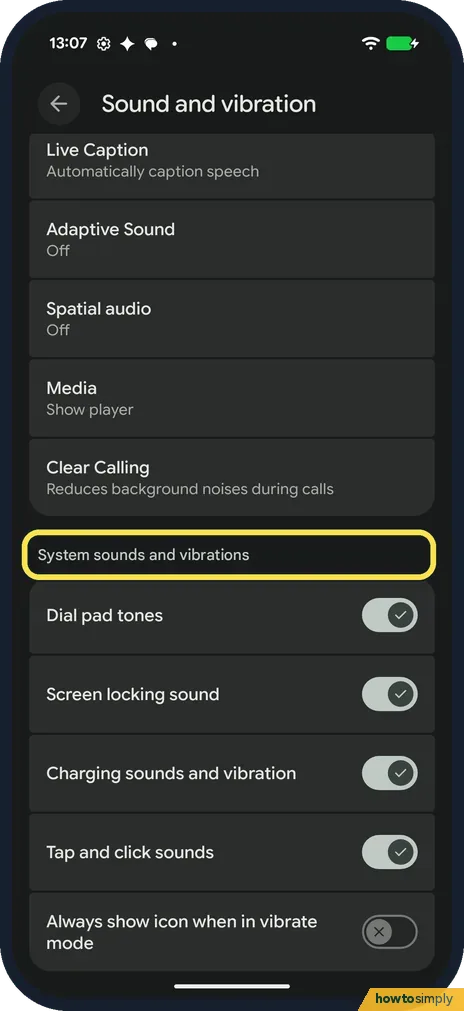
Scroll to System sounds and vibrations
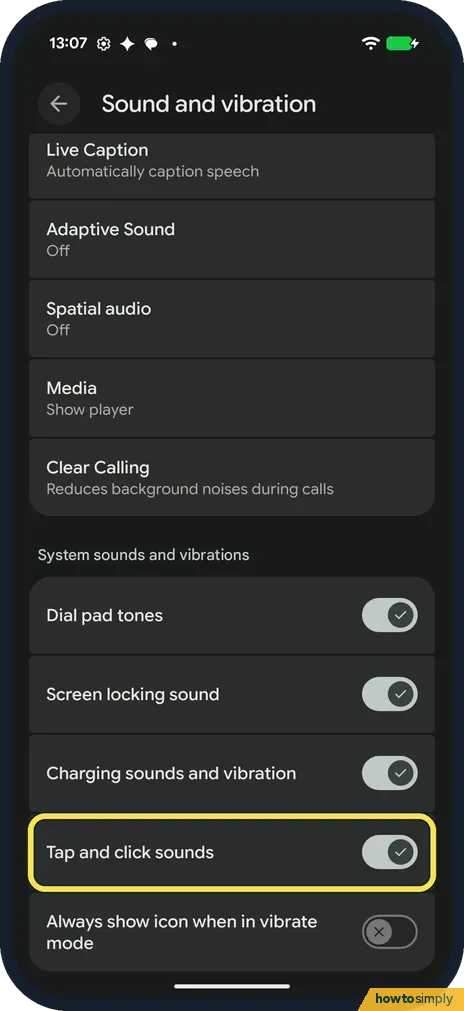
Scroll to the bottom of the page, past Live Caption, Adaptive Sound, Media and Clear Calling. The last section is System sounds and vibrations.
- 3
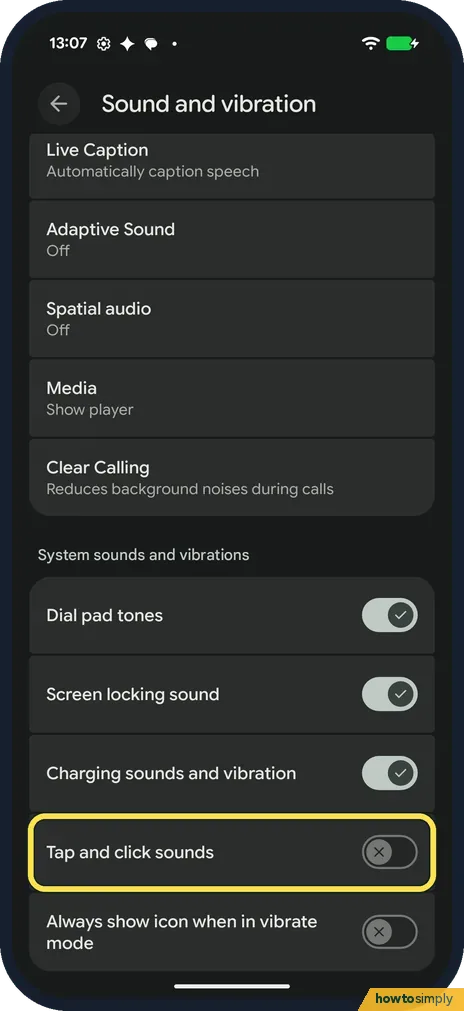
Turn off Tap and click sounds
Tap the Tap and click sounds switch, the fourth one. It turns dark with an X. It was on on ours.
- 4
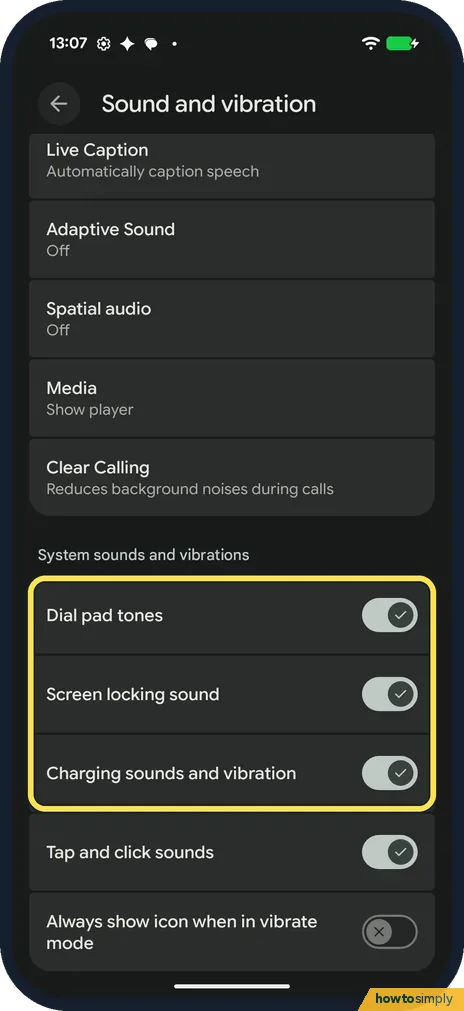
Turn off the other sounds
Above it are Dial pad tones, Screen locking sound and Charging sounds and vibration, all on on ours. Turn off the ones you don't want. We left them on.
- 5
Turn it back on
To undo it, tap the Tap and click sounds switch again. It shows a tick. We did this straight after.
If you do not see this option
- No Touch sounds row? On our Pixel 10a with Android 17 it is called Tap and click sounds, the fourth switch under System sounds and vibrations.
- Looking for keyboard clicks? This section has no keyboard switch. Google's Pixel help puts Keyboard vibration under Sound and vibration, Vibration and haptics. We did not check the keyboard app's own sound setting. Source: Change volume, sound & vibrate settings on your Pixel phone or Pixel Tablet
- What is the last switch? Always show icon when in vibrate mode. It shows an icon, it makes no sound. It was off on ours.
If this does not work
- Still hear the dial pad? Dial pad tones is a separate switch, the first one under System sounds and vibrations.
- A sound when you lock the phone? That is Screen locking sound, the second switch in the same section.
- Sound or buzz when you plug in the charger? Charging sounds and vibration covers both. It is the third switch; it was on on ours.
- Keyboard still clicks or buzzes? Keyboard sounds belong to the keyboard app, not this section. Google says you reach Gboard settings by touching and holding the comma key or tapping the Settings icon on the keyboard. Keyboard vibration is under Sound and vibration, Vibration and haptics.
Good to know
Change how the phone vibrates: change vibration and haptics on a Pixel. Pick a quieter alert: change the notification sound.
On a Xiaomi phone these switches are under Additional settings: turn off keyboard and touch sounds on a Xiaomi phone.
Turning off tap and click sounds only removes the small sound you hear when you touch the screen. Ringtones, alarms, notifications, media and calls keep their own volume, so nothing important goes quiet. If you want the whole phone quieter for a while, Google points to Do Not Disturb, which can silence everything or allow certain things through, such as alarms or important calls: how to use Do Not Disturb.
About this guide
- Device
- Android
- Shown on
- Google Pixel 10a, Android 17 (build CP3A.261005.005)
- App
- Settings
- Path
- Settings › Sound and vibration › Tap and click sounds
- Real screenshots
- 5 of 5 steps
- Checked
- October 2026
- Sources
- 2 official, linked below
Sources
Links checked October 2026. Menus and features can change with updates.Spotted a mistake? Menus change with updates, and we want every step to match your screen. Email us about this page or use the contact form. We read every report, and fixes are listed on What changed.
Liked this guide?
Follow us for new guides and short how-to videos.
Did this guide work for you?
Sorry about that. What happened?