XIAOMI REDMI
Xiaomi lock screen notifications not showing? How to turn them on (HyperOS 3)
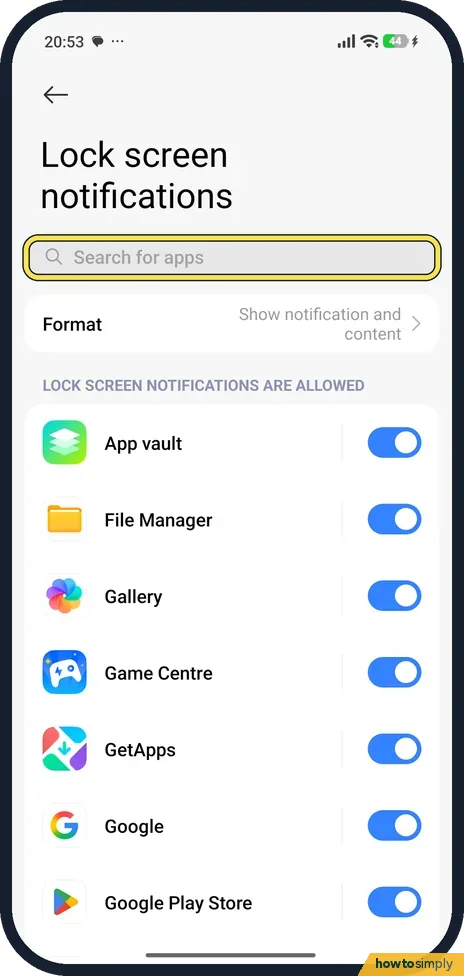
Open Settings, tap Notifications & status bar, then Lock screen. Set Format to Show notification and content, and make sure the switch next to the app is on. HyperOS 3 has no middle option that hides only the content.

6 of 6 steps show a real screenshot from our Redmi Note 15 Pro 5G. Each step was checked against the maker's own instructions, linked at the end.
Steps
- 1
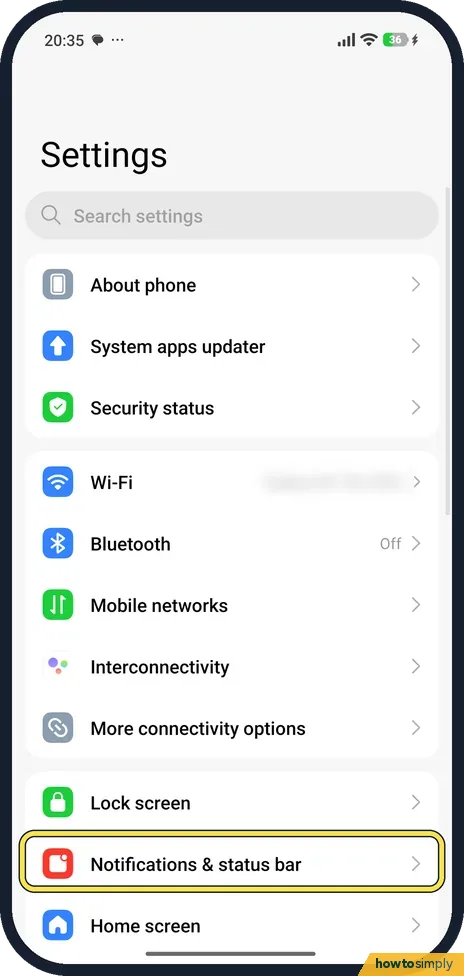
Tap Notifications & status bar
Open Settings and scroll down. Notifications & status bar is below Lock screen.
- 2
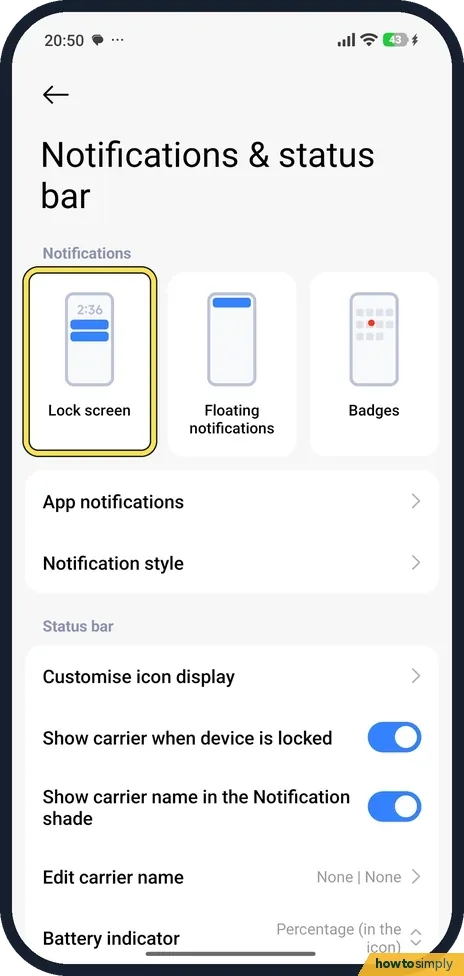
Tap Lock screen
Three tiles sit at the top: Lock screen, Floating notifications and Badges. Tap Lock screen.
- 3
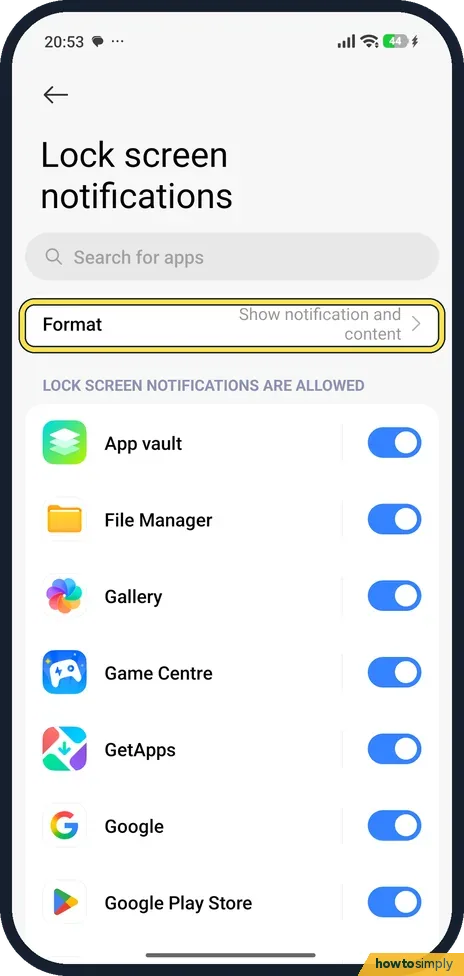
Tap Format
Format shows the current choice. Ours was Show notification and content.
- 4
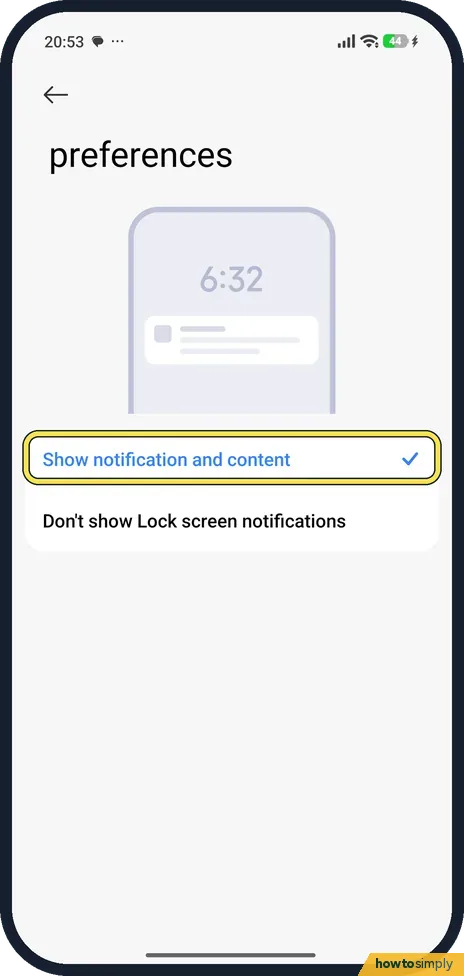
Choose Show notification and content
There are only two choices: Show notification and content, and Don't show Lock screen notifications. Pick the first.
- 5
Check the app's switch
Back on Lock screen notifications, every app has its own switch under Lock screen notifications are allowed. Search for the app at the top and make sure its switch is blue.
- 6
Or check it in the app's own settings
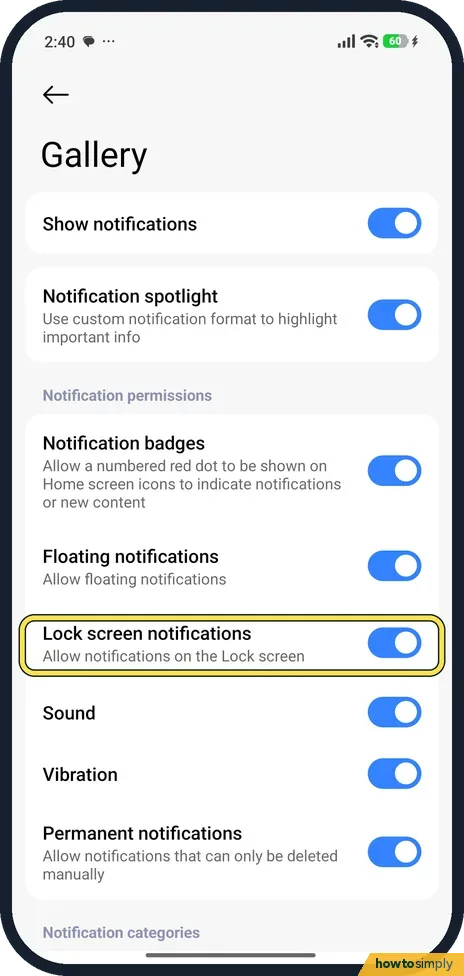
The same switch is in each app's notification settings. Open Settings, tap Apps, the app, then Notifications. Here, for Gallery, Lock screen notifications (Allow notifications on the Lock screen) is on, under Notification permissions.
If you do not see this option
- Looking for a way to hide only the private part? Many Android phones can show a notification but hide its text on the lock screen. On our HyperOS 3 phone, Format offers only Show notification and content or Don't show Lock screen notifications.
If this does not work
- Nothing shows, even when unlocked? Check the app's own notifications first: Notifications & status bar, App notifications.
- Notifications silent at night? Do not disturb may be on, or on a schedule: how to use Do not disturb on a Xiaomi phone.
- Can't swipe down on the lock screen? That is a separate setting. Xiaomi's user guide puts it under Settings, Notifications & status bar, Items shown on the Lock screen after swiping down, where Notification shade must be on.
- Messages arrive late or only when you unlock? The app may be stopped in the background, so the notification only appears once you open it. Check the app's battery and autostart settings: Xiaomi closing apps in the background.
- Shows for some chats but not others? Many messaging apps have their own notification categories, such as one for groups and one for direct messages. Google notes that an app can have categories you turn on or off separately, so open the app's notification settings and check each one.
Good to know
With Show notification and content on, anyone who picks up the phone can read message previews without unlocking it, including codes sent by text. Since HyperOS 3 offers no option to hide only the content, the practical middle ground is to keep Format on and turn off the switch for the few apps whose messages are private, such as banking or a personal chat app. Those apps then still notify you once the phone is unlocked. To make the lock screen tidier in other ways, see how to remove news and stories from the lock screen.
About this guide
- Device
- Android
- Shown on
- Xiaomi Redmi Note 15 Pro 5G (25080RABDG), HyperOS 3.0.308.0, Android 16
- App
- Settings
- Path
- Settings › Notifications & status bar › Lock screen › Format: Show notification and content
- Real screenshots
- 6 of 6 steps
- Checked
- October 2026
- Sources
- 2 official, linked below
Sources
Links checked October 2026. Menus and features can change with updates.Spotted a mistake? Menus change with updates, and we want every step to match your screen. Email us about this page or use the contact form. We read every report, and fixes are listed on What changed.
Liked this guide?
Follow us for new guides and short how-to videos.
Did this guide work for you?
Sorry about that. What happened?