
howtosimply.com/guides/how-to-turn-off-mail-categories-on-an-iphone/ · Checked October 2026 · iPhone 17e · iOS 27.0.1
In this guide
In the Mail inbox, tap the ... button at the top right and untick Show Categories. The Primary, Transactions, Updates and Promotions tabs disappear and you get one plain list. Tick it again to bring the tabs back.
4 of 4 steps with real screenshots · 1 official source below
- Device
- iPhone
- Shown on
- iOS 27.0.1 (iPhone 17e)
- App
- Path
- Mail › Inbox › ... › Show Categories
- Real screenshots
- 4 of 4 steps
- Checked
- October 2026
- Sources
- 1 official, linked below
Step by step
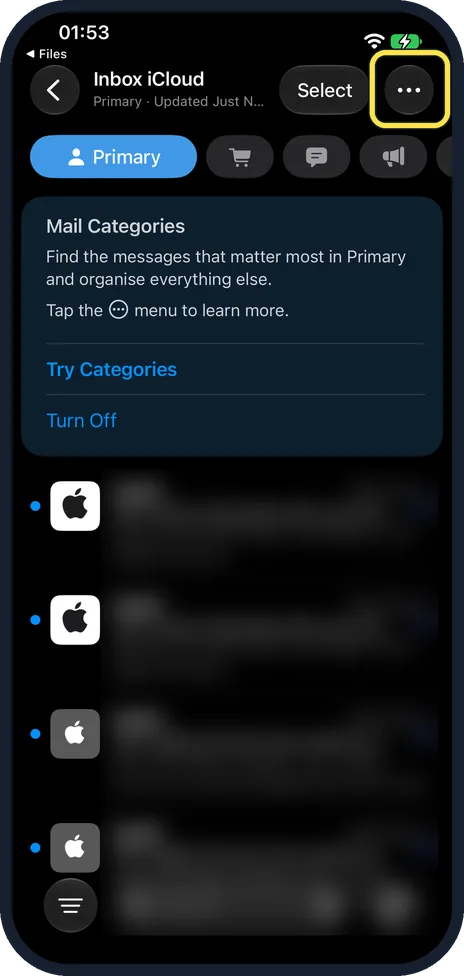
Tap the ... button
Above the inbox is the category bar, with Primary picked and buttons for Transactions, Updates and Promotions. Tap the ... button at the top right, next to Select. The Mail Categories card under the bar also had a Turn Off link on ours.
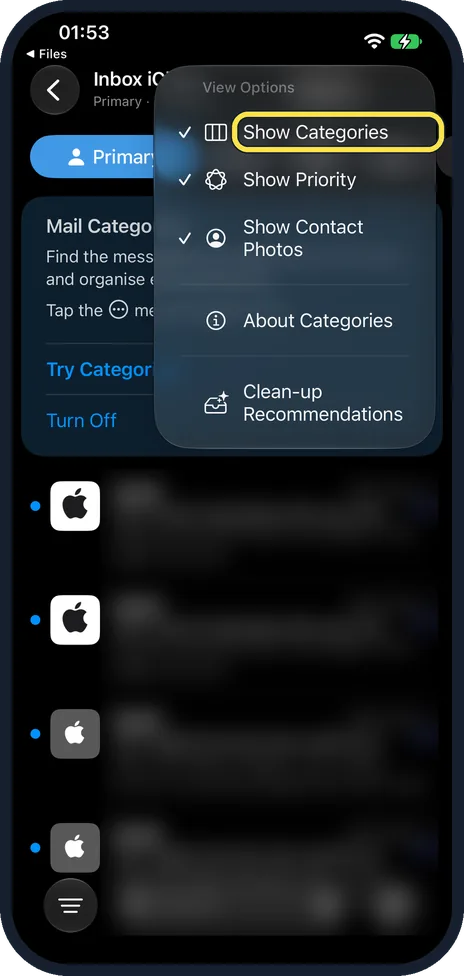
Untick Show Categories
The menu is called View Options. Show Categories is the first item, ticked, above Show Priority, Show Contact Photos, About Categories and Clean-up Recommendations.
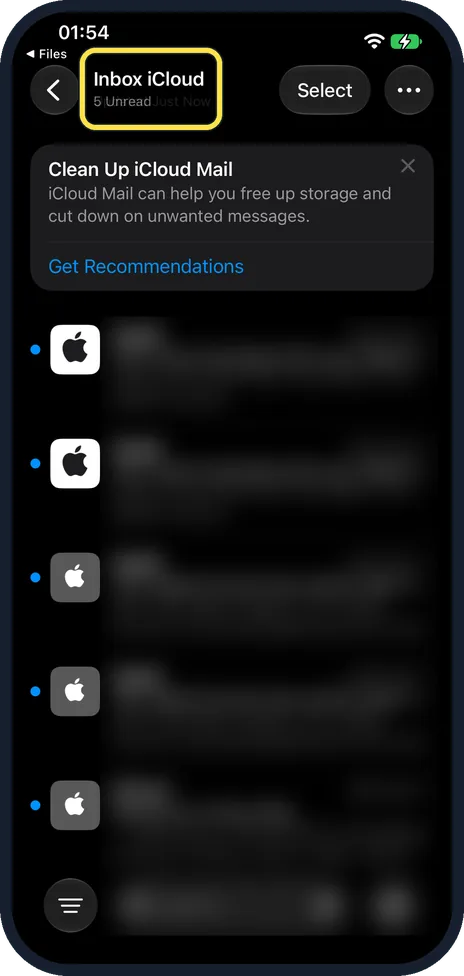
Check the plain inbox
The tabs are gone and all mail shows in one list, headed Inbox iCloud with the unread count. Ours also showed a Clean Up iCloud Mail card.
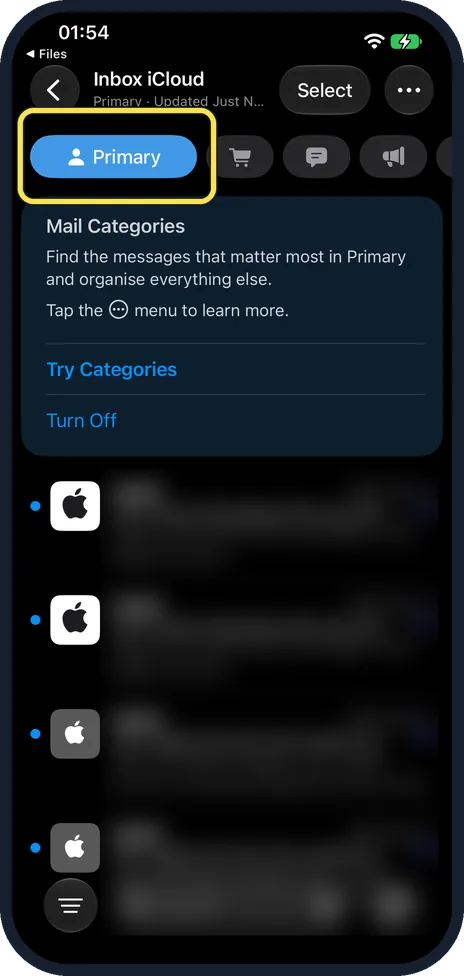
Tick Show Categories again to bring the tabs back
Once Show Categories is ticked again in the same ... menu, the bar comes back with Primary picked, and the Mail Categories card with Try Categories and Turn Off.
If you do not see this option
- No Show Categories in the menu? Apple's iOS 27 guide says to tap the ... button and choose List View. On our iPhone 17e with iOS 27.0.1 the menu had Show Categories instead, so look for either name. Source: Automatically categorize incoming emails in Mail on iPhone
- No category bar at all? Apple says categories are not available in all countries or regions. Then your inbox is already one plain list. Source: Automatically categorize incoming emails in Mail on iPhone
If this does not work
- Want all mail for a moment only? Apple says you can swipe left on the categories at the top of the inbox to open All Mail, without turning categories off. Source: Automatically categorize incoming emails in Mail on iPhone
- A sender lands in the wrong tab? Apple says to open one of their messages, tap the ... button and choose Categorize Sender, then pick a category and tap Continue. Source: Automatically categorize incoming emails in Mail on iPhone
About this guide
Mail sorts mail into tabs. Apple's guide says to choose List View; on ours the menu was View Options with a Show Categories tick.
The screenshots are from our iPhone 17e with iOS 27.0.1, in Dark mode. Senders and subjects are blurred.
Good to know
Mail not set up yet? See how to add an email account to an iPhone.
In short: Mail inbox, ..., untick Show Categories (List View in Apple's guide). Tick it to bring the tabs back.
Links checked in October 2026. Menus and features can change after software updates. These steps match the version named at the top.
Did this guide work for you?
Sorry about that. What happened?