
What changed: the screenshots are now our own iPhone 17e on iOS 27.0.1, dark mode, and the wording is checked against those screens and Apple's iOS 27 guide.
howtosimply.com/guides/iphone-notifications-not-showing-7-settings-to-check/ · Checked October 2026 · iPhone 17e · iOS 27.0.1
In this guide
Turn off Focus and Do Not Disturb, then open Settings, Notifications, choose the app and make sure Allow Notifications is on with Lock Screen, Notification Centre and Banners ticked. Check that Scheduled Summary is not holding them back.
5 of 5 steps with real screenshots · 4 official sources below
- Device
- iPhone
- Shown on
- iOS 27.0.1 (iPhone 17e)
- App
- Settings
- Real screenshots
- 5 of 5 steps
- Checked
- October 2026
- Sources
- 4 official, linked below
Step by step
Turn off Focus
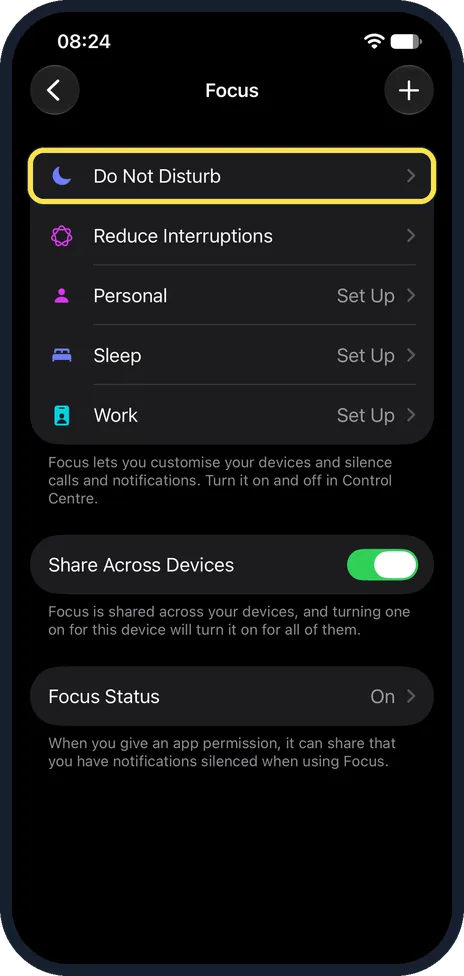
Apple says to open Control Centre and tap Focus; tap the Focus that is on to turn it off. You can also go to Settings, Focus. On our iPhone 17e, Settings, Focus listed Do Not Disturb, Reduce Interruptions, Personal, Sleep and Work. Share Across Devices was on, with the note that turning a Focus on for this device turns it on for all of them, so a Focus started on another of your devices also silences this one.
Watch these steps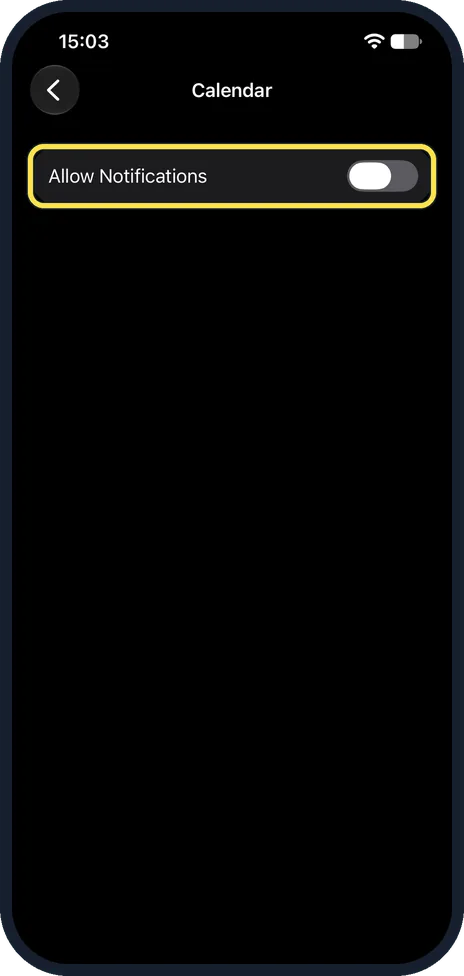
Check the app's notification settings
Open Settings, Notifications, tap the app below Notification Style and switch on Allow Notifications. Apple says you then choose under Alerts whether notifications appear on the Lock Screen, in Notification Centre or as banners, and, if the app supports it, pick a sound under Sounds. Our picture shows the Calendar page on our iPhone 17e: it held only the Allow Notifications switch, off; the Alerts choices are not shown until you switch it on. Apple adds that some apps have their own notification settings: tap the link with the app's name at the bottom of its page, or look in the app itself.
Check Scheduled Summary
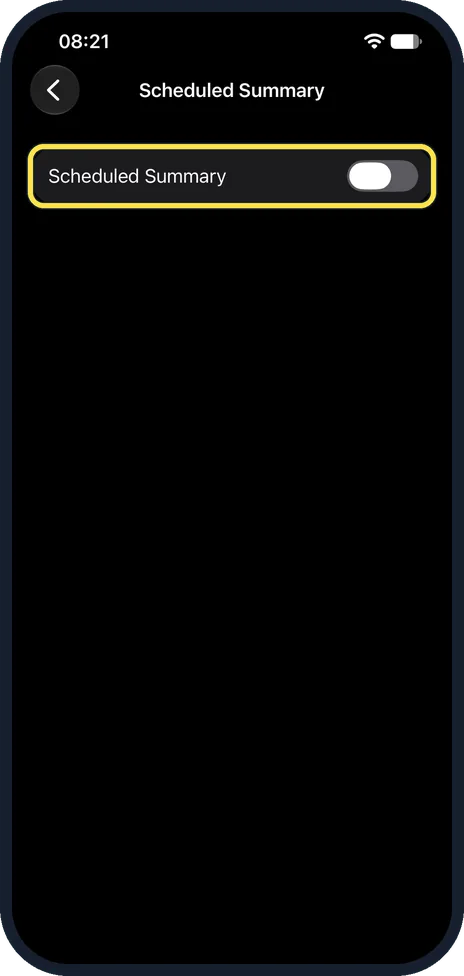
Under Settings, Notifications, Scheduled Summary collects alerts from chosen apps and delivers them only at set times. Switch it off, or remove the app from the summary. Apple says that for each app, under Notification Delivery, you can choose Immediate Delivery instead. On our iPhone 17e with iOS 27, the Scheduled Summary page held a single Scheduled Summary switch, off.
Check Low Power Mode
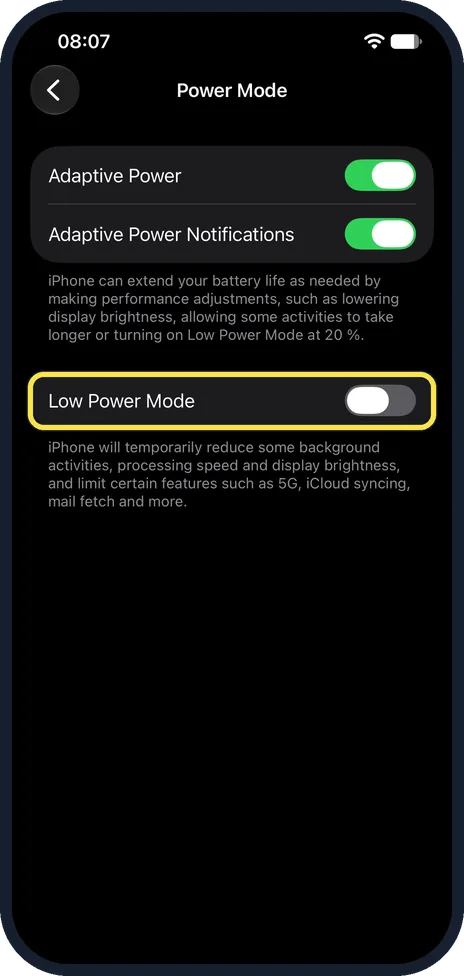
Low Power Mode is under Settings, Battery, Power Mode. On our iPhone 17e it was off, and the note below it read: iPhone will temporarily reduce some background activities, processing speed and display brightness, and limit certain features such as 5G, iCloud syncing, mail fetch and more. If new mail alerts arrive late, check this switch: the note names mail fetch.
Update the app and iOS
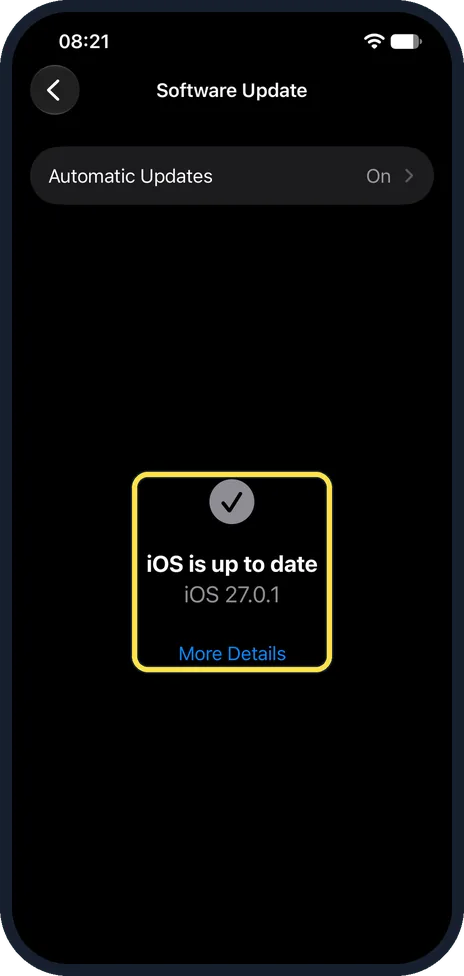
Update the app in the App Store, then iOS: go to Settings, General, Software Update. On our iPhone 17e it showed iOS is up to date, iOS 27.0.1.
What changed: the screenshots are now our own iPhone 17e on iOS 27.0.1, dark mode, and the wording is checked against those screens and Apple's iOS 27 guide.
Watch these steps
What we saw on our device
- Turn off Focus: On our iPhone 17e, Settings, Focus listed Do Not Disturb, Reduce Interruptions, Personal, Sleep and Work.
- Check Scheduled Summary: On our iPhone 17e with iOS 27, the Scheduled Summary page held a single Scheduled Summary switch, off.
- Check Low Power Mode: On our iPhone 17e it was off, and the note below it read: iPhone will temporarily reduce some background activities, processing speed and display brightness, and limit certain features such as 5G, iCloud syncing, mail fetch and more.
- Update the app and iOS: On our iPhone 17e it showed iOS is up to date, iOS 27.0.1.
If you do not see this option
- Focus is not in Control Centre. Go to Settings, Focus instead, as in step 1; on our iPhone 17e that page listed Do Not Disturb at the top. Source: Turn on or schedule a Focus on iPhone
- No Time Sensitive Notifications switch on the app page Apple says it appears on an app's notification page only if the app supports it. Apple adds that some apps have their own notification settings inside the app. Source: Change notification settings on iPhone
- No Prioritise or Summarise Notifications rows Apple says these Apple Intelligence features need an Apple Intelligence-enabled iPhone 15 Pro, iPhone 15 Pro Max or iPhone 16 model or later. Apple puts both under Settings, Notifications. Source: Change notification settings on iPhone · Source: Summarize notifications and reduce interruptions with Apple Intelligence on iPhone
If this does not work
- Alerts stay silent although you turned the Focus off. Check your other Apple devices. On our iPhone 17e, Share Across Devices was on, and its note says turning a Focus on for one device turns it on for all of them. Apple says that when a Focus is on, its icon appears in the status bar and on the Lock Screen. Source: Turn on or schedule a Focus on iPhone
- One app's alerts go straight to Notification Centre Apple says you can mute an app's notifications for an hour or a day: swipe left on a notification, tap Options and choose an option. Muted notifications do not appear on the Lock Screen, play a sound or show a banner. To undo it, swipe left on the notification in Notification Centre, tap Options, then tap Unmute. Source: View and respond to notifications on iPhone
- Some alerts appear as a summary or at the top of the stack Apple says priority notifications appear at the top of the stack, and summaries condense long or stacked notifications. To turn either off, go to Settings, Notifications, tap Prioritise Notifications or Summarise Notifications and switch it off. Source: Summarize notifications and reduce interruptions with Apple Intelligence on iPhone
- The Lock Screen shows only a number. That is the Count layout. Apple says to go to Settings, Notifications and tap Stack or List, and that you can also change the layout by pinching the notifications on the Lock Screen. Source: Change notification settings on iPhone
- Low Power Mode keeps coming back. Apple says Adaptive Power can turn on Low Power Mode automatically when the battery reaches 20 %. On our iPhone 17e Adaptive Power was on. Charge the phone, or turn Adaptive Power off under Battery, Power Mode. Source: Save battery life with Power Modes on iPhone
About this guide
If messages and alerts arrive late or not at all, check these settings first. iOS has several features that deliberately hide or delay alerts: Apple says, for example, that a Focus delays the delivery of notifications.
The screenshots are our own, taken on an iPhone 17e running iOS 27.0.1.
Good to know
If notifications show but make no sound, check Silent mode and the volume under Settings, Sounds & Haptics. If nothing helps, restart the iPhone.
Notifications that appear on the Lock Screen as a number at the bottom are set to Count view. Change it under Settings, Notifications, Display As.
In short: Focus off, Allow Notifications on for the app, Scheduled Summary off.
- Apple Support: Use notifications on your iPhone or iPad
- Apple iPhone User Guide: View and respond to notifications on iPhone
- Apple iPhone User Guide: Change notification settings on iPhone
- Apple iPhone User Guide: Summarize notifications and reduce interruptions with Apple Intelligence on iPhone
Links checked in October 2026. Menus and features can change after software updates. These steps match the version named at the top.
Did this guide work for you?
Sorry about that. What happened?