
howtosimply.com/guides/how-to-turn-on-flash-for-alerts-on-an-iphone/ · Checked October 2026 · iPhone 17e · iOS 27.0.1
In this guide
Open Settings, Accessibility, Audio & Visual and tap Flash for Alerts at the bottom. Turn on Flash for Alerts and choose LED Flash, Screen or Both. Flash in Silent Mode was on and Flash While Unlocked off on our iPhone 17e.
- Device
- iPhone
- Shown on
- iOS 27.0.1 (iPhone 17e)
- App
- Settings
- Path
- Settings › Accessibility › Audio & Visual › Flash for Alerts
- Real screenshots
- 4 of 4 steps
- Checked
- October 2026
- Sources
- 1 official, linked below
Step by step
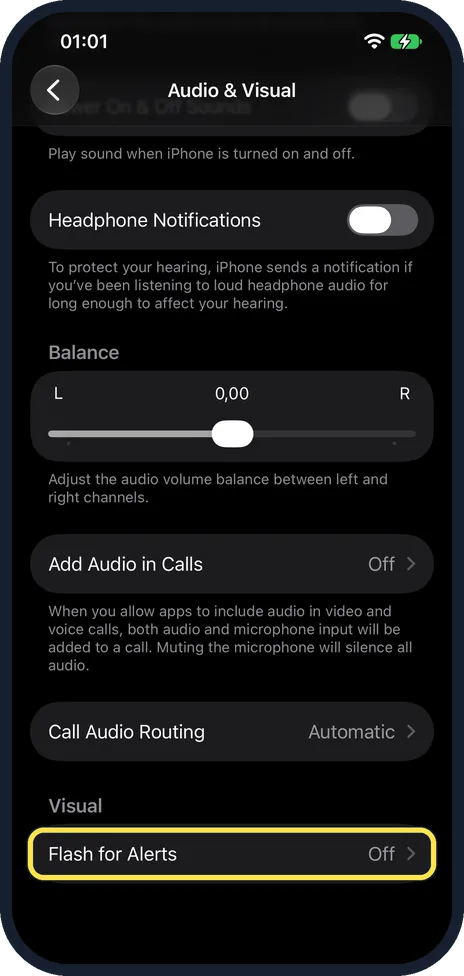
Tap Flash for Alerts
In Settings, Accessibility, Audio & Visual, it is at the bottom under Visual. Ours said Off.
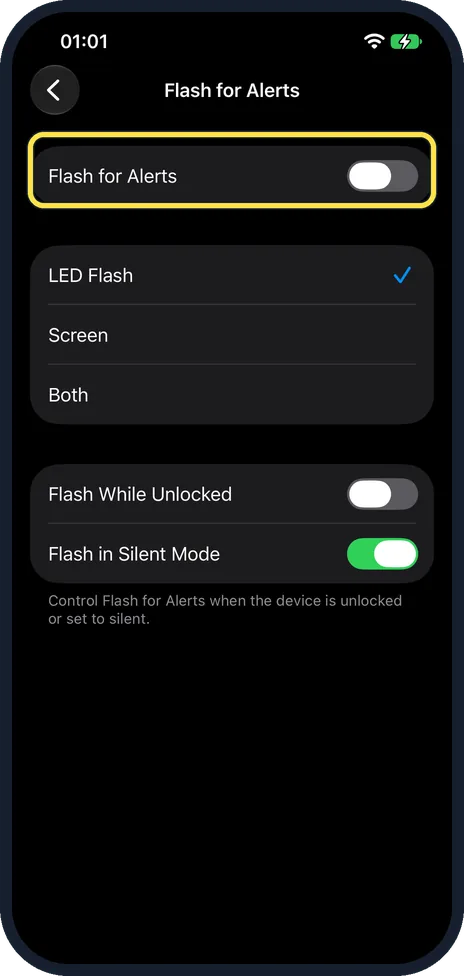
Turn on Flash for Alerts
The Flash for Alerts switch is at the top of the page.
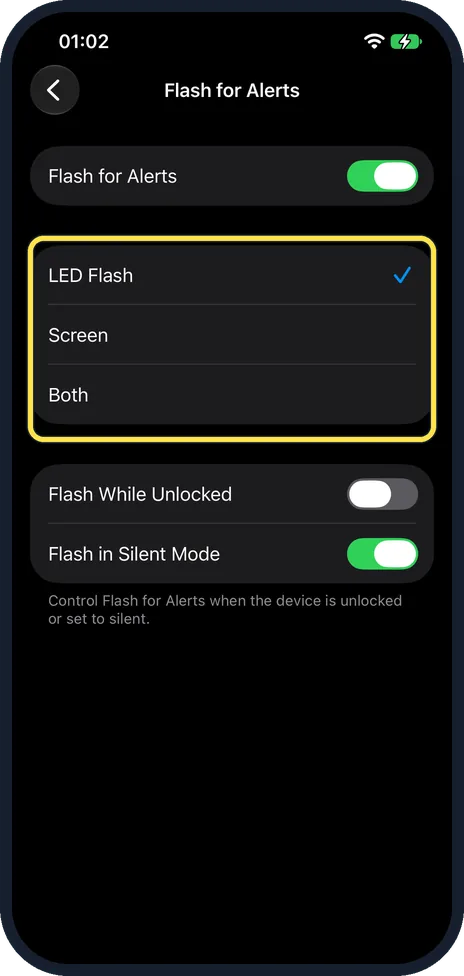
Choose what flashes
LED Flash was ticked on ours. Screen flashes the display, Both does both. Flash While Unlocked and Flash in Silent Mode are below.
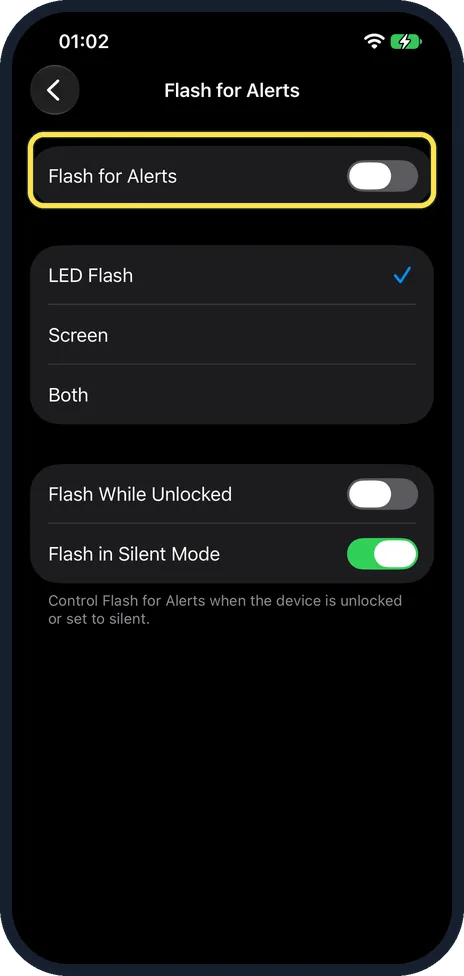
Turn it off again
Flip the Flash for Alerts switch off. LED Flash stayed ticked on ours, ready for next time.
If you do not see this option
- Which light? Apple says it is the LED next to the camera lens on the back. Source: Flash the iPhone screen or indicator light for notifications
If this does not work
- No flash while using the phone? Turn on Flash While Unlocked. Source: Flash the iPhone screen or indicator light for notifications
- The light never works? Check the torch too: iPhone camera or flash not working: fixes to try.
About this guide
Flash for Alerts blinks the light on the back, the screen or both when a notification arrives, so you see it in a noisy place.
The screenshots are from our iPhone 17e with iOS 27.0.1, in Dark mode. It was off on ours; we turned it on and off again.
Good to know
If alerts do not arrive at all, see iPhone notifications not showing: 7 settings to check.
In short: Settings, Accessibility, Audio & Visual, Flash for Alerts on, LED Flash, Screen or Both.
Links checked in October 2026. Menus and features can change after software updates. These steps match the version named at the top.
Did this guide work for you?
Sorry about that. What happened?