
What changed: the screenshots are now our own iPhone 17e on iOS 27.0.1, dark mode, and the wording is checked against those screens and Apple's iOS 27 guide.
howtosimply.com/guides/how-to-add-an-email-account-to-an-iphone/ · Checked October 2026 · iPhone 17e · iOS 27.0.1
In this guide
Open Settings, tap Apps, Mail, then Mail Accounts and Add Account. Type your email address, tap Next, then enter your email account information.
4 of 4 steps with real screenshots · 3 official sources below
- Device
- iPhone
- Shown on
- iOS 27.0.1 (iPhone 17e)
- App
- Settings
- Path
- Settings › Apps › Mail › Mail Accounts › Add Account
- Real screenshots
- 4 of 4 steps
- Checked
- October 2026
- Sources
- 3 official, linked below
Step by step
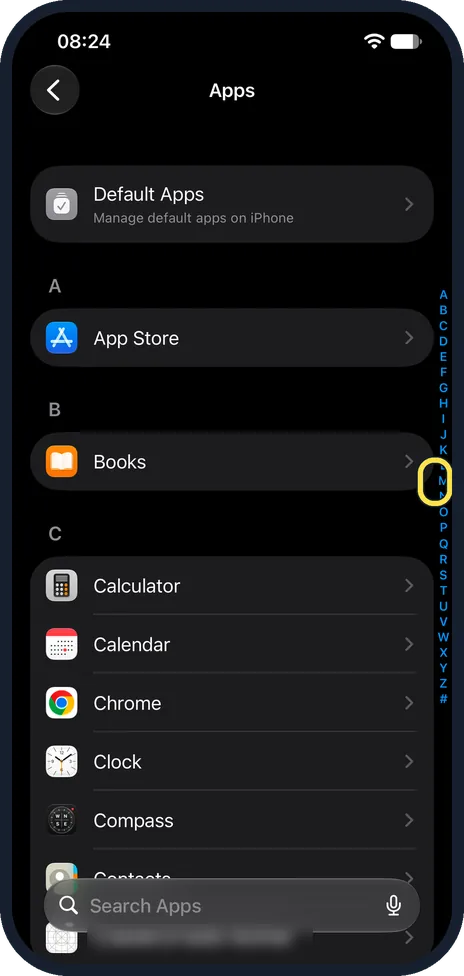
Open Settings, tap Apps and jump to Mail
Open Settings and tap Apps; our picture shows the Apps page. On iOS 17 and earlier, Mail is in the main Settings list. On our iPhone 17e with iOS 27, the Apps list is in alphabetical order, with letters down the right edge; tap M, boxed, to jump to Mail, which is further down the list than our picture shows.
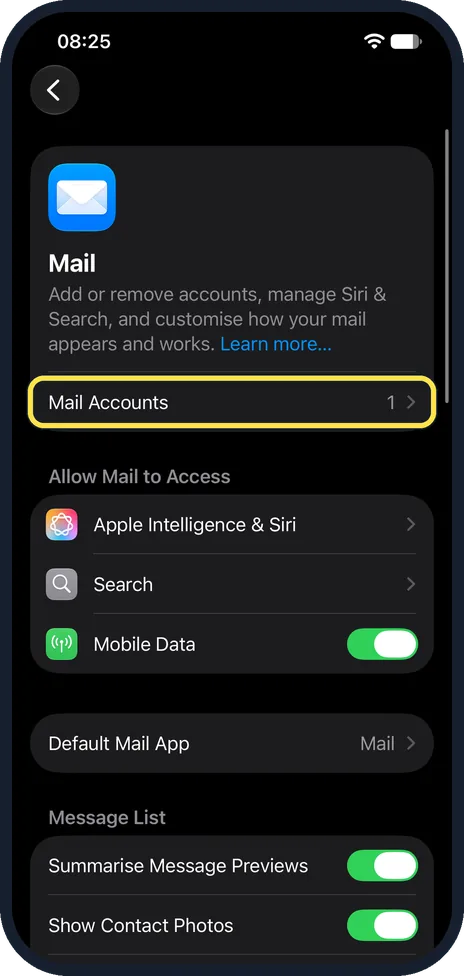
Tap Mail Accounts
On our iPhone 17e with iOS 27, the Mail page opened with a short description, then Mail Accounts, reading 1. Below it came Allow Mail to Access, with Apple Intelligence & Siri, Search and Mobile Data.
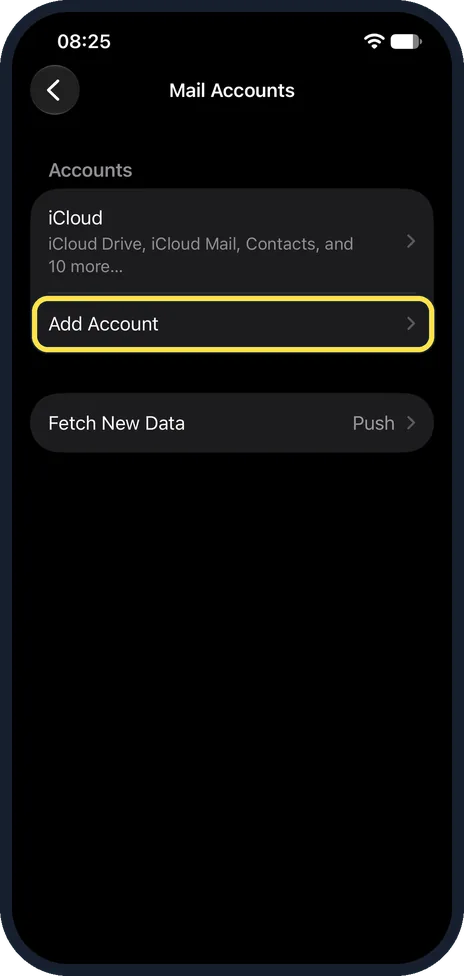
Tap Add Account
Accounts you already have are listed above. On our iPhone 17e with iOS 27, Mail Accounts listed iCloud above Add Account, with Fetch New Data (Push) below.
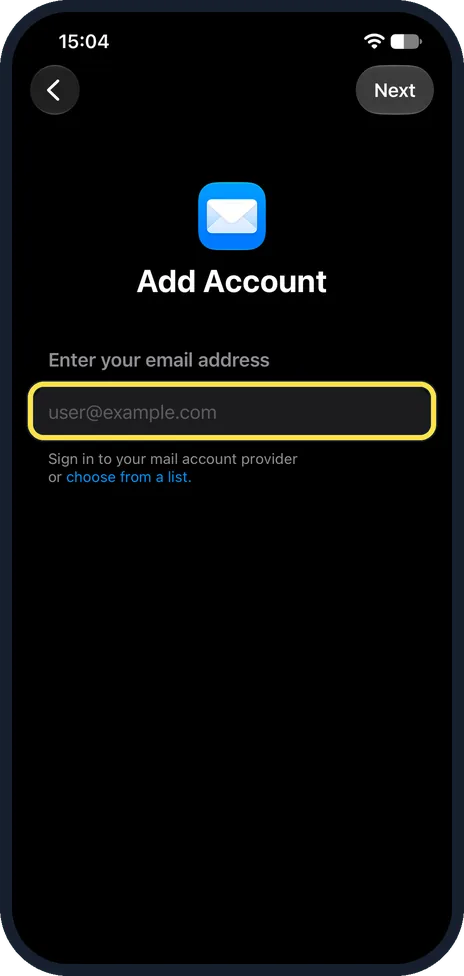
Enter your email address and sign in
On our iPhone 17e with iOS 27.0.1, Add Account opened a page with an Enter your email address field and Next at the top right, instead of a list of providers. Type the address and tap Next. Below the field the page reads: Sign in to your mail account provider or choose from a list. Apple says choose from a list lets you pick a service. Apple then says to tap Next and enter your email account information. We did not add a new account on our iPhone 17e, so the screens after this one are not shown.
What changed: the screenshots are now our own iPhone 17e on iOS 27.0.1, dark mode, and the wording is checked against those screens and Apple's iOS 27 guide.
What we saw on our device
- Open Settings, tap Apps and jump to Mail: On our iPhone 17e with iOS 27, the Apps list is in alphabetical order, with letters down the right edge; tap M, boxed, to jump to Mail, which is further down the list than our picture shows.
- Tap Mail Accounts: On our iPhone 17e with iOS 27, the Mail page opened with a short description, then Mail Accounts, reading 1.
- Tap Add Account: On our iPhone 17e with iOS 27, Mail Accounts listed iCloud above Add Account, with Fetch New Data (Push) below.
- Enter your email address and sign in: On our iPhone 17e with iOS 27.0.1, Add Account opened a page with an Enter your email address field and Next at the top right, instead of a list of providers.
If you do not see this option
- Add Account shows an email field, not a list of providers On our iPhone 17e with iOS 27.0.1, Add Account opened an Enter your email address field. Apple says you can tap choose from a list under the field to pick a service such as iCloud, Microsoft Exchange or Gmail (Google). Source: Set up mail, contacts, and calendar accounts on iPhone
- Your provider is not in the list Apple says to tap Add Other Account, then Mail Account, and enter your account information yourself. On our iPhone 17e the choose from a list link sat just below the email field. Source: Set up mail, contacts, and calendar accounts on iPhone
- No Mail in the main Settings list On iOS 27 Apple's steps go through Settings, Apps, Mail. On our iPhone 17e the Apps list is alphabetical, with an A to Z index down the right edge. Source: Add and remove email accounts on iPhone
If this does not work
- Mail cannot find your account settings Apple says you then enter them yourself: choose IMAP or POP for the new account, enter the Incoming Mail Server and Outgoing Mail Server details and tap Next, then tap Save. If you are not sure which to choose, do not have the server details, or still cannot set up the account, contact your email provider. Source: Add an email account to your iPhone or iPad
- Mail stops arriving from one account Apple says an account can be turned off without removing it: tap it under Mail Accounts and check that Mail is on (for iCloud, Use on this iPhone). Fetch New Data sits on the same Mail Accounts page of our iPhone 17e. Source: Add and remove email accounts on iPhone
- New mail from the account arrives late Check Fetch New Data under Mail Accounts. On our iPhone 17e it read Push. Apple says an account that does not support Push is checked on a Fetch schedule instead, and Automatically fetches only while the iPhone is charging and on Wi-Fi. Source: Add and remove email accounts on iPhone
About this guide
The Mail app can collect messages from several addresses in one place, for example a private Gmail address and a work account. Each one is added once in Settings.
Good to know
If your email service is not in the list, Apple says to tap Add Other Account, tap Mail Account, then enter your email account information.
To remove an account later, tap it under Mail Accounts and tap Sign Out or Delete Account. Apple notes this does not close the account, it only removes it from the iPhone.
In short: Settings, Apps, Mail, Mail Accounts, Add Account, enter your email address, Next, then your account information.
- Apple Support: Add an email account to your iPhone or iPad
- Apple iPhone User Guide: Set up mail, contacts, and calendar accounts on iPhone
- Apple iPhone User Guide: Add and remove email accounts on iPhone
Links checked in October 2026. Menus and features can change after software updates. These steps match the version named at the top.
Did this guide work for you?
Sorry about that. What happened?