In this guide
Open Settings, tap Bluetooth and switch it on. Nearby devices show under Available devices; tap one to pair. Switch it off on the same page, or tap the Bluetooth tile in Quick Settings.
- Device
- Android
- Shown on
- OnePlus Nord 5 (CPH2709), OxygenOS 16.0.5.1201, Android 16
- App
- Settings
- Path
- Settings › Bluetooth
- Real screenshots
- 5 of 5 steps
- Checked
- October 2026
- Sources
- 2 official, linked below
Step by step
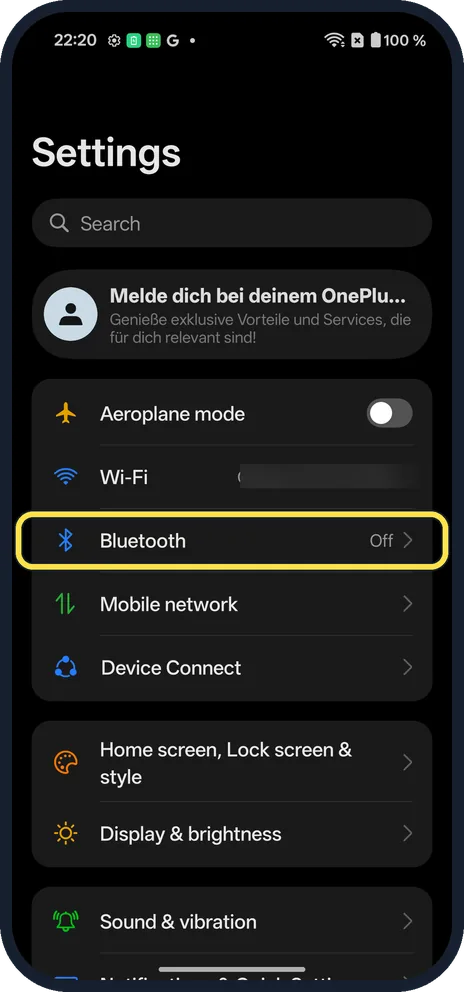
Open Bluetooth
Open Settings. Bluetooth is under Wi-Fi; ours said Off.
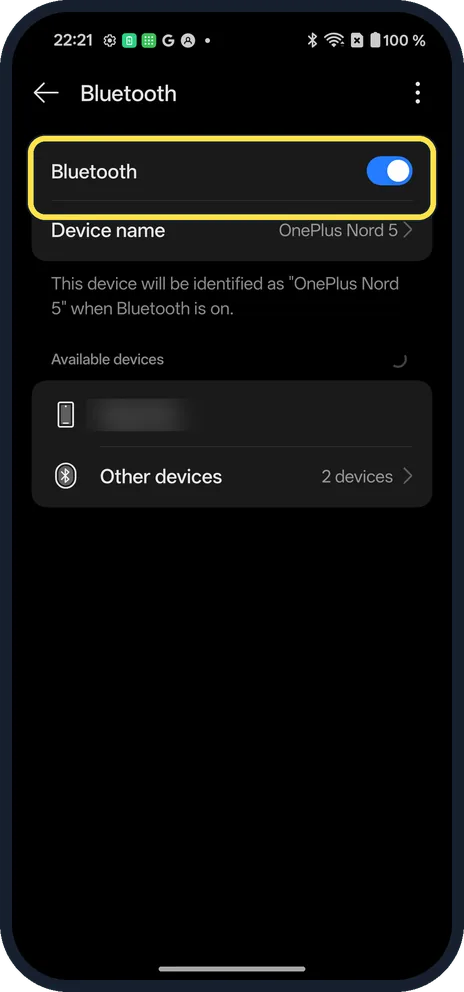
Switch it on
Tap the Bluetooth switch at the top.
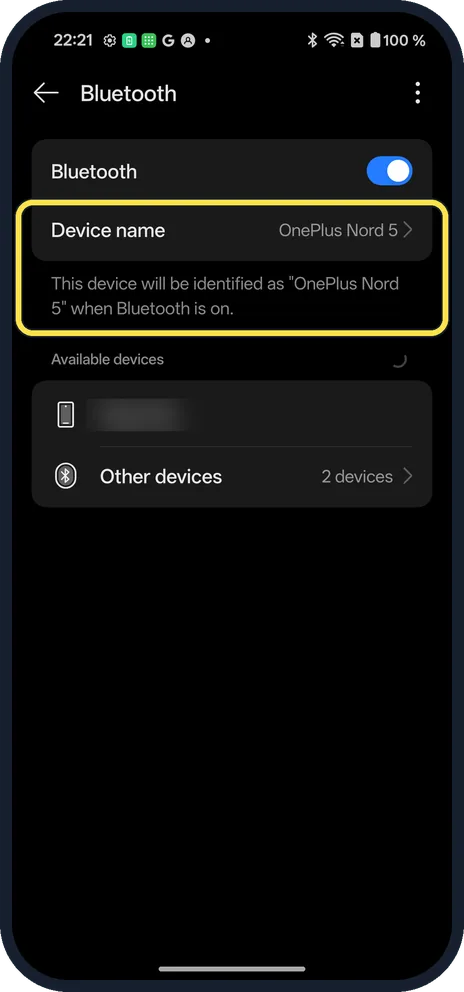
Check the device name
Other devices see the phone as its Device name: OnePlus Nord 5 on ours. Tap it to change it.
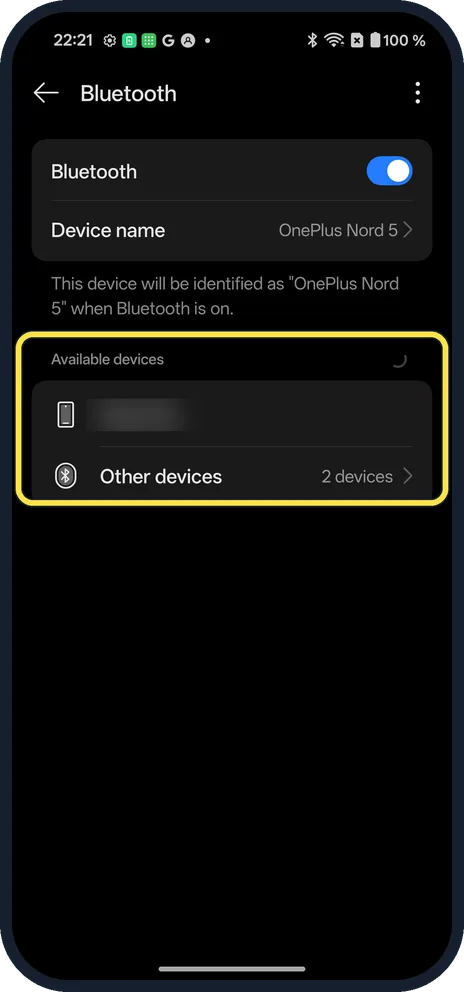
Pair a device
Put your headphones or speaker in pairing mode. They show under Available devices; tap one to pair. Other devices lists more.
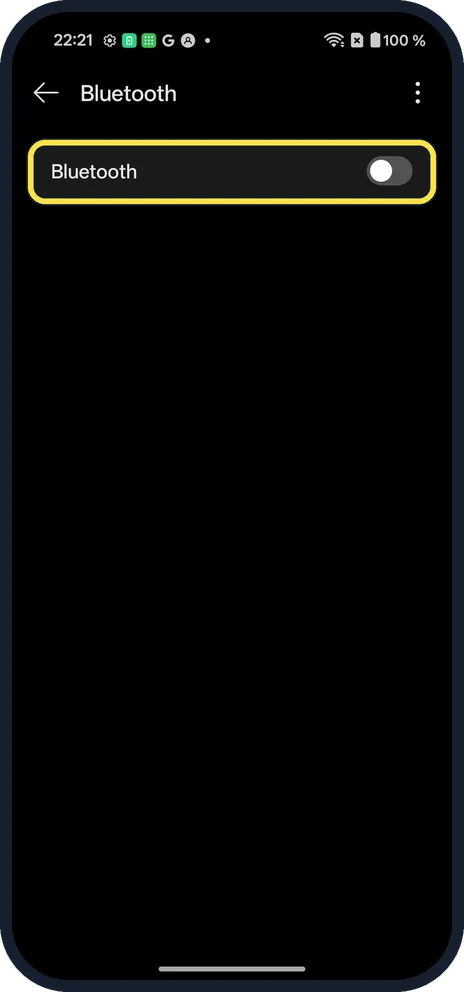
Switch it off
Tap the Bluetooth switch again. The page then shows only the switch.
If you do not see this option
- Quicker way? Swipe down twice and tap the Bluetooth tile, next to Wi-Fi.
- Device not listed? It must be in pairing mode, and not connected to another phone. Source: Connect through Bluetooth on your Android device
If this does not work
- Pairing fails? Turn Bluetooth off and on, and restart the other device. Source: Connect through Bluetooth on your Android device
- Wrong name on your car or speaker? Change Device name before pairing. More: change the device name on a OnePlus.
About this guide
Bluetooth connects headphones, speakers, watches and cars.
The screenshots are from our OnePlus Nord 5 with OxygenOS 16.0.5.1201 and Android 16, in Dark mode. Bluetooth was off. We switched it on, paired nothing and switched it off again. We blurred a nearby device's name.
Good to know
Turn aeroplane mode on or off on a OnePlus.
In short: Settings, Bluetooth, switch on, tap a device under Available devices.
- Google Android Help: Connect through Bluetooth on your Android device
- OnePlus: OxygenOS 14.0 User Manual
Links checked in October 2026. Menus and features can change after software updates. These steps match the version named at the top.
Did this guide work for you?
Sorry about that. What happened?