ONEPLUS
How to see the 7-day forecast in Weather on a OnePlus (OxygenOS 16)

In short
Open Weather and scroll to the Multi-day forecast card. Line, the default, draws daily highs and lows as two lines. Tap List for 7 rows, each with the date, day, icon and low / high.
10 of 10 steps show a real screenshot from our Nord 5. Each step was checked against the maker's own instructions, linked at the end.
Steps
- 1
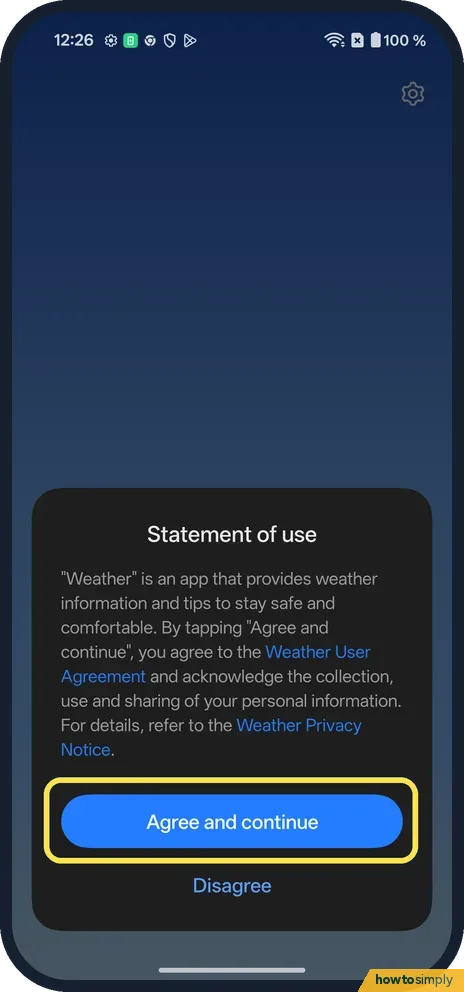
Agree on first open
The first time, Weather shows a Statement of use. Read it; Agree and continue opens the app.
- 2
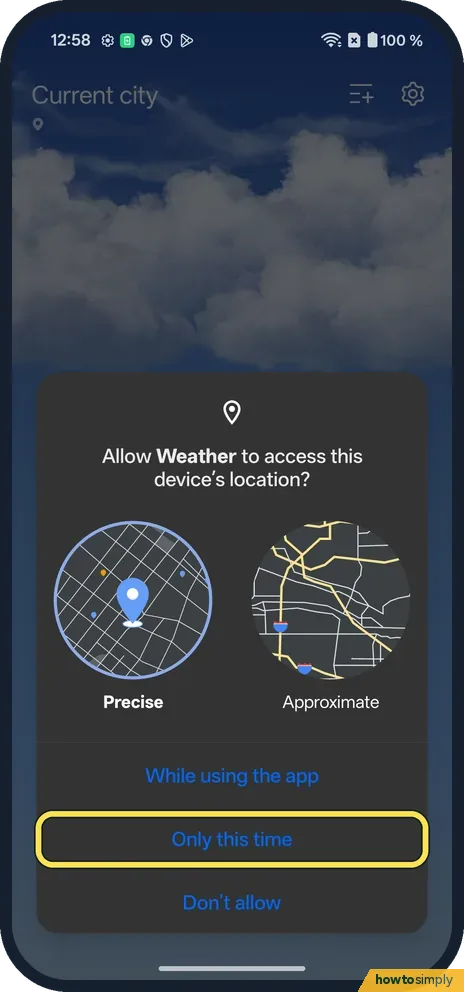
Allow location
Pick Precise or Approximate, then While using the app or Only this time. We tapped Only this time.
- 3
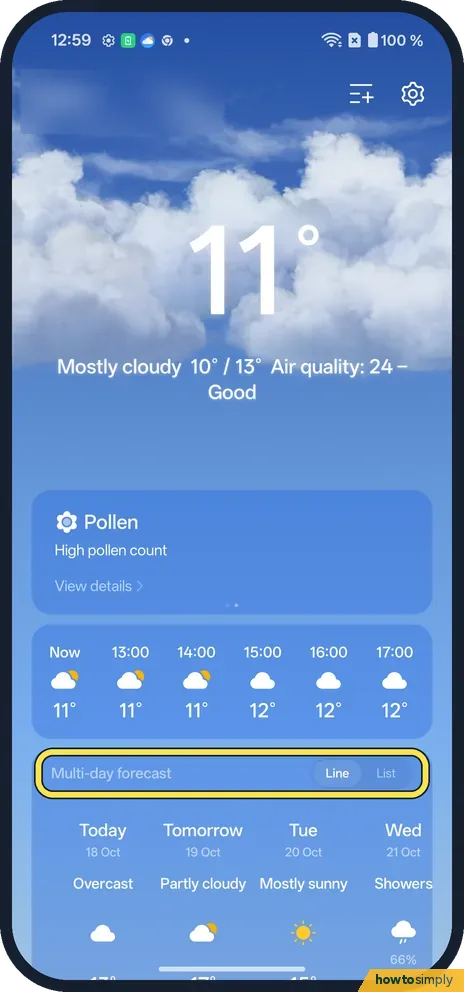
Scroll to Multi-day forecast
It sits under the hourly row, with a Line and List switch.
- 4
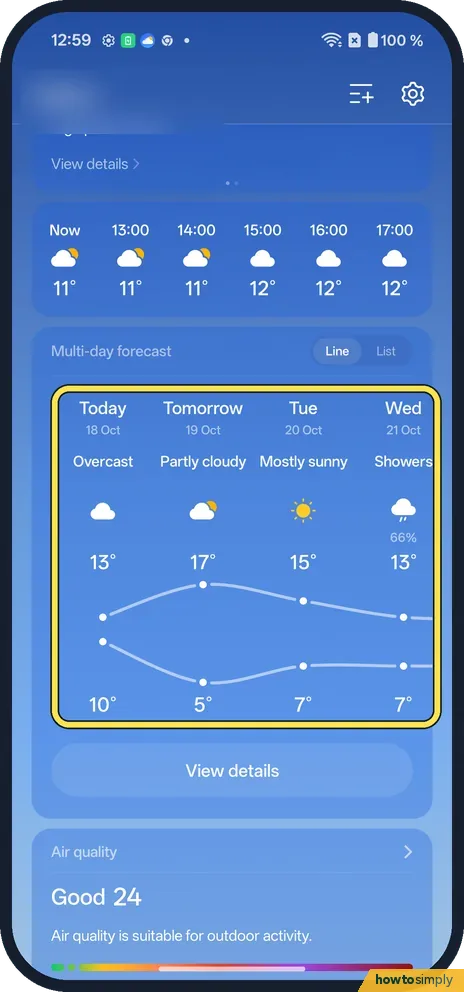
Read the line chart
The top line is each day's high, the bottom line the low. Ours showed Today to Wed, 13° / 10° today, with the lines running on past the edge.
- 5
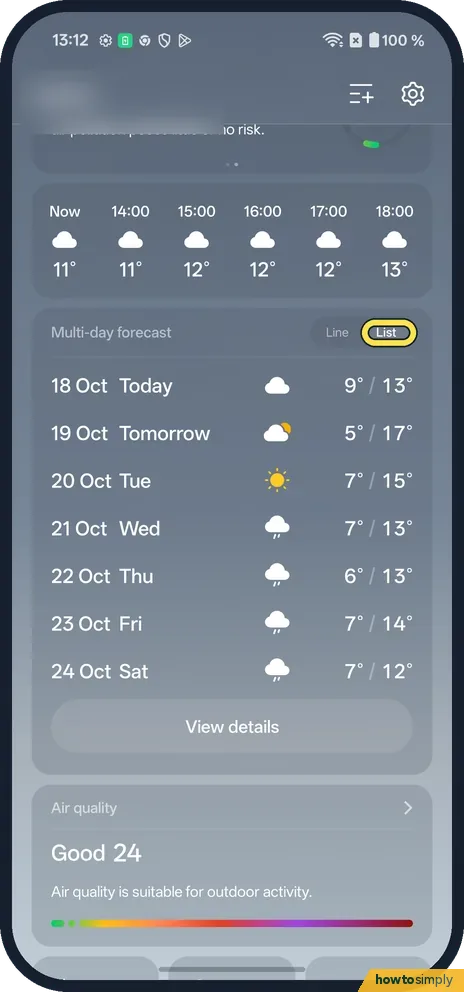
Tap List
The switch is at the top right of the card.
- 6
Read the 7 days
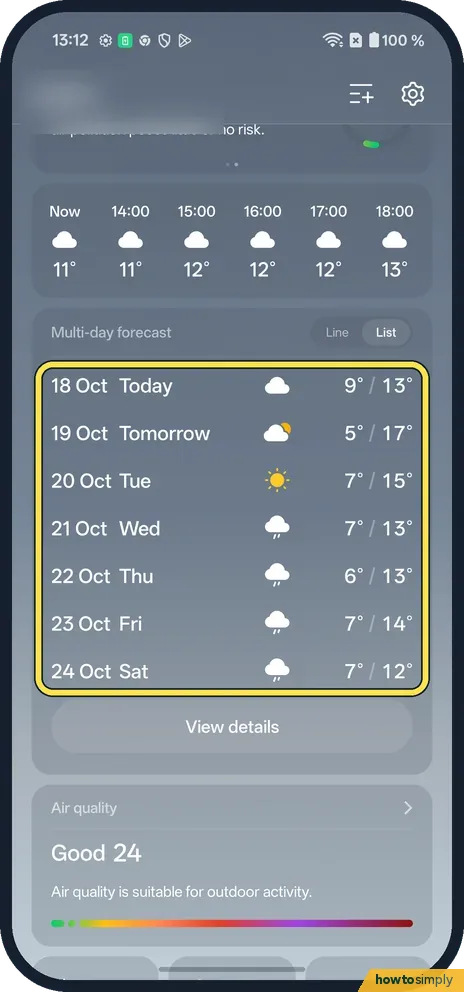
Each row has the date, day, icon and low / high: 18 Oct Today to 24 Oct Sat on ours. Tap Line to go back.
- 7
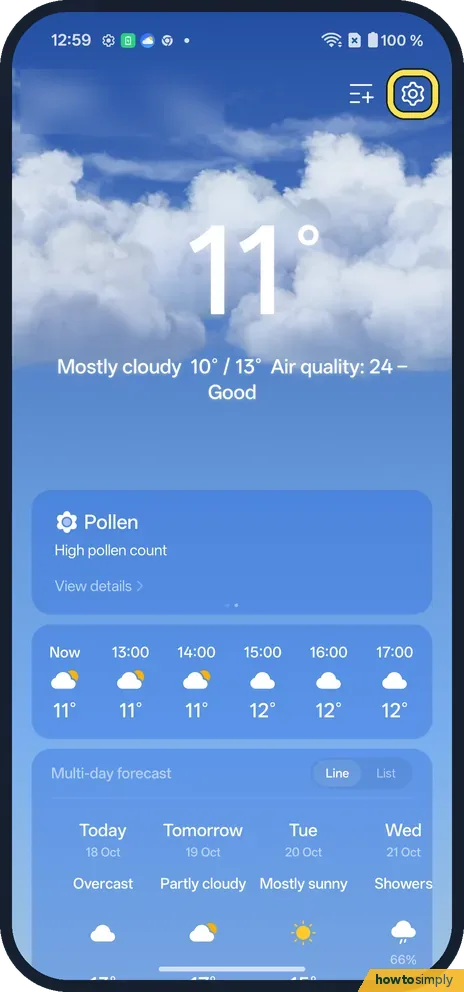
Tap the gear
Back on the home page, it is at the top right.
- 8
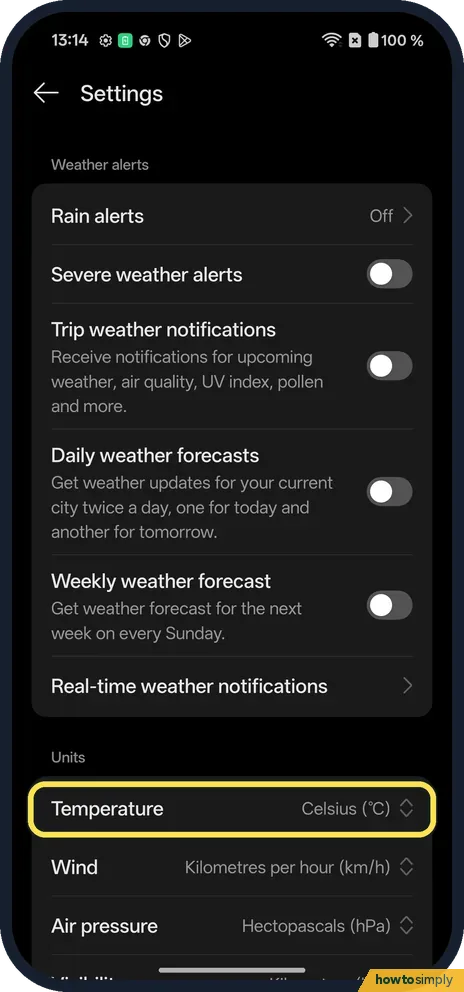
Change units
Under Units, tap Temperature for Celsius or Fahrenheit. Ours was Celsius.
- 9
Open the update notes
In the phone's Settings app (not Weather's), open System & update, then Software update, and tap View update notes.
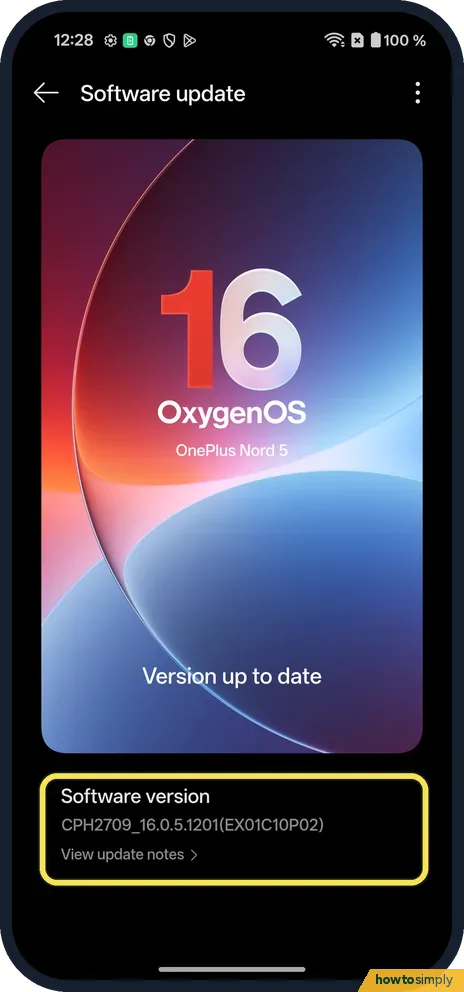
- 10
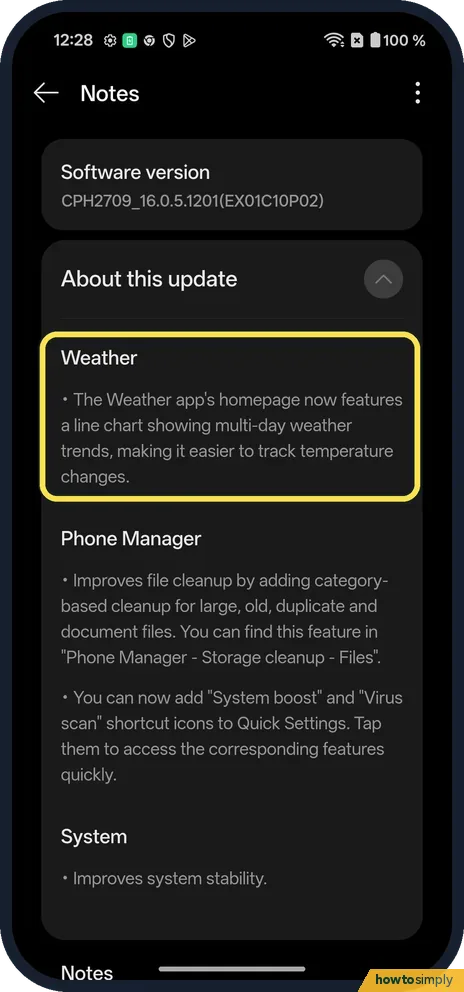
Find the Weather note
It says the homepage now features a line chart showing multi-day weather trends.
If you do not see this option
- No Line switch? The update notes (last step) list the chart as new in EX01C10P02, so older versions don't have it. Check Software update.
- No List switch either? Weather may not have set up yet: open it again and agree to the Statement of use (step 1).
If this does not work
- Wrong city? Allow location again, or change it in location settings.
- Line and List lows differ? The forecast refreshes. Our Line chart (12:59) said 10° for today's low; List, 13 minutes later, said 9°.
- Forecast not loading? Weather needs a connection. Check Wi-Fi, then open Weather again.
- Asked for location every time? Only this time lets Weather use your location for that visit only, so it asks again later. Choose While using the app instead if you want it to remember.
- Want another city's week? Weather can show other cities as well as your own. The OxygenOS 14 manual describes a city list you add to, and swiping on the main screen to switch between cities; the exact buttons may differ on OxygenOS 16.
Good to know
Change location settings on a OnePlus.
Switching between Line and List only changes how the same forecast is drawn. Changing Temperature to Fahrenheit changes every figure in the app, and you can switch back under Units at any time. The manual also says scrolling further down shows air quality, visibility, UV index and humidity, and that the hourly row can be swiped left or right.
About this guide
- Device
- Android
- Shown on
- OnePlus Nord 5 (CPH2709), OxygenOS 16.0.5.1201, Android 16
- App
- Weather
- Path
- Weather › Multi-day forecast › Line / List
- Real screenshots
- 10 of 10 steps
- Checked
- October 2026
- Sources
- 1 official, linked below
Sources
Links checked October 2026. Menus and features can change with updates.Spotted a mistake? Menus change with updates, and we want every step to match your screen. Email us about this page or use the contact form. We read every report, and fixes are listed on What changed.
Liked this guide?
Follow us for new guides and short how-to videos.
Did this guide work for you?
Sorry about that. What happened?