ONEPLUS
How to show network speed and battery percentage on a OnePlus (OxygenOS 16)

In short
Go to Settings, Notifications & Quick Settings, Status bar. Turn on Real-time network speed to see the speed in KB/s next to the Wi-Fi icon. Battery percentage is on the same page.
5 of 5 steps show a real screenshot from our Nord 5. Each step was checked against the maker's own instructions, linked at the end.
Steps
- 1
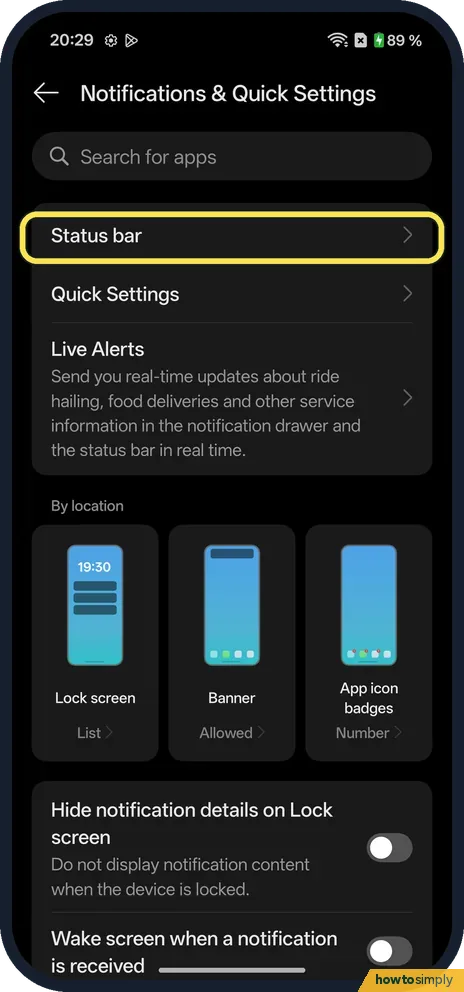
Open Status bar
Go to Settings, Notifications & Quick Settings, and tap Status bar.
- 2
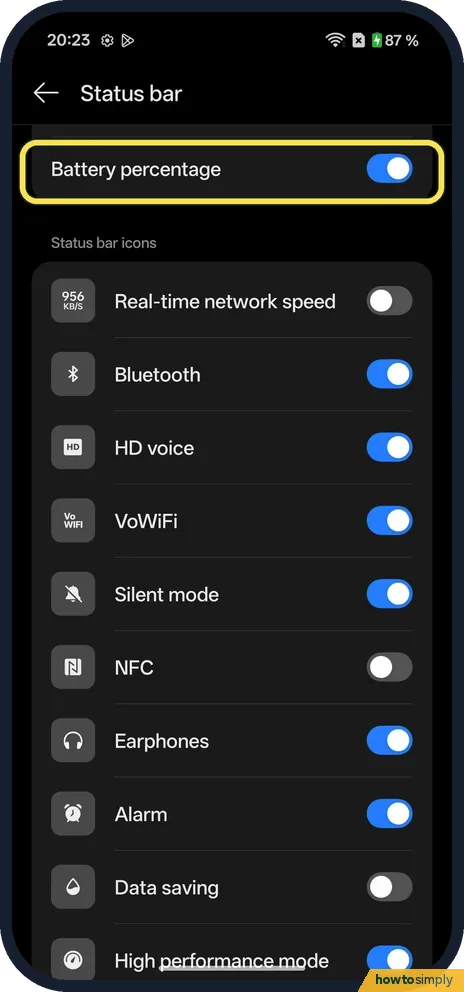
Check Battery percentage
Battery percentage was on on ours.
- 3
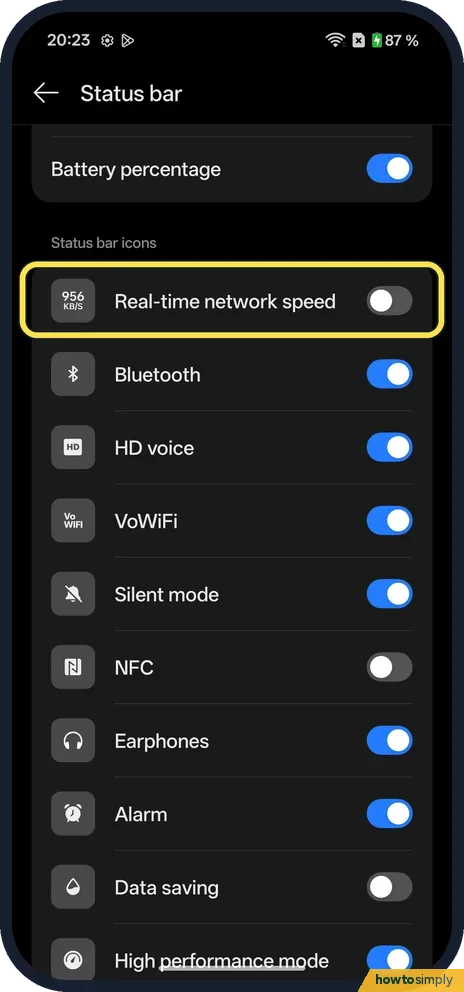
Turn on Real-time network speed
Under Status bar icons, Real-time network speed was off. Turn it on.
- 4
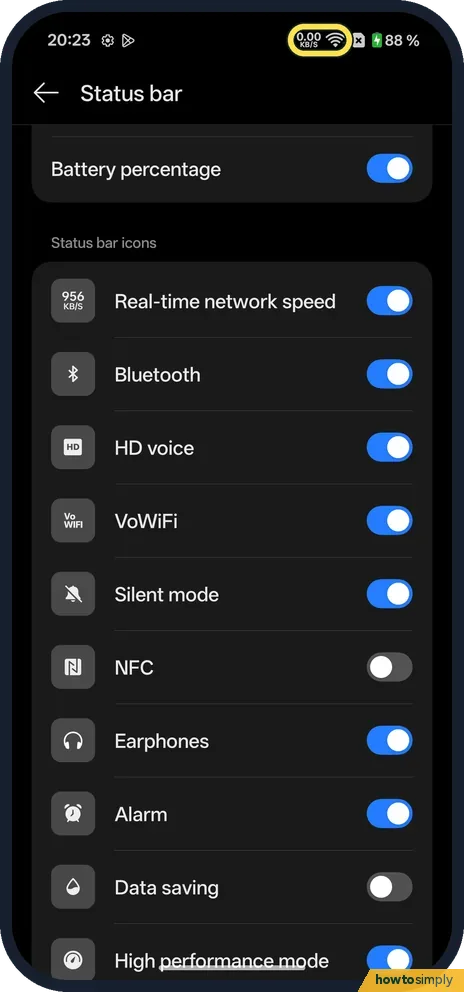
See the speed
The speed shows next to the Wi-Fi icon. Ours read 0.00 KB/S with nothing downloading.
- 5
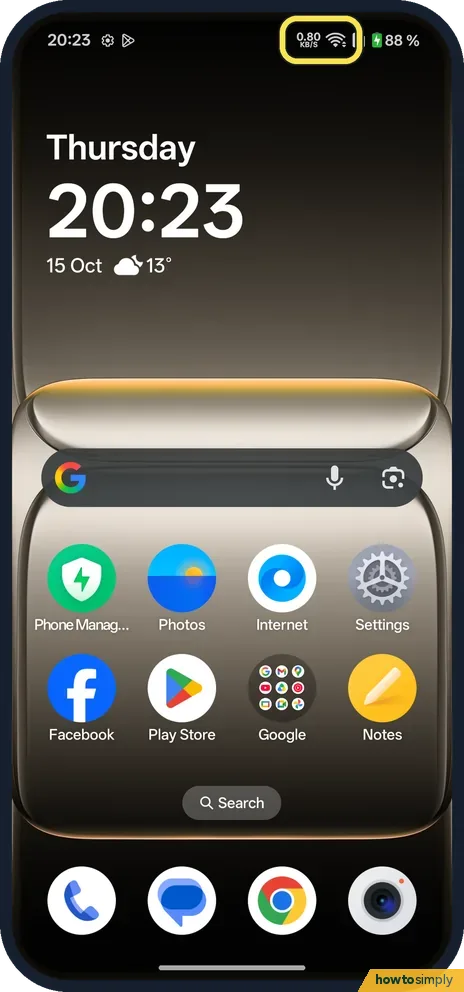
It shows everywhere
The speed stays in the status bar on the home screen and in apps. Ours read 0.80 KB/S here.
If you do not see this option
- Older OxygenOS? OnePlus's OxygenOS 14 manual puts Battery percentage and Real-time network speed under Settings, Notifications & status bar. On our OxygenOS 16 phone the page is Notifications & Quick Settings, Status bar. Source: OxygenOS 14.0 User Manual
- Other icons? The same list has Bluetooth, HD voice, VoWiFi, Silent mode, NFC, Earphones, Alarm, Data saving and High performance mode. NFC and Data saving were off on ours, the rest on.
If this does not work
- Speed not showing? Check that Real-time network speed is on, on the Status bar page.
- Speed shows 0.00? It only rises while something is downloading or streaming.
- Speed moves when nothing is open? Apps sync, back up and update in the background, so small numbers such as 0.80 KB/s on the home screen are normal. A large, steady number with nothing open is worth a look in your data usage.
- Icon missing next to a full row? The status bar has limited room, especially beside the camera cut-out. If many icons are on, turn off ones you do not need, such as Earphones or Alarm, to make space.
- Battery percentage gone after an update? Open Status bar again and check that Battery percentage is still on. Updates can reorganise these pages, so look through the list once.
Good to know
Change the pull-down: notification shade and Quick Settings.
Real-time network speed only displays a number; it does not use data itself. To undo it, switch it off on the same Status bar page. Battery percentage works the same way: switching it off only hides the number, and the battery icon stays.
The OxygenOS 14 manual also lists Notification icons and Battery style on the status bar page, and our OxygenOS 16 page still has both at the top: Notification icons (Show icon on ours) and Battery style (Vertical on ours), above Battery percentage. To find which apps are behind a high number, see Wi-Fi data usage by app, and if mobile data runs low, turn on data saving.
About this guide
- Device
- Android
- Shown on
- OnePlus Nord 5 (CPH2709), OxygenOS 16.0.5.1201, Android 16
- App
- Settings
- Path
- Settings › Notifications & Quick Settings › Status bar
- Real screenshots
- 5 of 5 steps
- Checked
- October 2026
- Sources
- 1 official, linked below
Sources
Links checked October 2026. Menus and features can change with updates.Spotted a mistake? Menus change with updates, and we want every step to match your screen. Email us about this page or use the contact form. We read every report, and fixes are listed on What changed.
Liked this guide?
Follow us for new guides and short how-to videos.
Did this guide work for you?
Sorry about that. What happened?