
howtosimply.com/guides/how-to-view-or-turn-off-significant-locations-on-an-iphone/ · Checked October 2026 · iPhone 17e · iOS 27.2
In this guide
Open Settings, Privacy & Security, Location Services, then System Services. Tap Significant Locations & Routes and enter your passcode. The page has the switch, a summary of records and Clear History.
5 of 5 steps with real screenshots · 3 official sources below
- Device
- iPhone
- Shown on
- iOS 27.2 (iPhone 17e)
- App
- Settings
- Path
- Settings › Privacy & Security › Location Services › System Services › Significant Locations & Routes
- Real screenshots
- 5 of 5 steps
- Checked
- October 2026
- Sources
- 3 official, linked below
Step by step
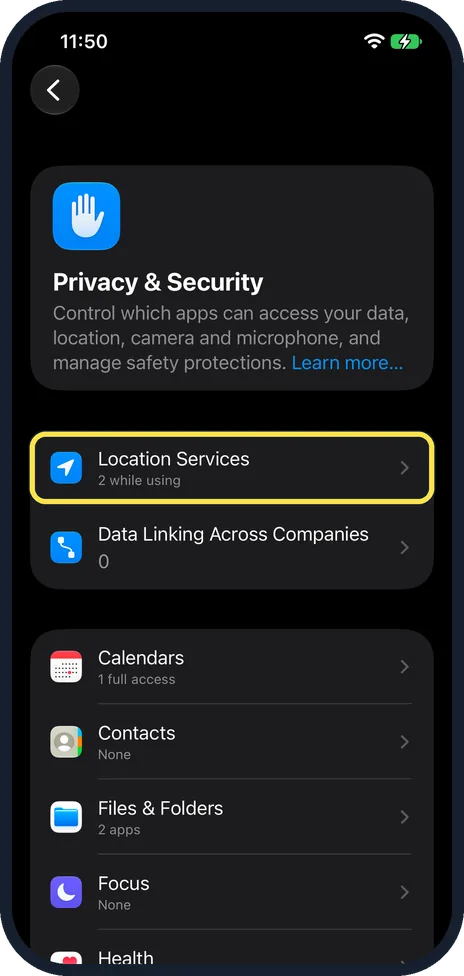
Open Privacy & Security and tap Location Services
Open Settings, scroll down to Privacy & Security, the blue hand icon, and tap it. Location Services is the first row. Ours said 2 while using.
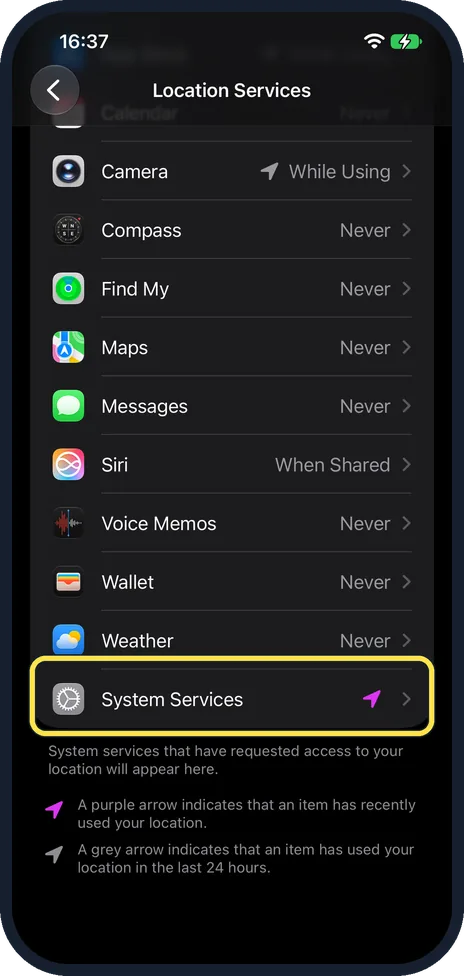
Scroll down and tap System Services
On the Location Services page, scroll down past the apps. System Services is the last row. On ours it had a purple arrow, which the page explains means it recently used your location. Tap it.
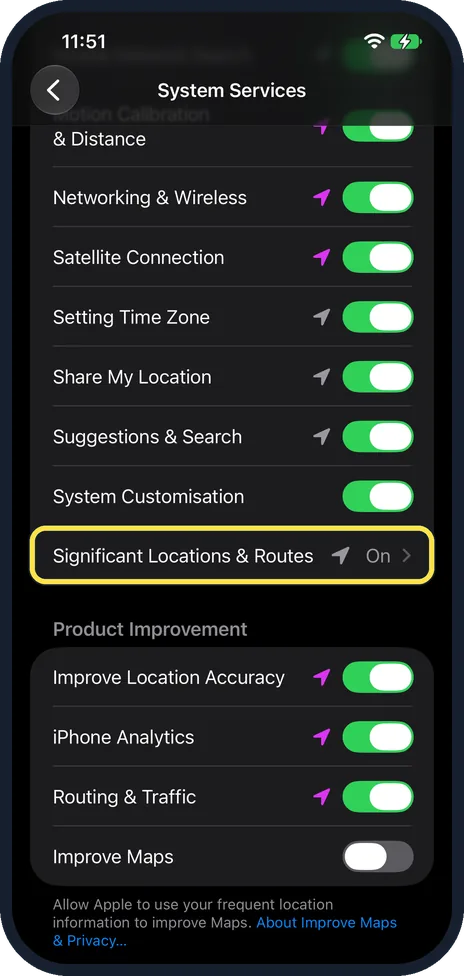
Tap Significant Locations & Routes
On the System Services page, Significant Locations & Routes is the last row before Product Improvement. Ours showed On. Tap it.
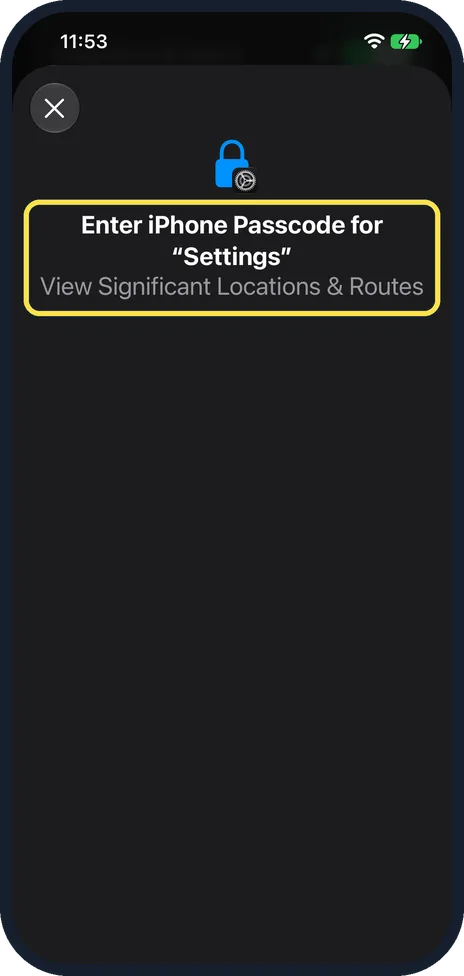
Enter your passcode
Ours asked: Enter iPhone Passcode for "Settings", View Significant Locations & Routes. Enter the passcode you use to unlock your iPhone.
Check the page, then turn it off or clear it
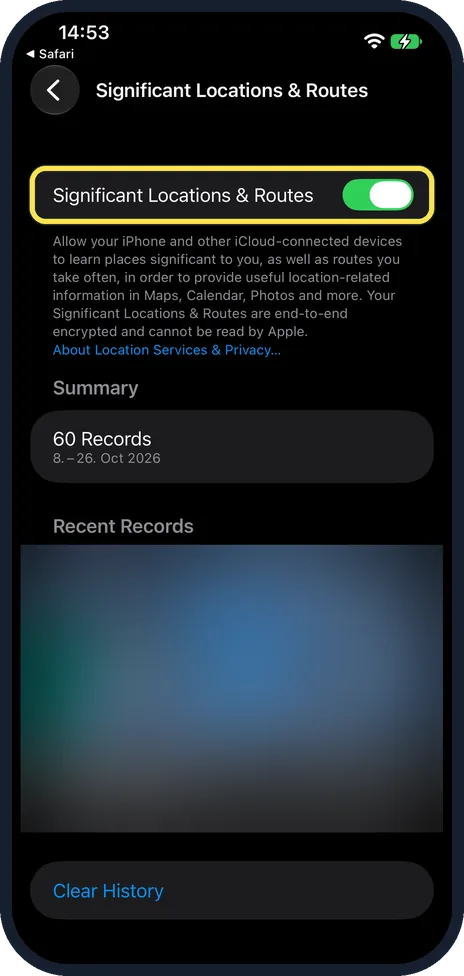
At the top is the Significant Locations & Routes switch; tap it to turn the feature off. The note says they are end-to-end encrypted and cannot be read by Apple. Summary showed 60 Records, 8.-26. Oct 2026 on ours, then Recent Records with a map. The map is blurred in our picture. Clear History is at the bottom. We changed nothing.
If you do not see this option
- Looking for Significant Locations? That is the shorter name. Apple's Stolen Device Protection page calls it Significant Locations, then tells you to tap Significant Locations & Routes. On our iPhone 17e with iOS 27.2 the row read Significant Locations & Routes. Source: About Stolen Device Protection for iPhone
- Asked for your passcode? That is expected. Ours would not open the page until we entered the iPhone passcode: Enter iPhone Passcode for "Settings", View Significant Locations & Routes.
- Location Services is off? System services use Location Services. Apple says to go to Settings, Privacy & Security, Location Services and turn on Location Services, and warns that many important iPhone features stop working when it is off. Source: Control the location information you share on iPhone
- No System Services row? Apple gives the path Settings, Privacy & Security, Location Services, System Services. Source: Control the location information you share on iPhone
If this does not work
- Need it for Stolen Device Protection? Apple says Stolen Device Protection needs two-factor authentication for your Apple Account, a device passcode, Face ID or Touch ID, Significant Locations and Find My turned on. Leave it on if you use Stolen Device Protection. Source: About Stolen Device Protection for iPhone
- Worried that Apple can see where you have been? Apple says Significant Locations & Routes are synced between your devices using end-to-end encryption and cannot be read by Apple. Our page said the same. Source: Location Services & Privacy
- What stops working if you turn it off? Apple says the data is used for personalised services, such as better Memories in Photos and predictive route suggestions. Source: Location Services & Privacy
About this guide
Significant Locations & Routes is where your iPhone keeps track of places you have recently been and the routes you take, Apple says, to learn the ones that matter to you. In iOS 27 the row is called Significant Locations & Routes.
The screenshots are from our iPhone 17e with iOS 27.2, in Dark mode, taken on 27 October 2026. We only looked: the switch stayed on and we did not tap Clear History.
Good to know
For the other services on the same list: how to turn off location for system services on an iPhone.
To protect your iPhone if it is stolen: how to turn on Stolen Device Protection on an iPhone.
In short: Settings, Privacy & Security, Location Services, System Services, Significant Locations & Routes, your passcode. Switch it off or tap Clear History.
- Apple: Location Services & Privacy
- Apple Support: About Stolen Device Protection for iPhone
- Apple iPhone User Guide: Control the location information you share on iPhone
Links checked in October 2026. Menus and features can change after software updates. These steps match the version named at the top.
📷 See real photos from the iPhone 17e in our Camera Lab, next to 10 other phones.
Did this guide work for you?
Sorry about that. What happened?