
What changed: the screenshots are now our own iPhone 17e on iOS 27.0.1, dark mode, and the wording is checked against those screens and Apple's iOS 27 guide.
howtosimply.com/guides/how-to-hide-your-ip-address-from-trackers-in-safari-on-an-iphone/ · Checked October 2026 · iPhone 17e · iOS 27.0.1
In this guide
Open Settings, tap Apps, then Safari, scroll to Privacy & Security, tap Hide IP Address and choose From Trackers. Safari then hides your IP address from known trackers, which otherwise can use it to work out roughly where you are.
5 of 5 steps with real screenshots · 2 official sources below
- Device
- iPhone
- Shown on
- iOS 27.0.1 (iPhone 17e)
- App
- Settings
- Path
- Settings › Apps › Safari › Hide IP Address › From Trackers
- Real screenshots
- 5 of 5 steps
- Checked
- October 2026
- Sources
- 2 official, linked below
Step by step
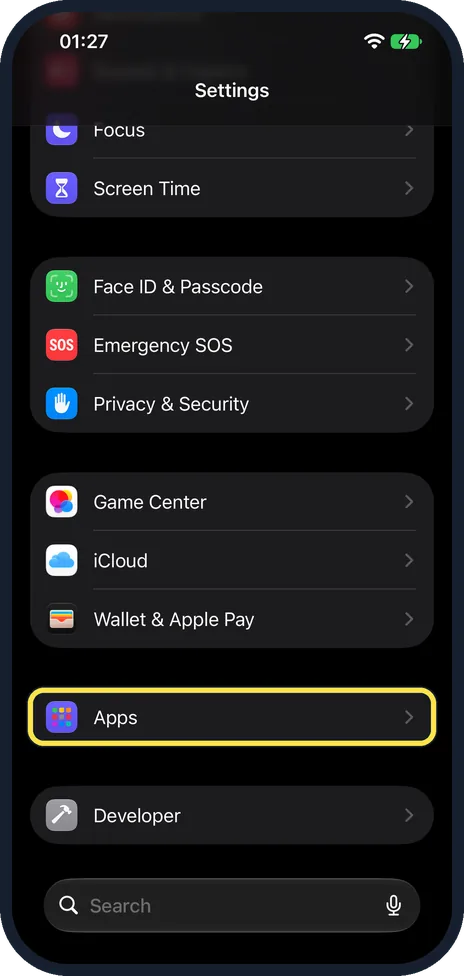
Open Settings and tap Apps
On our iPhone 17e with iOS 27, Apps has its own group below Wallet & Apple Pay, near the bottom of the main Settings list.
Watch these steps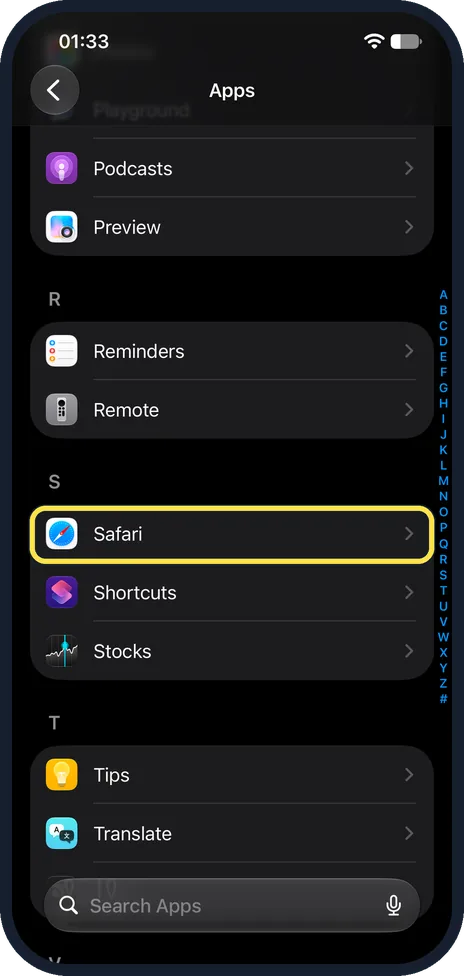
Tap Safari
The apps are in alphabetical order. On our iPhone 17e, letters A to Z run down the right edge; tap S to jump there.
Safari is the first app under S, above Shortcuts and Stocks.
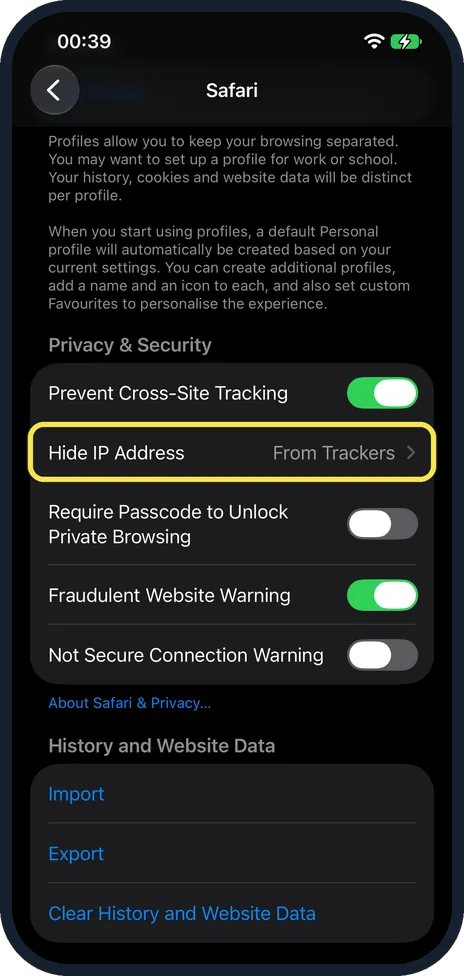
Scroll to Privacy & Security and tap Hide IP Address
The row shows the current state at the right. On our iPhone 17e the Privacy & Security group came after the text about profiles, and Hide IP Address was the second row, below Prevent Cross-Site Tracking. Ours said From Trackers.
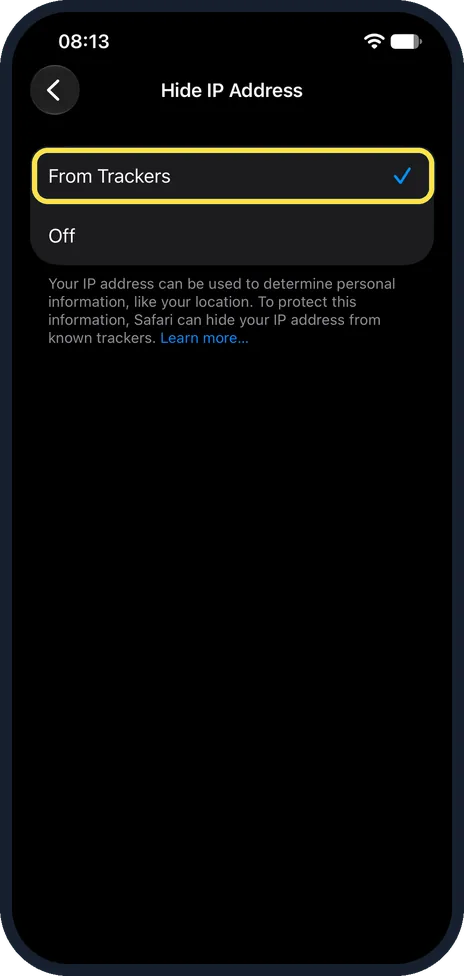
Tap From Trackers
Make sure the tick is next to From Trackers; ours was already set to it. On our iPhone 17e, From Trackers and Off were the only two choices.
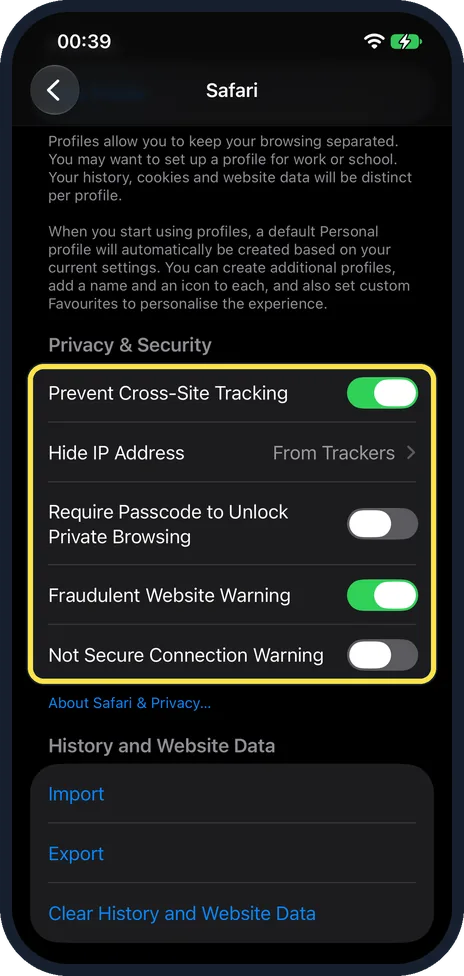
Check the other switches in the group
On our iPhone 17e Prevent Cross-Site Tracking and Fraudulent Website Warning were on. Apple says Safari limits third-party cookies and data by default, and with Fraudulent Website Warning on it warns you about suspected phishing websites.
Require Passcode to Unlock Private Browsing, off on ours, locks your private tabs; Apple says supported models offer Face ID or Touch ID for this instead. Not Secure Connection Warning is also here; on our iPhone it was off.
What changed: the screenshots are now our own iPhone 17e on iOS 27.0.1, dark mode, and the wording is checked against those screens and Apple's iOS 27 guide.
Watch these steps
If you do not see this option
- Hide IP Address offers only From Trackers and Off Our iPhone 17e offered just these two choices. Apple says eligible iCloud+ subscribers get their IP address protected from trackers and websites in Safari. Source: Browse the web privately in Safari on iPhone · Source: Protect your web browsing with iCloud Private Relay on iPhone
- No Require Face ID to Unlock Private Browsing row Apple lists Require Passcode, Require Face ID (supported models) and Require Touch ID (supported models) for this switch. Our iPhone 17e showed Require Passcode to Unlock Private Browsing. Source: Browse the web privately in Safari on iPhone · Source: Protect your web browsing with iCloud Private Relay on iPhone
If this does not work
- Websites can still see your IP address From Trackers only covers known trackers. Apple says iCloud Private Relay, part of iCloud+, protects your address from websites as well. Source: Browse the web privately in Safari on iPhone · Source: Protect your web browsing with iCloud Private Relay on iPhone
- A website stops working with Private Relay Apple says a site that relies on IP filtering may need to see your address: on that site, tap the left side of the search field, tap Privacy & Security, then Show IP Address. It stays visible to that site until you leave it or close the tab. Source: Browse the web privately in Safari on iPhone · Source: Protect your web browsing with iCloud Private Relay on iPhone
About this guide
Every website you open sees the IP address of your connection. The Hide IP Address page on the iPhone explains why that matters: the address can be used to determine personal information, like your location. Safari can keep it from known trackers. This costs nothing and needs no extra app.
The screenshots are our own, taken on an iPhone 17e running iOS 27.0.1.
Good to know
From Trackers hides the address from known trackers. Apple says that for eligible iCloud+ subscribers it is also hidden from websites as you browse in Safari.
More on private tabs: how to use Private Browsing in Safari on an iPhone.
Apps track in their own way: how to stop apps from tracking you on iPhone.
In short: Settings, Apps, Safari, Hide IP Address, From Trackers.
- Apple Support: Browse the web privately in Safari on iPhone
- Apple iPhone User Guide: Protect your web browsing with iCloud Private Relay on iPhone
Links checked in October 2026. Menus and features can change after software updates. These steps match the version named at the top.
Did this guide work for you?
Sorry about that. What happened?