
What changed: the screenshots are now our own iPhone 17e on iOS 27.0.1, dark mode, and the wording is checked against those screens.
howtosimply.com/guides/how-to-stop-apple-storing-your-searches-on-an-iphone/ · Checked October 2026 · iPhone 17e · iOS 27.0.1
In this guide
Open Settings, tap Search and switch off Help Apple Improve Search. Apple then no longer stores the searches you type into Safari, Siri and Spotlight. To stop search terms being sent for suggestions at all, also switch off Show Related Content.
4 of 4 steps with real screenshots · 1 official source below
- Device
- iPhone
- Shown on
- iOS 27.0.1 (iPhone 17e)
- App
- Settings
- Path
- Settings › Search
- Real screenshots
- 4 of 4 steps
- What we did
- Performed: we made the change on our device and show the result
- Checked
- October 2026
- Sources
- 1 official, linked below
Step by step
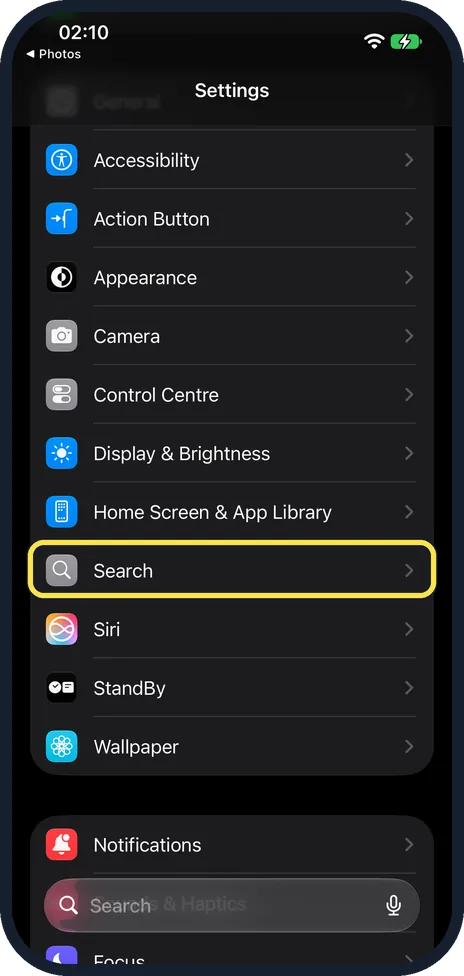
Open Settings and tap Search
It is in the long group that starts with General, below Home Screen & App Library.
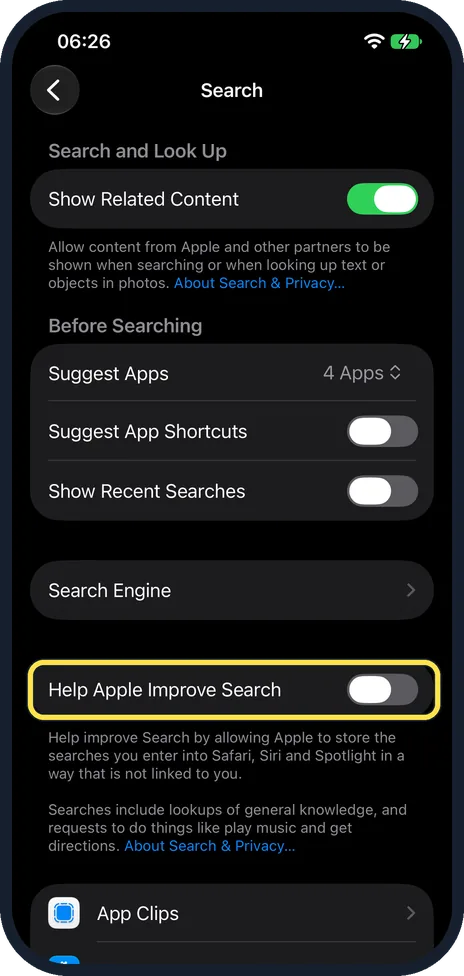
Switch off Help Apple Improve Search
The text below the switch explains it: Apple stores the searches you enter into Safari, Siri and Spotlight, in a way that is not linked to you. It was on on our iPhone 17e; the picture shows it after we switched it off.
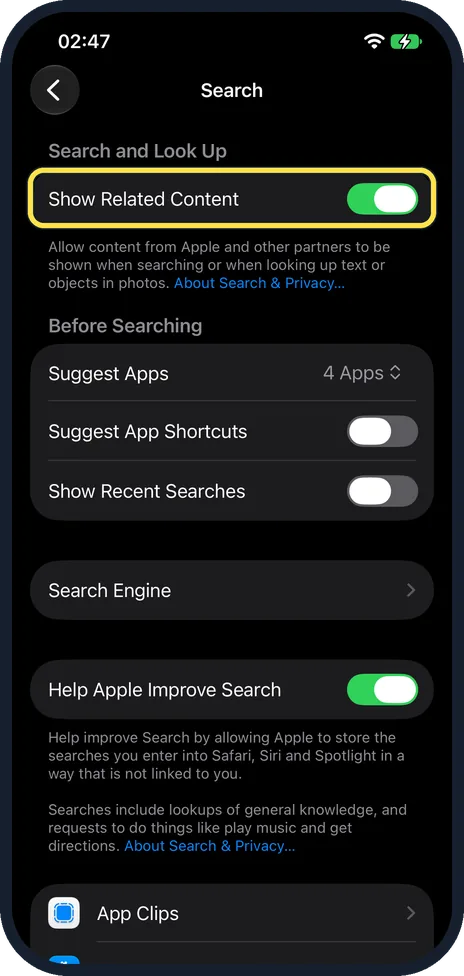
Switch off Show Related Content if you want less sent
With this on, content from Apple and its partners appears when you search or look up text or objects in photos. It was on on ours too.
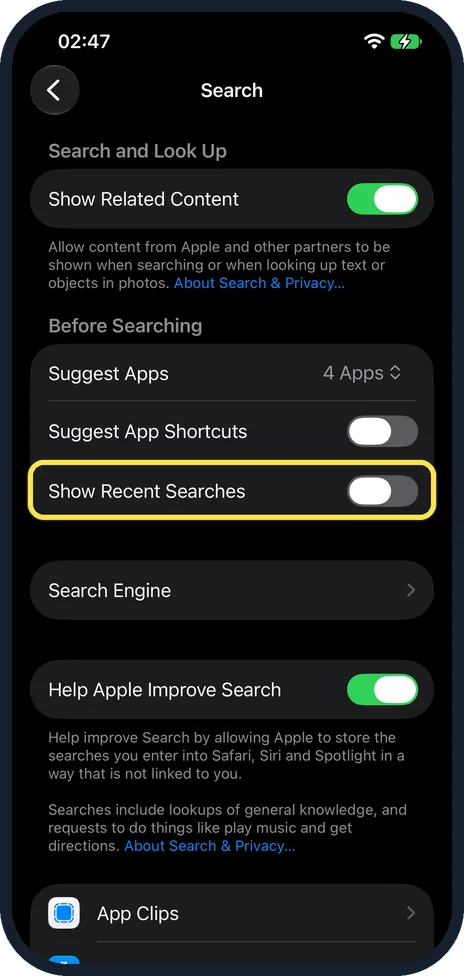
Decide about Show Recent Searches
It sits in the Before Searching group, separate from Show Related Content in the Search and Look Up group above. Apple's privacy page says to switch both off if you do not want web-based content and search results. On our iPhone 17e it was already off, as was Suggest App Shortcuts.
What changed: the screenshots are now our own iPhone 17e on iOS 27.0.1, dark mode, and the wording is checked against those screens.
If you do not see this option
- Your iPhone runs iOS 17. There is no Search row of its own: Apple puts the search settings under Settings, Siri & Search. Source: Search with Spotlight on iPhone (iOS 17)
- Search for it. Open Settings, tap the search field at the bottom and type Help Apple Improve Search. Apple notes that the sections in Settings depend on the iPhone model. Source: Find settings on iPhone
If this does not work
- Searches through Siri are still stored. Apple says they are kept to improve Siri while Improve Siri & Dictation is on: Settings, Privacy & Security, Analytics & Improvements. Source: Search & Privacy
- Safari still suggests searches. Those come from your search engine. Safari asks it for suggestions while Search Engine Suggestions is on, in Settings, Apps, Safari. Source: Search & Privacy
- Pages start loading before you tap them. That is Preload Top Hit in Settings, Apps, Safari. Source: Search & Privacy
About this guide
When you search on an iPhone, in Spotlight, in Safari or by looking something up, the phone sends the search and some context to Apple to fetch suggestions. Apple says this uses an identifier that changes every 15 minutes and is not linked to you. A second, separate setting lets Apple keep your searches to improve its search. Both can be switched off on one page.
The screenshots are our own, taken on an iPhone 17e running iOS 27.0.1, in dark mode.
Good to know
What you say to Siri is handled by another switch: Settings, Privacy & Security, Analytics & Improvements, Improve Siri & Dictation.
To keep your location out of search as well: Settings, Privacy & Security, Location Services, System Services, switch off Suggestions & Search.
The list of apps further down the Search page decides which apps appear in search results and suggestions.
Related: how to stop sharing analytics with Apple on an iPhone.
In short: Settings, Search, Help Apple Improve Search off. Show Related Content off for less.
Links checked in October 2026. Menus and features can change after software updates. These steps match the version named at the top.
Did this guide work for you?
Sorry about that. What happened?