
What changed: the screenshots are now our own iPhone 17e on iOS 27.0.1, dark mode, and the wording is checked against those screens and Apple's iOS 27 guide.
howtosimply.com/guides/how-to-set-up-medical-id-and-emergency-contacts-on-an-iphone/ · Checked October 2026 · iPhone 17e · iOS 27.0.1
In this guide
Open the Health app, tap your picture, then Medical ID. If none is set up, tap Get Started, add your name and date of birth and tap the tick. Then tap Add next to Medications, Allergies, Conditions and Emergency Contacts. Keep Show When Locked switched on.
7 of 7 steps with real screenshots · 2 official sources below
- Device
- iPhone
- Shown on
- iOS 27.0.1 (iPhone 17e)
- App
- Health
- Real screenshots
- 7 of 7 steps
- Checked
- October 2026
- Sources
- 2 official, linked below
Step by step
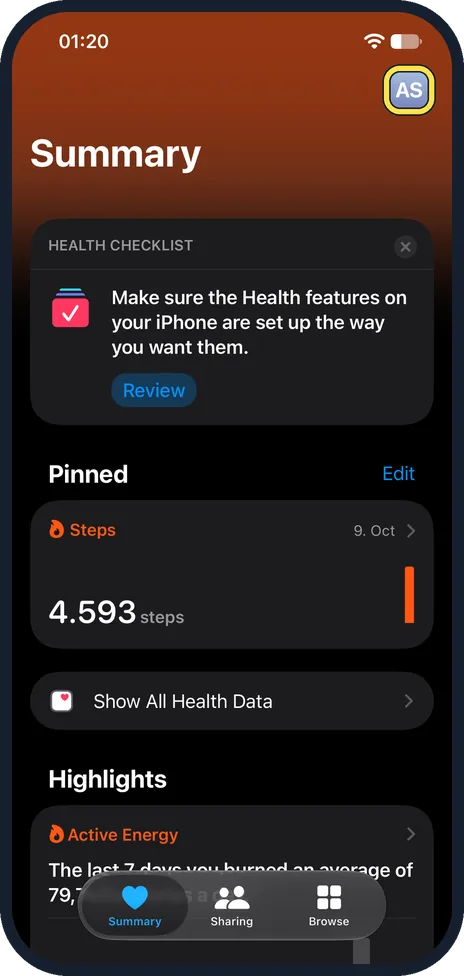
Open the Health app and tap your picture
Your picture or initials are in the top right corner of the Summary page. On our iPhone it showed the initials AS.
Watch these steps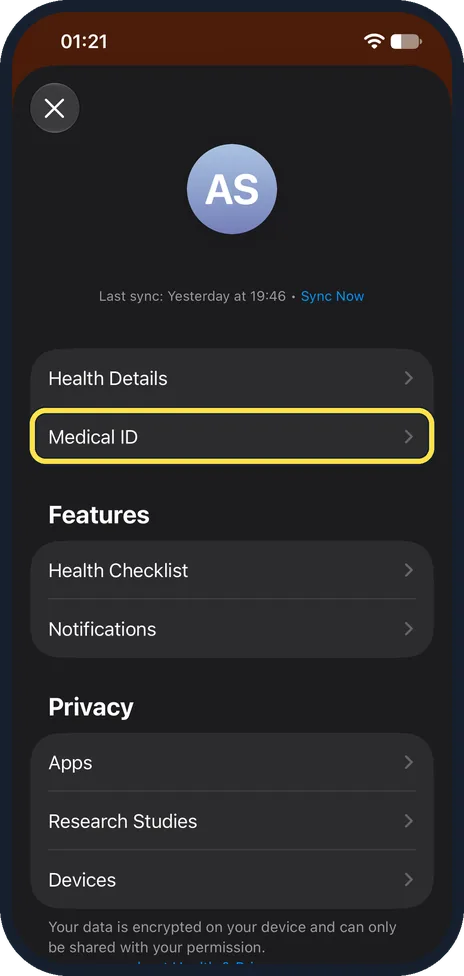
Tap Medical ID
It is the second line, under Health Details. On our iPhone the Features and Privacy sections are below it.
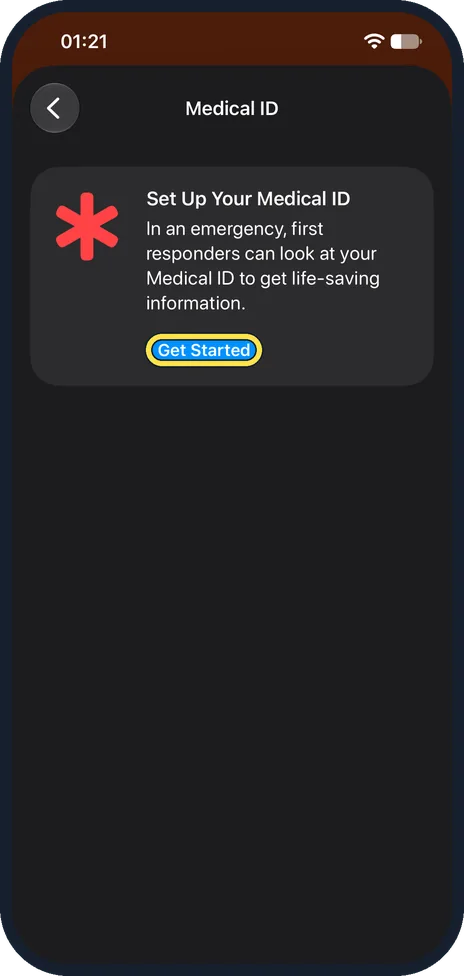
Tap Get Started
On a phone where Medical ID was never set up, a card called Set Up Your Medical ID appears.
If you already have a Medical ID, this step is skipped and your Medical ID page opens.
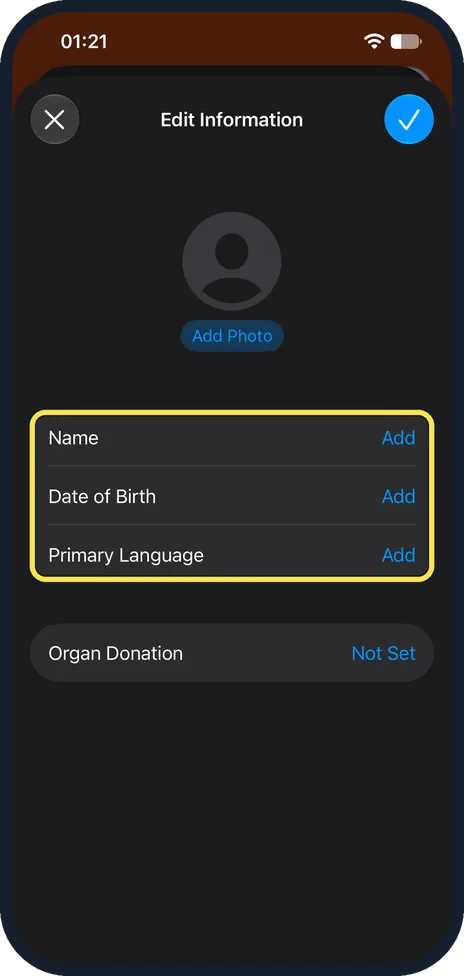
Enter your name and date of birth
An Edit Information form opens. Tap Add next to Name, Date of Birth and Primary Language; Organ Donation, which reads Not Set, is optional.
Then tap the tick at the top right to save.
Add your medical details
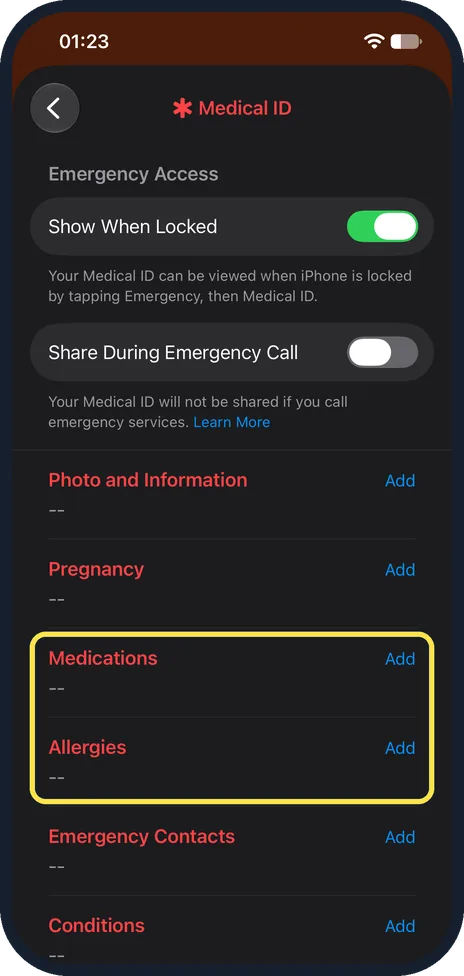
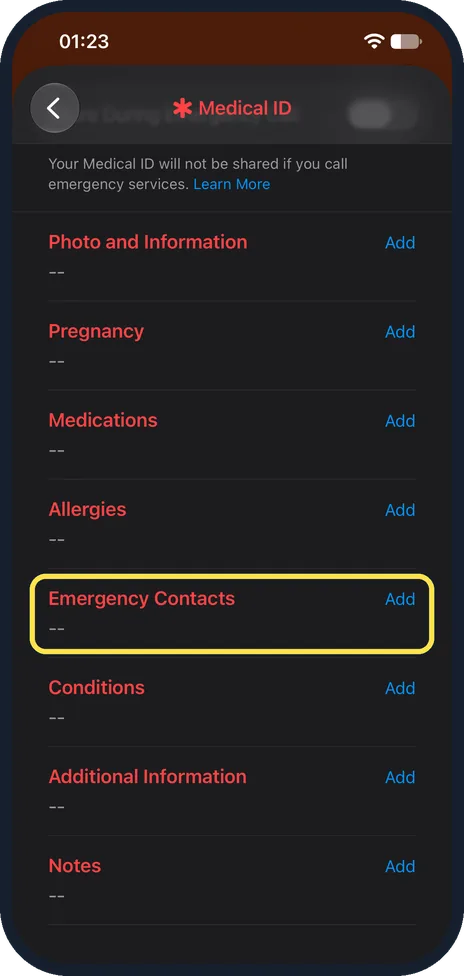
On our iPhone the Medical ID page lists eight sections, each with Add: Photo and Information, Pregnancy, Medications, Allergies, Emergency Contacts, Conditions, Additional Information and Notes.
Tap Add next to Medications, Allergies and Conditions, and type what a paramedic should know. Leave out anything you would not want a stranger to read.
Add emergency contacts
Tap Add next to Emergency Contacts and add the people to alert.
Apple says that after an emergency call ends, your iPhone texts them your current location, if available, unless you cancel.
Check that Show When Locked is on
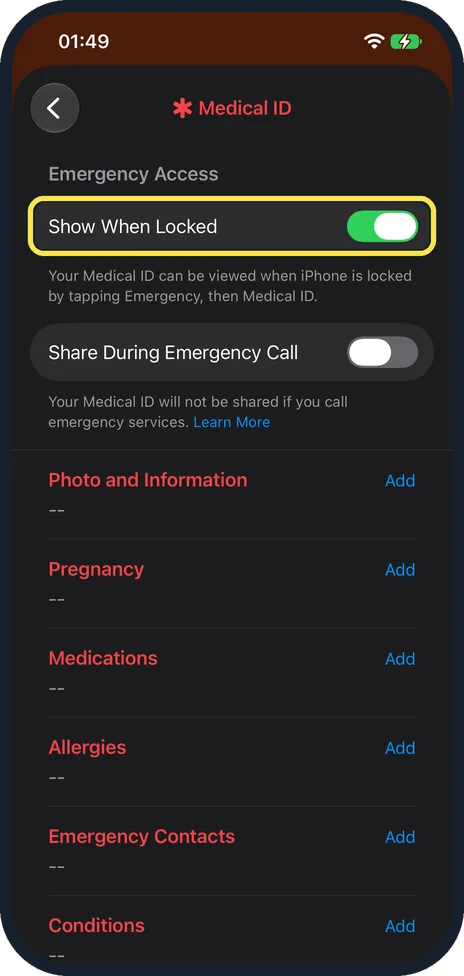
On our iPhone both switches are at the top of the Medical ID page, under Emergency Access: Show When Locked was on and Share During Emergency Call was off.
Show When Locked puts your Medical ID on the Lock Screen. Apple says Share During Emergency Call works in the US and Canada only.
What changed: the screenshots are now our own iPhone 17e on iOS 27.0.1, dark mode, and the wording is checked against those screens and Apple's iOS 27 guide.
Watch these steps
What we saw on our device
- Open the Health app and tap your picture: On our iPhone it showed the initials AS.
- Tap Medical ID: On our iPhone the Features and Privacy sections are below it.
- Add your medical details: On our iPhone the Medical ID page lists eight sections, each with Add: Photo and Information, Pregnancy, Medications, Allergies, Emergency Contacts, Conditions, Additional Information and Notes.
- Check that Show When Locked is on: On our iPhone both switches are at the top of the Medical ID page, under Emergency Access: Show When Locked was on and Share During Emergency Call was off.
If you do not see this option
- You cannot find Medical ID on your profile page. Apple gives a shortcut: touch and hold the Health app icon on the Home Screen, then choose Medical ID. Source: Set up and view your Medical ID · Source: Use SOS to contact emergency services on your iPhone
- Your Medical ID opens instead of Get Started. It is already set up. Apple says to tap Edit to change it. Source: Set up and view your Medical ID · Source: Use SOS to contact emergency services on your iPhone
- You do not see automatic sharing with emergency services. Apple says automatic sharing during an emergency call works in the US and Canada only. On our iPhone the switch is called Share During Emergency Call. Source: Set up and view your Medical ID · Source: Use SOS to contact emergency services on your iPhone
If this does not work
- Medical ID does not show on the Lock Screen. Open Medical ID and switch on Show When Locked. On our iPhone 17e it is at the top of the Medical ID page, under Emergency Access. Apple's guide puts it at the bottom of the form after you tap Edit. Source: Set up and view your Medical ID · Source: Use SOS to contact emergency services on your iPhone
- Your emergency contacts got no text. Apple says the text goes after an emergency call ends, unless you cancel, and needs mobile service. The location is sent only if it is available. Source: Set up and view your Medical ID · Source: Use SOS to contact emergency services on your iPhone
- Your Medical ID will not be shared on an emergency call. On our iPhone, with Share During Emergency Call off, the note reads: Your Medical ID will not be shared if you call emergency services. Switch it on if it is available where you live.
About this guide
Medical ID lets a paramedic or a helpful stranger see vital information and call your family from the Lock Screen, without knowing your passcode.
The screenshots are our own, taken on an iPhone 17e running iOS 27.0.1, in dark mode. We entered no medical details, so every section in our pictures reads --.
Good to know
Apple's guide still says Edit and Done. On our iPhone 17e with iOS 27, the form is called Edit Information and you save it with the tick.
To view a Medical ID on a locked iPhone: wake it, swipe up, tap Emergency on the passcode screen, then Medical ID.
To call for help quickly, press and hold the side button and either volume button until the sliders appear and the Emergency SOS countdown ends. In India, quickly press the side button three times instead.
To open your Medical ID quickly, touch and hold the Health app icon on the Home Screen and choose Medical ID.
Check your Medical ID once a year and after any change in medication.
In short: Health, your picture, Medical ID, Get Started, Add for each section, Show When Locked on.
- Apple iPhone User Guide: Set up and view your Medical ID
- Apple iPhone User Guide: Use SOS to contact emergency services on your iPhone
Links checked in October 2026. Menus and features can change after software updates. These steps match the version named at the top.
Did this guide work for you?
Sorry about that. What happened?