
howtosimply.com/guides/how-to-lock-the-screen-on-a-mac/ · Checked October 2026 · MacBook Pro · macOS Tahoe 26
In this guide
Press Control, Command and Q together, or click the Apple menu and choose Lock Screen. To make the Mac lock itself, open System Settings, Lock Screen and set Require password after screen saver begins or display is turned off to Immediately.
4 of 5 steps with real screenshots · 2 official sources below
- Device
- Mac
- Shown on
- macOS Tahoe 26 (MacBook Pro)
- App
- System Settings
- Path
- System Settings › Lock Screen
- Real screenshots
- 4 of 5 steps
- Checked
- October 2026
- Sources
- 2 official, linked below
Step by step
Lock it with the keyboard
Press Control, Command and Q at the same time. The login window appears straight away.
Tap the picture to see it full size Or use the Apple menu
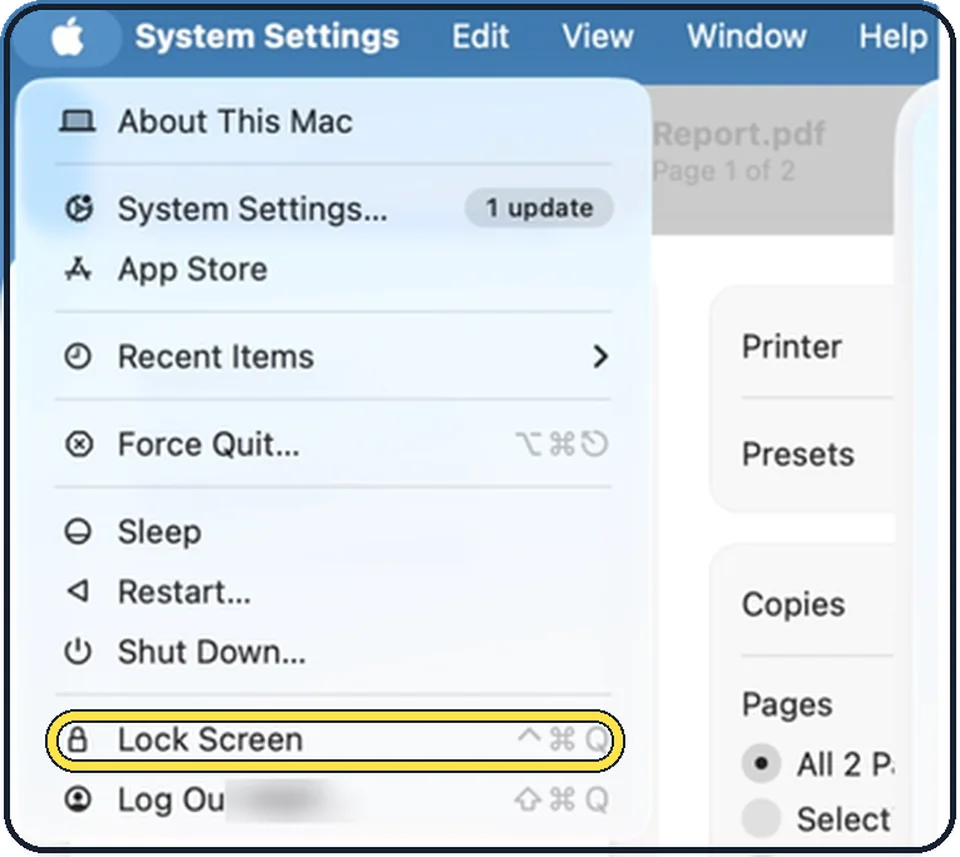
Click the Apple menu in the top left corner and choose Lock Screen.
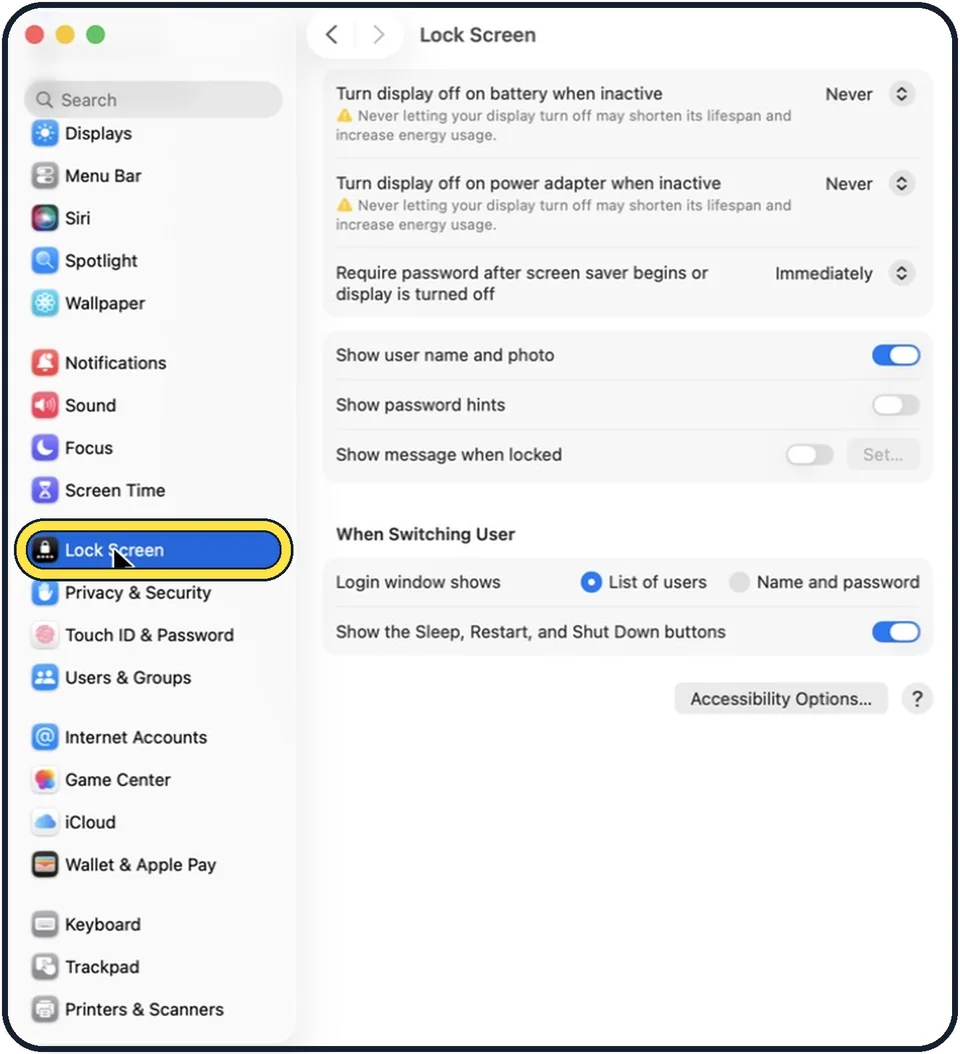
Zoomed in on the setting. Tap to see the whole screenTap the picture to see it full size Open System Settings and click Lock Screen
This page controls when the Mac locks by itself.
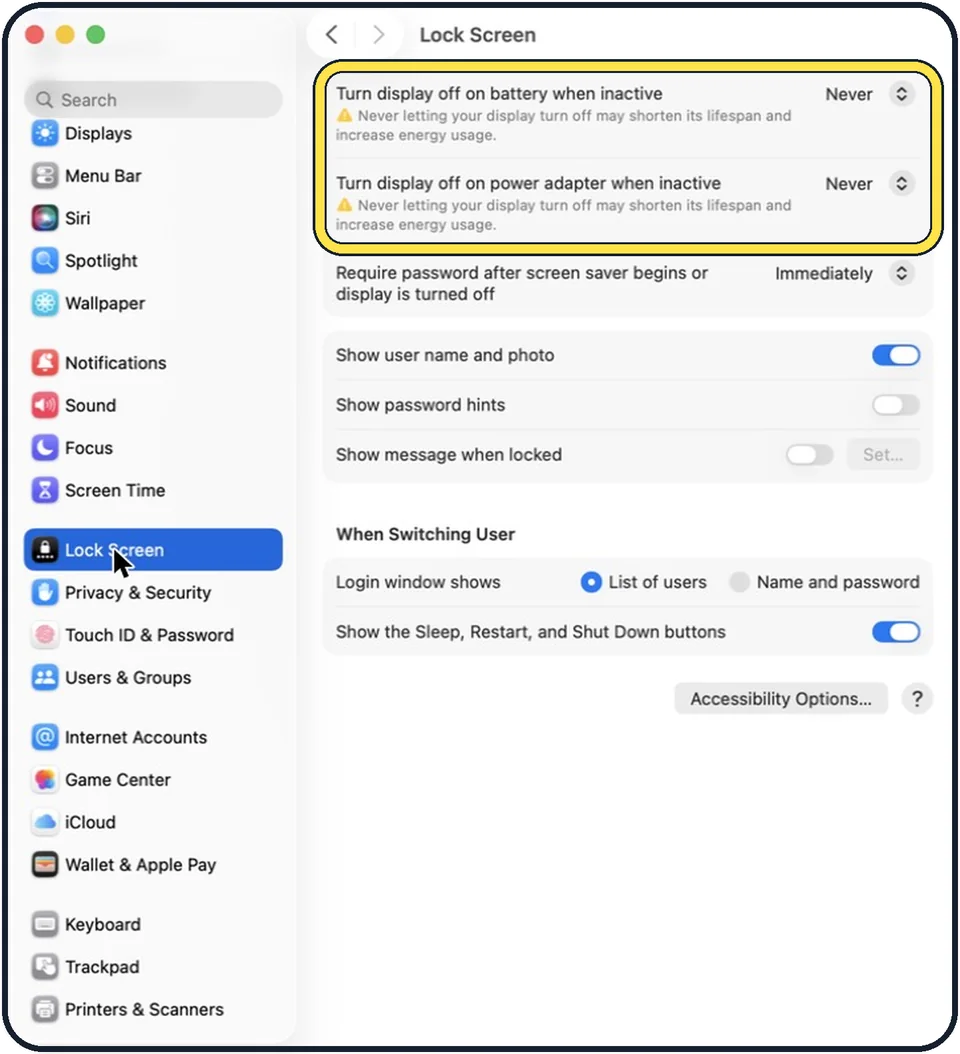
Tap the picture to see it full size Set when the display turns off
There are two settings: Turn display off on battery when inactive, and Turn display off on power adapter when inactive. Choose a short time, such as a few minutes.
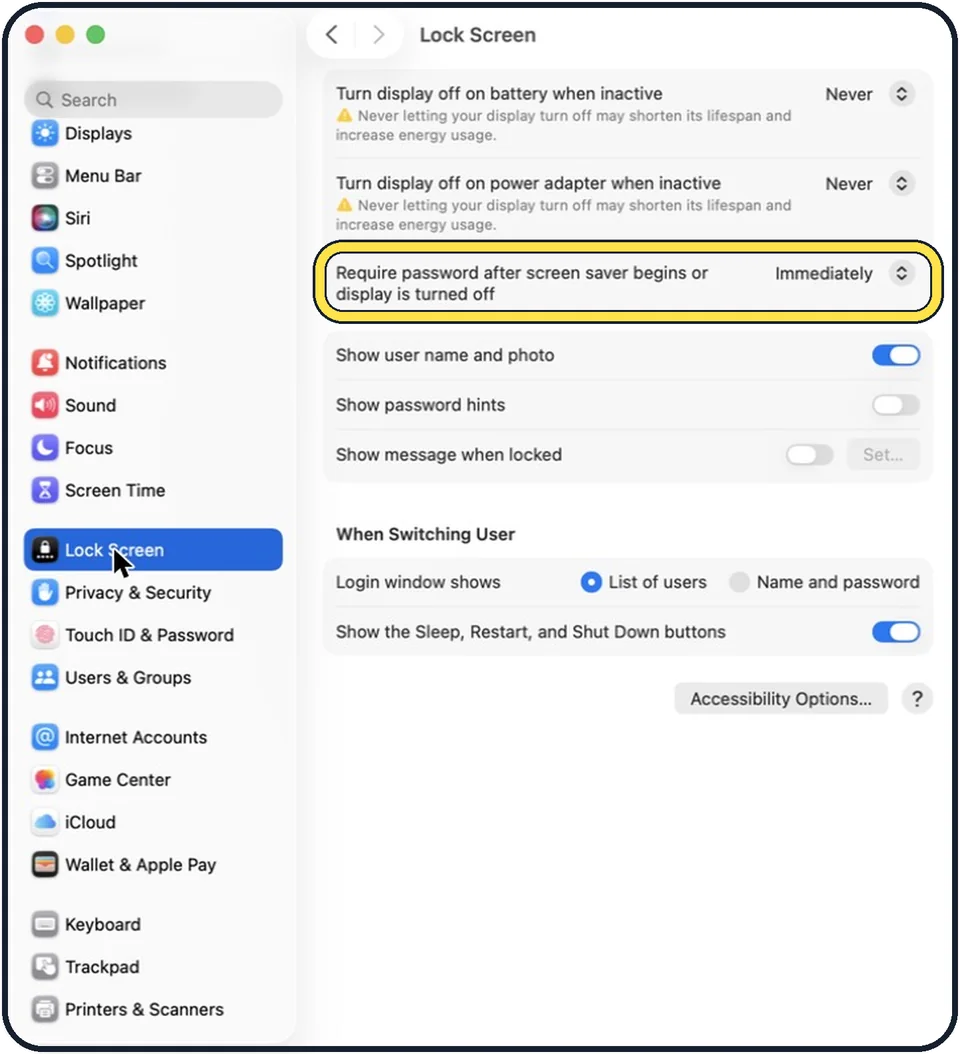
Tap the picture to see it full size Require the password immediately
Set Require password after screen saver begins or display is turned off to Immediately. With a longer delay, anyone can wake the Mac during that time without a password.
About this guide
Locking the screen keeps other people out while you are away from the desk. Apps and documents stay open. You unlock with your password or Touch ID.
These steps are for recent versions of macOS. The pictures are our own screenshots from macOS Tahoe 26 on a MacBook Pro and diagrams of the keys to press.
Good to know
A hot corner set to Lock Screen locks the Mac when you push the pointer into that corner.
Show message when locked puts a line of text on the login window. A phone number there helps an honest finder return a lost MacBook.
Closing the lid of a MacBook also puts it to sleep, and it asks for the password according to the same setting.
In short: Control, Command and Q. For automatic locking: System Settings, Lock Screen, require password Immediately.
Links checked in October 2026. Menus and features can change after software updates. These steps match the version named at the top.
Did this guide work for you?
Sorry about that. What happened?