
howtosimply.com/guides/how-to-find-your-ip-address-on-a-mac/ · Checked October 2026 · MacBook Neo · macOS 27.0.1
In this guide
Open System Settings, Wi-Fi and click Details next to your network. The IP address and Router rows are near the bottom; TCP/IP shows the subnet mask too. That is the address on your home network, not the one websites see.
4 of 4 steps with real screenshots · 3 official sources below
- Device
- Mac
- Shown on
- macOS 27.0.1 (MacBook Neo)
- App
- System Settings
- Path
- System Settings › Wi-Fi › Details
- Real screenshots
- 4 of 4 steps
- Checked
- October 2026
- Sources
- 3 official, linked below
Step by step
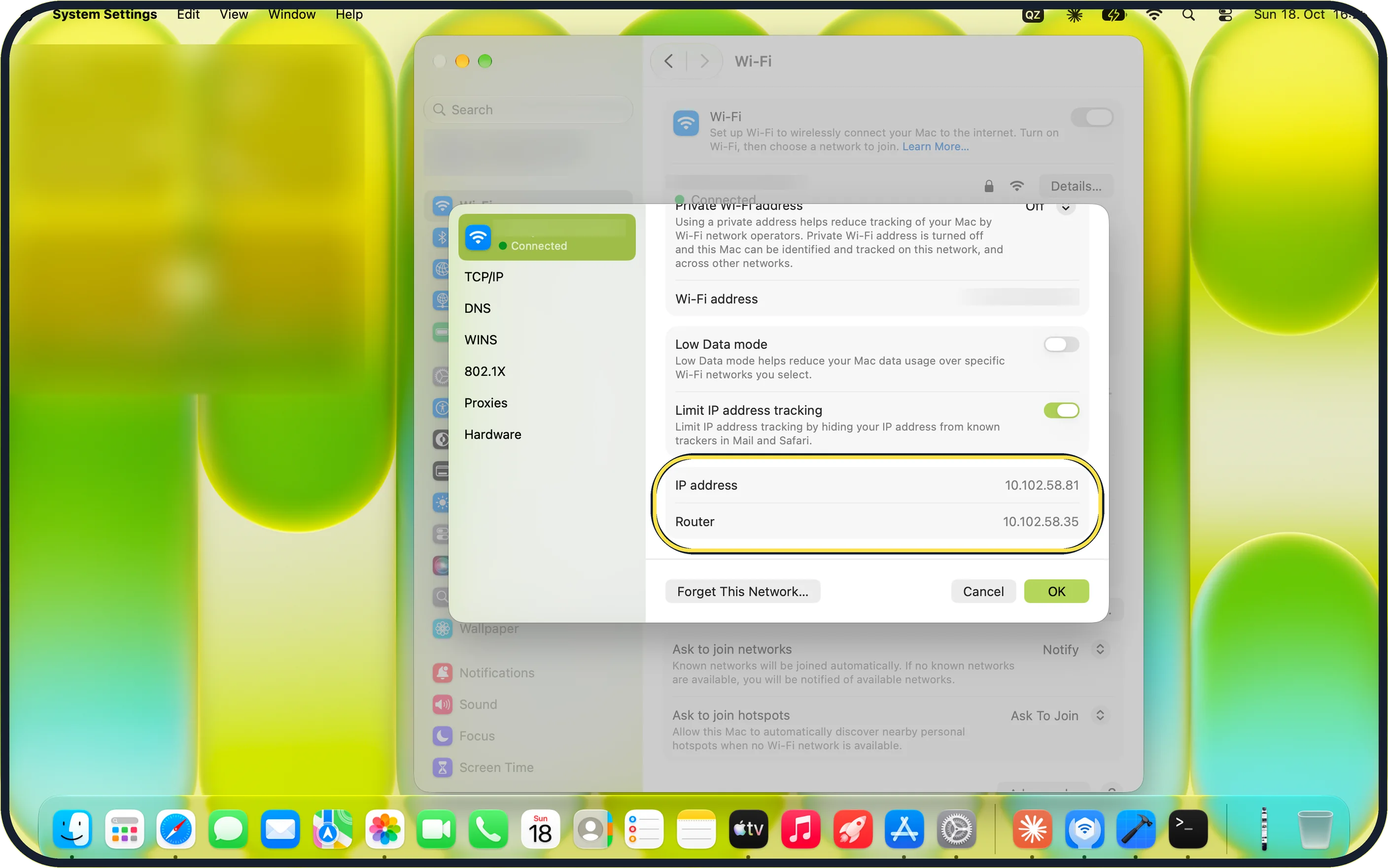
Zoomed in on the setting. Tap to see the whole screenTap the picture to see it full size Open Wi-Fi Details
In System Settings, Wi-Fi, click Details next to the connected network and scroll down. Ours showed IP address 10.102.58.81 and Router 10.102.58.35.
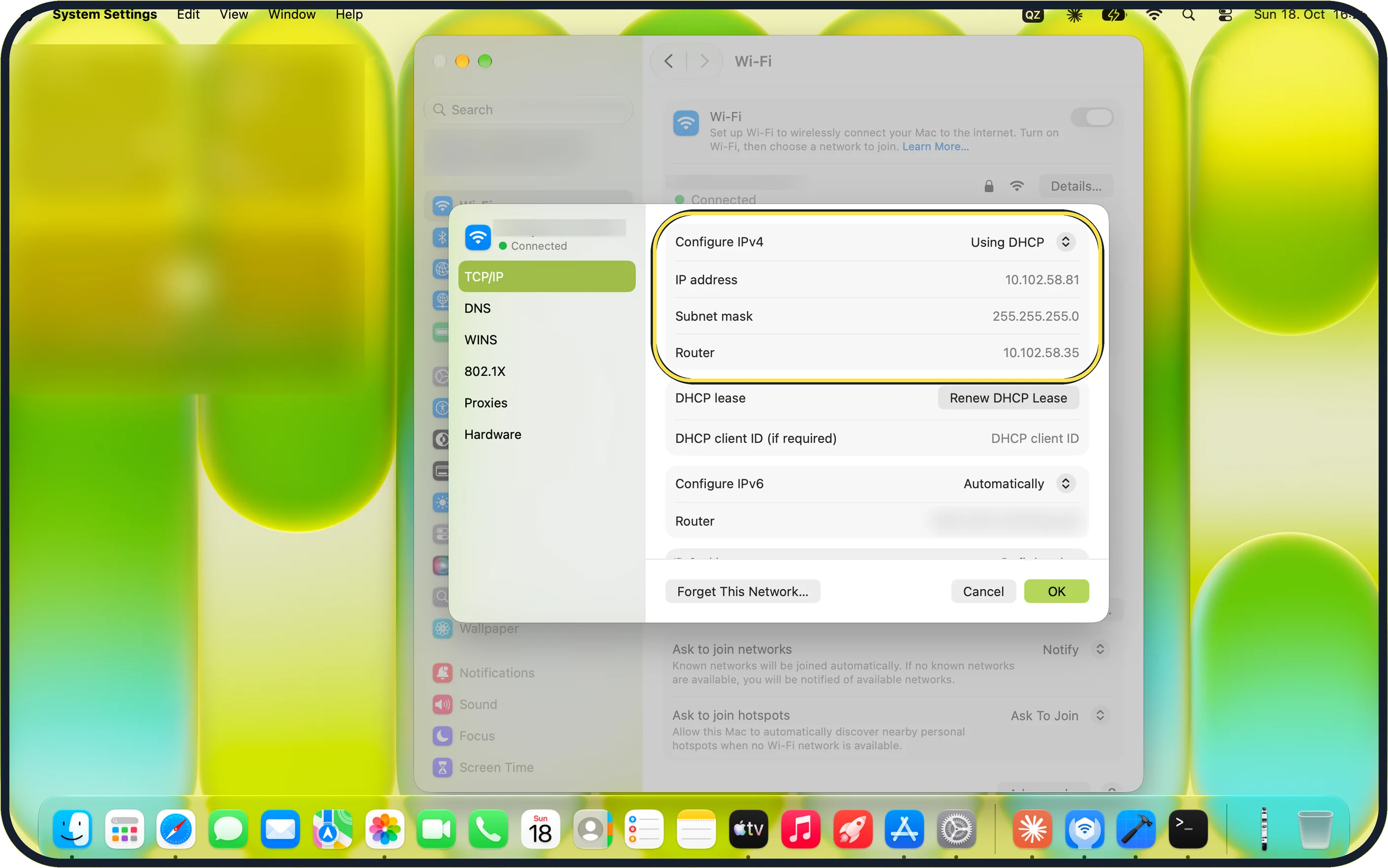
Zoomed in on the setting. Tap to see the whole screenTap the picture to see it full size Check TCP/IP
Click TCP/IP in the sheet. Configure IPv4 said Using DHCP: the router hands out the address. The subnet mask was 255.255.255.0.
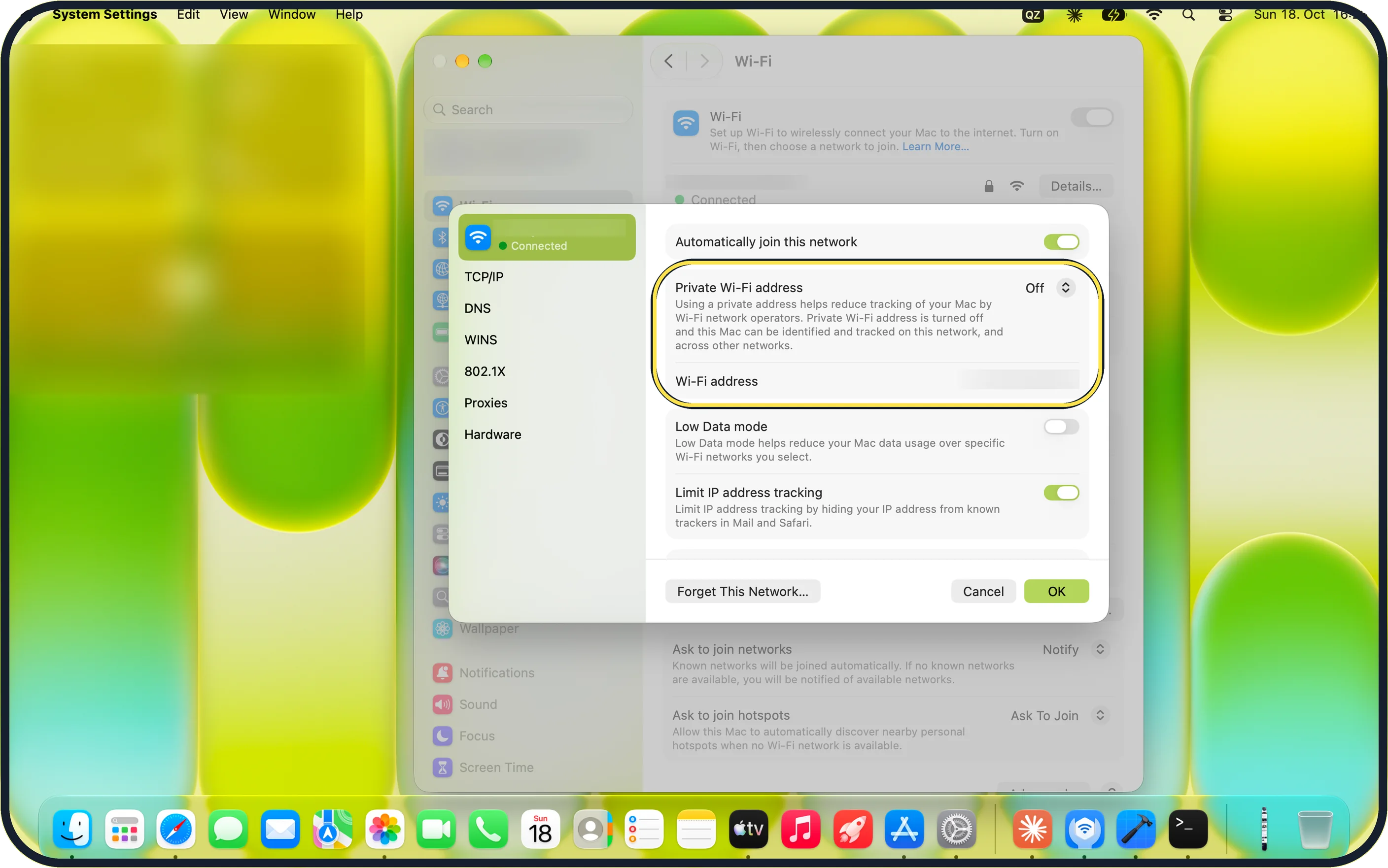
Zoomed in on the setting. Tap to see the whole screenTap the picture to see it full size Private Wi-Fi address
Higher up, Private Wi-Fi address changes the hardware (Wi-Fi) address the network sees, not the IP address. Ours was Off.
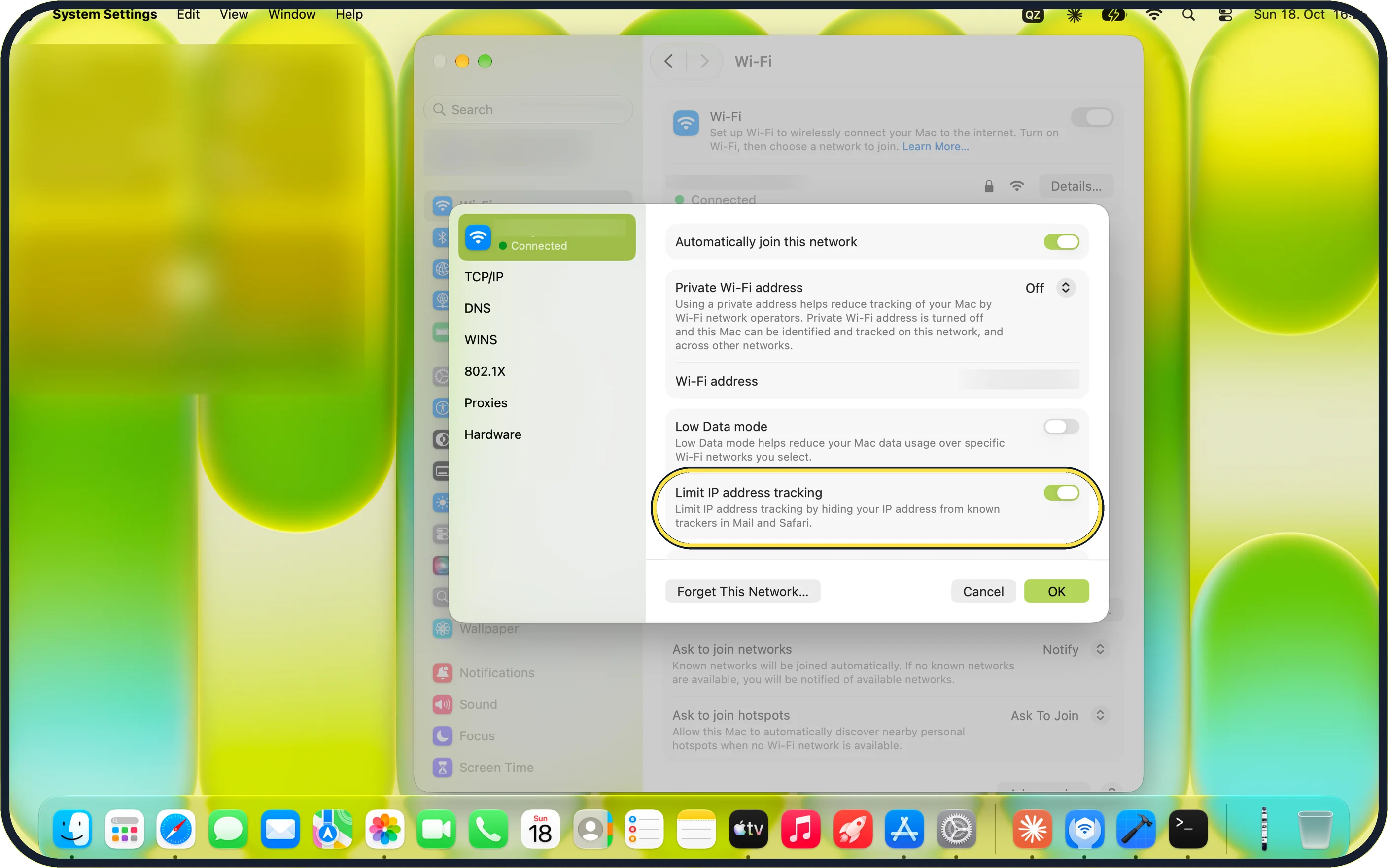
Zoomed in on the setting. Tap to see the whole screenTap the picture to see it full size Limit IP address tracking
This switch hides your IP address from known trackers in Mail and Safari. It was on for ours.
If you do not see this option
- No IP address row? The Mac is not connected. Join the network first; with no address from the router, the row stays empty.
- Using Ethernet? Apple says to use System Settings, Network, the service, Details, then TCP/IP. Source: Change TCP/IP settings on Mac
If this does not work
- The address starts with 169.254? The Mac got no address from the router. In TCP/IP, click Renew DHCP Lease, or restart the router. Source: Change TCP/IP settings on Mac
- Need the public address? Ours started with 10., a private range used only inside the network. The public address belongs to the router; its own settings page shows it.
About this guide
A Mac has a local IP address on your network, and your router has a public one on the internet.
The screenshots are from our MacBook Neo with macOS 27.0.1, taken on 18 October 2026. Ours had 10.102.58.81 on a private network; we blurred the network name and the Wi-Fi address.
Good to know
Check and free up storage on a Mac.
In short: System Settings, Wi-Fi, Details: IP address and Router. TCP/IP for the subnet mask and DHCP.
- Mac User Guide: Wi-Fi settings on Mac
- Mac User Guide: Change TCP/IP settings on Mac
- Mac User Guide: Use a private Wi-Fi address on Mac
Links checked in October 2026. Menus and features can change after software updates. These steps match the version named at the top.
Did this guide work for you?
Sorry about that. What happened?