
howtosimply.com/guides/how-to-turn-on-the-firewall-on-a-mac/ · Checked October 2026 · MacBook Pro · macOS Tahoe 26
In this guide
Open System Settings, click Network in the sidebar, click Firewall and switch Firewall on. Click Options if you want stricter rules such as stealth mode.
3 of 5 steps with real screenshots · 2 official sources below
- Device
- Mac
- Shown on
- macOS Tahoe 26 (MacBook Pro)
- App
- System Settings
- Path
- System Settings › Network › Firewall
- Real screenshots
- 3 of 5 steps
- Checked
- October 2026
- Sources
- 2 official, linked below
Step by step
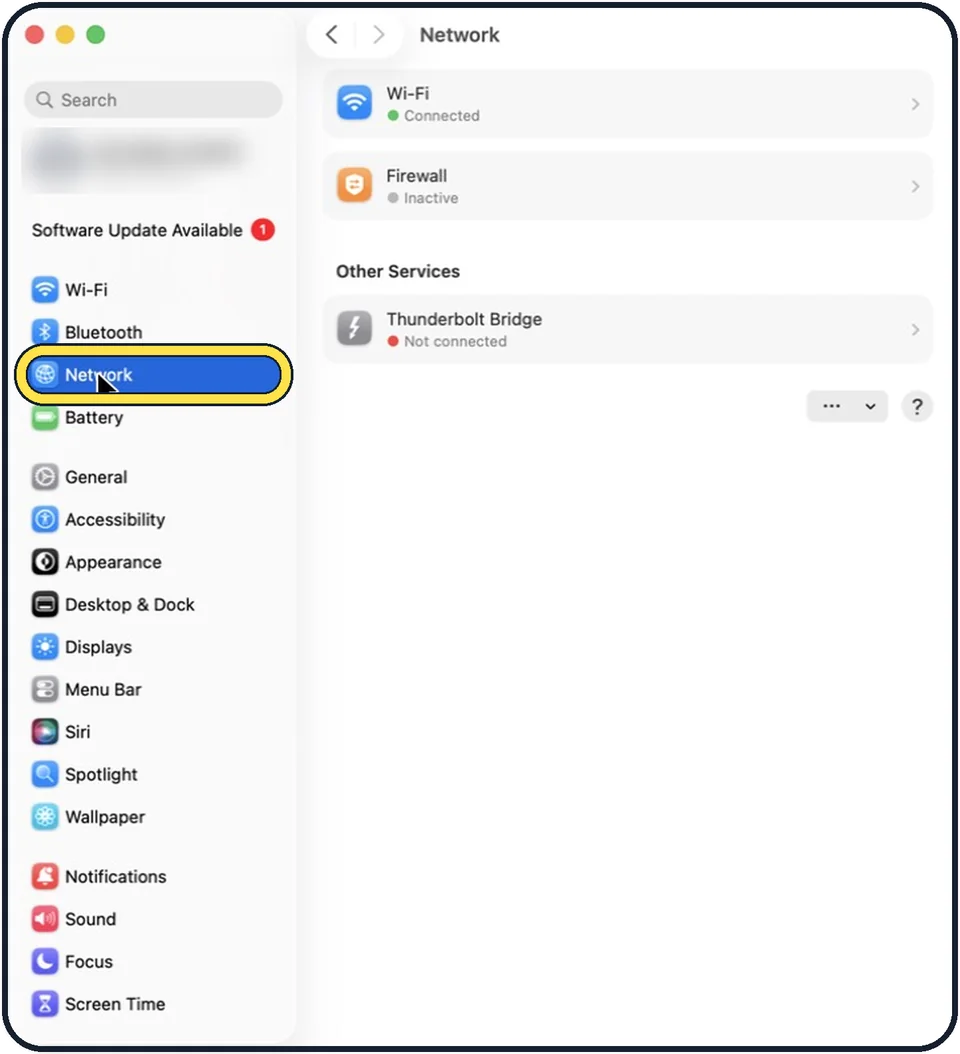
Zoomed in on the setting. Tap to see the whole screenTap the picture to see it full size Open System Settings and click Network
Click the Apple menu in the top left corner, then System Settings, then Network in the sidebar.
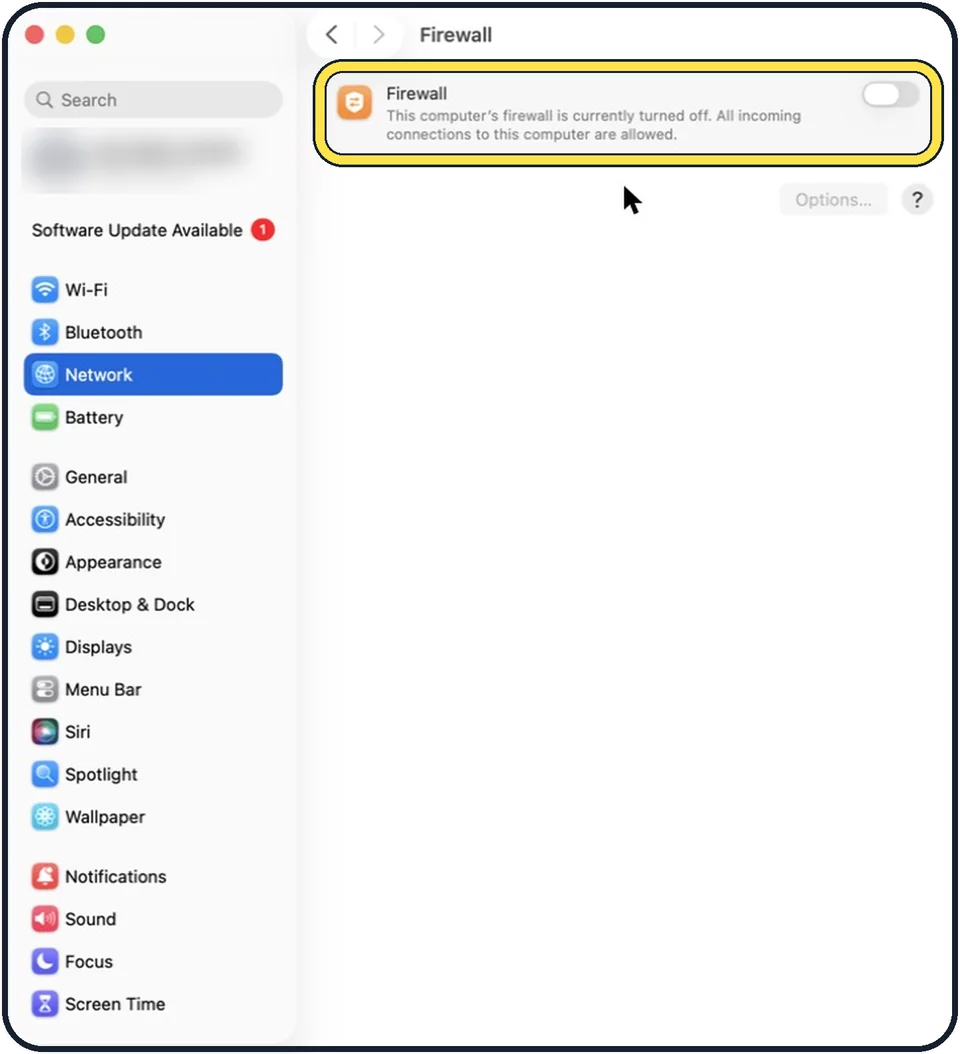
Tap the picture to see it full size Click Firewall and switch it on
You may need to scroll down to find Firewall. Turn the switch on. In the picture it is still off. The Mac may ask for your password or Touch ID.
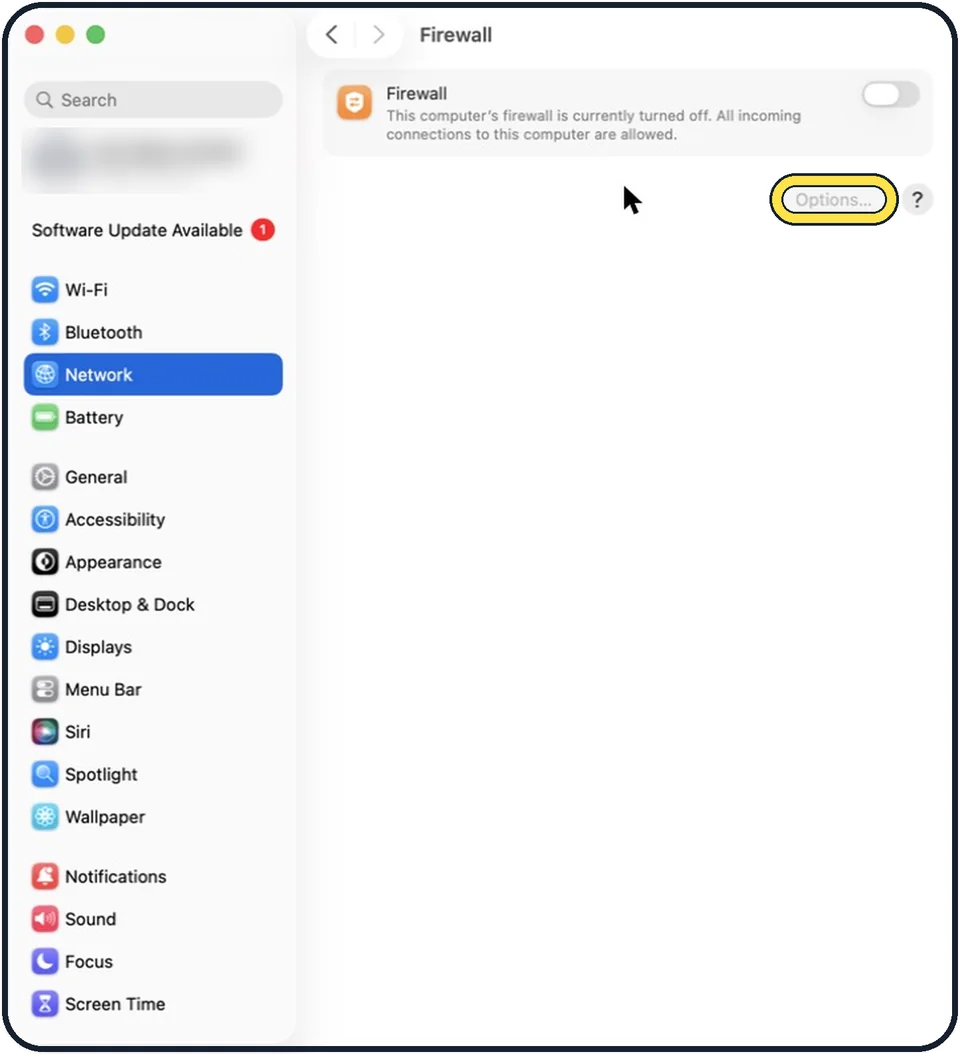
Zoomed in on the setting. Tap to see the whole screenTap the picture to see it full size Click Options for more control
The Options button works only while the firewall is on. That is why it looks grey in the picture. Most people can leave the settings as they are.
Allow or block a single app
In Options, click the Add button (the plus) under the list, choose the app, and then use the small arrows next to its name to allow or block incoming connections.
Answer the question when an app asks
With the firewall on, a new app that wants to accept connections shows a message that asks for your permission. Allow it only if you know the app and want it to work over the network.
About this guide
The firewall stops other computers on the network from connecting to your Mac unless you allow it. It is worth turning on if you use the Wi-Fi in cafes, hotels or airports.
These steps are for recent versions of macOS, where the settings app is called System Settings. The pictures are our own screenshots from macOS Tahoe 26 on a MacBook Pro.
Good to know
Block all incoming connections prevents incoming connections to all apps and services that are not essential. Use it on networks you do not trust.
Enable stealth mode makes the Mac ignore test requests such as ping, so it is harder to find on a network.
The two settings that begin with Automatically allow let Apple's own software and signed apps receive connections without asking you each time.
The firewall checks only incoming connections. It does not replace updates or a disk that is locked with FileVault.
In short: System Settings, Network, Firewall, switch on.
- Apple Support: Block connections to your Mac with a firewall
- Apple Support: Change Firewall settings on Mac
Links checked in October 2026. Menus and features can change after software updates. These steps match the version named at the top.
Did this guide work for you?
Sorry about that. What happened?