
howtosimply.com/guides/how-to-show-a-message-on-the-mac-lock-screen/ · Checked October 2026 · MacBook Pro · macOS Tahoe 26
In this guide
Open System Settings, click Lock Screen, switch on Show message when locked and click Set to type the message. The message appears in the login window when the Mac is locked. Apple suggests it can provide contact information for a lost Mac.
4 of 4 steps with real screenshots · 4 official sources below
- Device
- Mac
- Shown on
- macOS Tahoe 26 (MacBook Pro)
- App
- System Settings
- Path
- System Settings › Lock Screen › Show message when locked › Set
- Real screenshots
- 4 of 4 steps
- Checked
- October 2026
- Sources
- 4 official, linked below
Step by step
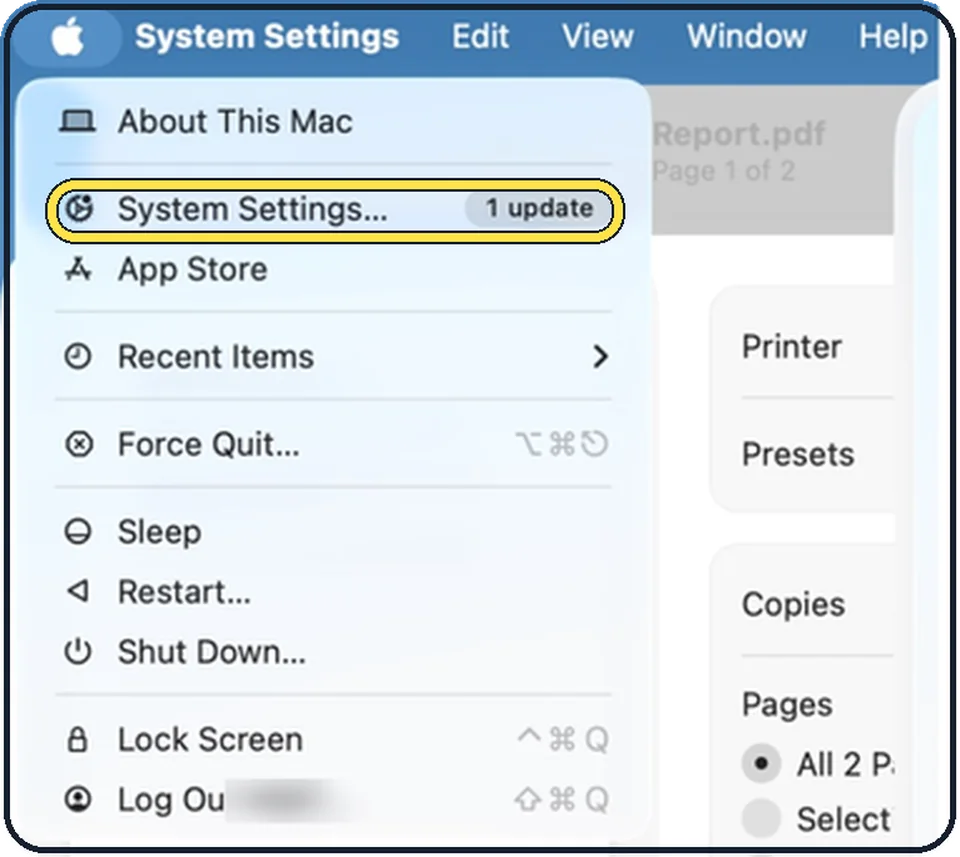
Tap the picture to see it full size Open System Settings
Click the Apple menu in the top left corner of the screen and choose System Settings.
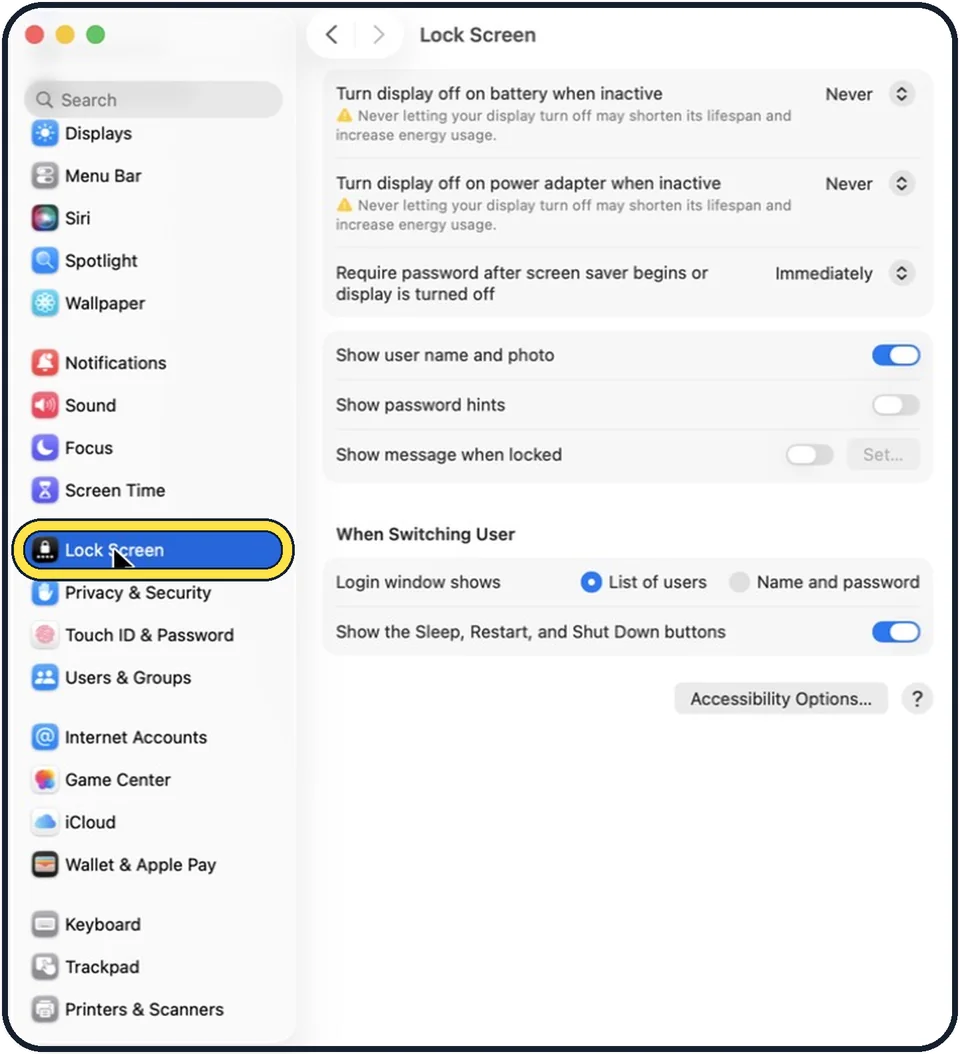
Zoomed in on the setting. Tap to see the whole screenTap the picture to see it full size Click Lock Screen in the sidebar
Lock Screen is in the group with Privacy & Security. Scroll down in the sidebar to find it.
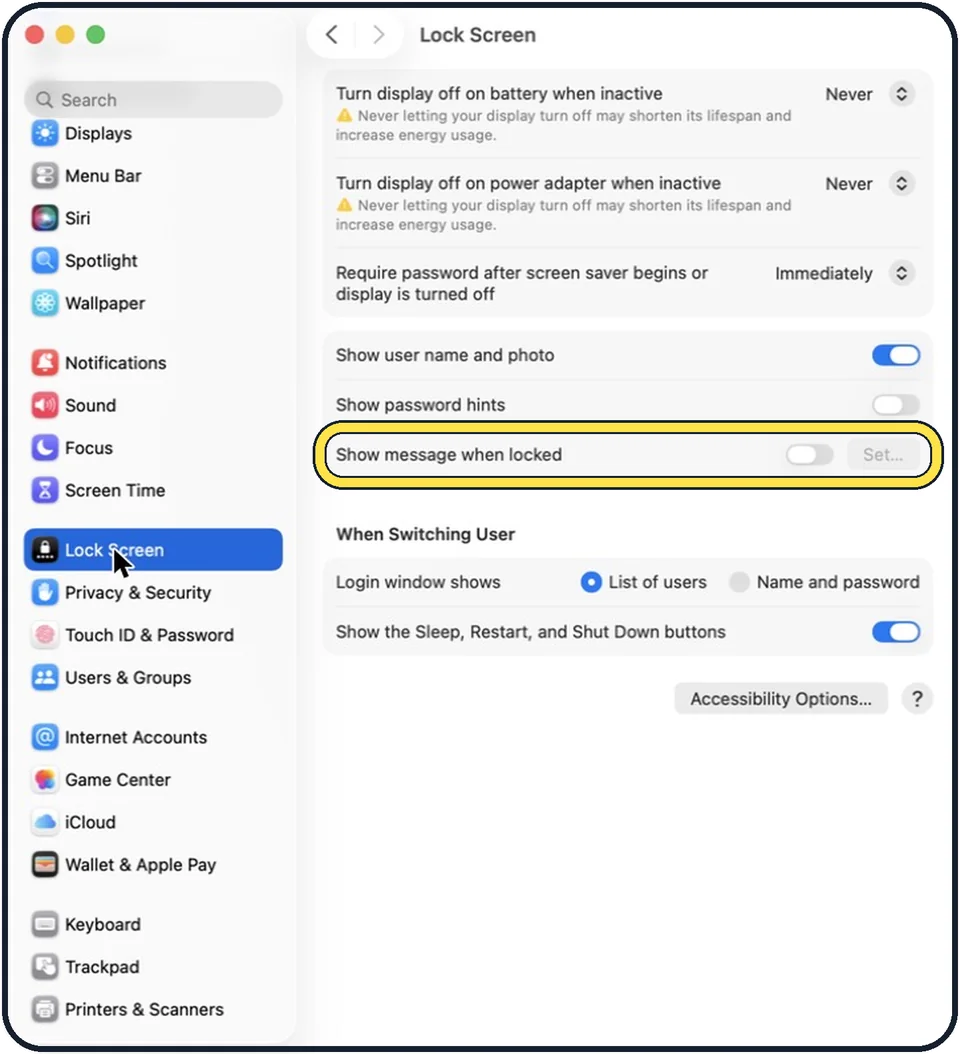
Tap the picture to see it full size Switch on Show message when locked
It is in the second group of the page. In the picture it is off, and the Set… button next to it is grey.
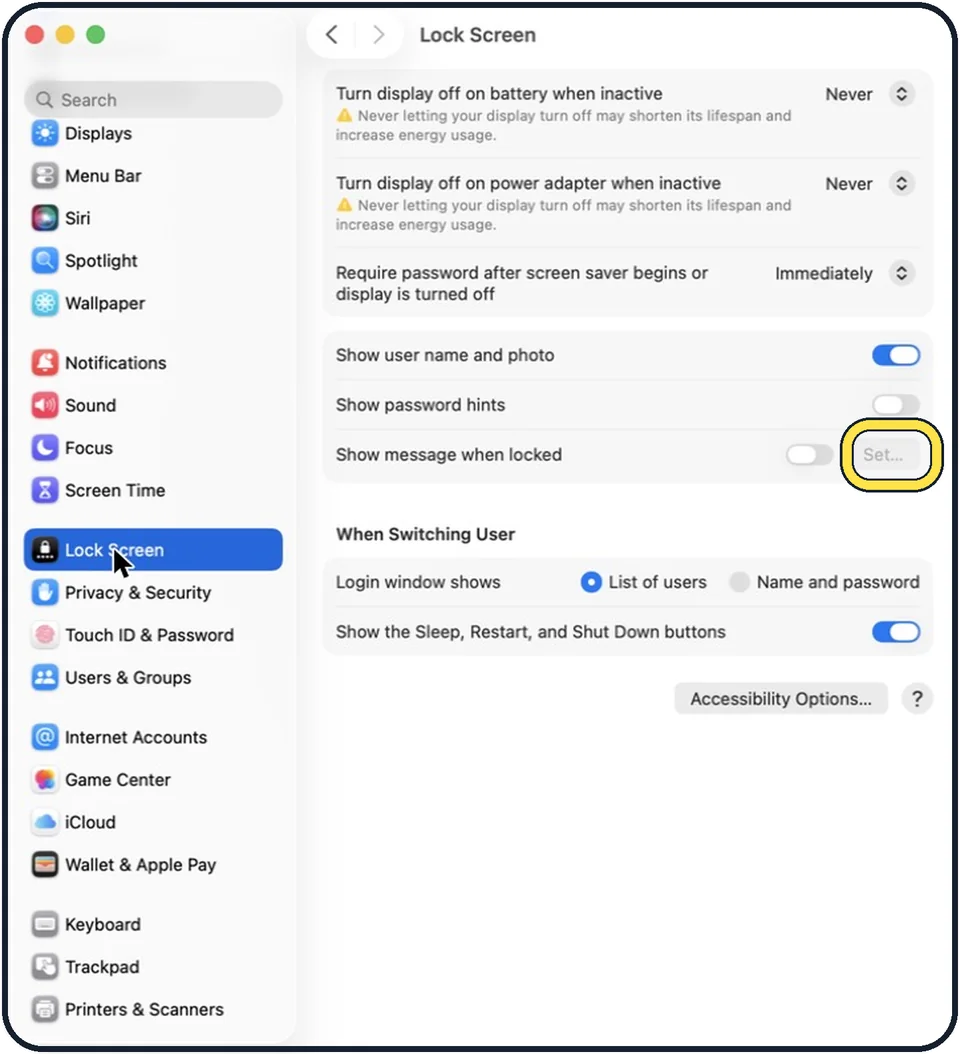
Zoomed in on the setting. Tap to see the whole screenTap the picture to see it full size Click Set and type the message
In the picture the switch is still off, so Set… at the right is grey. After you switch it on, click Set…, type a short message and click OK.
If you do not see this option
- Your Mac has System Preferences, not System Settings. Apple says that on macOS Monterey you choose System Preferences, Security & Privacy, then General, and select Show a message when the screen is locked. If the lock at the bottom left is closed, click it first. Source: Change Security & Privacy General preferences on Mac
- You cannot find Lock Screen in the sidebar. Apple says you can type a word, such as message, in the search field at the top of System Settings and click the matching option. Source: Find options in System Settings on Mac
If this does not work
- You want to check the message. Apple says you can lock the screen straight away: choose Apple menu, then Lock Screen. Apple says the message appears in the login window. Source: Lock the screen of your Mac · Source: Change Lock Screen settings on Mac
- You see the screen saver, not the message. Apple says the Lock Screen shows your screen saver after a period of inactivity. The message is part of the login window, which you see when you go to unlock the Mac. Source: Lock the screen of your Mac · Source: Change Lock Screen settings on Mac
About this guide
A short line on the lock screen, such as a phone number or an email address, gives an honest finder a way to return a lost MacBook. The message is shown to anyone who tries to log in.
The screenshots show System Settings on macOS Tahoe 26.
Good to know
Show password hints, the row above, is a separate setting. On our Mac it is off.
In short: System Settings, Lock Screen, Show message when locked, Set.
- Mac User Guide: Change Lock Screen settings on Mac
- Apple Support: Change Security & Privacy General preferences on Mac
- Apple Support: Find options in System Settings on Mac
- Apple Support: Lock the screen of your Mac
Links checked in October 2026. Menus and features can change after software updates. These steps match the version named at the top.
Did this guide work for you?
Sorry about that. What happened?