
howtosimply.com/guides/how-to-set-up-hot-corners-on-a-mac/ · Checked October 2026 · MacBook Pro · macOS Tahoe 26
In this guide
Open System Settings, click Desktop & Dock, scroll to the bottom and click Hot Corners. Click the menu for a corner, choose an action such as Lock Screen or Mission Control, and click Done. The action now runs when you move the pointer into that corner.
3 of 5 steps with real screenshots · 1 official source below
- Device
- Mac
- Shown on
- macOS Tahoe 26 (MacBook Pro)
- App
- System Settings
- Path
- System Settings › Desktop & Dock › Hot Corners
- Real screenshots
- 3 of 5 steps
- Checked
- October 2026
- Sources
- 1 official, linked below
Step by step
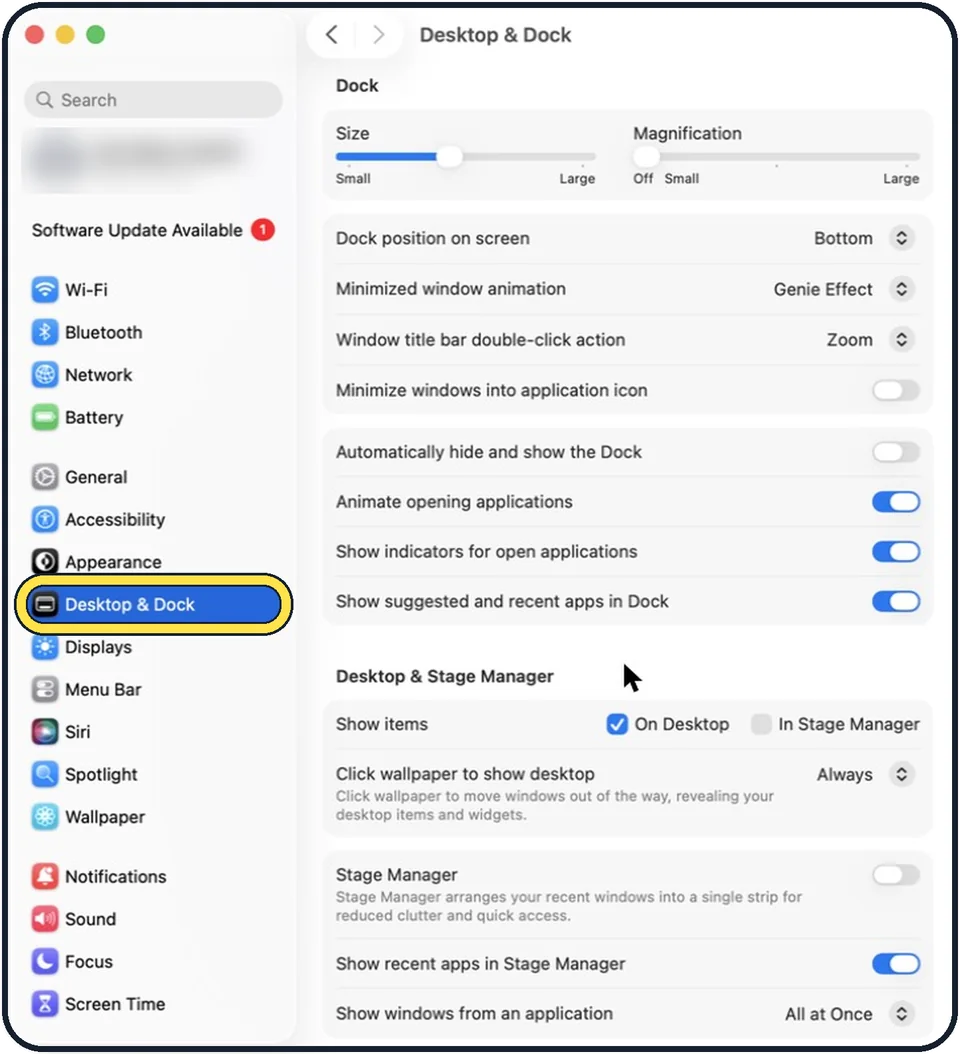
Zoomed in on the setting. Tap to see the whole screenTap the picture to see it full size Open System Settings and click Desktop & Dock
Click the Apple menu, then System Settings. Desktop & Dock is in the sidebar. You may need to scroll down.
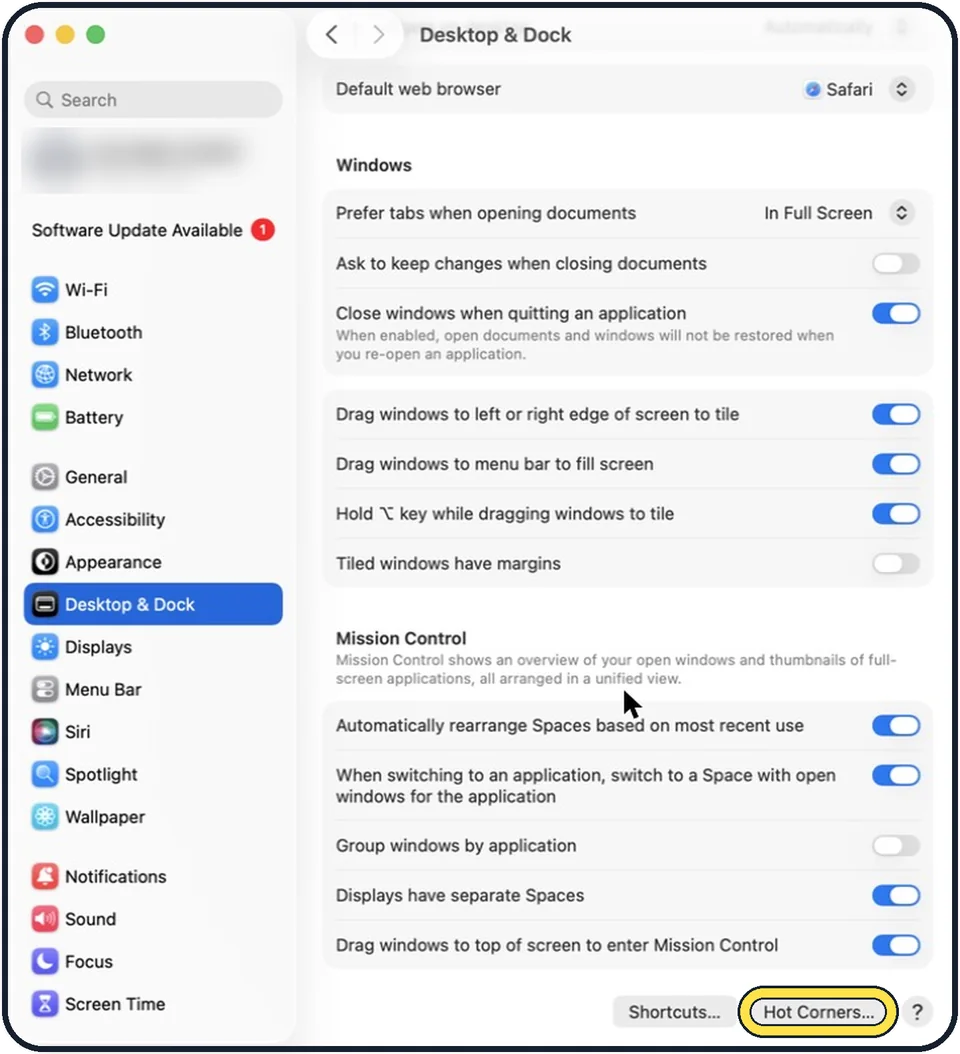
Zoomed in on the setting. Tap to see the whole screenTap the picture to see it full size Scroll to the bottom and click Hot Corners
The button is at the very bottom of the page, on the right.
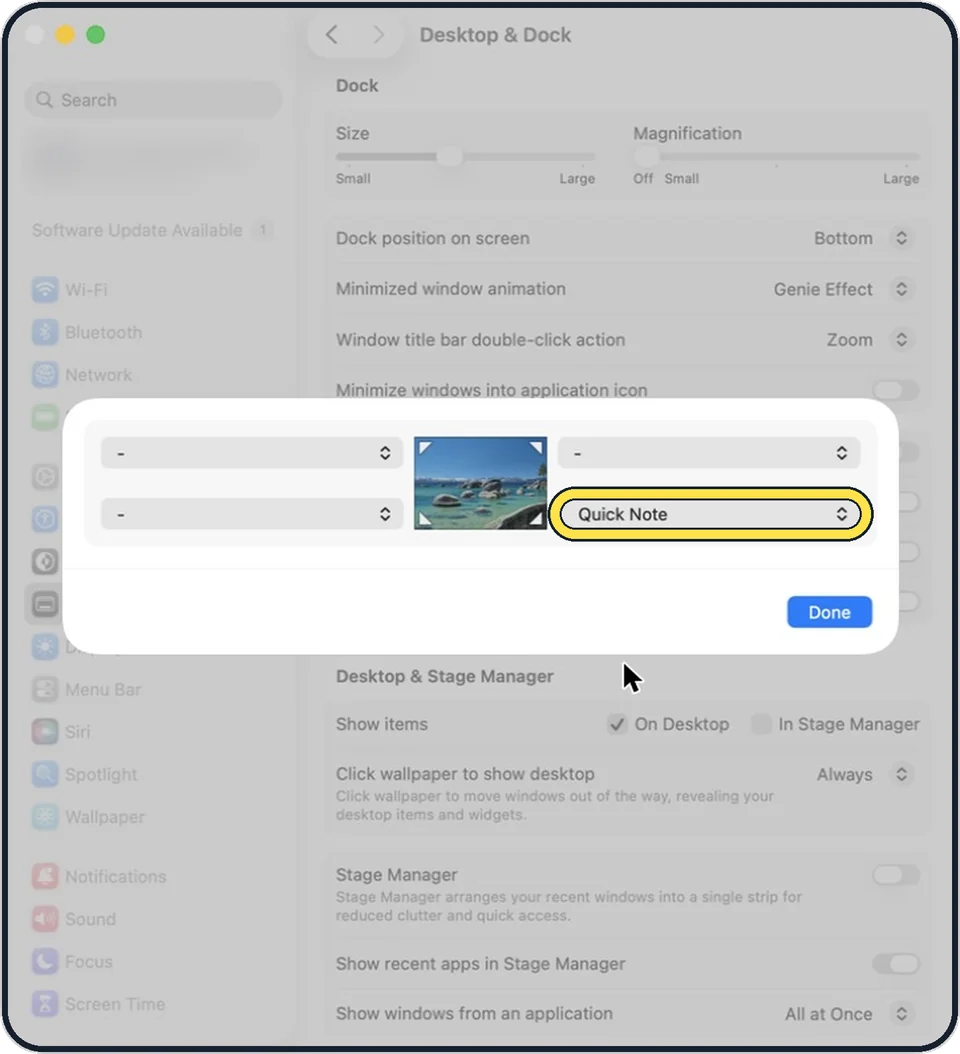
Zoomed in on the setting. Tap to see the whole screenTap the picture to see it full size Choose an action for a corner
A small picture of the screen appears with a menu at each corner. Click a menu and choose what that corner should do, for example Mission Control, Desktop, Notification Centre, Lock Screen or Put Display to Sleep. A dash means the corner does nothing.
Add a key to prevent accidents
If corners trigger by mistake, hold Command, Shift, Option or Control while the menu is open and then choose the action. The corner then works only while you hold that key.
Click Done and try it
Move the pointer all the way into the corner. The action starts at once.
About this guide
A hot corner starts an action when you push the pointer into a corner of the screen. No click is needed. Many people use one corner to lock the Mac and another to show the desktop.
These steps are for recent versions of macOS, where the settings app is called System Settings. The pictures are our own screenshots from macOS Tahoe 26 on a MacBook Pro.
One picture is a diagram of the keys to press.
Good to know
To switch a corner off, open its menu and choose the dash.
On a new Mac the bottom right corner is already set to Quick Note. That is why a small note window appears when the pointer rests there.
A Lock Screen corner is a quick way to lock the Mac when you leave your desk.
A hot corner can lock the screen; other ways to do it: How to lock the screen on a Mac.
Hot corners not enough? Mac trackpad gestures: the full list.
In short: System Settings, Desktop & Dock, Hot Corners, choose an action for each corner, Done.
Links checked in October 2026. Menus and features can change after software updates. These steps match the version named at the top.
Did this guide work for you?
Sorry about that. What happened?