
howtosimply.com/guides/how-to-make-a-mac-ask-for-both-name-and-password-at-login/ · Checked October 2026 · MacBook Pro · macOS Tahoe 26
In this guide
Open System Settings, click Lock Screen, and under When Switching User set Login window shows to Name and password. The login window then no longer lists the users of the Mac. Everyone has to type a user name and a password.
4 of 4 steps with real screenshots · 3 official sources below
- Device
- Mac
- Shown on
- macOS Tahoe 26 (MacBook Pro)
- App
- System Settings
- Path
- System Settings › Lock Screen
- Real screenshots
- 4 of 4 steps
- Checked
- October 2026
- Sources
- 3 official, linked below
Step by step
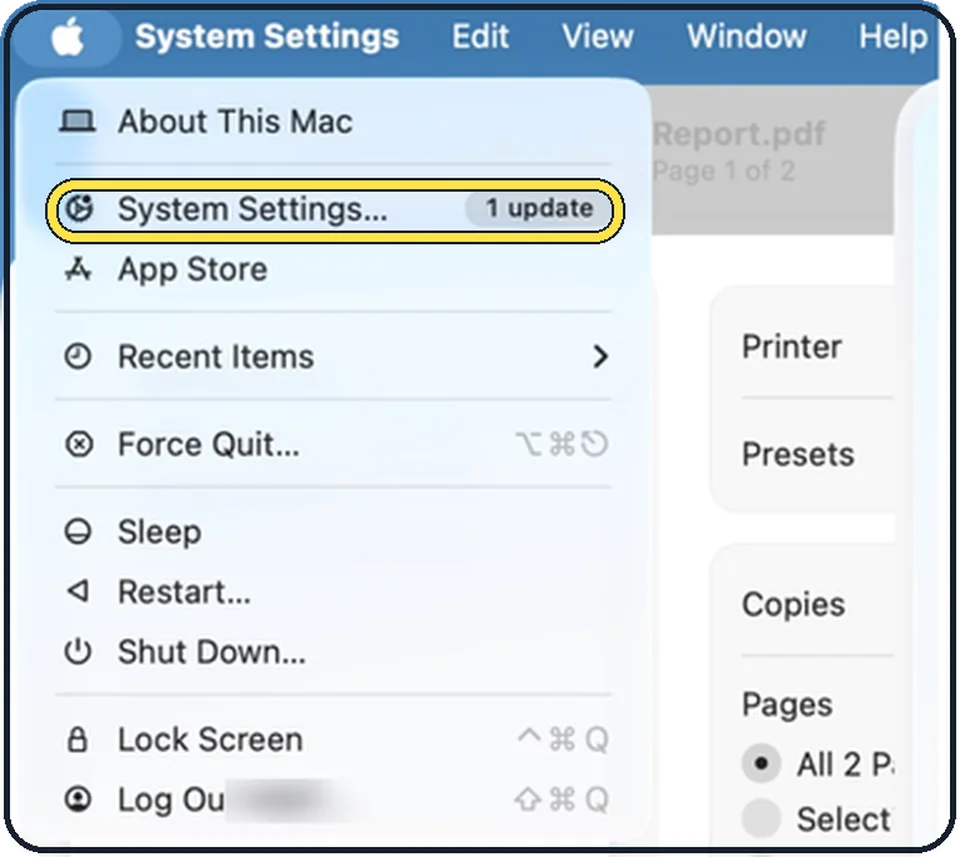
Tap the picture to see it full size Open System Settings
Click the Apple menu in the top left corner of the screen and choose System Settings.
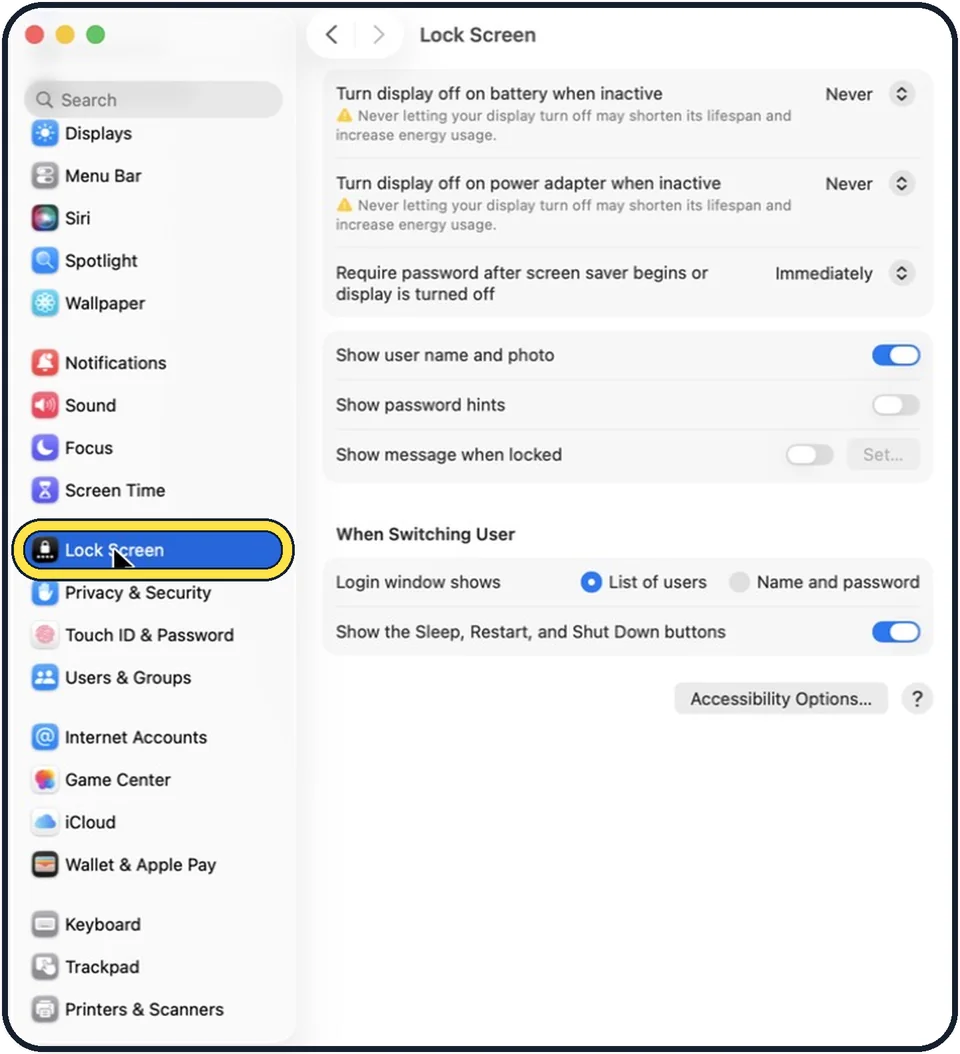
Zoomed in on the setting. Tap to see the whole screenTap the picture to see it full size Click Lock Screen in the sidebar
Lock Screen is in the group with Privacy & Security. Scroll down in the sidebar to find it.
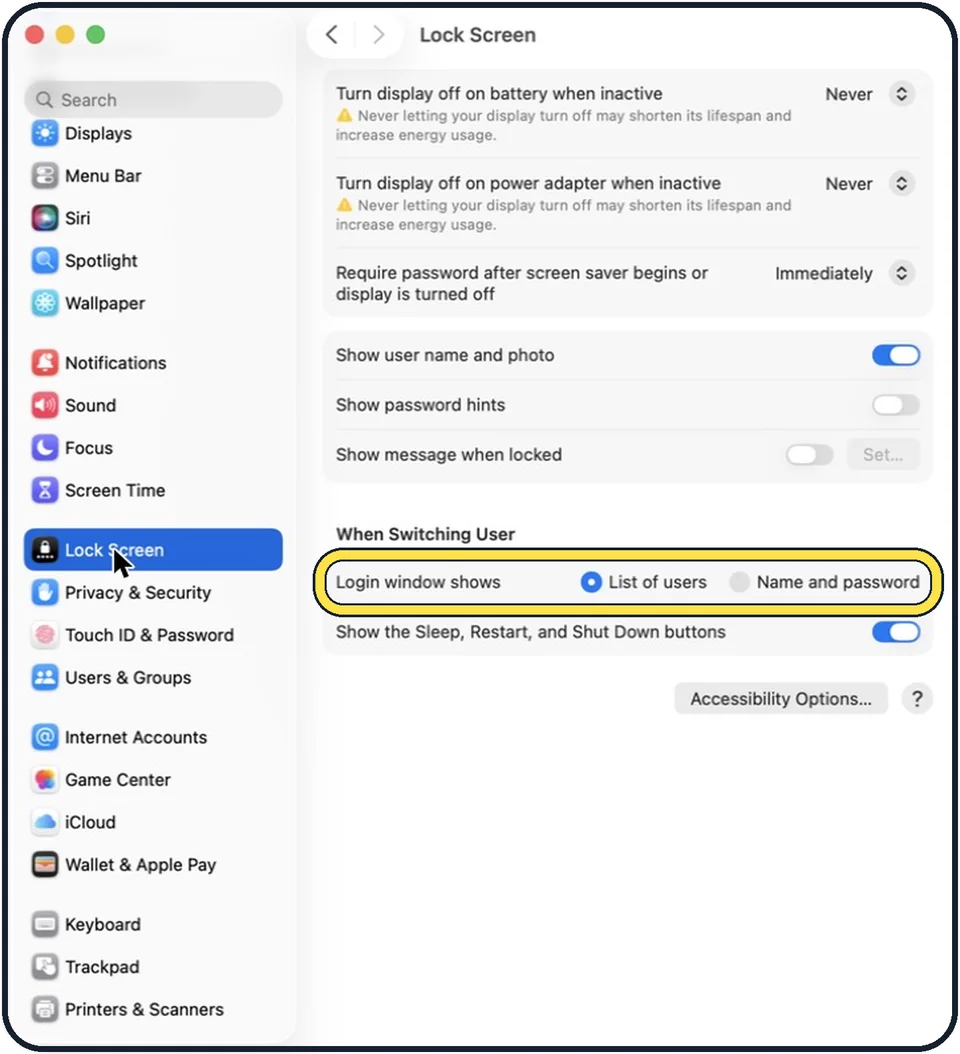
Tap the picture to see it full size Select Name and password
The row is called Login window shows. In the picture, List of users is selected.
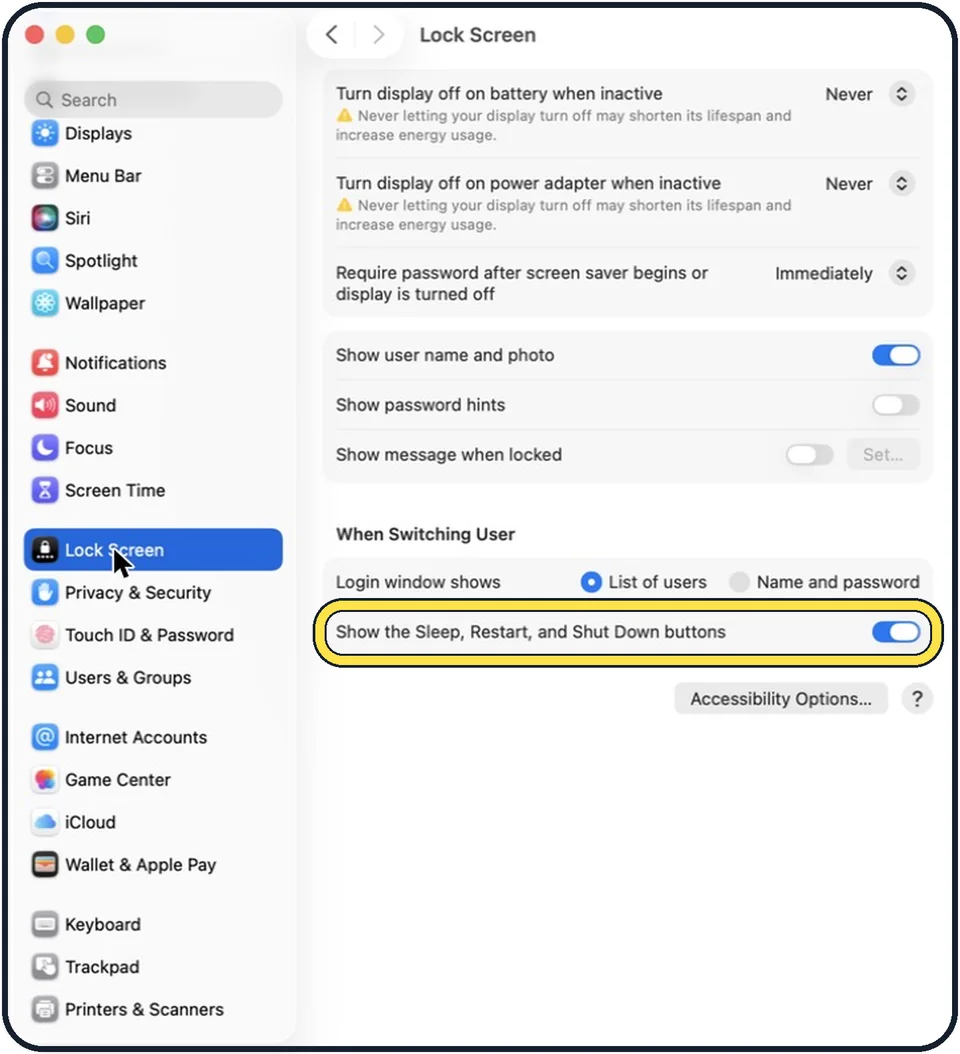
Tap the picture to see it full size Decide about the buttons
Show the Sleep, Restart, and Shut Down buttons displays these buttons in the login window. In the picture it is on.
If you do not see this option
- Lock Screen is not in view Apple says you may need to scroll down the sidebar. In our picture Lock Screen sits above Privacy & Security. Source: Change Lock Screen settings on Mac
- Your Mac has System Preferences Apple's guide for macOS Monterey 12 says an administrator sets how the login window looks in System Preferences, Users & Groups, Login Options. Click the lock at the bottom left first if it is locked. Source: Set up other users on your Mac (macOS Monterey 12)
If this does not work
- The Mac goes straight to the desktop Automatic login is on. Apple says the Mac then logs in to that account at startup; set Automatically log in as to Off in Users & Groups. Source: How to log in automatically to a Mac user account
- Someone forgets their password Apple says with Show password hints on, the hint appears after three wrong passwords in a row, or when the question mark is clicked. Source: Change Lock Screen settings on Mac
About this guide
The login window of a Mac normally shows a list of its users, so a stranger already knows half of what is needed to get in. The other choice hides the names.
The screenshots show System Settings on macOS Tahoe 26.
Good to know
How soon the Mac asks for the password after the screen goes dark is set at the top of the same page: how to lock the screen on a Mac.
In short: System Settings, Lock Screen, Login window shows: Name and password.
- Mac User Guide: Change Lock Screen settings on Mac
- Apple Support: How to log in automatically to a Mac user account
- Apple Support: Set up other users on your Mac (macOS Monterey 12)
Links checked in October 2026. Menus and features can change after software updates. These steps match the version named at the top.
Did this guide work for you?
Sorry about that. What happened?