
macOS 27 compared with macOS 26: We rewrote steps 1, 2, 3, 4 and 5 to match the macOS 27 screens. The macOS 26 page keeps the steps and screenshots as they were.
howtosimply.com/guides/how-to-stop-a-mac-from-going-to-sleep/ · Checked October 2026 · MacBook Neo · macOS 27.0.1
In this guide
Open System Settings, click Lock Screen and set Turn display off on power adapter when inactive to Never or a longer time. On a MacBook, Apple says to also switch on Prevent automatic sleeping on power adapter when the display is off in Battery > Options.
3 of 5 steps with real screenshots · 2 official sources below
- Device
- Mac
- Shown on
- macOS 27.0.1 (MacBook Neo)
- App
- System Settings
- Real screenshots
- 3 of 5 steps
- Checked
- October 2026
- Sources
- 2 official, linked below
Step by step
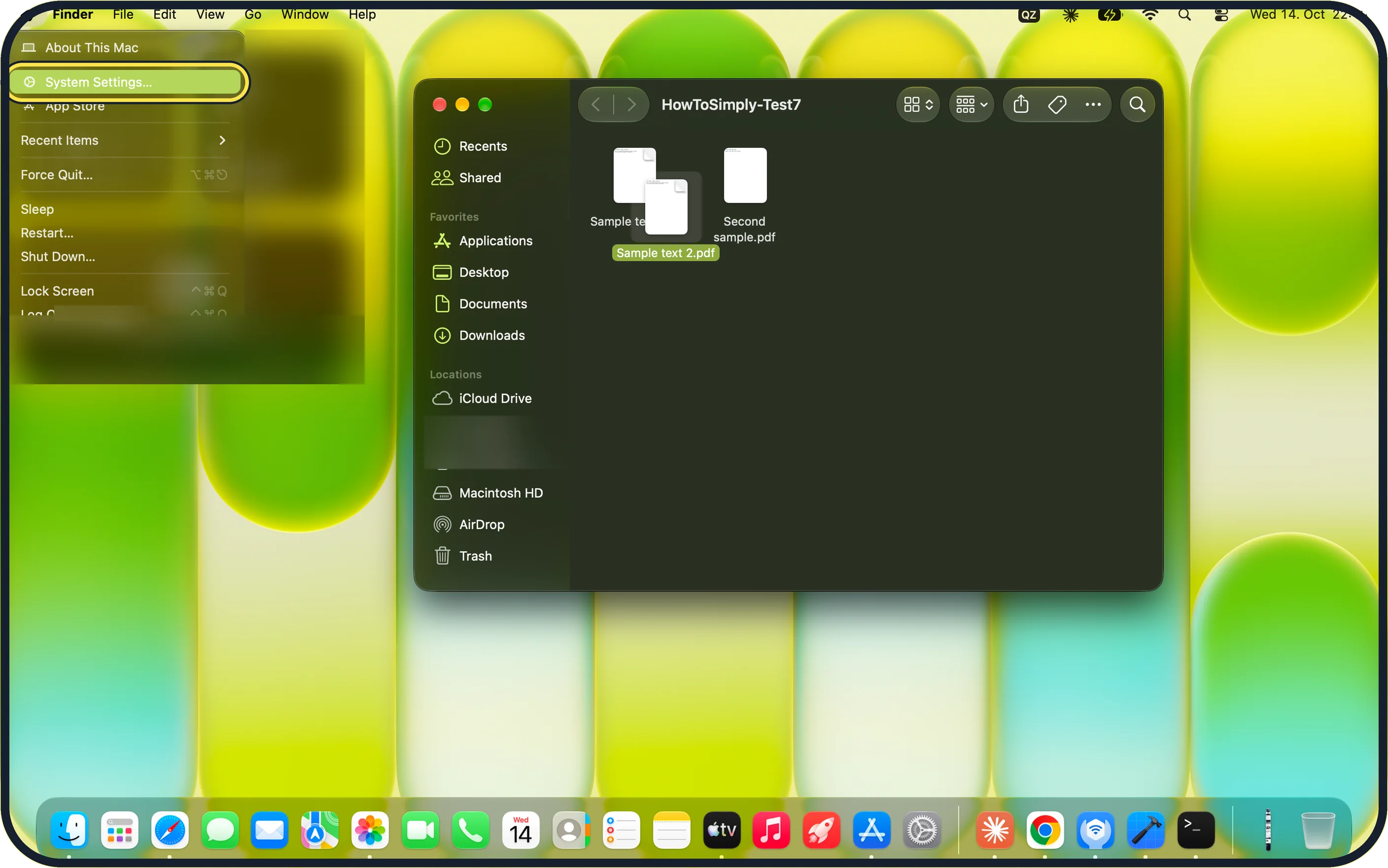
Zoomed in on the setting. Tap to see the whole screenTap the picture to see it full size Open System Settings
Click the Apple menu at the top left of the screen, then click System Settings….
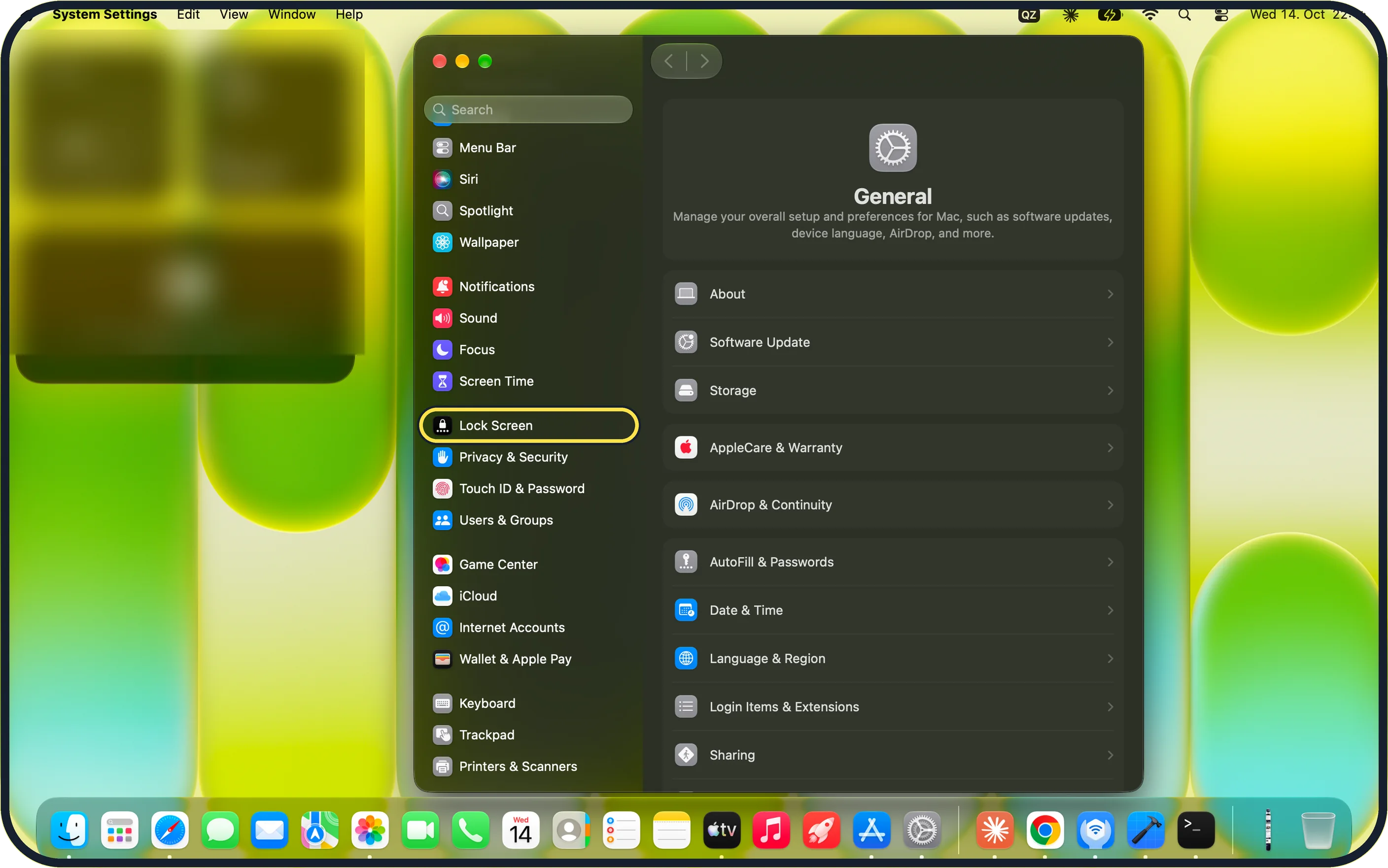
Zoomed in on the setting. Tap to see the whole screenTap the picture to see it full size Click Lock Screen
Lock Screen is in the sidebar. On our MacBook Neo it sits between Screen Time and Privacy & Security.
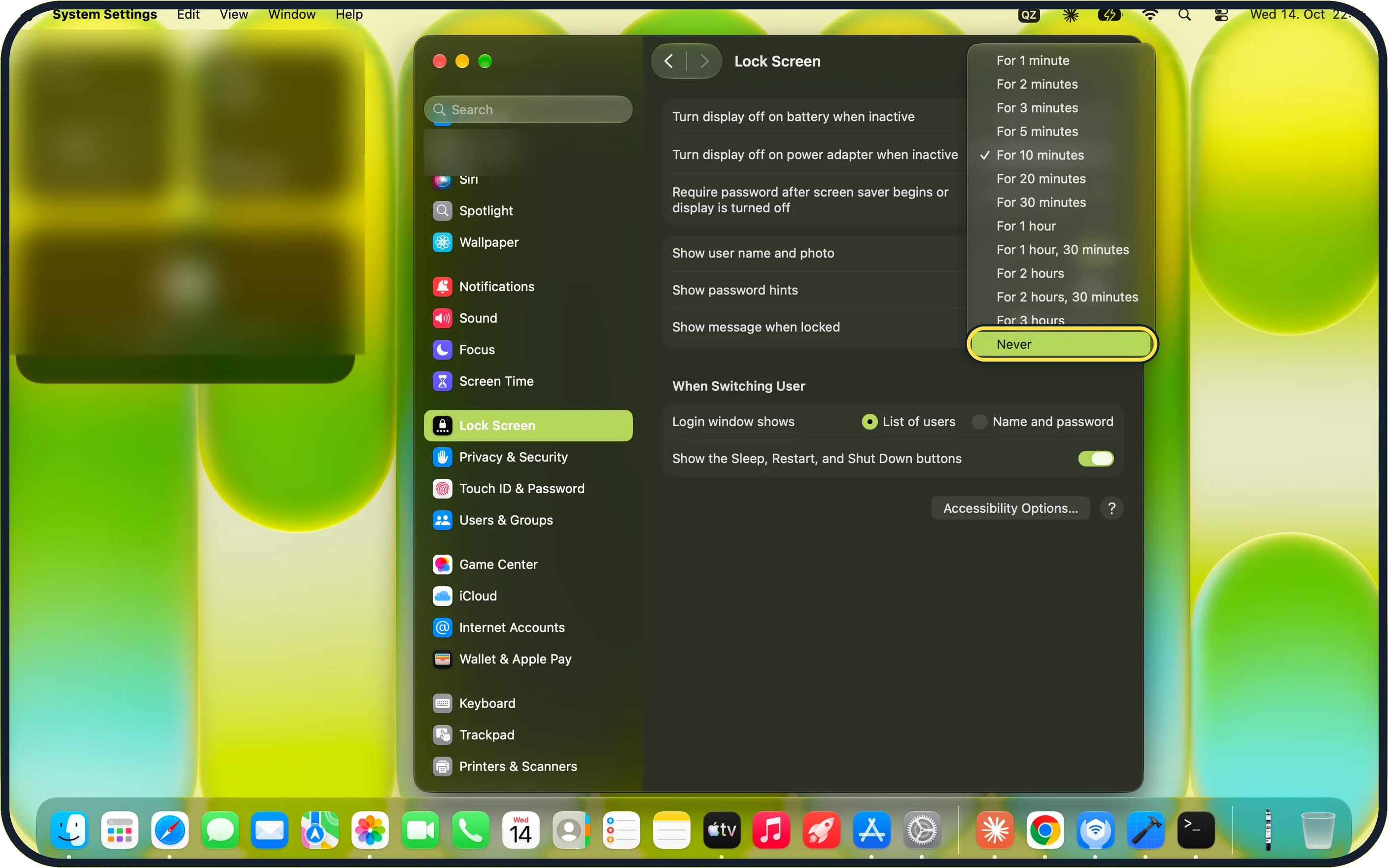
Zoomed in on the setting. Tap to see the whole screenTap the picture to see it full size Set the power adapter row to Never
Click the menu next to Turn display off on power adapter when inactive and choose Never, or a longer time. On our MacBook Neo the menu runs from For 1 minute to For 3 hours, then Never, and the setting was For 10 minutes.
Turn display off on battery when inactive is the row above it; a shorter time there saves energy.
MacBook: switch on Prevent automatic sleeping
Apple says to click Battery in the sidebar, click Options… and switch on Prevent automatic sleeping on power adapter when the display is off. The MacBook then keeps working while plugged in, even with the screen dark.
Desktop Mac: look under Energy
Apple says an iMac, Mac mini or Mac Studio has no Battery page; the similar setting is under Energy in System Settings.
If you do not see this option
- Lock Screen is not in the sidebar Type Lock Screen into the Search field at the top of the System Settings sidebar.
- There is no battery row Apple says Turn display off on battery when inactive only appears on Mac laptops; a desktop Mac shows the power adapter setting only. Source: Set sleep and wake settings for your Mac · Source: Change Lock Screen settings on Mac
- There is no Battery page Apple says desktop Macs have Energy instead of Battery in System Settings. Source: Set sleep and wake settings for your Mac · Source: Change Lock Screen settings on Mac
If this does not work
- The display still turns off Check you changed Turn display off on power adapter when inactive and that the Mac is plugged in. The battery row is a separate setting.
- The MacBook sleeps once the screen goes dark Apple says to switch on Prevent automatic sleeping on power adapter when the display is off under Battery > Options…. This only applies while the power adapter is connected. Source: Set sleep and wake settings for your Mac · Source: Change Lock Screen settings on Mac
- The menu closes without changing anything Click Never in the open menu itself. The tick shows the current choice; on our MacBook Neo the tick sat on For 10 minutes while the menu was open.
About this guide
Two settings stop a Mac sleeping during a long download, backup or presentation: when the display turns off, and whether the Mac may sleep after that.
Screenshots: MacBook Neo, macOS 27.0.1, dark mode.
Good to know
These settings increase power use. Set them back when the long job is finished.
Which options appear depends on the Mac model.
On our MacBook Neo the Lock Screen page also holds Require password after screen saver begins or display is turned off, just below the two display rows.
In short: Apple menu > System Settings… > Lock Screen > Turn display off on power adapter when inactive > Never (MacBook: Battery > Options > Prevent automatic sleeping).
- Apple Support: Set sleep and wake settings for your Mac
- Apple Support: Change Lock Screen settings on Mac
Links checked in October 2026. Menus and features can change after software updates. These steps match the version named at the top.
Did this guide work for you?
Sorry about that. What happened?