
macOS 27 compared with macOS 26: We rewrote steps 1, 2, 3, 4, 5, 7 and 8 to match the macOS 27 screens. The macOS 26 page keeps the steps and screenshots as they were.
howtosimply.com/guides/mac-won-t-sleep-or-wakes-up-by-itself-8-things-to-check/ · Checked October 2026 · MacBook Neo · macOS 27.0.1
In this guide
Open System Settings > Lock Screen and set the two Turn display off times. On a MacBook, click Battery > Options… and set Wake for network access to Never. Then switch off unneeded Sharing services and check Activity Monitor for a busy app.
5 of 8 steps with real screenshots · 2 official sources below
- Device
- Mac
- Shown on
- macOS 27.0.1 (MacBook Neo)
- App
- System Settings
- Real screenshots
- 5 of 8 steps
- Checked
- October 2026
- Sources
- 2 official, linked below
Step by step
Zoomed in on the setting. Tap to see the whole screenTap the picture to see it full size Check the display-off times
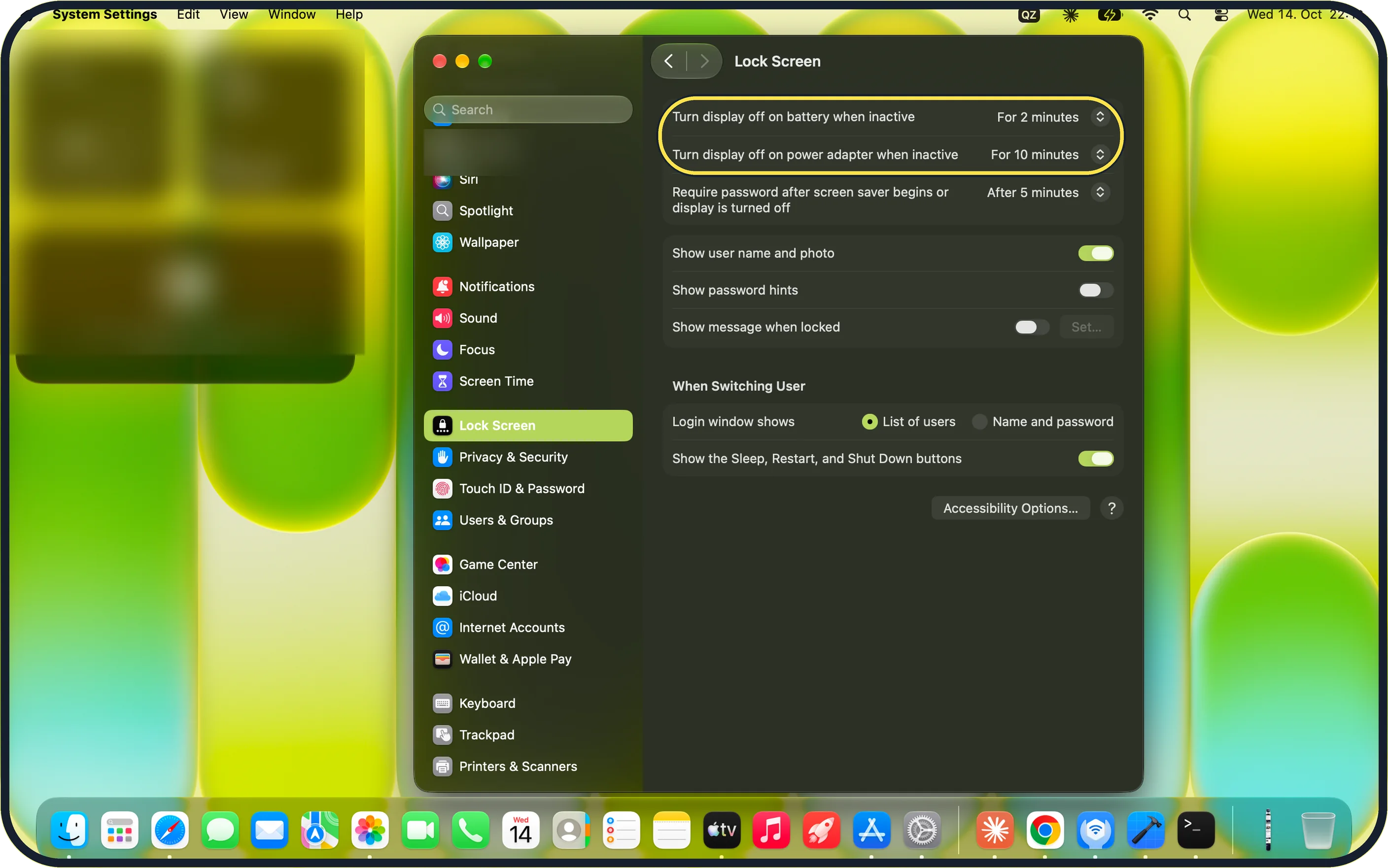
Open System Settings and click Lock Screen.
Set Turn display off on battery when inactive and Turn display off on power adapter when inactive to a few minutes.
On our MacBook Neo they were set to For 2 minutes and For 10 minutes.
Zoomed in on the setting. Tap to see the whole screenTap the picture to see it full size MacBook: check the Battery options
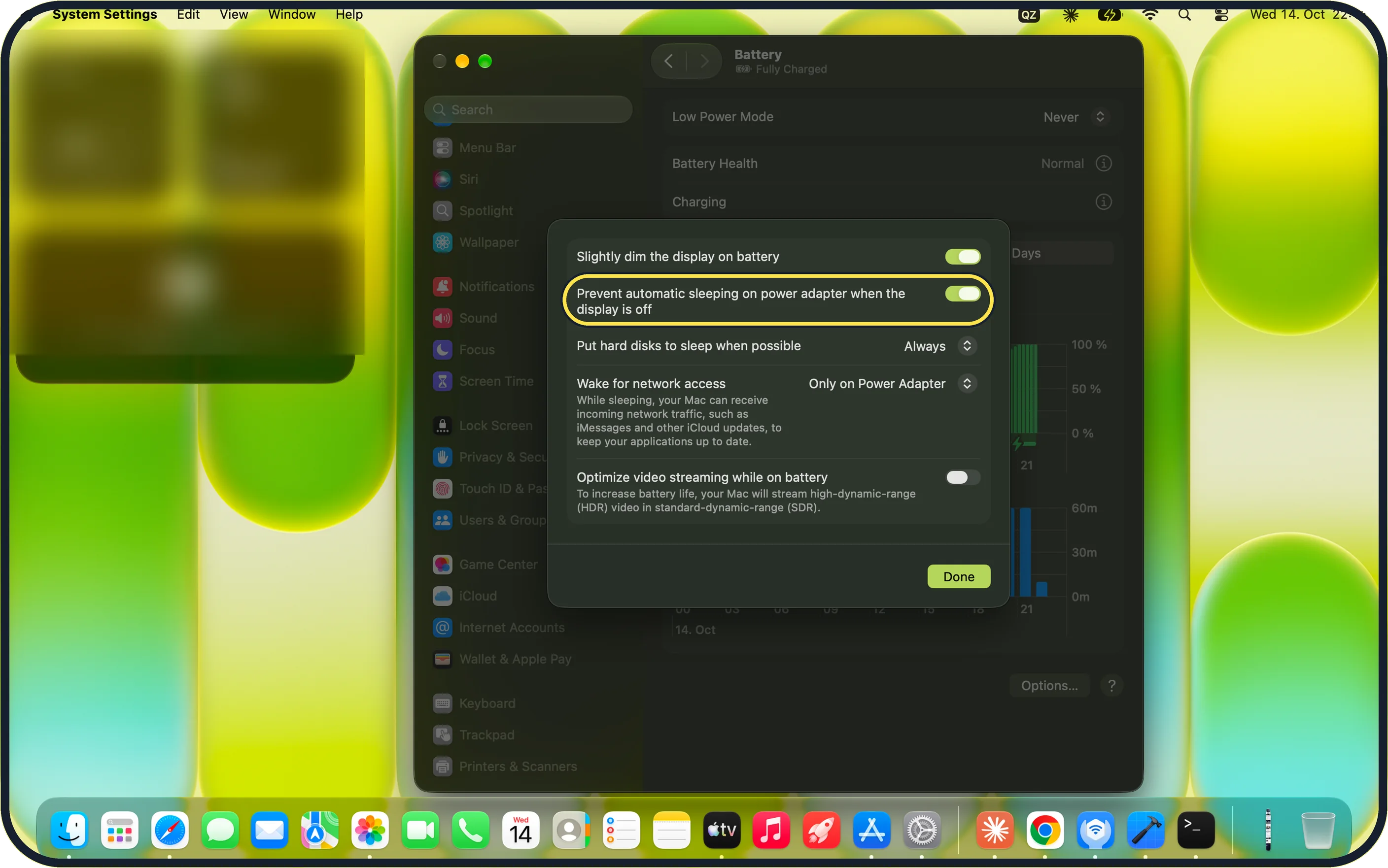
Click Battery in the sidebar, then click Options… at the bottom right of the Battery page. A sheet opens with Slightly dim the display on battery at the top.
Switch off Prevent automatic sleeping on power adapter when the display is off. On our MacBook Neo this switch was on.
Zoomed in on the setting. Tap to see the whole screenTap the picture to see it full size Set Wake for network access to Never
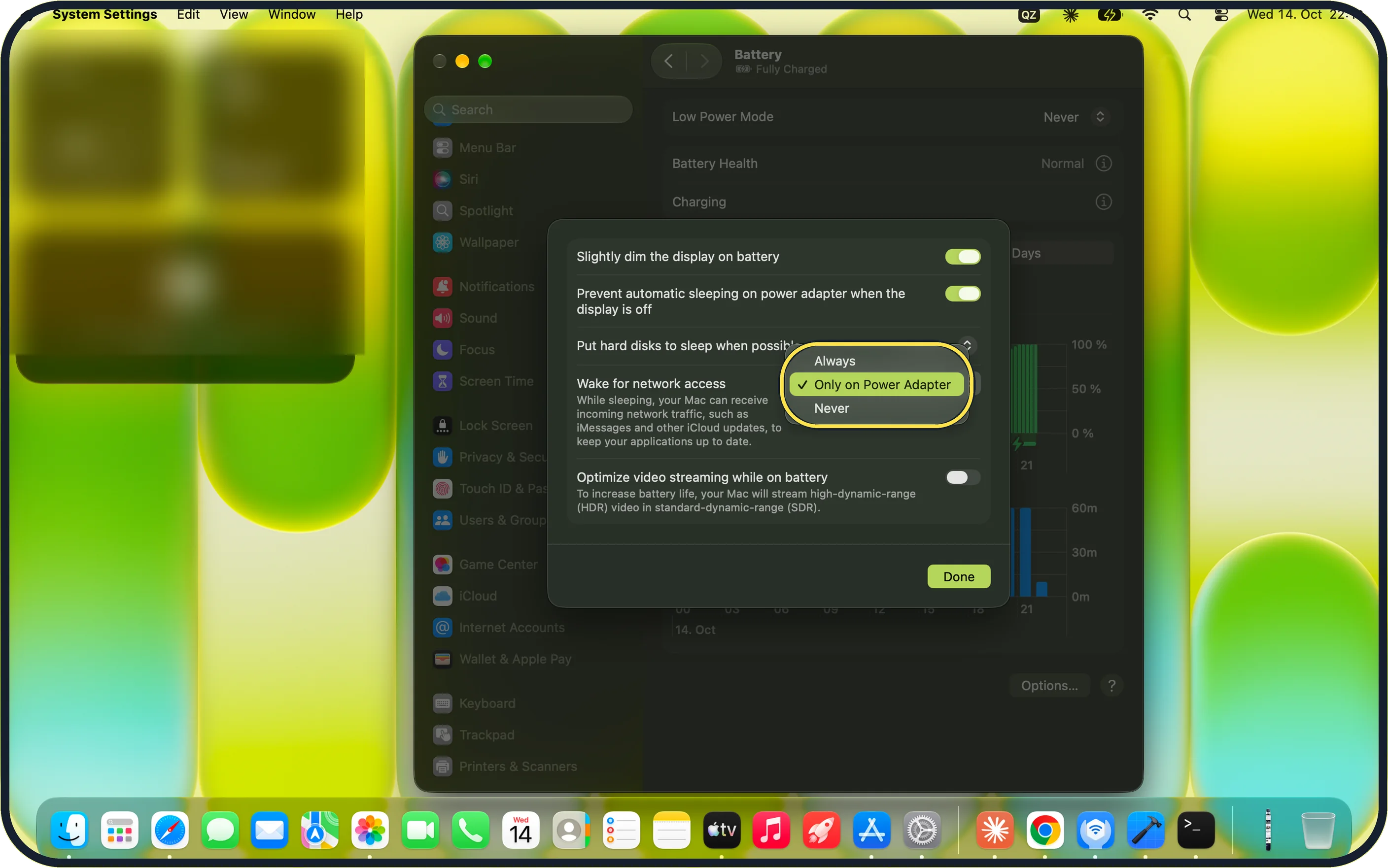
In the same sheet, click the menu next to Wake for network access and choose Never. The menu offers Always, Only on Power Adapter and Never; ours was set to Only on Power Adapter.
If macOS asks for Touch ID or your password, confirm. Then click Done.
Zoomed in on the setting. Tap to see the whole screenTap the picture to see it full size Switch off sharing you do not need
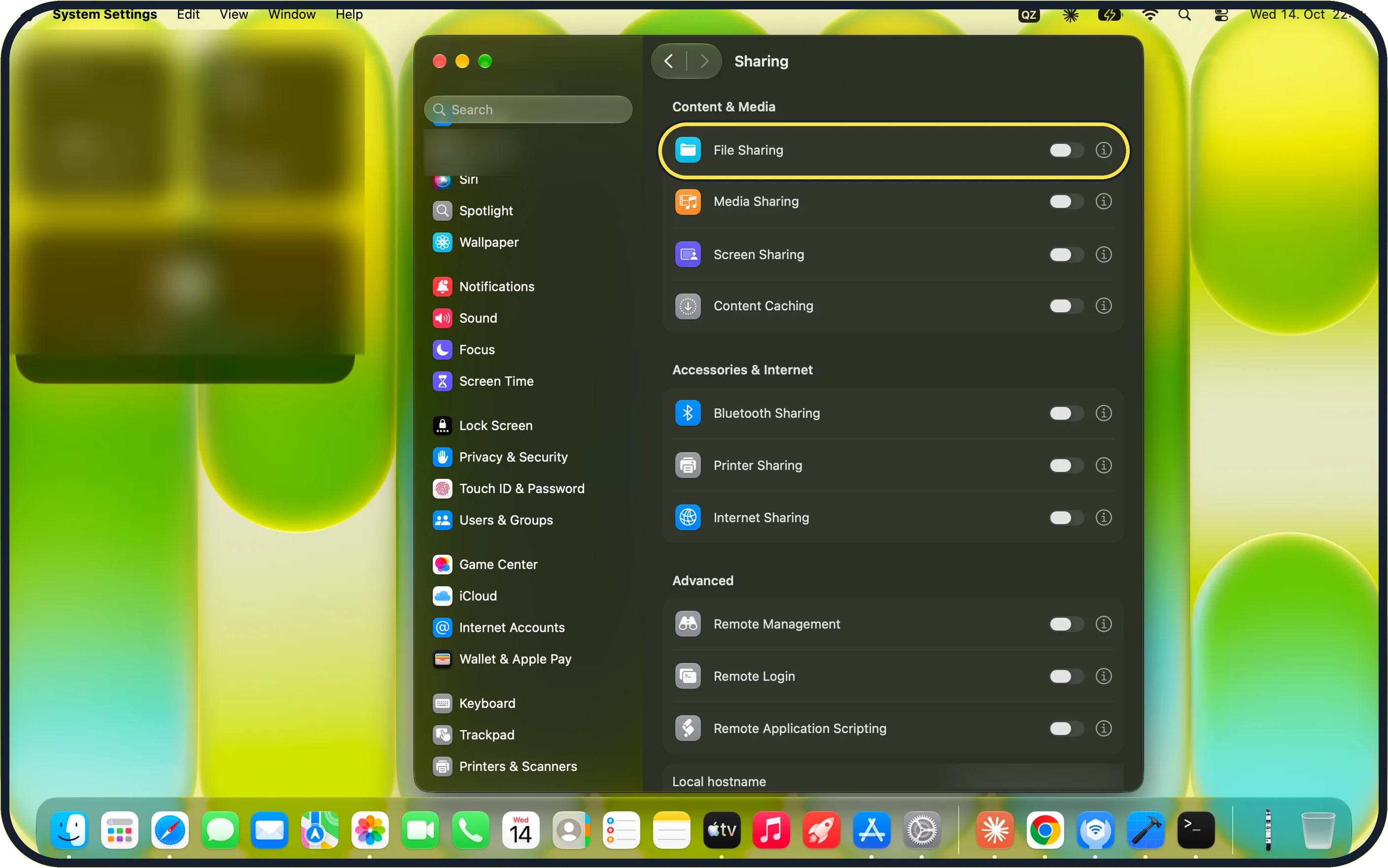
Open System Settings, General, Sharing.
Services such as File Sharing and Printer Sharing let other computers use your Mac. Switch off the ones you do not use. On our MacBook Neo every switch on this page was off.
Zoomed in on the setting. Tap to see the whole screenTap the picture to see it full size Look for a busy app
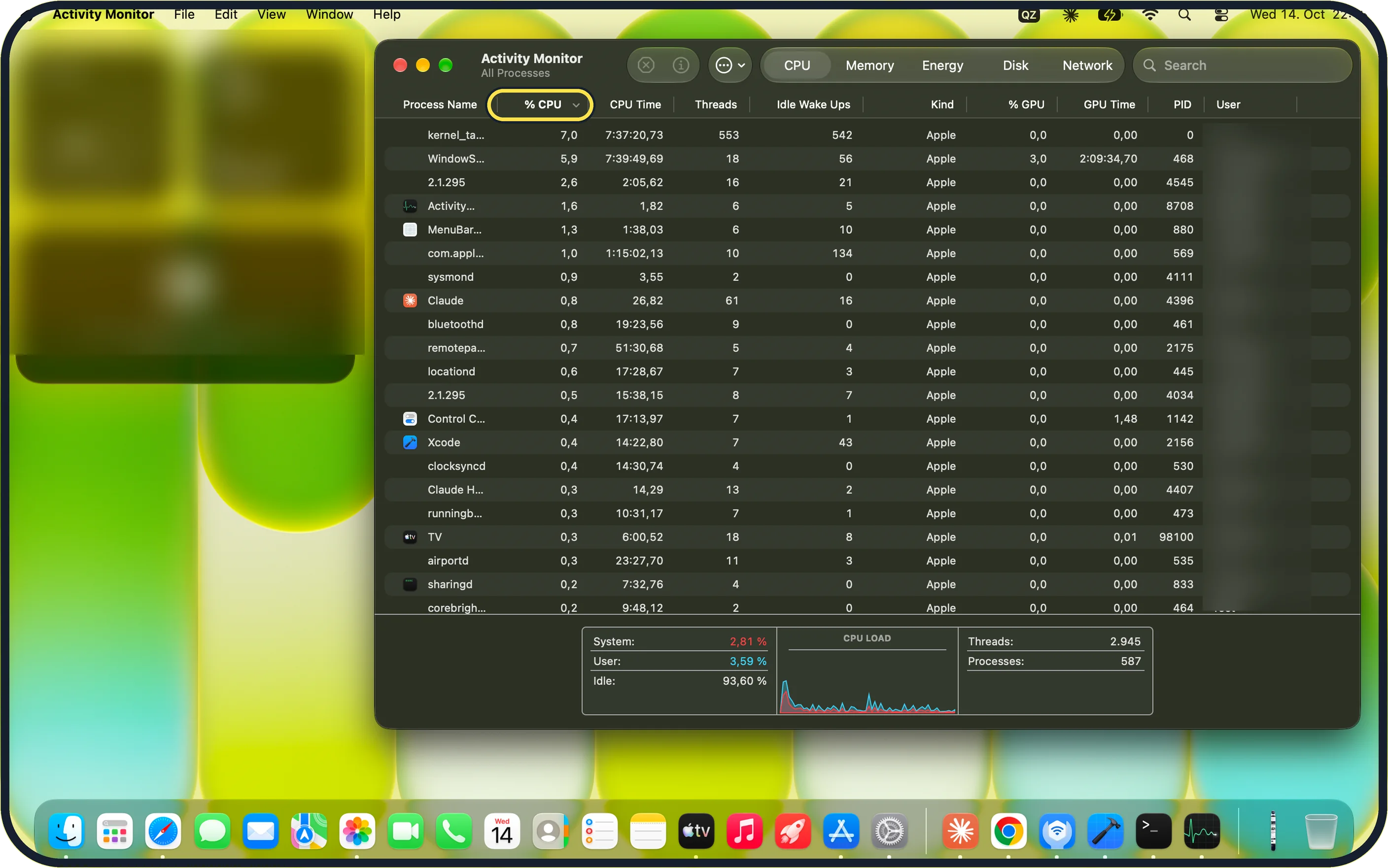
Open Activity Monitor from the Utilities folder in Applications, click CPU, then click the % CPU column to sort by it.
An app at the top with a high percentage keeps the Mac working; quit it. On our idle MacBook Neo, CPU LOAD showed Idle at 93,60 %.
Let Spotlight finish
After an update or after connecting a new drive, Spotlight builds its search index. Apple notes this can take several hours, and the Mac does not sleep during that time.
Unplug external devices
Apple says a USB or Thunderbolt drive or other device can stop the Mac from sleeping or wake it up. Unplug them and see whether the Mac now sleeps.
Check for accidental touches
Apple lists a key press, a moving mouse or a touch on the trackpad as things that wake the Mac. Keep a Bluetooth mouse or keyboard still or switched off.
If you do not see this option
- Wake for network access is not on the Battery page It sits in the sheet that opens when you click Options… at the bottom right of the Battery page.
- There is no Battery in the sidebar Apple says on a desktop Mac the Wake for network access setting is under System Settings, Energy. Source: If your Mac sleeps or wakes unexpectedly
- Sharing is not in the sidebar Sharing is inside General. You can also type Sharing into the Search field at the top of the sidebar.
If this does not work
- Wake for network access goes back to its old value If macOS asks for Touch ID or your password, confirm it. If you cancel, the setting may stay as it was.
- Activity Monitor shows only a few processes The window subtitle should read All Processes, as on our MacBook Neo, so that background processes are listed too.
- The Mac stays awake after an update or a new drive Apple says Spotlight indexing can take several hours and the Mac does not sleep until it is done. Wait and try again. Source: If your Mac sleeps or wakes unexpectedly
- An app shows Yes under Preventing Sleep. Open Activity Monitor and click Energy. Apple describes the Preventing Sleep column as whether this app is preventing your Mac from going to sleep. Quit that app or stop what it is playing or copying. Source: View energy usage in Activity Monitor on Mac
- The Mac wakes while nobody is using it. Apple names key presses and mouse or trackpad clicks, and other users waking the Mac remotely to use its shared resources. Set Wake for network access to Never and switch off sharing you do not use. Source: If your Mac sleeps or wakes unexpectedly
- It stays awake for hours after an update or a new drive. Spotlight is probably indexing. Apple says indexing can take several hours, depending on the number of files, and the Mac does not sleep meanwhile. Source: If your Mac sleeps or wakes unexpectedly
- It sleeps once a drive or device is unplugged. Apple says a malfunctioning USB or Thunderbolt device can keep the Mac awake. Reconnect them one at a time to find it, then contact its maker. Source: If your Mac sleeps or wakes unexpectedly
- Nothing above helps. Update macOS and start up in safe mode to see whether startup software is the cause. Apple also says to reset the SMC on an Intel Mac; on a Mac with Apple silicon, restart it instead. Source: If your Mac sleeps or wakes unexpectedly
About this guide
A Mac stays awake, or wakes itself, when an app, a connected device or another computer is using it. Work through these checks in Apple's order.
Screenshots: MacBook Neo, macOS 27.0.1, dark mode.
Good to know
If the Mac still misbehaves, update macOS and restart.
To find out whether software that starts with the Mac is the cause, try how to start a Mac in safe mode.
For the opposite wish, a Mac that stays awake on purpose, see how to stop a Mac from going to sleep.
In short: System Settings > Lock Screen > Battery > Options… > Wake for network access > General > Sharing > Activity Monitor > CPU
- Apple Support: If your Mac sleeps or wakes unexpectedly
- Apple Activity Monitor User Guide: View energy usage in Activity Monitor on Mac
Links checked in October 2026. Menus and features can change after software updates. These steps match the version named at the top.
Did this guide work for you?
Sorry about that. What happened?