
howtosimply.com/guides/how-to-factory-reset-a-samsung-galaxy-and-what-to-do-first/ · Checked October 2026 · Samsung Galaxy A57 5G (SM-A576B), One UI 8.5, Android 16
In this guide
Back up first, then open Settings, General management, Reset, Factory data reset, read the list and tap Reset and Delete all. Enter your screen lock if asked. Everything on the phone is erased, including your Google account and downloaded apps, and the phone starts like new.
3 of 4 steps with real screenshots · 3 official sources below
- Device
- Android
- Shown on
- Samsung Galaxy A57 5G (SM-A576B), One UI 8.5, Android 16
- App
- Settings
- Path
- Settings › General management › Reset › Factory data reset › Reset
- Real screenshots
- 3 of 4 steps
- What we did
- Observed: looked at each screen, changed nothing
- Our phone
- Shown on Galaxy A57, One UI 8.5
- Checked
- October 2026
- Sources
- 3 official, linked below
Step by step
Back up what you want to keep
Back up photos, contacts and chats to your Google account, a computer or Samsung Smart Switch. Messaging apps such as WhatsApp have their own chat backup.
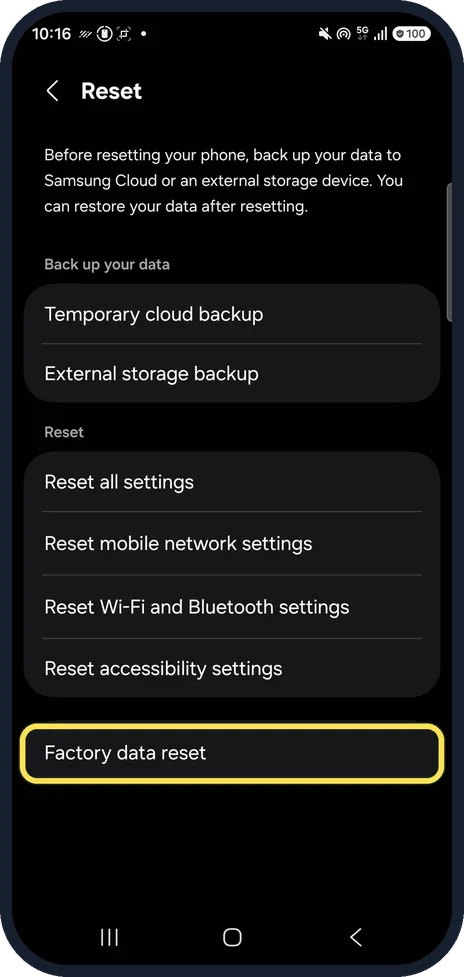
Open Factory data reset
Open Settings, General management, Reset and tap Factory data reset. The page lists everything that will be erased.
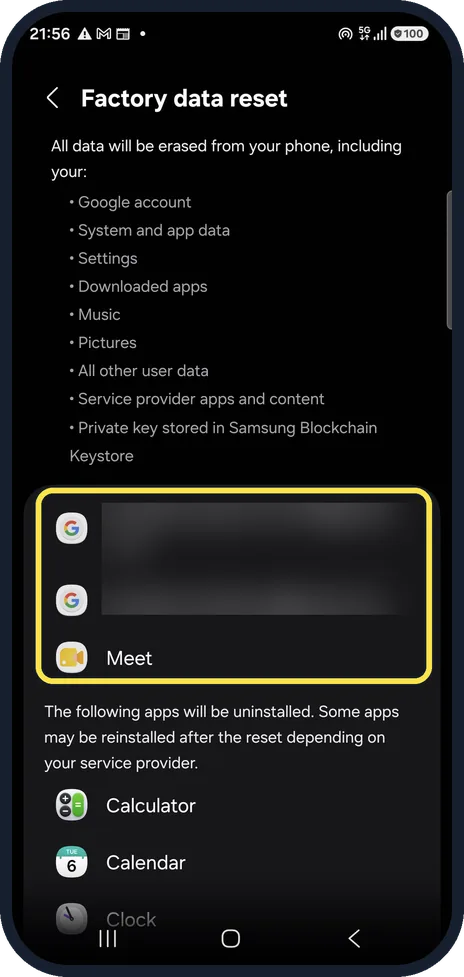
Check the accounts
The accounts on the phone are listed next. After the reset, Google's protection asks for the same Google account, so make sure you know its password. We blurred ours.
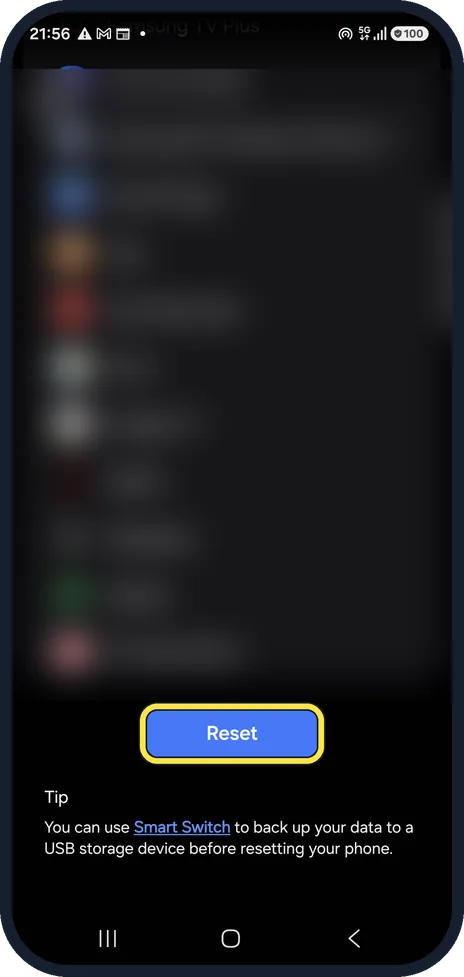
Tap Reset
At the bottom, under the list of apps that will be removed, tap Reset, then Delete all. Enter your screen lock and, if you use one, your Samsung account password. We did not tap it.
If you do not see this option
- The Reset menu looks different Samsung says menu names and screens vary by model and software version. Search Settings for Factory data reset. Source: How to perform a factory reset on your Samsung Galaxy device
- It asks for your Samsung account password Samsung says that with a Samsung account signed in, you must enter its password to finish the reset. Have it ready, or remove the account first. Source: How to perform a factory reset on your Samsung Galaxy device
If this does not work
- After the reset it asks for the old Google account Samsung says this is Google's Factory Reset Protection. It can ask you to verify the Google account that was on the phone; on Android 9 and later the old screen lock may also be accepted. If you cannot, Samsung says to visit a Samsung service centre. Source: How to perform a factory reset on your Samsung Galaxy device
- You are resetting without Settings Samsung says Factory Reset Protection is triggered when the phone is reset by any method other than Factory data reset in Settings, so know the Google account and password first. Source: How to perform a factory reset on your Samsung Galaxy device
About this guide
A factory reset is for selling or giving away a phone, or as the very last fix. It cannot be undone, so back up photos, chats and contacts before you start.
Good to know
Selling the phone? Remove your Google and Samsung accounts in Settings, Accounts and backup first, so the next owner is not blocked by your account.
For a repair, Maintenance mode hides your data without erasing it.
In short: Back up, then Settings, General management, Reset, Factory data reset, Reset. Remove accounts first if you sell the phone.
- Samsung Latin: How to perform a factory reset on your Samsung Galaxy device
- Samsung US: Perform a factory reset on your Galaxy phone or tablet
- Samsung Latin: How to perform a factory reset on your Galaxy phone
Links checked in October 2026. Back up anything you want to keep before you reset or delete. Menus can change after software updates.
📷 See real photos from the Galaxy A57 in our Camera Lab, next to 10 other phones.
Did this guide work for you?
Sorry about that. What happened?