
howtosimply.com/guides/how-to-factory-reset-a-nothing-phone/ · Checked October 2026 · 4a) Pro (A069P, EEA), Nothing OS 4.1, Android 16 (build FroggerPro-B4.1-260424-1447-EEA · Nothing Phone
In this guide
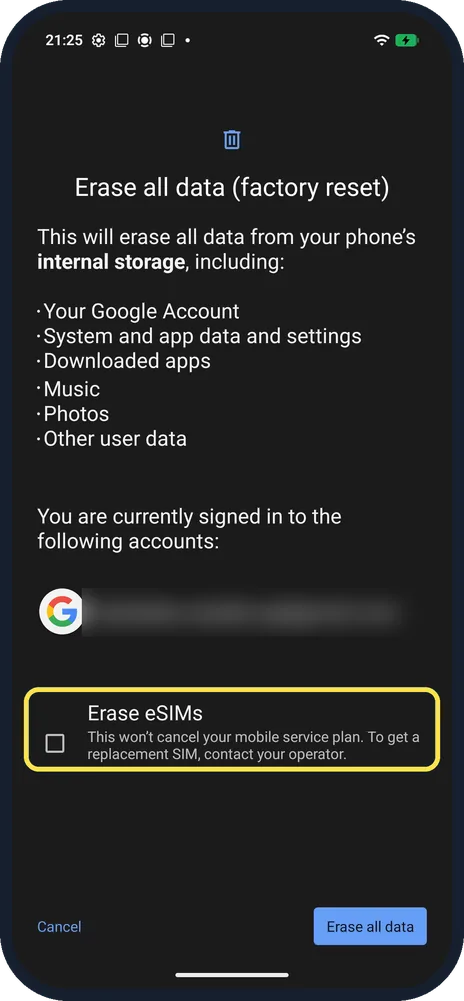
Back up first, then open Settings, System, Reset options, Erase all data (factory reset) and tap Erase all data. Tick Erase eSIMs only if you also want eSIMs removed. We did not tap the final button.
4 of 4 steps with real screenshots · 5 official sources below
- Device
- Android
- Shown on
- Nothing Phone (4a) Pro (A069P, EEA), Nothing OS 4.1, Android 16 (build FroggerPro-B4.1-260424-1447-EEA)
- App
- Settings
- Path
- Settings › System › Reset options › Erase all data (factory reset)
- Real screenshots
- 4 of 4 steps
- Checked
- October 2026
- Sources
- 5 official, linked below
Step by step
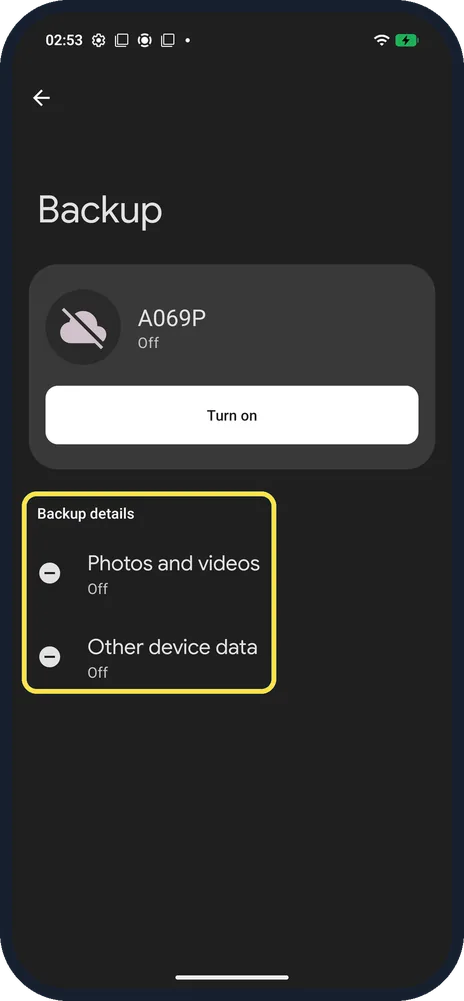
Back up
Settings, System, Backup. On ours backup was Off, with Photos and videos and Other device data both Off. Also save chats from apps such as WhatsApp in the app itself.
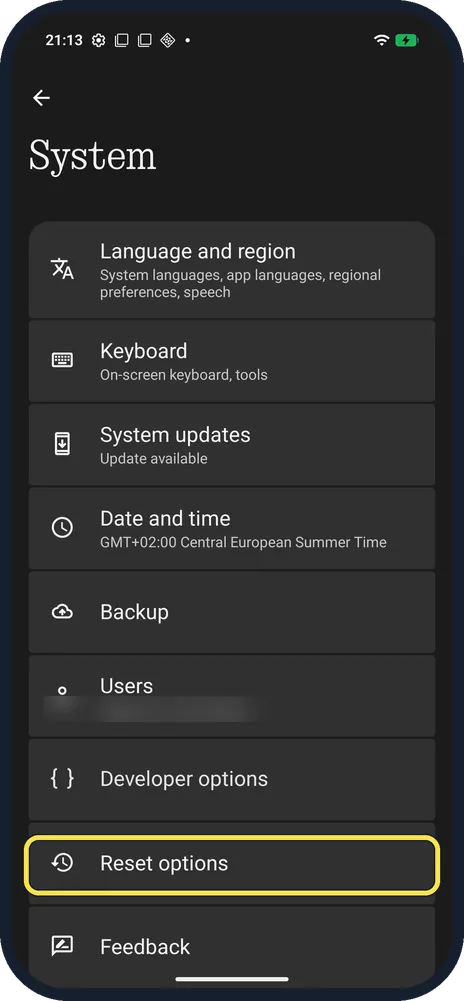
Open System, Reset options
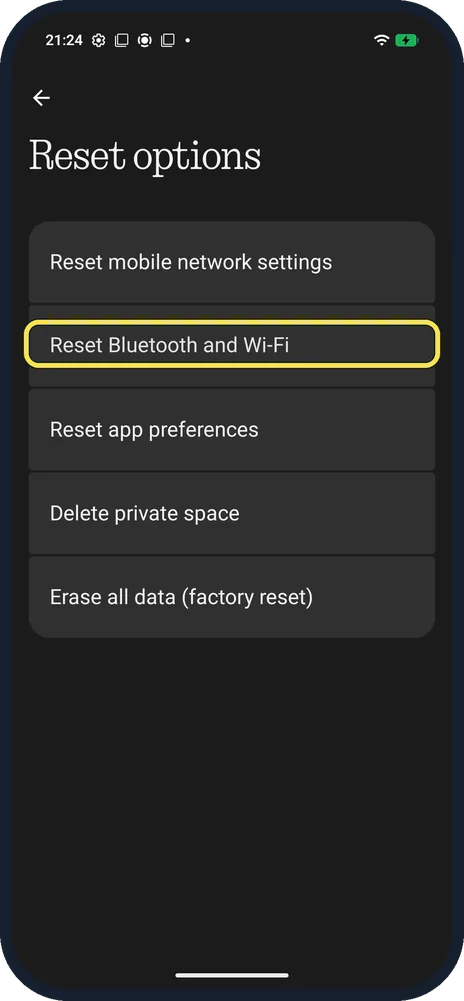
Open Settings, System and scroll to Reset options.
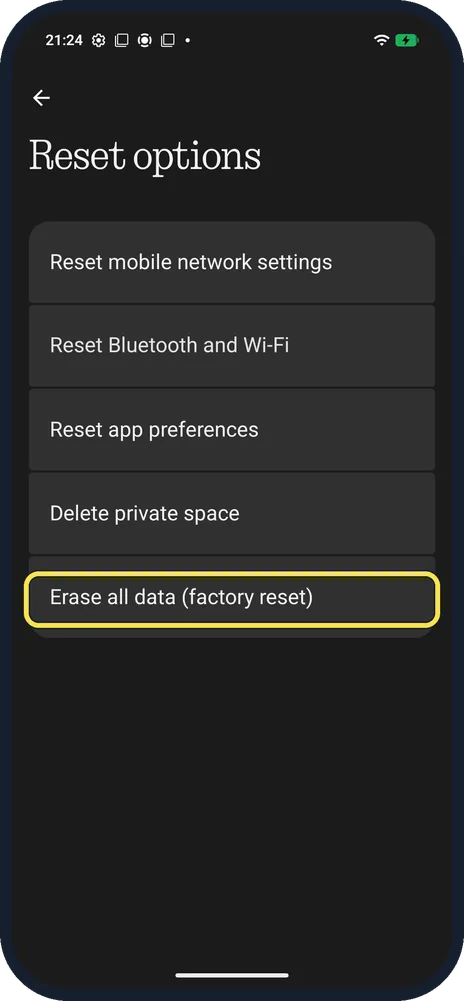
Tap Erase all data (factory reset)
Other options reset mobile network settings, Bluetooth and Wi-Fi, or app preferences without erasing data.
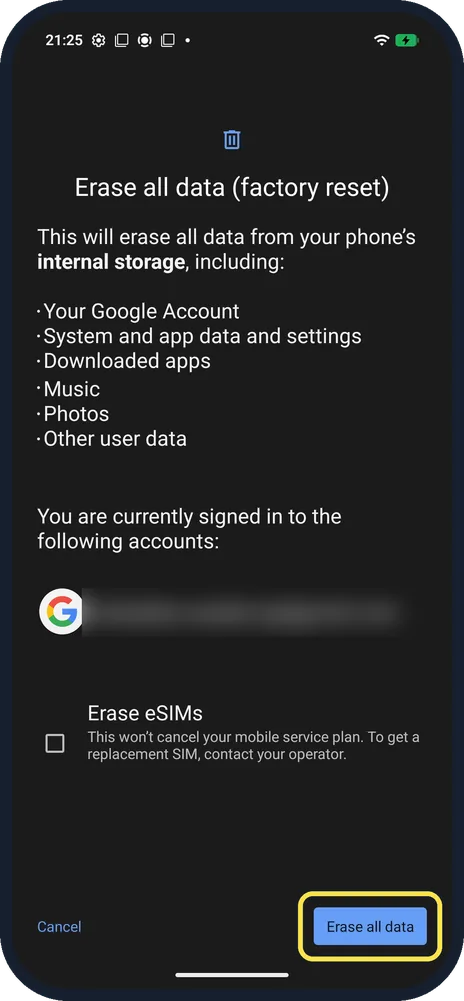
Read the list, then tap Erase all data
The list above the button says it erases your Google Account, system and app data and settings, downloaded apps, music, photos and other user data (account blurred here). Erase all data is at the bottom right. You may be asked for your screen lock.
If you do not see this option
- eSIM? Erase eSIMs is unticked by default. The page says erasing won't cancel your plan, but you'd need a replacement from your operator.
- Only Wi-Fi or Bluetooth broken? Use Reset Bluetooth and Wi-Fi instead; it doesn't erase your data.
- Asked for a password? Nothing says you verify your lock screen or Google account password, so keep the phone online. Source: How do I reset the Phone to factory settings?
If this does not work
- Selling it? Remove your Google account first: Nothing says Settings, Passwords, passkeys and accounts, the account, Remove account. Source: How do I delete a Google account in the system?
- Forgot your screen lock? Nothing says lock screen passwords can't be reset; only a factory reset clears it, and it erases all data. Source: How do I reset my lock screen password?
- Backup never ran? Nothing says the phone backs up with Google on Wi-Fi when charging and idle for 2 hours. Source: How do I back up data on my Phone?
- Phone lost, so you can't open Settings? Nothing says you can erase it remotely with Find My Phone from a browser, signed in to the same Google account. If you find it afterwards, you need that Google account password to use it again. Source: How do I use the Find My Phone function if my phone is lost?
About this guide
The screenshots are from our Nothing Phone (4a) Pro, the European model A069P, with Nothing OS 4.1 and Android 16 (build FroggerPro-B4.1-260424-1447-EEA), in Dark theme. We opened the page and tapped Cancel.
Good to know
After the reset, see update the phone.
In short: Settings, System, Reset options, Erase all data (factory reset).
- Nothing Support: How do I reset the Phone to factory settings?
- Nothing Support: How do I delete a Google account in the system?
- Nothing Support: How do I reset my lock screen password?
- Nothing Support: How do I back up data on my Phone?
- Nothing Support: How do I use the Find My Phone function if my phone is lost?
Links checked in October 2026. Back up anything you want to keep before you reset or delete. Menus can change after software updates.
Did this guide work for you?
Sorry about that. What happened?