ONEPLUS
How to factory reset a OnePlus (OxygenOS 16)

In short
Back up first. Go to Settings, System & update, Back up & reset, Reset phone, and tap Erase all data. A box asks Permanently clear all data? Tap Clear and follow the prompts. The phone is restored to factory settings.
4 of 4 steps show a real screenshot from our Nord 5. Each step was checked against the maker's own instructions, linked at the end.
Steps
- 1
Open Back up & reset
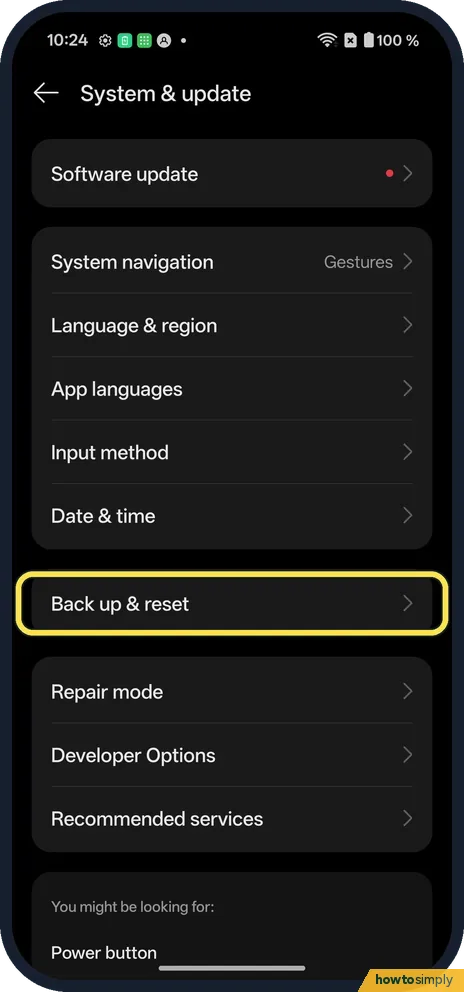
Open Settings, System & update, and tap Back up & reset.
- 2
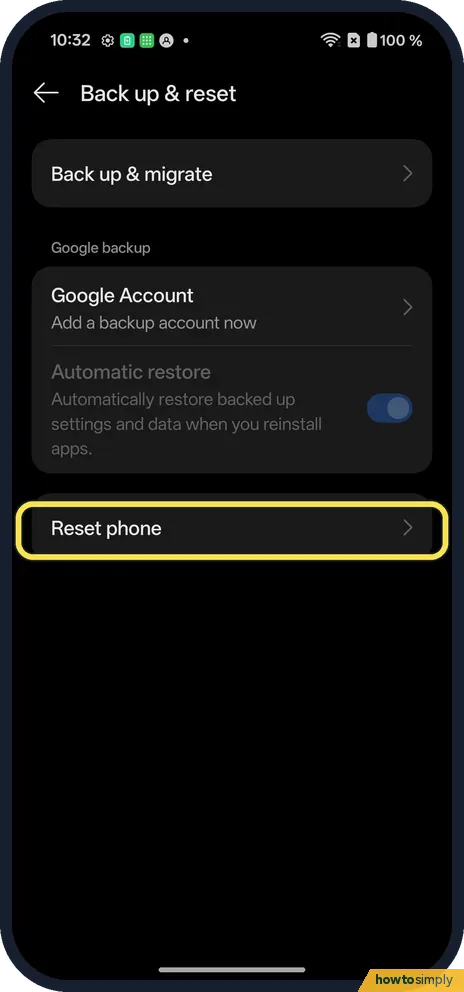
Check your backup, then tap Reset phone
Google backup said Add a backup account now on ours, so nothing was backed up. Back up & migrate is at the top.
- 3
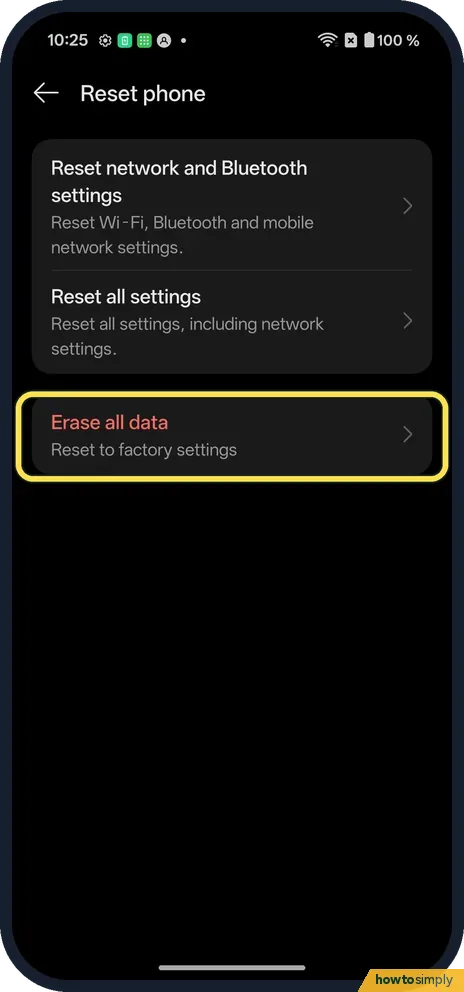
Tap Erase all data
It is the last of the three; its line reads Reset to factory settings. Reset all settings above it only resets settings, including network settings.
- 4
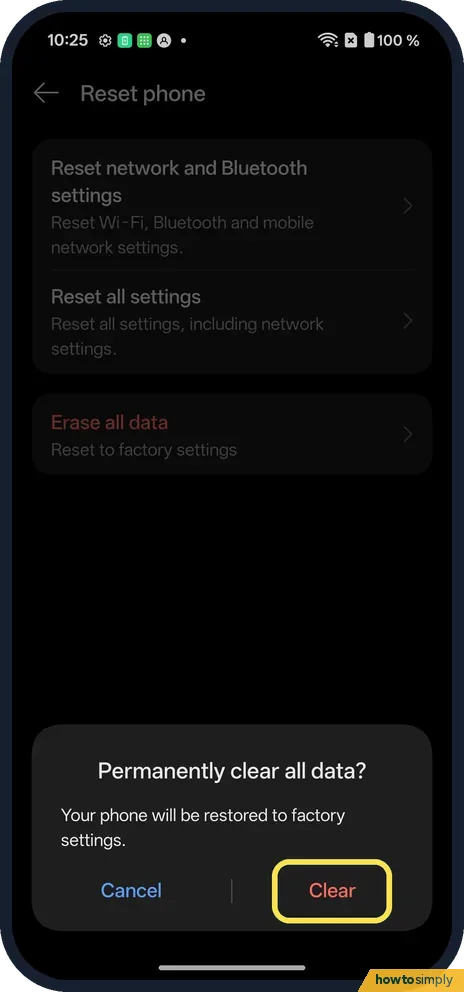
Tap Clear
The box says Permanently clear all data? Your phone will be restored to factory settings. We tapped Cancel.
If you do not see this option
- OxygenOS 14 (OnePlus manual)? The manual's path is Settings, Additional settings, Back up and reset, Reset phone, and you enter your lock screen password. Source: OxygenOS 14.0 User Manual
- Can't open Settings? Erase the phone from Find Hub on another device. Source: Find, secure or erase a lost Android device
If this does not work
- Asked for your Google account after? Sign in with the account that was on the phone. This is Google's theft protection.
- Photos gone? Only what was backed up comes back.
- Reset seems to take ages? Google says a reset can take up to an hour. Leave the phone on charge and do not press buttons while it works.
- Restore not offered during setup? Google says the phone you restore to must be on the same Android version as the backup, or a later one. You can also add your Google Account later on a phone that is already set up; the full restore can take up to 24 hours.
- Some apps came back empty? Google notes that not all apps can back up or restore all their settings and data. Sign in to those apps again, and ask the developer how their data is saved.
Good to know
Turn on Find Hub on a OnePlus.
Before you start, Google lists what to have ready: the Google Account on the phone and its sign-in details, your screen lock, and a Wi-Fi or mobile data connection, because you must sign in to your Google Account after the reset. On Android 15 and up you may be reminded to back up transit cards that hold funds. Check what your Google backup holds before you start.
Google backup can include app data, call history, contacts, device settings and text messages, including MMS. Photos and videos are handled by Google Photos, so check that backup separately. There is no undo for a factory reset; anything not backed up is gone for good.
About this guide
- Device
- Android
- Shown on
- OnePlus Nord 5 (CPH2709), OxygenOS 16.0.5.1201, Android 16
- App
- Settings
- Path
- Settings › System & update › Back up & reset › Reset phone › Erase all data
- Real screenshots
- 4 of 4 steps
- Checked
- October 2026
- Sources
- 4 official, linked below
Sources
Links checked October 2026. Menus and features can change with updates.Spotted a mistake? Menus change with updates, and we want every step to match your screen. Email us about this page or use the contact form. We read every report, and fixes are listed on What changed.
Liked this guide?
Follow us for new guides and short how-to videos.
Did this guide work for you?
Sorry about that. What happened?