GOOGLE PIXEL
How to factory reset a Google Pixel (Android 17)
Back up first. Then go to Settings, System, Reset options, Erase all data (factory reset). The page lists what is erased and shows the Google Account you are signed in to. Tap Erase all data.

3 of 3 steps show a real screenshot from our Pixel 10a. Each step was checked against the maker's own instructions, linked at the end.
Steps
- 1
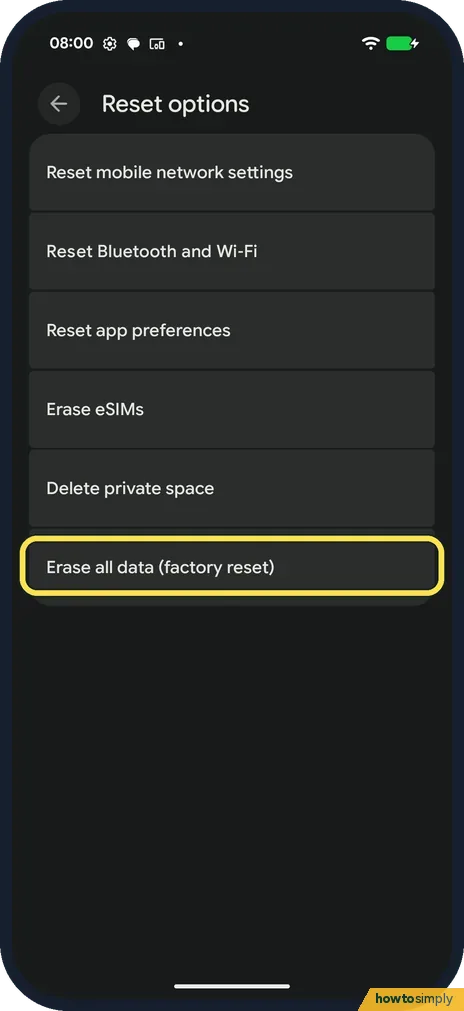
Open Reset options
Back up first: how to back up a Google Pixel. Then go to Settings, System, Reset options. Erase all data (factory reset) is the last row.
- 2
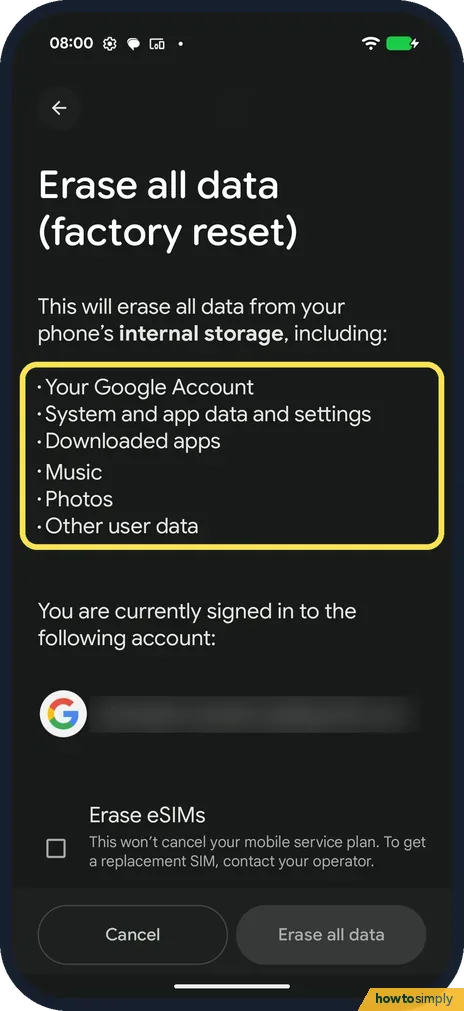
Read what is erased
The page lists your Google Account, system and app data and settings, downloaded apps, music, photos and other user data, and shows which account you are signed in to.
- 3
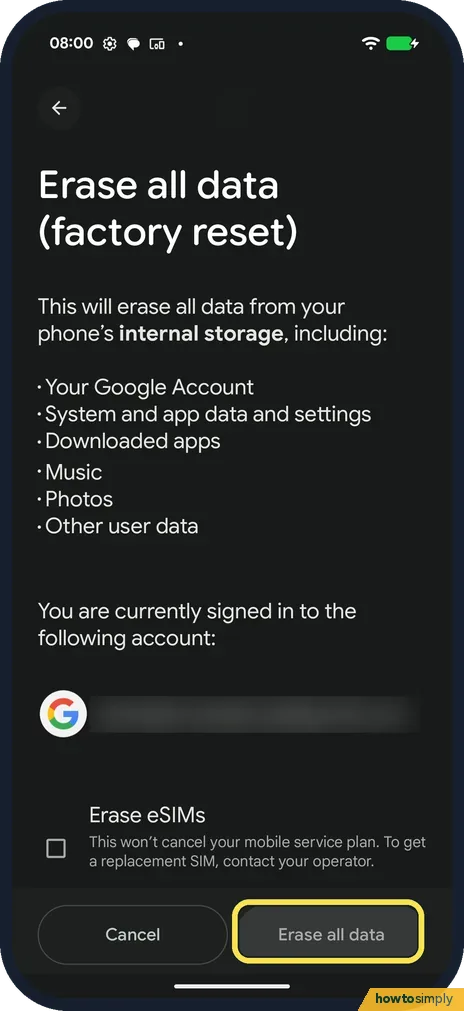
Tap Erase all data
Decide whether to tick Erase eSIMs (it doesn't cancel your plan). Tap Erase all data and follow the steps.
If you do not see this option
- Only want to fix connections? Reset options also has Reset mobile network settings and Reset Bluetooth and Wi-Fi, which keep your data.
- Erase eSIMs? Ticking it removes downloaded eSIMs. The page says your mobile plan is not cancelled.
- Erase all data greyed out? On a phone managed by work or school, the organisation can block a reset. Ask your IT team before you try anything else.
If this does not work
- Asked for a Google Account after the reset? Google says you need the account that was on the phone to set it up again.
- Phone frozen? Restart it first: how to turn off or restart a Google Pixel.
- Changed your Google password recently? Google says that if you reset your Google Account password recently, wait 24 hours before you do a factory reset. Signing in to set the phone up again may otherwise fail.
- Settings won't open? Google says you can try the power and volume buttons instead, and points to the phone maker's support site for the exact steps. Only do this once you have tried a restart.
- Reset seems stuck? Google says a reset can take up to an hour. Keep the phone on charge and leave it alone until it reaches the setup screen.
Good to know
Turn on backup before you reset: how to back up a Google Pixel.
A factory reset cannot be undone. Everything on the phone goes: apps, their data, photos that were not backed up and your settings. What was saved to your Google Account, such as a device backup, synced contacts and Google Photos, can come back during setup when you sign in with the same account and enter your security info.
Have Wi-Fi or mobile data ready, because Google says you need a connection to sign in after the reset. If the phone is lost rather than in your hand, you can erase it from another device instead: see how to check Find Hub on a Google Pixel.
About this guide
- Device
- Android
- Shown on
- Google Pixel 10a, Android 17 (build CP3A.260905.009)
- App
- Settings
- Path
- Settings › System › Reset options › Erase all data (factory reset) › Erase all data
- Real screenshots
- 3 of 3 steps
- Checked
- October 2026
- Sources
- 1 official, linked below
Sources
Links checked October 2026. Menus and features can change with updates.Spotted a mistake? Menus change with updates, and we want every step to match your screen. Email us about this page or use the contact form. We read every report, and fixes are listed on What changed.
Liked this guide?
Follow us for new guides and short how-to videos.
Did this guide work for you?
Sorry about that. What happened?