
howtosimply.com/guides/how-to-edit-quick-settings-on-an-oppo-phone/ · Checked October 2026 · CPH2689, EEA), ColorOS 16.0.5, Android 16 (build CPH2689_16.0.5.1001(EX01) · OPPO Reno13 5G
In this guide
Pull down Quick Settings fully, tap the three dots at the top right, then Edit tiles. Hold and drag a tile to move it, or drag one up from More tiles to add it.
4 of 4 steps with real screenshots · 2 official sources below
- Device
- Android
- Shown on
- OPPO Reno13 5G (CPH2689, EEA), ColorOS 16.0.5, Android 16 (build CPH2689_16.0.5.1001(EX01))
- App
- Settings
- Real screenshots
- 4 of 4 steps
- Checked
- October 2026
- Sources
- 2 official, linked below
Step by step
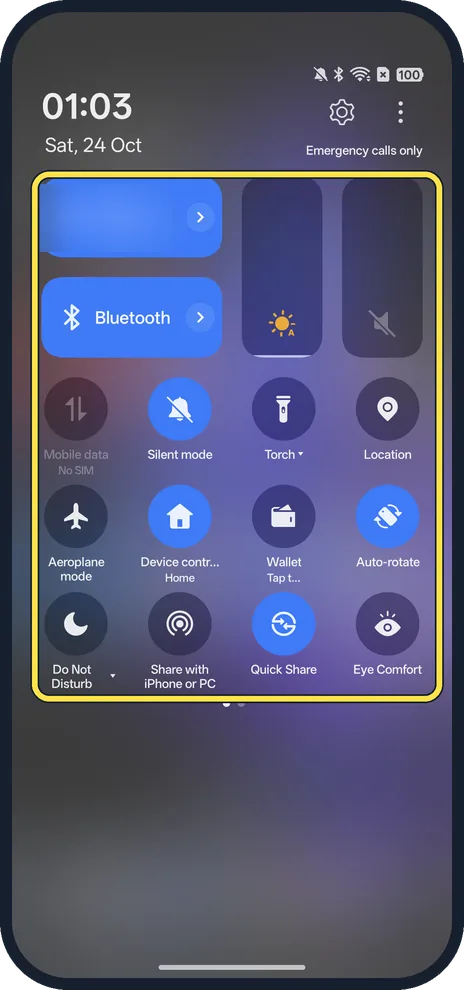
Pull down Quick Settings fully
Swipe down from the top right, or swipe down twice.
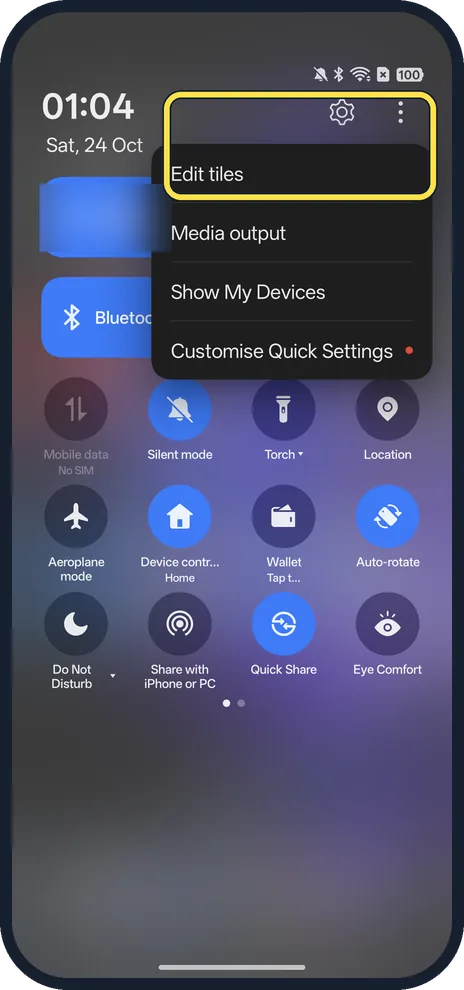
Tap the three dots, then Edit tiles
The menu also has Media output, Show My Devices and Customise Quick Settings.
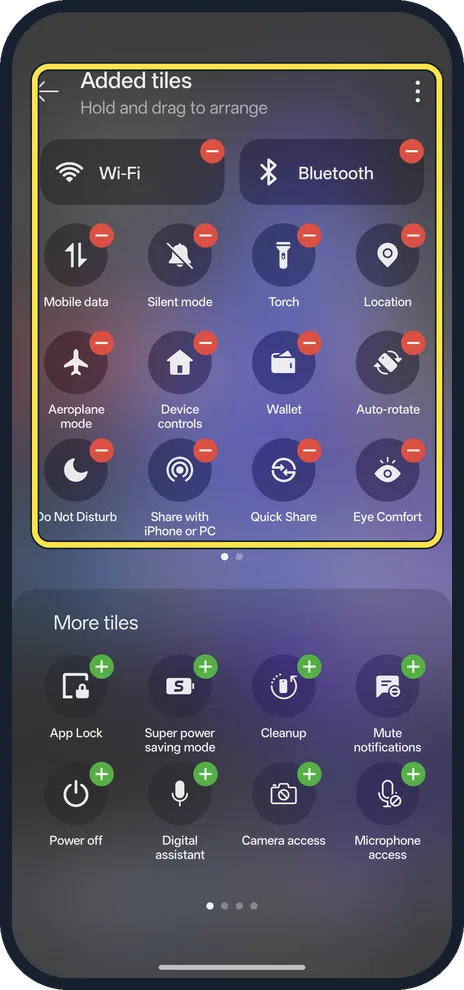
Hold and drag a tile
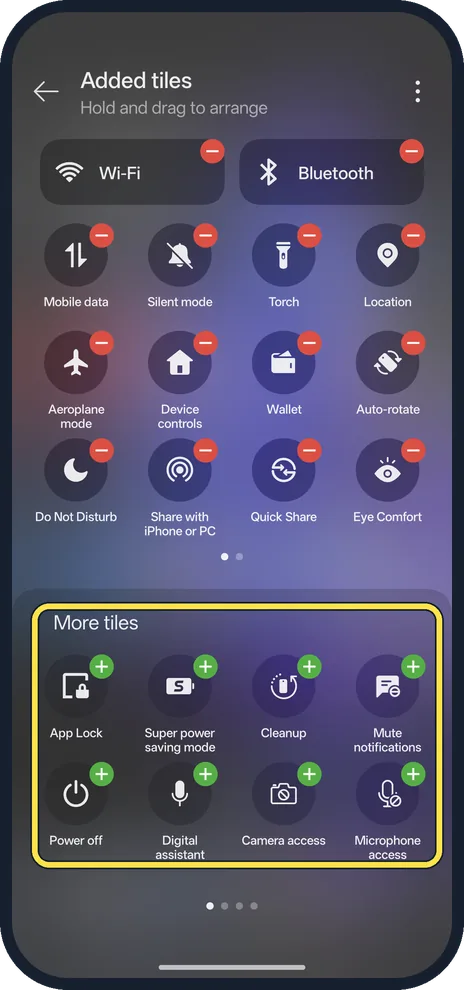
Added tiles are on top, More tiles below. The page says: hold and drag to arrange.
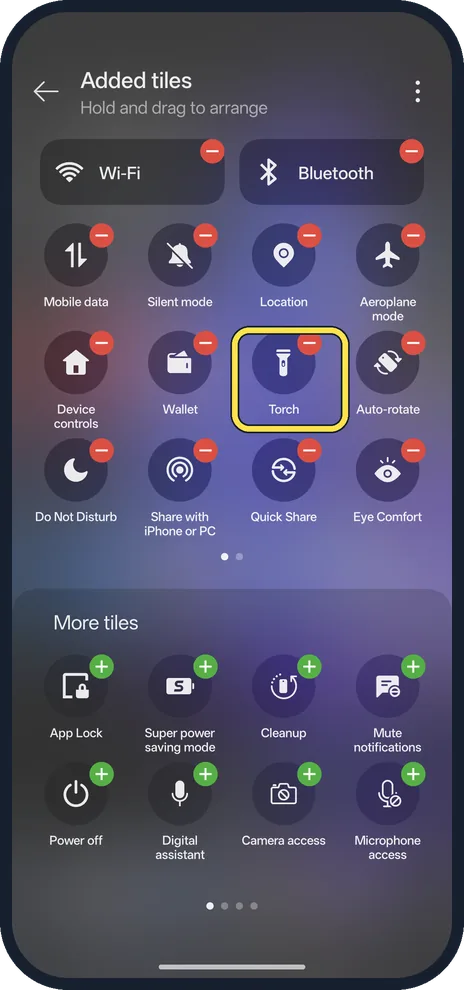
Check the new order
We dragged Torch further along; the tiles after it moved up.
If you do not see this option
- Tile you want is missing? Scroll to More tiles and drag it up, or tap its green +; a red - on an added tile removes it. Ours offered App Lock, Super power saving mode, Cleanup, Mute notifications, Power off, Digital assistant, Camera access and Microphone access, over four pages (four dots).
- Older OPPO phone? OPPO calls the panel Control Center: tap the edit icon, hold and drag the icons, then tap Done at the top right. Source: How Do You Access Hidden Features in the OPPO Control Center
If this does not work
- No edit option? OPPO says that on some ColorOS versions the edit symbol only appears after you expand the panel by swiping down again. Source: How Do You Access Hidden Features in the OPPO Control Center
- Tile won't move? Google says to tap and drag a tile to where you want it. Hold it until it lifts, then drag without letting go. Source: Change settings quickly on your Android phone
About this guide
The screenshots are from our OPPO Reno13 5G, the European model CPH2689, with ColorOS 16.0.5 and Android 16 (build CPH2689_16.0.5.1001(EX01)), in Dark mode. We moved the Torch tile and put it back afterwards.
Good to know
To turn on the torch with a button instead, use the volume button.
To mute the phone quickly, turn on Do Not Disturb.
In short: Quick Settings, three dots, Edit tiles, hold and drag.
- OPPO Support: How Do You Access Hidden Features in the OPPO Control Center
- Android Help: Change settings quickly on your Android phone
Links checked in October 2026. Menus and features can change after software updates. These steps match the version named at the top.
Did this guide work for you?
Sorry about that. What happened?