
howtosimply.com/guides/how-to-turn-on-do-not-disturb-on-an-oppo-phone/ · Checked October 2026 · CPH2689, EEA), ColorOS 16.0.5, Android 16 (build CPH2689_16.0.5.1001(EX01) · OPPO Reno13 5G
In this guide
Open Settings, Sound & vibration, Do Not Disturb and turn on the switch. A moon icon shows in the status bar. New notifications make no sound and show no banners; alarms, timers and calendar events still go off.
4 of 4 steps with real screenshots · 2 official sources below
- Device
- Android
- Shown on
- OPPO Reno13 5G (CPH2689, EEA), ColorOS 16.0.5, Android 16 (build CPH2689_16.0.5.1001(EX01))
- App
- Settings
- Path
- Settings › Sound & vibration
- Real screenshots
- 4 of 4 steps
- Checked
- October 2026
- Sources
- 2 official, linked below
Step by step
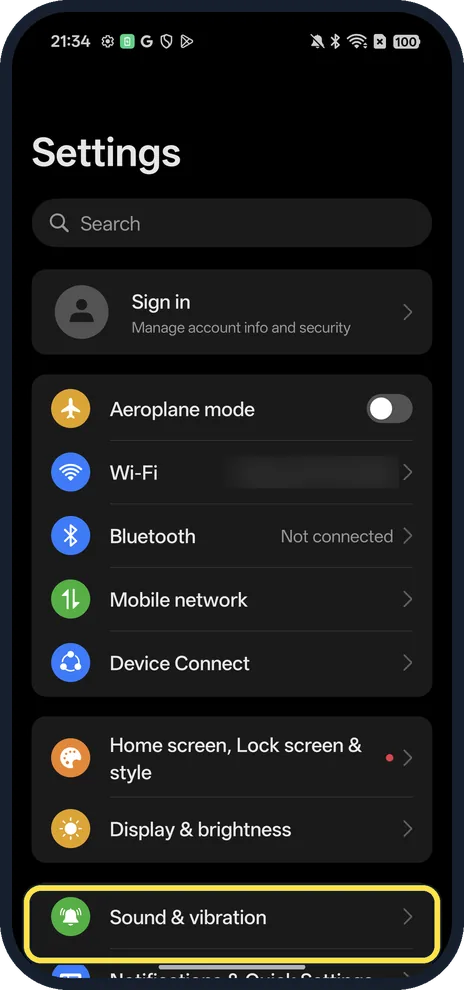
Open Sound & vibration
Open Settings and tap Sound & vibration, below Display & brightness.
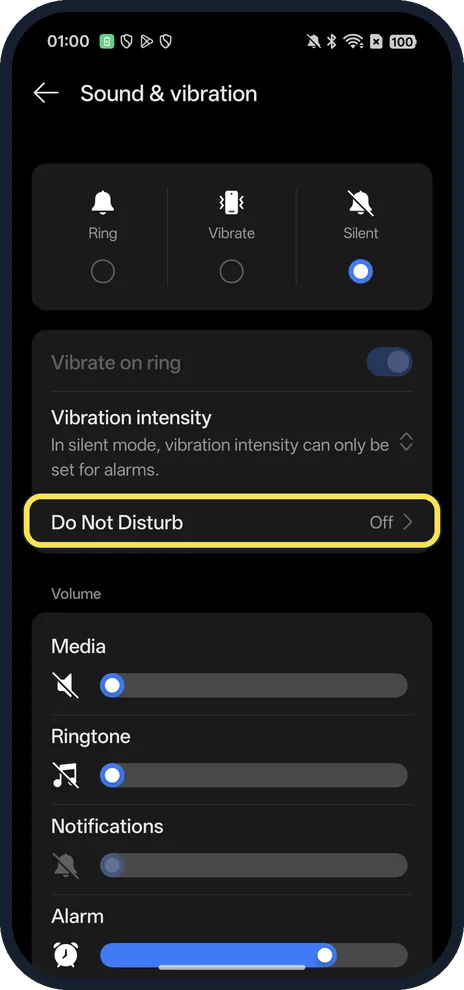
Tap Do Not Disturb
Ours said Off.
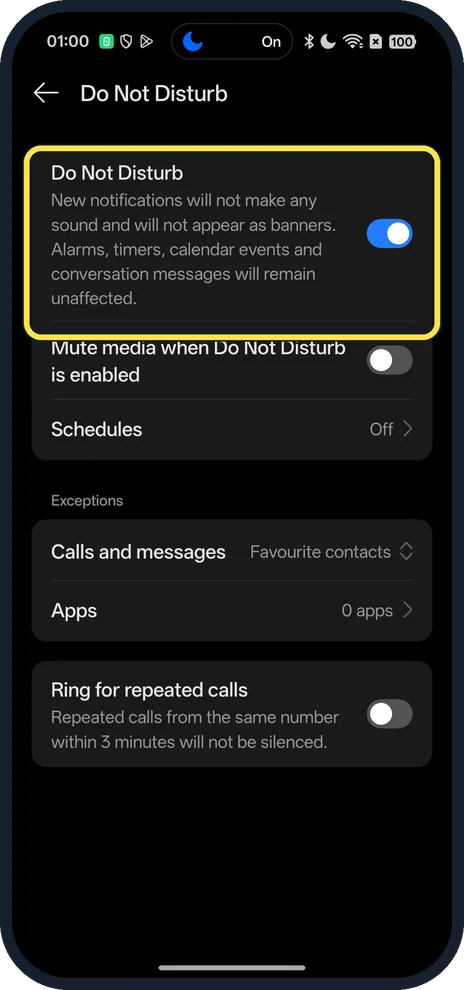
Turn on Do Not Disturb
The switch at the top. The page explains what is silenced and what is not.
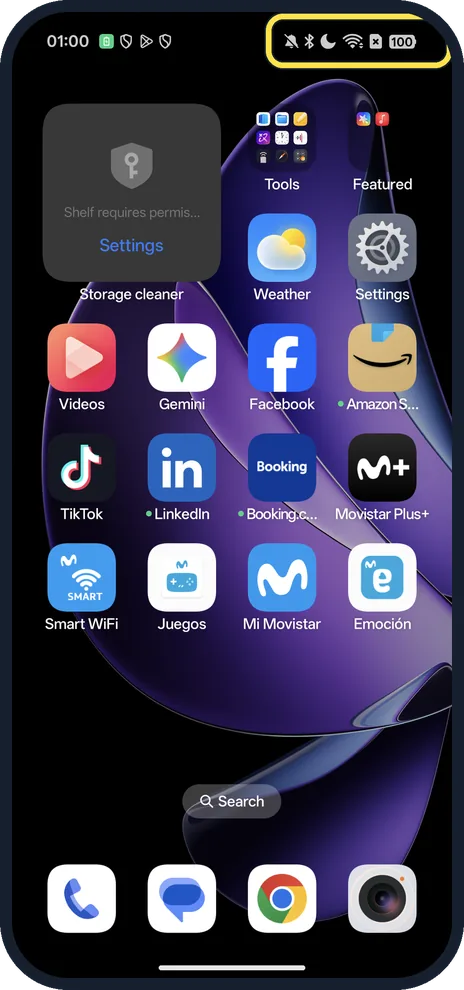
Check the moon icon
It shows in the status bar while Do Not Disturb is on.
If you do not see this option
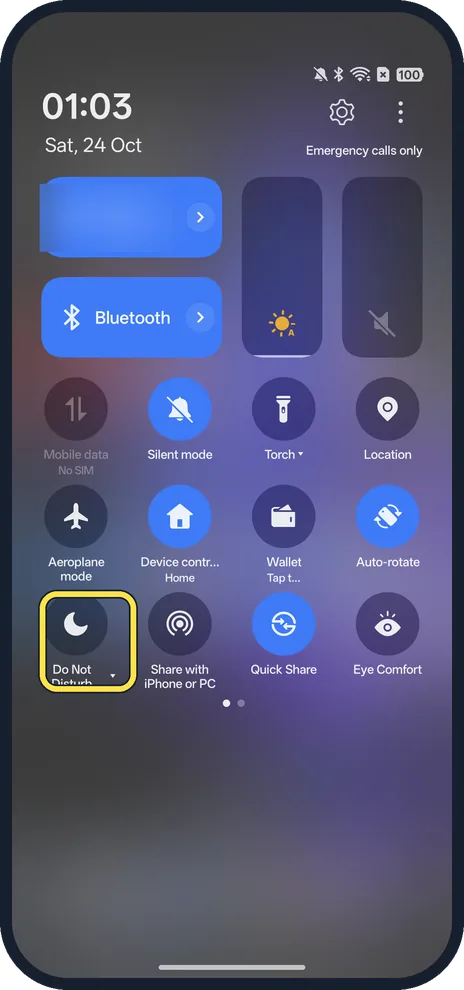
- Using the pull-down panel instead? OPPO says that on ColorOS 15 and 16 you swipe down from the upper-right corner to open Quick Settings and tap the Do Not Disturb icon. On ours it was in the bottom row of the full panel. Source: How to Use the Do Not Disturb Mode on OPPO Phones
- Older OPPO phone? OPPO says ColorOS 11 to 14 use Settings, Sound & vibration, Do Not Disturb, while ColorOS 6 and 7 have it straight in Settings, Do Not Disturb, with an Enable now switch. Before ColorOS 7 it was called Quiet Time. Source: How to Use the Do Not Disturb Mode on OPPO Phones
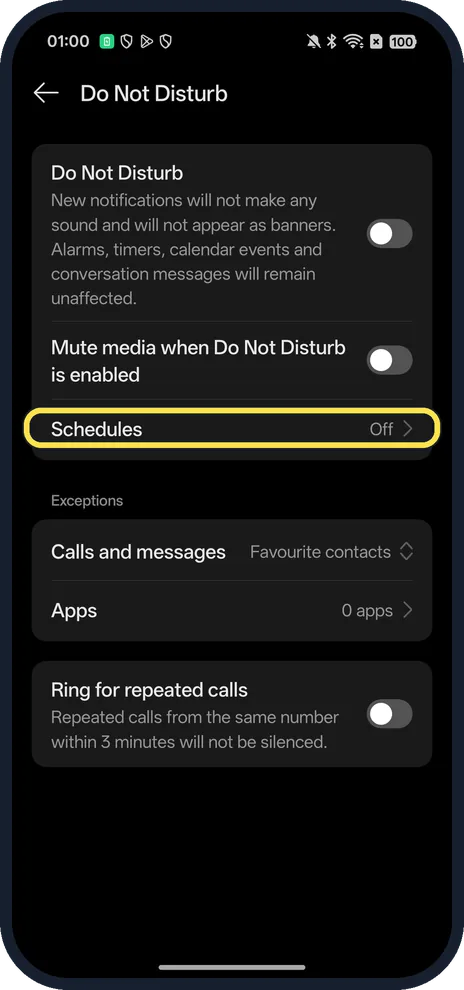
- Want it on every night? OPPO calls this Do Not Disturb at scheduled times on ColorOS 15 and 16 and Schedules on ColorOS 11 to 13. Ours (16.0.5) showed a Schedules row, Off. Source: How to Use the Do Not Disturb Mode on OPPO Phones
If this does not work
- Some calls still ring? Exceptions let some through: on ours Calls and messages was set to Favourite contacts. OPPO says you can allow calls and messages from no one, everyone, contacts or favourites. Source: How to Use the Do Not Disturb Mode on OPPO Phones
- Same person called twice and it rang? That is Ring for repeated calls: the page says repeated calls from the same number within 3 minutes are not silenced. It was off on ours; check it is off on yours. Source: How to Use the Do Not Disturb Mode on OPPO Phones
- Alarm still went off? That is expected: OPPO says the alarm clock and countdown timer are not muted, and our page says alarms, timers and calendar events stay unaffected. Source: How to Use the Do Not Disturb Mode on OPPO Phones
- Videos still play sound? Turn on Mute media when Do Not Disturb is enabled, near the top of the page.
About this guide
The screenshots are from our OPPO Reno13 5G, the European model CPH2689, with ColorOS 16.0.5 and Android 16 (build CPH2689_16.0.5.1001(EX01)), in Dark mode. We turned it on for the screenshots and off again. Ring for repeated calls was off on ours.
Good to know
To silence one app only, turn off its notifications.
To change how strongly it vibrates, change vibration and haptics.
In short: Settings, Sound & vibration, Do Not Disturb on.
- OPPO Support: How to Use the Do Not Disturb Mode on OPPO Phones
- Google Android Help: Limit interruptions with Do Not Disturb on Android
Links checked in October 2026. Menus and features can change after software updates. These steps match the version named at the top.
Did this guide work for you?
Sorry about that. What happened?