
howtosimply.com/guides/how-to-screen-record-on-an-oppo-phone/ · Checked October 2026 · CPH2689, EEA), ColorOS 16.0.5, Android 16 (build CPH2689_16.0.5.1001(EX01) · OPPO Reno13 5G
In this guide
Swipe down from the top twice, swipe left to the second page of Quick Settings and tap Screen recording. The first time, allow audio, tap Get started, then Start recording. Stop with the red button in the Recording pill at the top; the video goes to Photos.
7 of 7 steps with real screenshots · 1 official source below
- Device
- Android
- Shown on
- OPPO Reno13 5G (CPH2689, EEA), ColorOS 16.0.5, Android 16 (build CPH2689_16.0.5.1001(EX01))
- Starts in
- Quick Settings
- Real screenshots
- 7 of 7 steps
- Checked
- October 2026
- Sources
- 1 official, linked below
Step by step
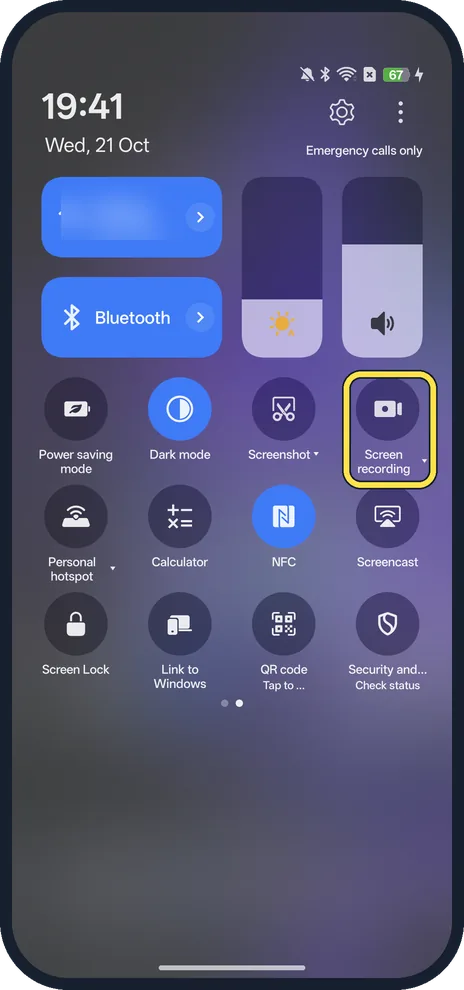
Find the Screen recording tile
Swipe down from the top of the screen twice to open Quick Settings, then swipe left. On ours, Screen recording was on the second page, next to Screenshot.
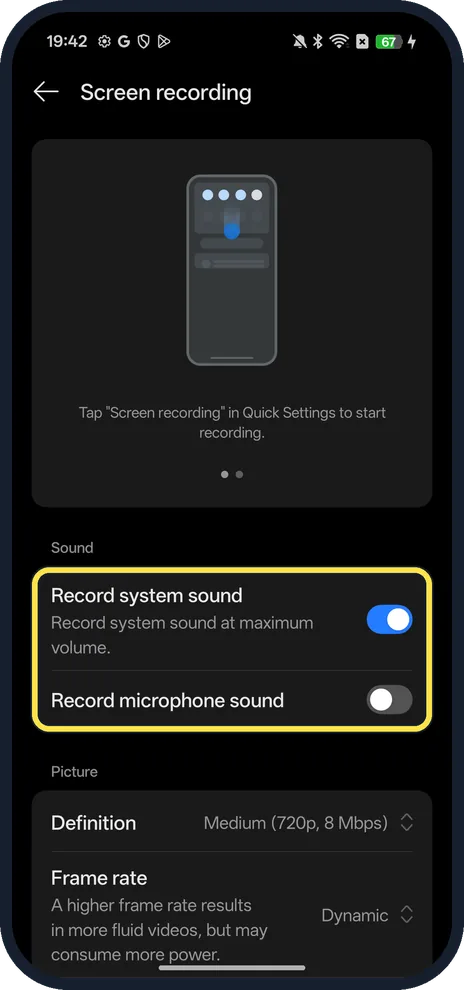
Check the sound settings first
Touch and hold the tile to open its settings. Ours had Record system sound on and Record microphone sound off, with Definition Medium (720p, 8 Mbps) and a Dynamic frame rate.
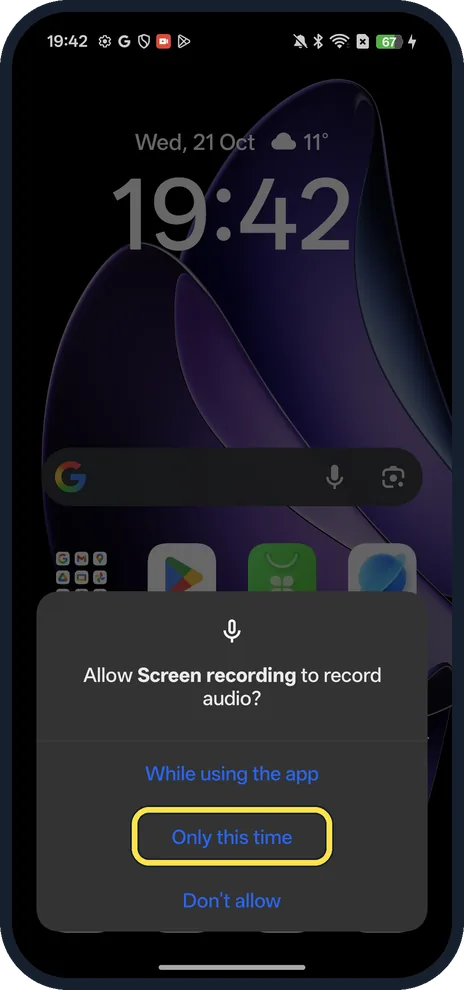
Tap the tile and allow audio
Go back and tap Screen recording. The first time, it asks to record audio: While using the app, Only this time or Don't allow. We tapped Only this time.
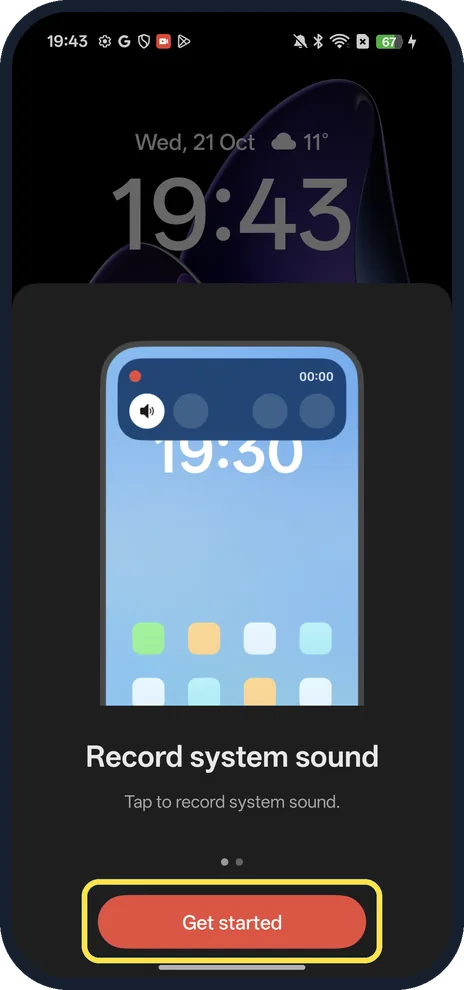
Tap Get started
A short intro explains the sound button on the recording pill. Tap Get started.
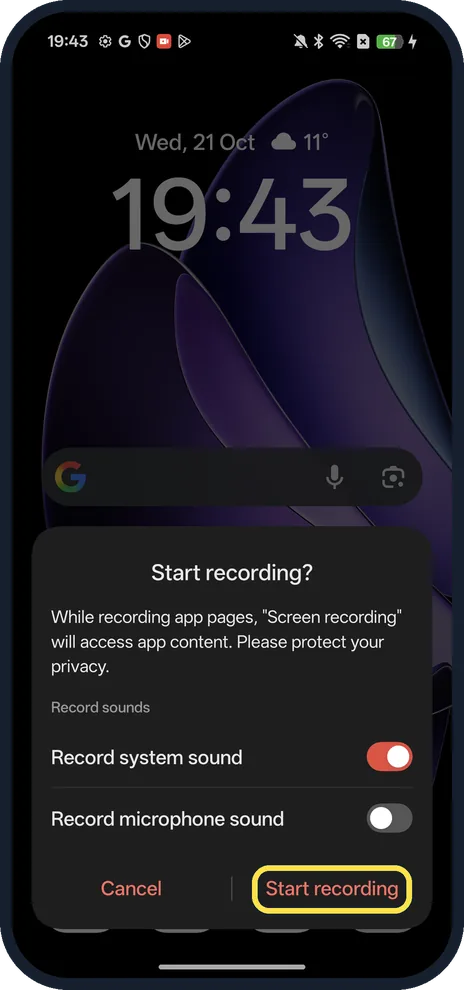
Tap Start recording
Start recording? lets you switch system sound and microphone sound on or off for this recording. Tap Start recording.
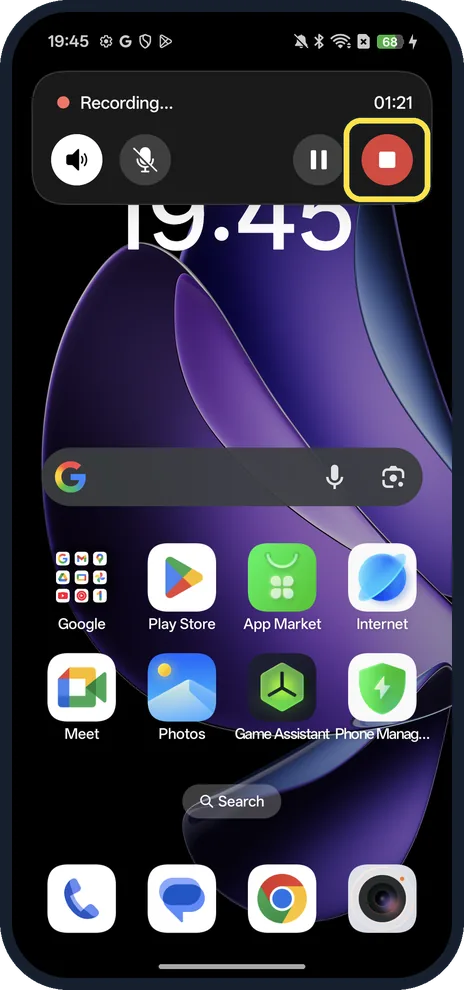
Stop with the red button
Recording runs as a pill at the top with the time. Tap it to open it: the speaker and microphone buttons switch sound, then pause and the red stop button. Tap stop.
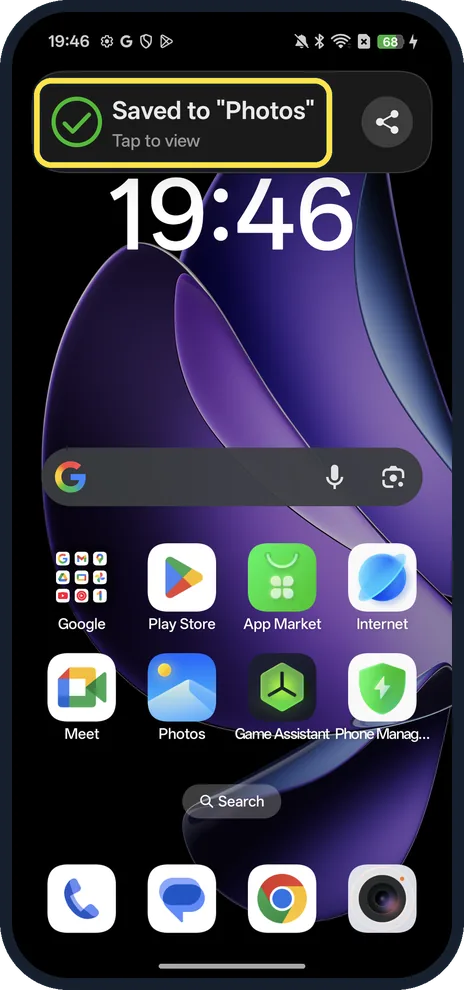
Find the video in Photos
Saved to "Photos" appears at the top with a share button. Tap it to open the recording.
What we saw on our device
- Find the Screen recording tile: On ours, Screen recording was on the second page, next to Screenshot.
- Check the sound settings first: Ours had Record system sound on and Record microphone sound off, with Definition Medium (720p, 8 Mbps) and a Dynamic frame rate.
If you do not see this option
- No Screen recording tile on the first page? Swipe left in Quick Settings. On our Reno13 the first page held Wi-Fi, Bluetooth, Silent mode, Torch, Location and Aeroplane mode; Screen recording was on page 2.
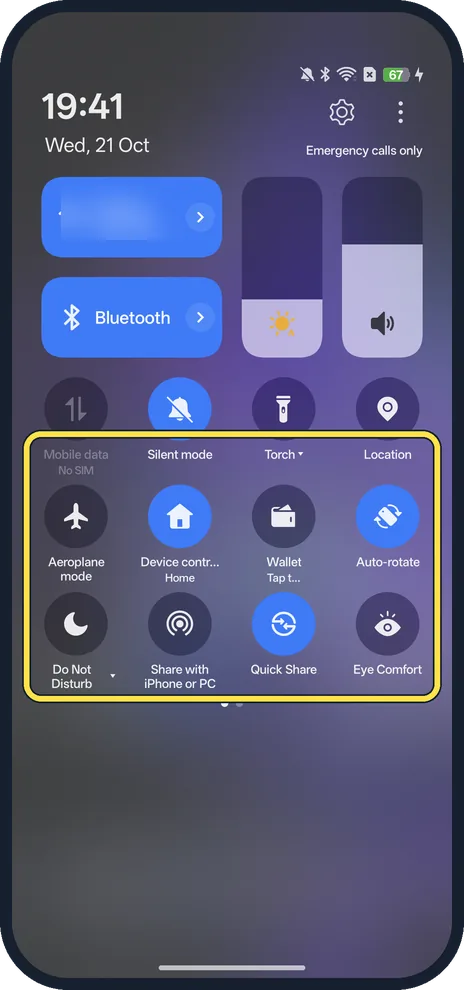
- Screenshot tile has a small arrow? Screenshot and Screen recording both show a small arrow on our phone. We did not try what the Screen recording arrow opens. On a OnePlus with OxygenOS 16 the steps are close: screenshot or record the screen on a OnePlus.
If this does not work
- No sound in the recording? Open the tile's settings (touch and hold it) and check Record system sound. For your voice, turn on Record microphone sound, or tap the microphone button on the pill while recording. Source: Take a screenshot or record your screen on your Android device
- Notifications showing in your videos? In the same settings, Privacy protection stops notifications, status bar updates and Quick Settings from appearing in the recording, though you still see them while you record.
- Recording stopped on its own? Auto pause pauses recording when the screen turns off and ends it 6 minutes after the screen is turned off, says the setting on our phone.
About this guide
ColorOS has its own screen recorder with a floating Recording pill (a Live Alert) instead of Android's plain notification, and it records the phone's sound but not your voice unless you switch the microphone on.
The screenshots are from our OPPO Reno13 5G, the European model CPH2689, with ColorOS 16.0.5 and Android 16 (build CPH2689_16.0.5.1001(EX01)), in Dark mode. We made one short recording and deleted it afterwards.
Good to know
Recording on a Galaxy instead? Record your screen on a Samsung Galaxy.
On a Pixel: screen record on a Google Pixel.
In short: Quick Settings page 2, Screen recording, allow audio, Get started, Start recording; stop with the red button on the pill.
Links checked in October 2026. Menus and features can change after software updates. These steps match the version named at the top.
Did this guide work for you?
Sorry about that. What happened?