XIAOMI REDMI
How to remove animations on a Xiaomi phone (HyperOS 3)

In short
Go to Settings, Accessibility and tap the Vision tab. Under Display, turn on Remove animations; the switch turns blue. It was off on ours. Tap the switch again to bring animations back.
4 of 4 steps show a real screenshot from our Redmi Note 15 Pro 5G. Each step was checked against the maker's own instructions, linked at the end.
Steps
- 1
Open the Vision tab
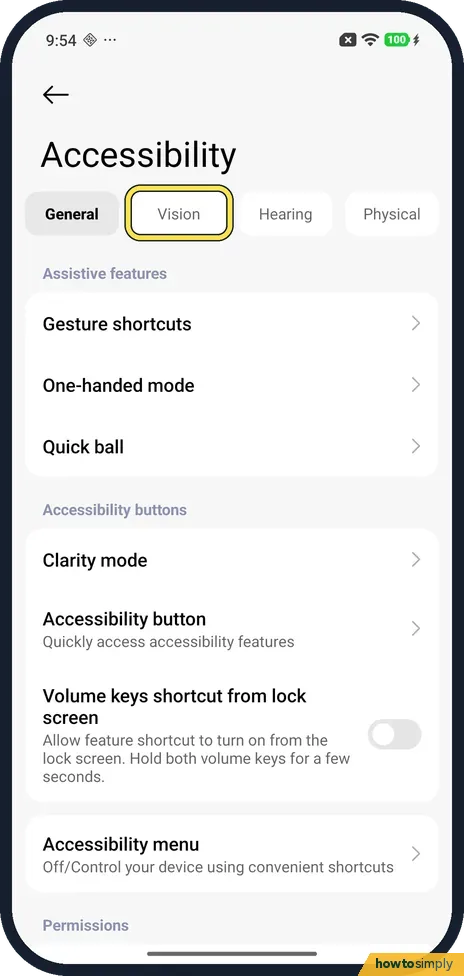
Open Settings and tap Accessibility. It opens on General; tap Vision, the second tab at the top.
- 2
Find Remove animations
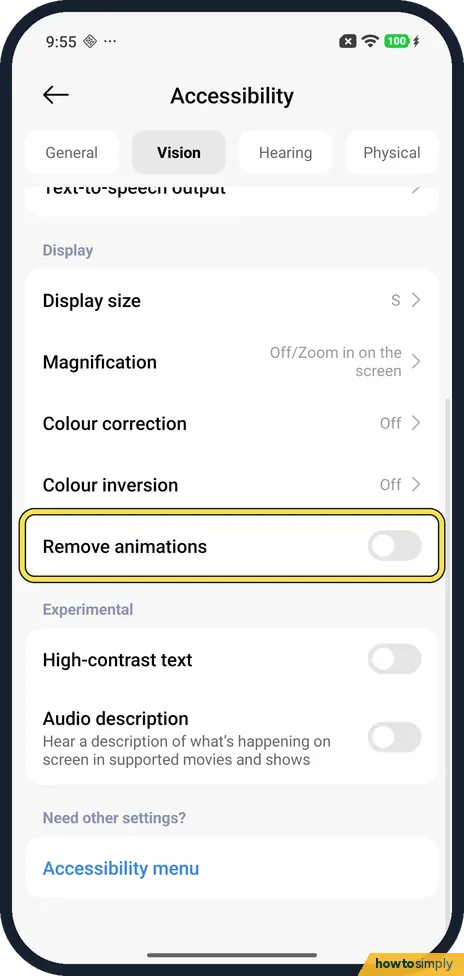
Scroll down to Display. Remove animations is the last row, below Colour inversion. It was off on ours.
- 3
Turn it on
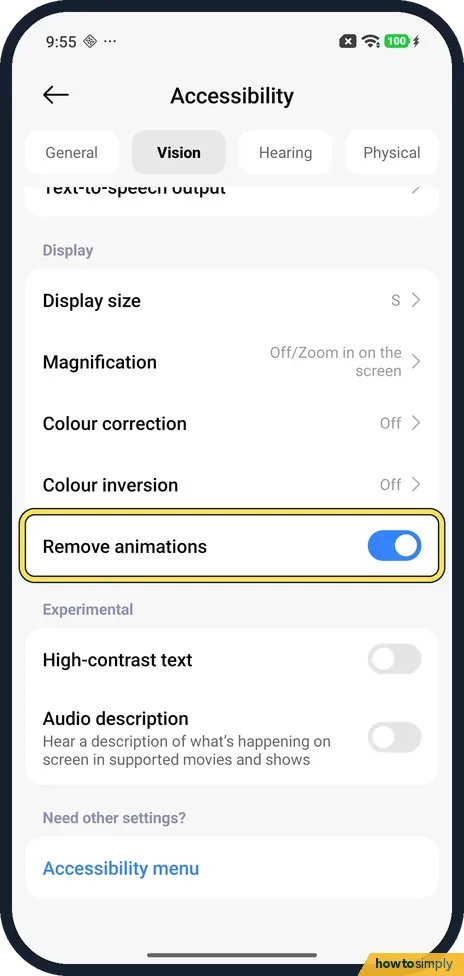
Tap the Remove animations switch. It turns blue.
- 4
Turn it off again
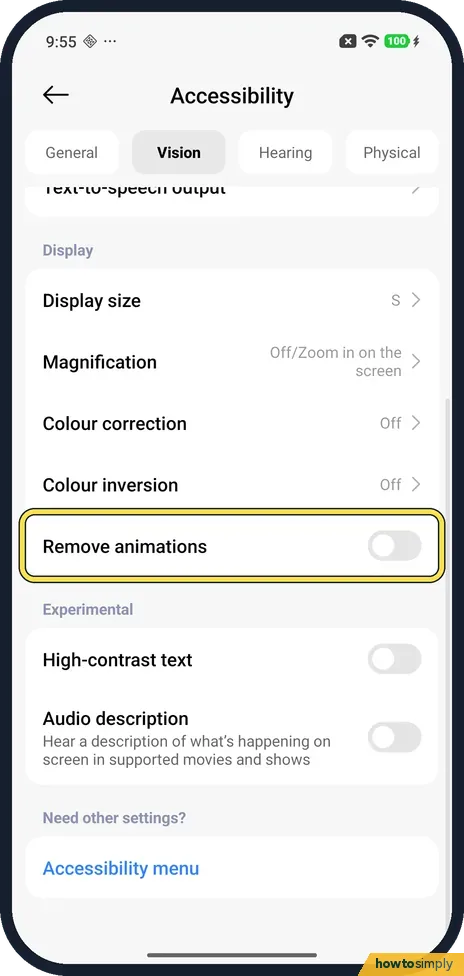
Tap the switch again to bring the animations back. We put ours back to off.
If you do not see this option
- Accessibility under Additional settings? Xiaomi's HyperOS 3 guide gives Settings, Additional settings, Accessibility, Vision. On our Redmi Note 15 Pro 5G Accessibility was in the main Settings list. Source: Generic User Guide for HyperOS 3.0
- On a Google Pixel? Google puts it under Settings, Accessibility, Color and motion. Our Pixel 10a with Android 17 had it there, spelled Colour and motion. Source: Change text and display settings
- Only want faster animations, not none? Xiaomi's user guide has a separate Animation speed setting in Settings, Home screen, with Relaxed, Balanced and Fast. Fast keeps the movement but shortens it, which some people find easier than turning it off. Source: Generic User Guide for HyperOS 3.0
If this does not work
- Not on the General tab? Accessibility opens on General. Remove animations is on the Vision tab, in the Display group.
- Screen still hard to see? The same Display group has Colour correction, Colour inversion and Magnification. See colour correction and inversion and how to use magnification.
- Animations seem gone with the switch off? Check the battery mode. Xiaomi's user guide says Battery saver minimises system animations, along with background activity and sync, so motion can look reduced while it is on even with Remove animations off.
- Some apps still move? Remove animations covers the system's own effects. Videos, games and animated content inside apps are part of the app, so they keep playing. Some apps follow the setting for their own transitions and some do not.
Good to know
For bigger text, see how to change the text size and font.
For a darker screen, see how to turn on dark mode.
With the switch on, screens, menus and app windows change without sliding, zooming or fading. Google presents the setting as a way to help you focus, and many people with motion sensitivity find it more comfortable as well. Nothing else changes: your apps, wallpaper, Home screen layout and notifications stay the same. You may lose a few visual cues, such as an app window shrinking back to its icon when you close it, so take a moment to get used to it. To undo it, go back to Accessibility, Vision and turn off Remove animations. For other ways to make the screen easier on the eyes, see how to use Reading mode on a Xiaomi phone.
About this guide
- Device
- Android
- Shown on
- Xiaomi Redmi Note 15 Pro 5G (25080RABDG), HyperOS 3.0.308.0, Android 16
- App
- Settings
- Path
- Settings › Accessibility › Vision
- Real screenshots
- 4 of 4 steps
- Checked
- October 2026
- Sources
- 2 official, linked below
Sources
Links checked October 2026. Menus and features can change with updates.Spotted a mistake? Menus change with updates, and we want every step to match your screen. Email us about this page or use the contact form. We read every report, and fixes are listed on What changed.
Liked this guide?
Follow us for new guides and short how-to videos.
Did this guide work for you?
Sorry about that. What happened?