GOOGLE PIXEL
How to edit Quick Settings tiles on a Google Pixel (Android 17)

In short
Swipe down twice from the top and tap the edit (pencil) button. In Edit tiles, your tiles are at the top. Scroll to a group such as Utilities and tap + on a tile to add it. Select a tile and tap Remove to take it off.
7 of 7 steps show a real screenshot from our Pixel 10a. Each step was checked against the maker's own instructions, linked at the end.
Steps
- 1
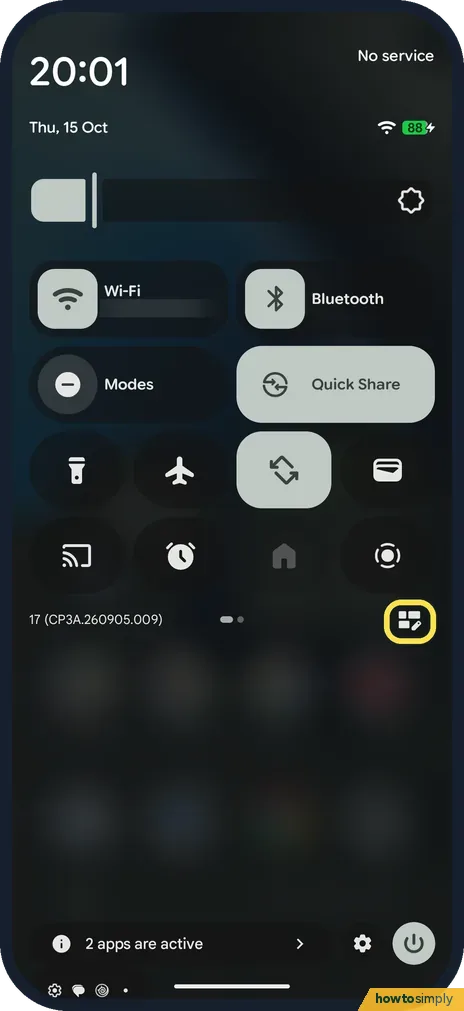
Tap the edit button
Swipe down twice from the top of the screen. The edit button is at the bottom right of the tiles, next to the build number.
- 2
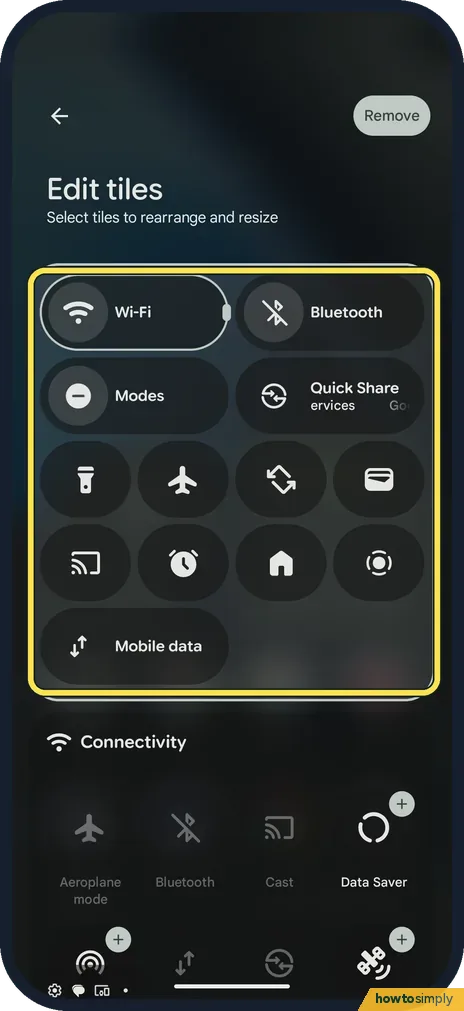
See your tiles
Edit tiles shows your current tiles at the top, with Remove at the top right.
- 3
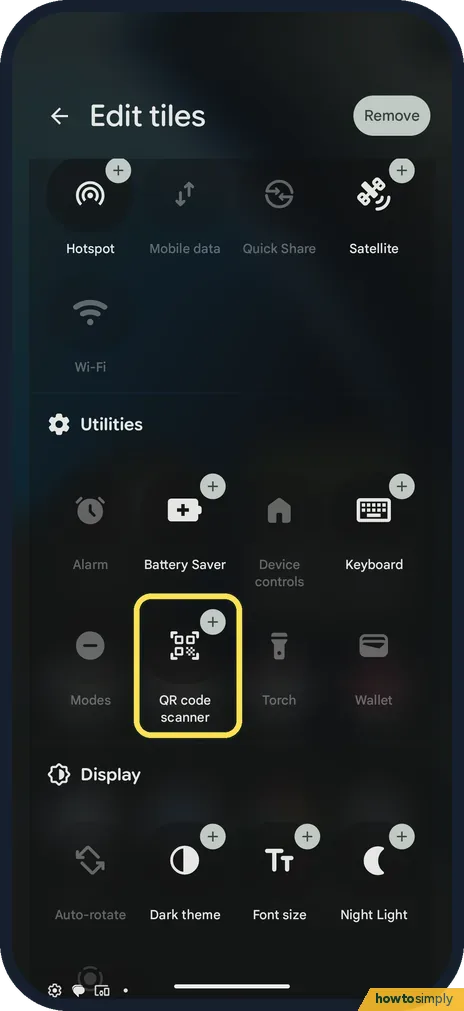
Add a tile
Scroll down to a group such as Utilities. Tap + on the tile you want. We added QR code scanner.
- 4
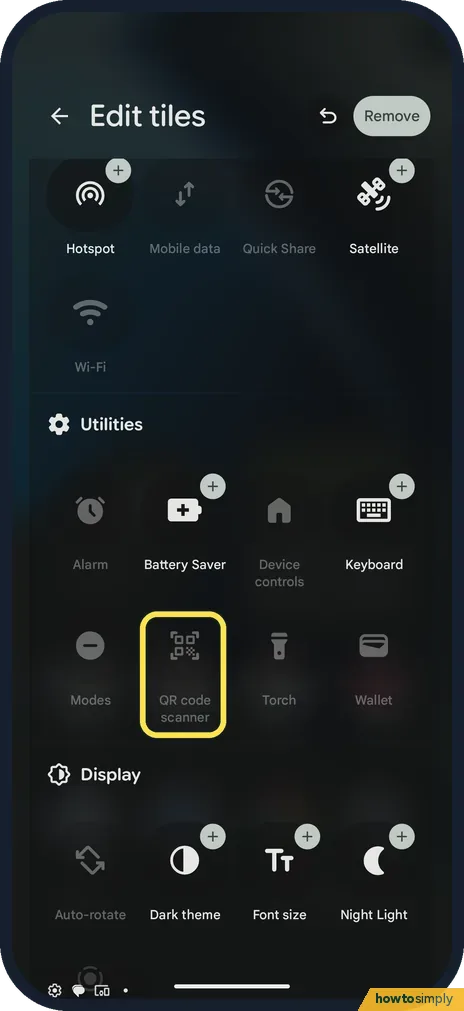
Check it was added
The added tile turns grey in its group, as QR code scanner did under Utilities.
- 5
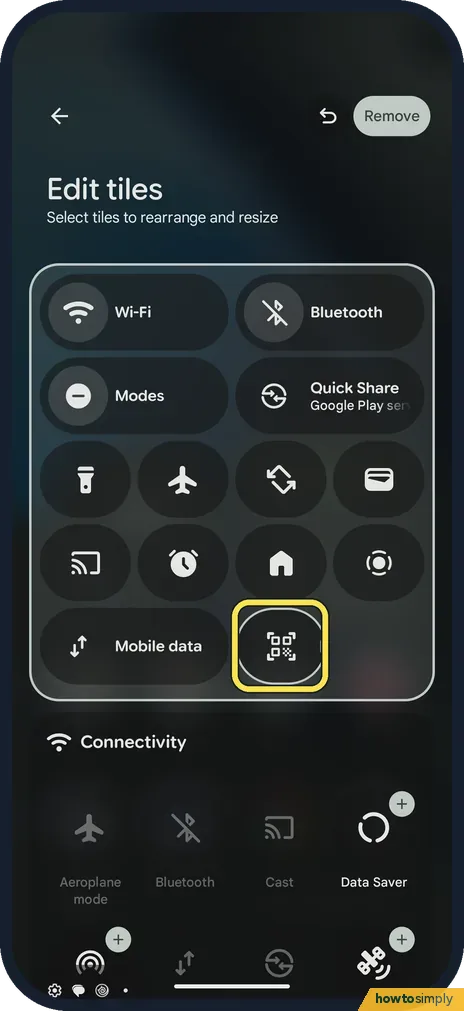
Find it in your tiles
Scroll back up. The new tile sits at the end of your tiles, after Mobile data on ours.
- 6
Remove a tile
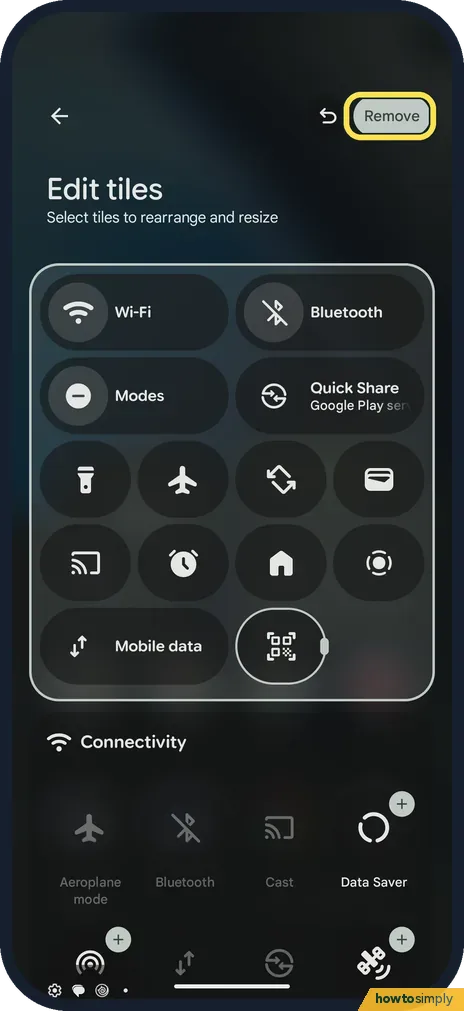
Tap a tile in your tiles to select it, then tap Remove at the top right.
- 7
Check it is gone
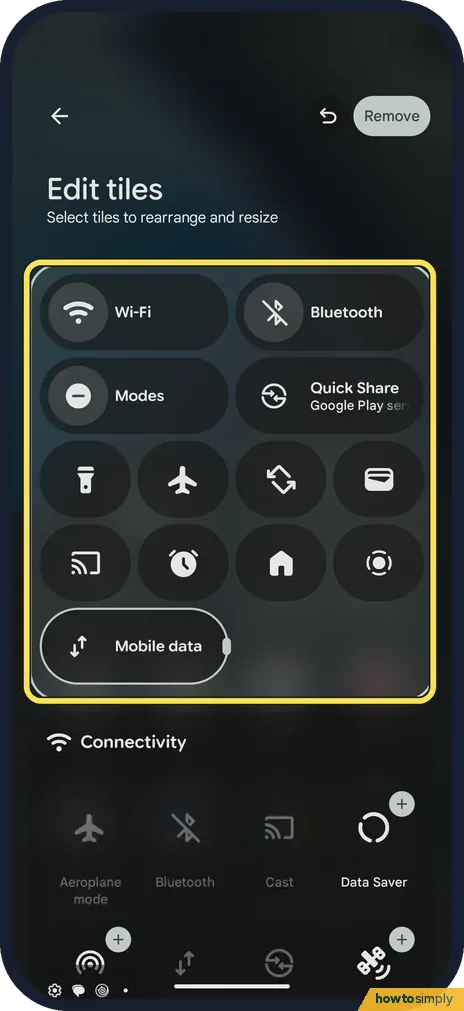
The tile left your tiles. Ours were back to how they were before.
If you do not see this option
- Tile not in the list? Google says some tiles are on another page or in another group; scroll through Connectivity, Utilities and Display. Source: Scan QR codes on your Pixel phone
- Edit button missing? Swipe down twice: the first swipe shows notifications only. The button is at the bottom right of the full tile grid.
If this does not work
- Want the old layout back? Tap the undo arrow at the top of Edit tiles before you leave.
- Remove does nothing? Remove acts on the selected tile. Tap a tile in your tiles first so it is outlined.
- Tiles too small? Select a tile in Edit tiles to resize it.
- Want a tile higher up? Google says you can tap and drag tiles to where you want them in edit mode. Put the ones you use most at the start, because the first swipe down shows only the first few.
- A tile from an app appeared? Google says some apps may ask to add their own tile. You can remove it like any other tile, and add it back later from the list.
- Tile shows but does nothing? Tap it once to switch it on or off; Google says dimmed tiles are off. For the full settings behind a tile, touch and hold it instead.
Good to know
Use the QR scanner tile: how to scan a QR code on a Pixel.
Changes in Edit tiles apply straight away and stay after a restart. Tiles only change where you reach a setting; they do not change the setting itself, and the same options remain in the Settings app. If you remove a tile by mistake, it goes back to its group further down the edit page, and you can add it again with +.
Good tiles to keep handy are the Wi-Fi hotspot and the flashlight: how to turn on the Wi-Fi hotspot and how to change the flashlight brightness.
About this guide
- Device
- Android
- Shown on
- Google Pixel 10a, Android 17 (build CP3A.260905.009)
- App
- Quick Settings
- Path
- Quick Settings › Edit tiles
- Real screenshots
- 7 of 7 steps
- Checked
- October 2026
- Sources
- 2 official, linked below
Sources
Links checked October 2026. Menus and features can change with updates.Spotted a mistake? Menus change with updates, and we want every step to match your screen. Email us about this page or use the contact form. We read every report, and fixes are listed on What changed.
Liked this guide?
Follow us for new guides and short how-to videos.
Did this guide work for you?
Sorry about that. What happened?