
howtosimply.com/guides/how-to-add-a-widget-on-an-oppo-phone/ · Checked October 2026 · CPH2689, EEA), ColorOS 16.0.5, Android 16 (build CPH2689_16.0.5.1001(EX01) · OPPO Reno13 5G
In this guide
Touch and hold an empty spot on the Home screen, tap Widgets, pick the app, then pick the widget and tap Add. To remove one, touch and hold it and tap Remove widget.
4 of 4 steps with real screenshots · 2 official sources below
- Device
- Android
- Shown on
- OPPO Reno13 5G (CPH2689, EEA), ColorOS 16.0.5, Android 16 (build CPH2689_16.0.5.1001(EX01))
- Real screenshots
- 4 of 4 steps
- Checked
- October 2026
- Sources
- 2 official, linked below
Step by step
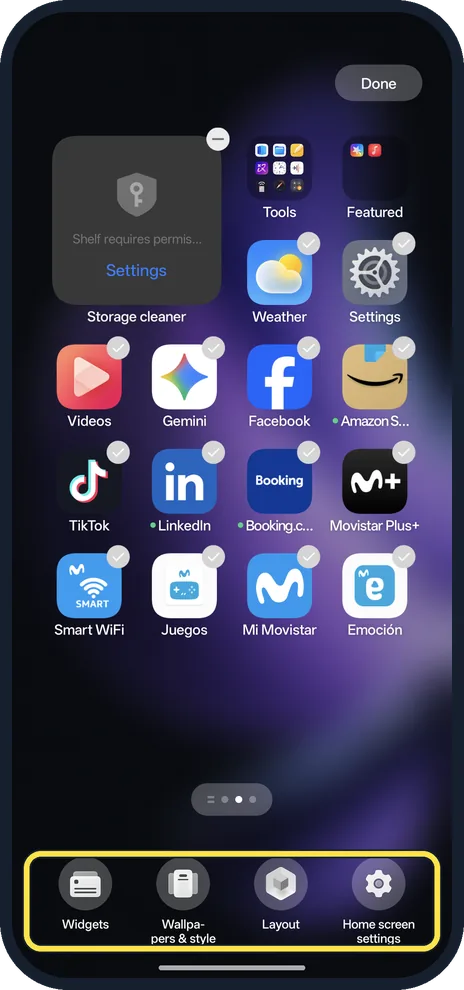
Touch and hold an empty spot
Home goes into edit mode with Widgets, Wallpapers & style, Layout and Home screen settings at the bottom.
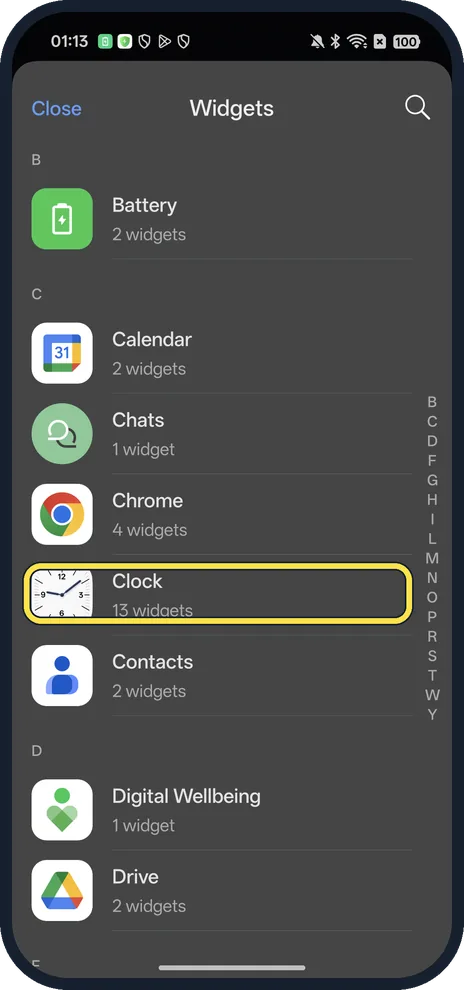
Tap Widgets and pick an app
Apps are listed A to Z with how many widgets each has; Clock had 13.
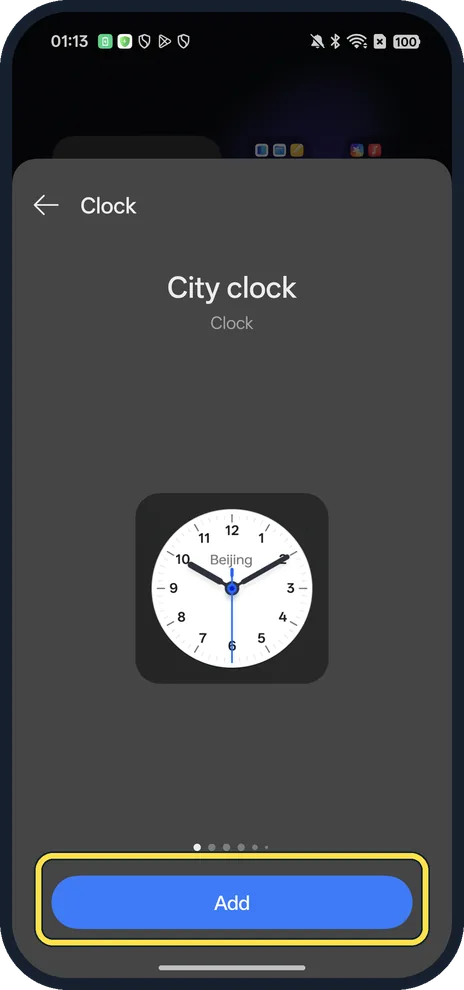
Pick a widget and tap Add
Swipe sideways to see the others; we picked City clock, then tapped Add at the bottom.
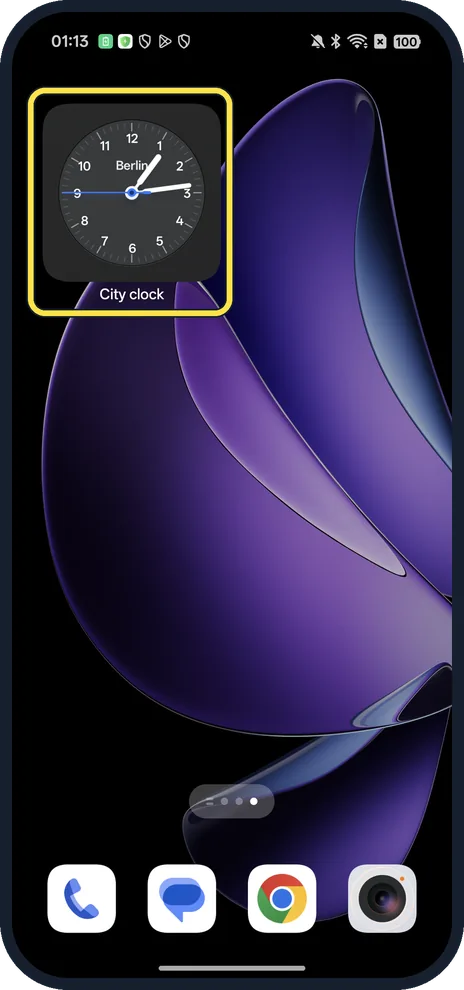
Check your Home screen
Ours landed on a new Home page. Touch and hold it to move it.
If you do not see this option
- Older OPPO phone? OPPO says that on ColorOS 11 and earlier you pinch the Home screen, tap Widgets, then touch, hold and drag the widget onto the screen; there is no Add button. Source: How to Find and Add Widgets on OPPO Phones
- Hold does nothing? OPPO says you can also pinch the Home screen with your thumb and index finger to open the same edit mode, then tap Widgets. Source: How to Find and Add Widgets on OPPO Phones
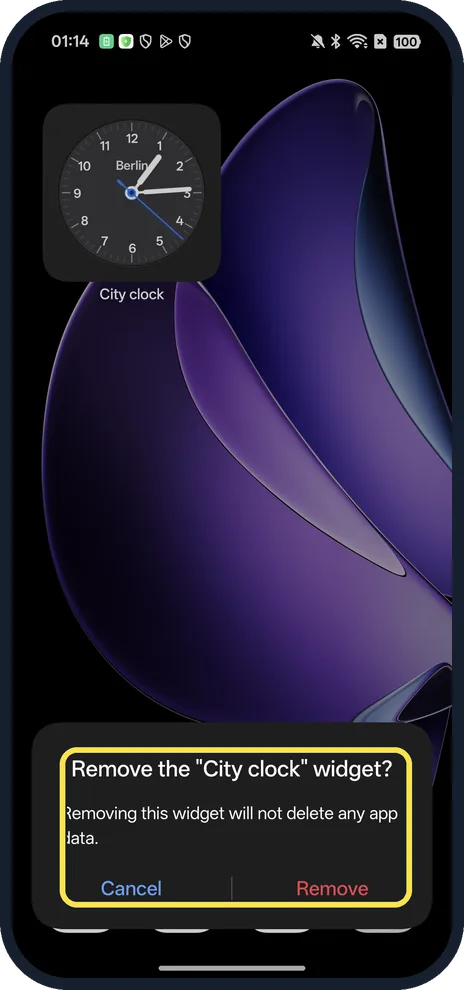
- Want to remove it? Touch and hold the widget and tap Remove widget; ours then asked to confirm. The menu also has Rename and Edit widget. The dialog says removing it will not delete any app data. Source: How to Find and Add Widgets on OPPO Phones
If this does not work
- No space on the page? OPPO says to make sure there is enough space for the widget. Ours went onto a new page; swipe to find it. Source: How to Find and Add Widgets on OPPO Phones
- Widget in the wrong place? OPPO says to tap and hold it for about 2 seconds, then drag it without lifting your finger. Source: How to Find and Add Widgets on OPPO Phones
- No Widgets button? Google says to touch and hold an empty space on the Home screen, not an app icon. Source: Add apps, shortcuts and widgets to your Home screens
About this guide
The screenshots are from our OPPO Reno13 5G, the European model CPH2689, with ColorOS 16.0.5 and Android 16 (build CPH2689_16.0.5.1001(EX01)), in Dark mode. We added the Clock app's City clock widget and removed it again.
Good to know
To change the background too, change the wallpaper.
To add shortcuts to the pull-down panel, edit Quick Settings tiles.
In short: Hold the Home screen, Widgets, app, widget, Add.
- OPPO Support: How to Find and Add Widgets on OPPO Phones
- Google Android Help: Add apps, shortcuts and widgets to your Home screens
Links checked in October 2026. Menus and features can change after software updates. These steps match the version named at the top.
Did this guide work for you?
Sorry about that. What happened?