
howtosimply.com/guides/how-to-download-offline-maps-in-google-maps-on-android/ · Checked October 2026 · build CP3A.261005.005 · Google Pixel 10a, Android 17
In this guide
In Google Maps, tap your profile picture, then Offline maps and Select your own map. Fit the area in the frame and tap Download. The size estimate can be far too low: ours said "up to 45 MB" and the finished map was 184 MB. Ours expires in a year unless updated; Maps tries to update it on Wi-Fi in its last 15 days.
7 of 7 steps with real screenshots · 1 official source below
- Device
- Android
- Shown on
- Google Pixel 10a, Android 17 (build CP3A.261005.005)
- App
- Google Maps
- Path
- Google Maps › Profile picture › Offline maps › Select your own map
- Real screenshots
- 7 of 7 steps
- Checked
- October 2026
- Sources
- 1 official, linked below
Step by step
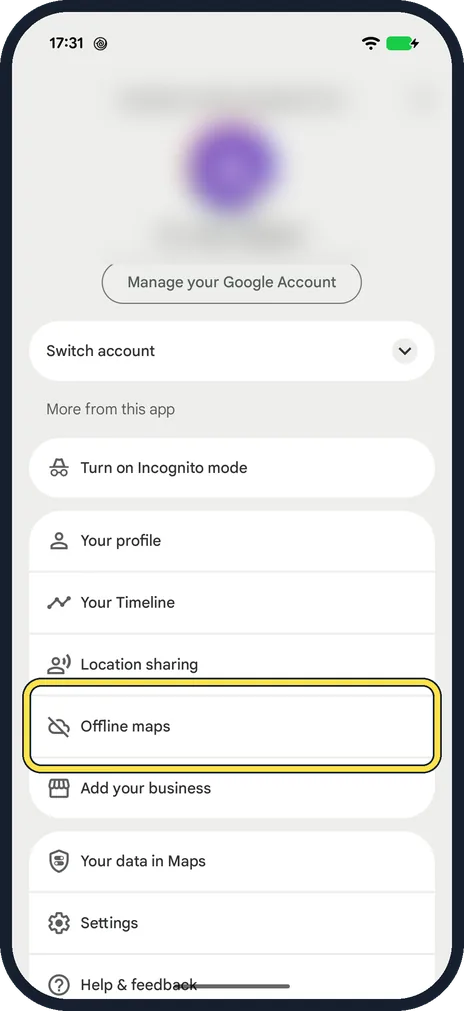
Open Offline maps
In Google Maps, tap your profile picture at the top right, then Offline maps.
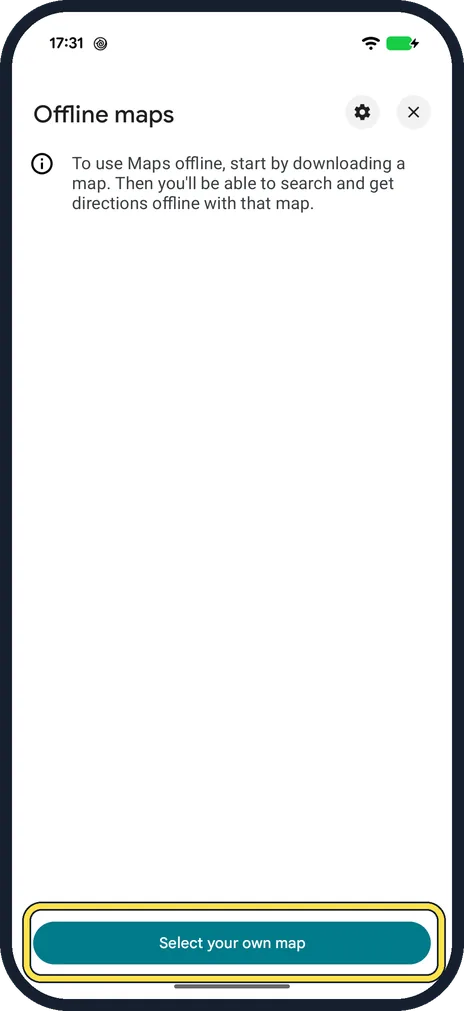
Tap Select your own map
With no maps saved yet, the page only explains what offline maps do.
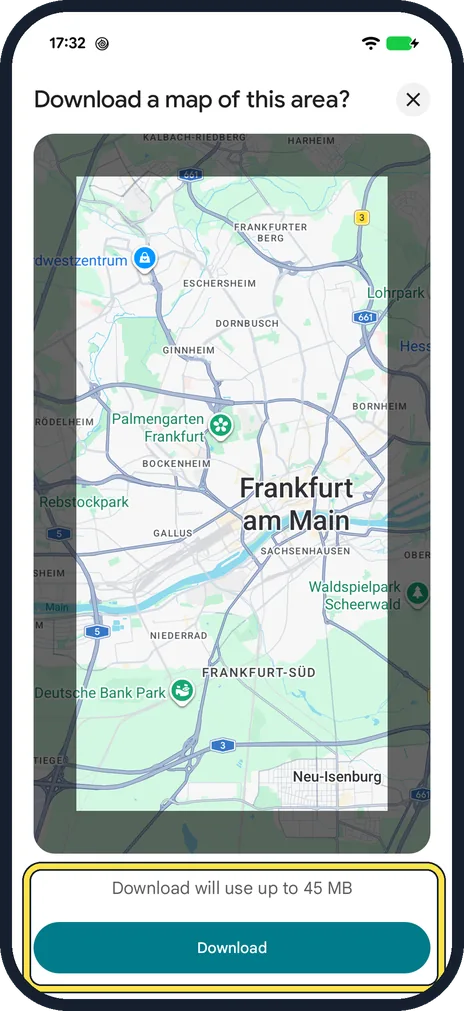
Frame the area and tap Download
Pinch and drag until the frame covers the area. The estimate sits above Download. Ours would not frame anything smaller than about central Frankfurt and said "Download will use up to 45 MB".
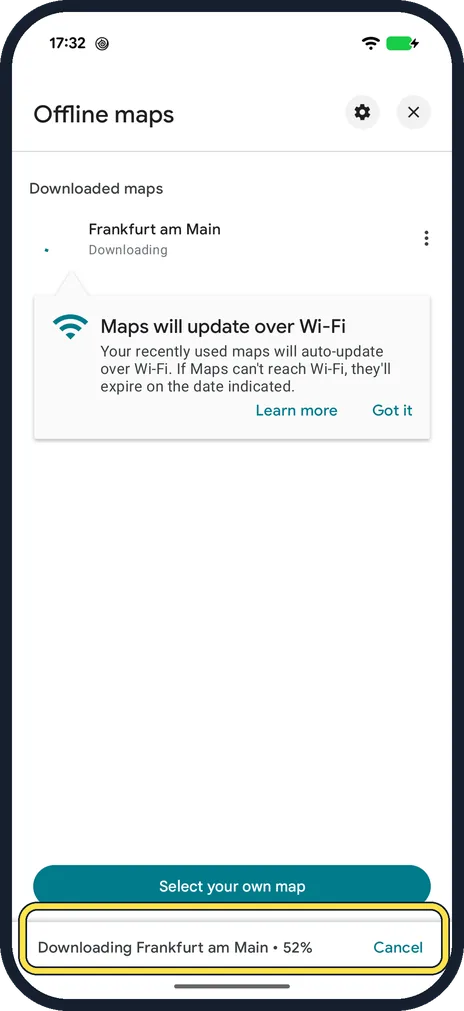
Wait for the download
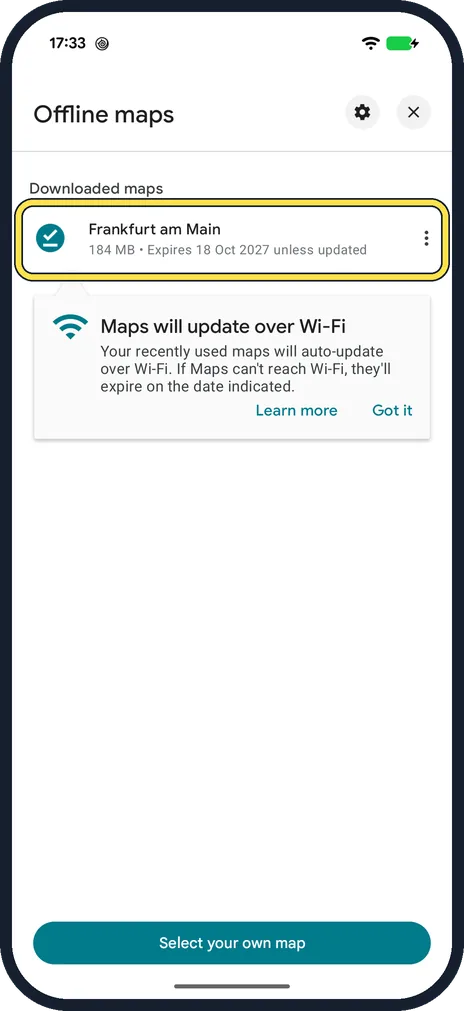
Progress shows at the bottom of Offline maps. A tip says recently used maps auto-update over Wi-Fi and expire on the date shown if Maps cannot reach Wi-Fi.
Check the size and expiry date
The finished map is listed under Downloaded maps. Ours read "184 MB • Expires 18 Oct 2027 unless updated": four times the 45 MB estimate, and one year from the day.
Check the download settings
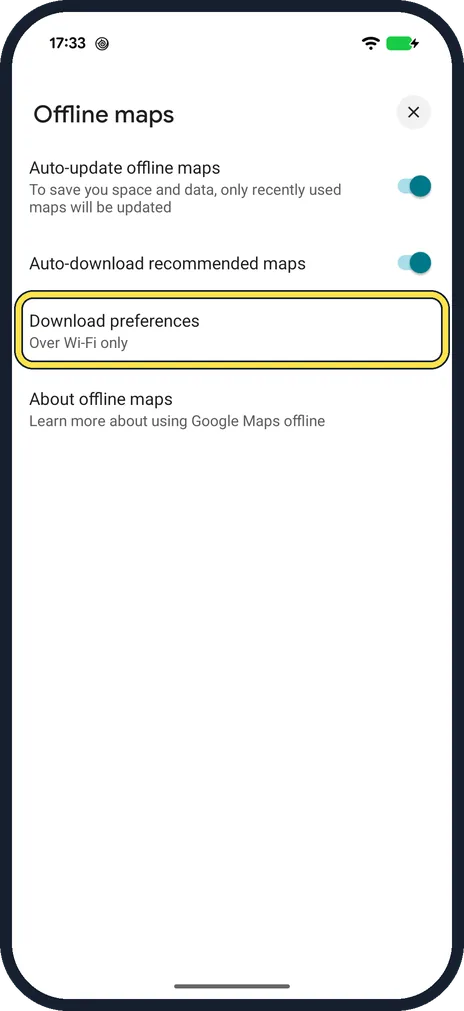
Tap the gear on Offline maps. Ours had Auto-update offline maps and Auto-download recommended maps On, and Download preferences set to Over Wi-Fi only.
Delete a map you no longer need
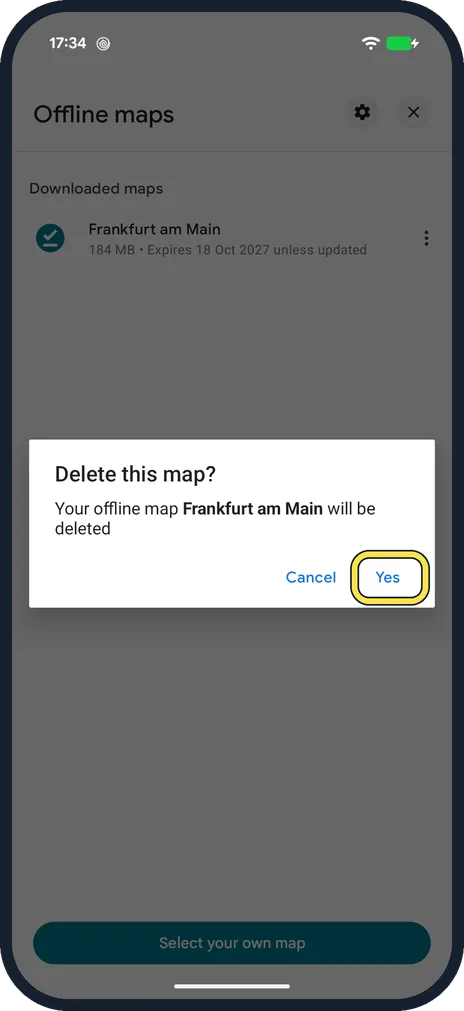
Tap the three dots next to the map, then Delete, and Yes in the "Delete this map?" box.
If you do not see this option
- No Offline maps in the menu? You need to be signed in to Google Maps: the menu under the profile picture is the account menu. Google says offline maps can't be downloaded in some countries or regions. Source: Download areas and navigate offline (Android)
- Download will not start on mobile data? Download preferences was Over Wi-Fi only on ours (step 6). Change it there, or connect to Wi-Fi. Source: Download areas and navigate offline (Android)
If this does not work
- Not enough space? Allow for several times the estimate: our 45 MB estimate became 184 MB. Pick a smaller area or free some storage first.
- Map expired? Maps updates recently used maps over Wi-Fi. If a map expires, open Offline maps on Wi-Fi and update or download it again. Source: Download areas and navigate offline (Android)
About this guide
An offline map lets you search and get directions in Google Maps with no signal. The download is bigger than Maps first says, so start it on Wi-Fi.
The screenshots are from our Google Pixel 10a with Android 17 (build CP3A.261005.005), in Dark mode, taken on 18 October 2026. Google Maps showed in its light theme. We downloaded central Frankfurt, then deleted it.
Good to know
Fewer pop-ups from Maps: turn off Google Maps notifications on Android.
In short: Maps, profile picture, Offline maps, Select your own map, Download. Expect more than the estimate; ours expires in a year unless updated.
Links checked in October 2026. Menus and features can change after software updates. These steps match the version named at the top.
Did this guide work for you?
Sorry about that. What happened?