
howtosimply.com/guides/download-pending-in-google-play-6-fixes/ · Checked October 2026 · Samsung Galaxy A57 5G (SM-A576B), One UI 8.5, Android 16
In this guide
Google Play installs one app at a time, so pending usually means other downloads or updates are queued. Open your profile, Manage apps & device and finish or cancel the updates. Then check the App download preference, free storage, and clear the Play Store cache.
6 of 6 steps with real screenshots · 2 official sources below
- Device
- Android
- Shown on
- Samsung Galaxy A57 5G (SM-A576B), One UI 8.5, Android 16
- App
- Google Play
- Real screenshots
- 6 of 6 steps
- Our phone
- Shown on Galaxy A57, One UI 8.5
- Checked
- October 2026
- Sources
- 2 official, linked below
Step by step
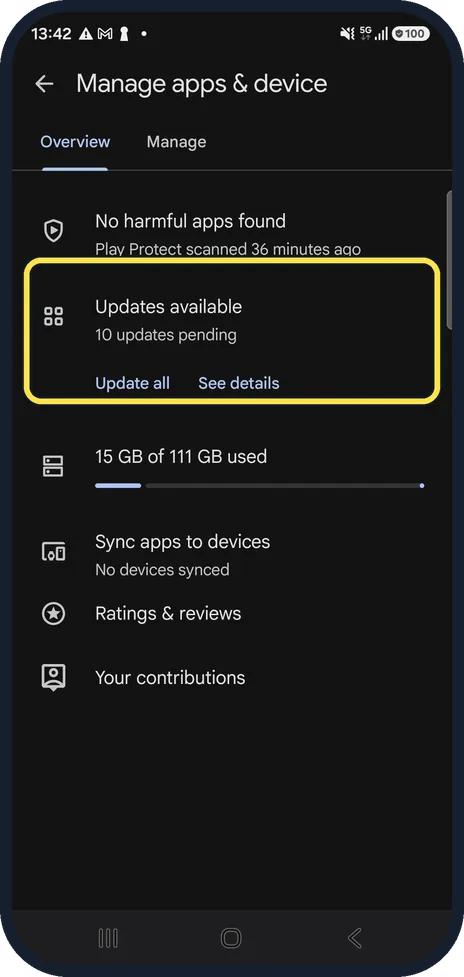
Look at the queue
In Google Play, tap your profile picture, then Manage apps & device. Updates available shows how many are waiting. Update all, or See details to pick only the ones you need.
Watch these steps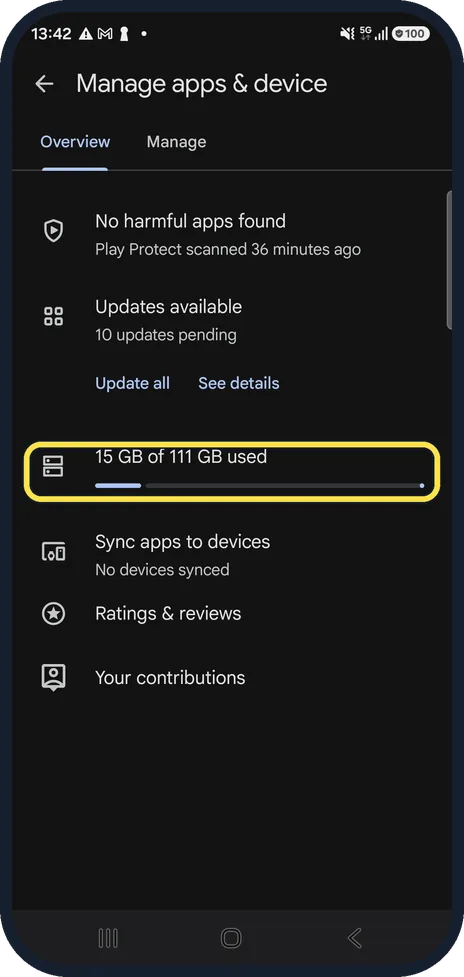
Check the free space
The same page shows how much storage is used. Samsung advises freeing some up when less than 1 GB is left.
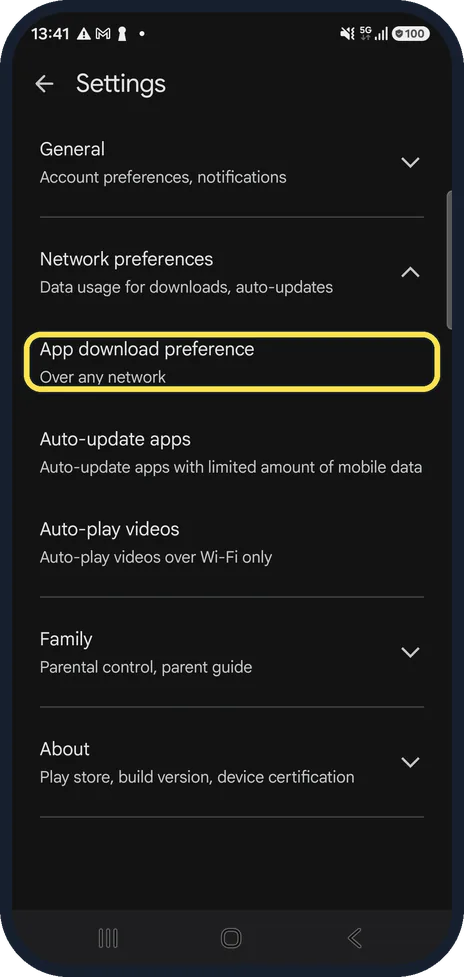
Check the App download preference
Profile, Settings, Network preferences, App download preference. If it says Over Wi-Fi only, downloads wait until you join Wi-Fi.
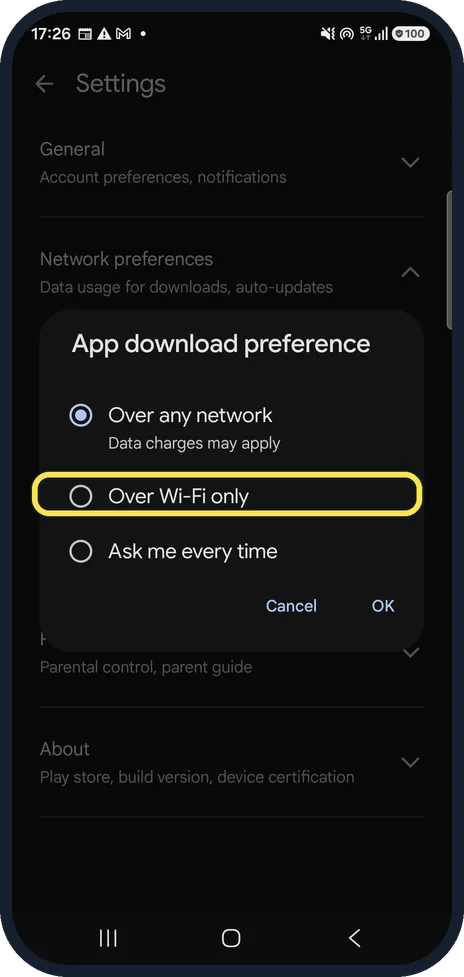
Choose when to download
Over any network downloads straight away and may use mobile data; Over Wi-Fi only waits for Wi-Fi. To stop downloads waiting, pick Over any network.
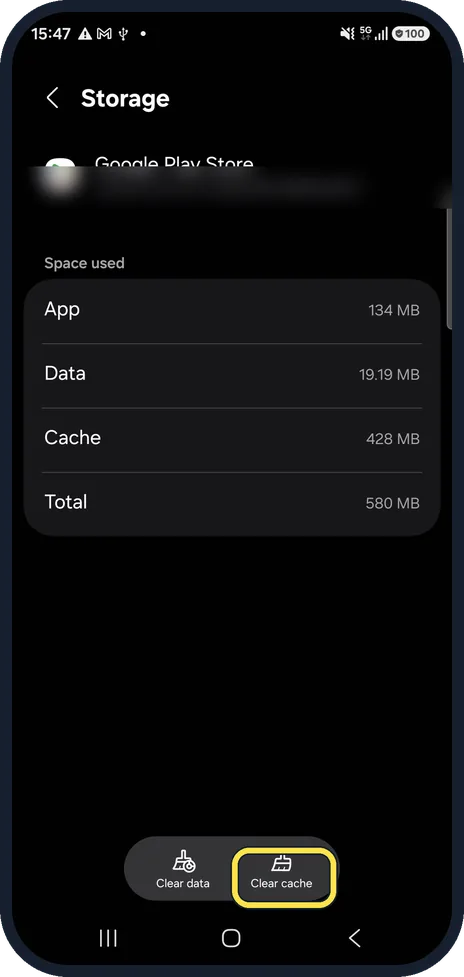
Clear the Play Store cache
Settings, Apps, Google Play Store, Storage, Clear cache. Ours had 428 MB of cache. Clear cache keeps your apps and account.
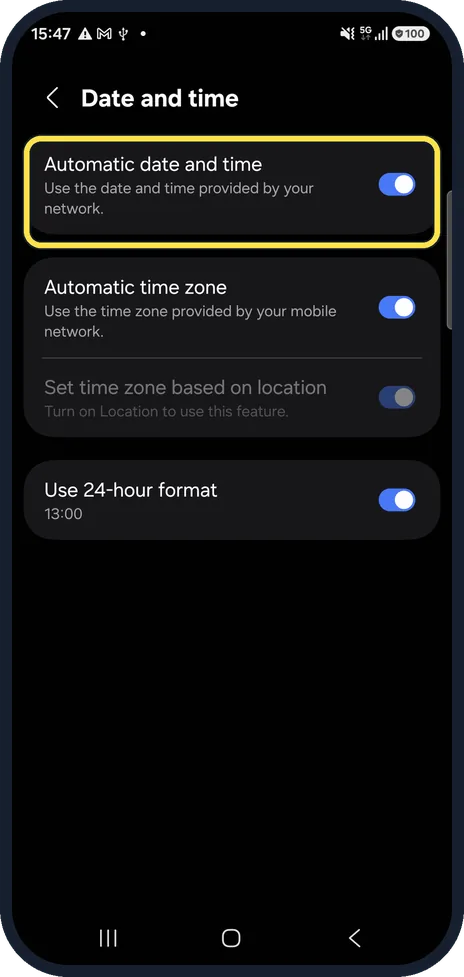
Set the date and time automatically
Google lists a wrong date or time as a cause of failing downloads. Settings, General management, Date and time, Automatic date and time. It was on on our phone.
Watch these steps
If you do not see this option
- You have a Google Pixel or another phone Google gives the routes Settings, Storage for free space, and Settings, System, Date & time, where Set time automatically and the time zone Set automatically should both be on. Source: Fix problems downloading apps with basic troubleshooting steps
If this does not work
- Still pending Google suggests closing and reopening the Play Store, restarting the phone and checking for a system update. Source: Fix problems downloading apps with basic troubleshooting steps
About this guide
An app sits at Download pending and never starts. On our Galaxy, Play showed 10 updates waiting, which is the most common reason: everything in that queue goes first.
We opened these screens and cancelled every dialog; no update was started.
Good to know
A VPN or a very weak connection can also hold downloads. Switch the VPN off for a moment and try again.
Still stuck? Restart the phone and install any system update under Settings, Software update.
In short: Clear the update queue in Manage apps & device, free storage, check App download preference, clear the Play Store cache, automatic date and time.
- Samsung HK: How to troubleshoot Google Play Store download
- Google Play Help: Fix problems downloading apps with basic troubleshooting steps
Links checked in October 2026. Menus and features can change after software updates. These steps match the version named at the top.
📷 See real photos from the Galaxy A57 in our Camera Lab, next to 10 other phones.
Did this guide work for you?
Sorry about that. What happened?